
home → Guides → StoryboaRD
How to Design a UX Storyboard

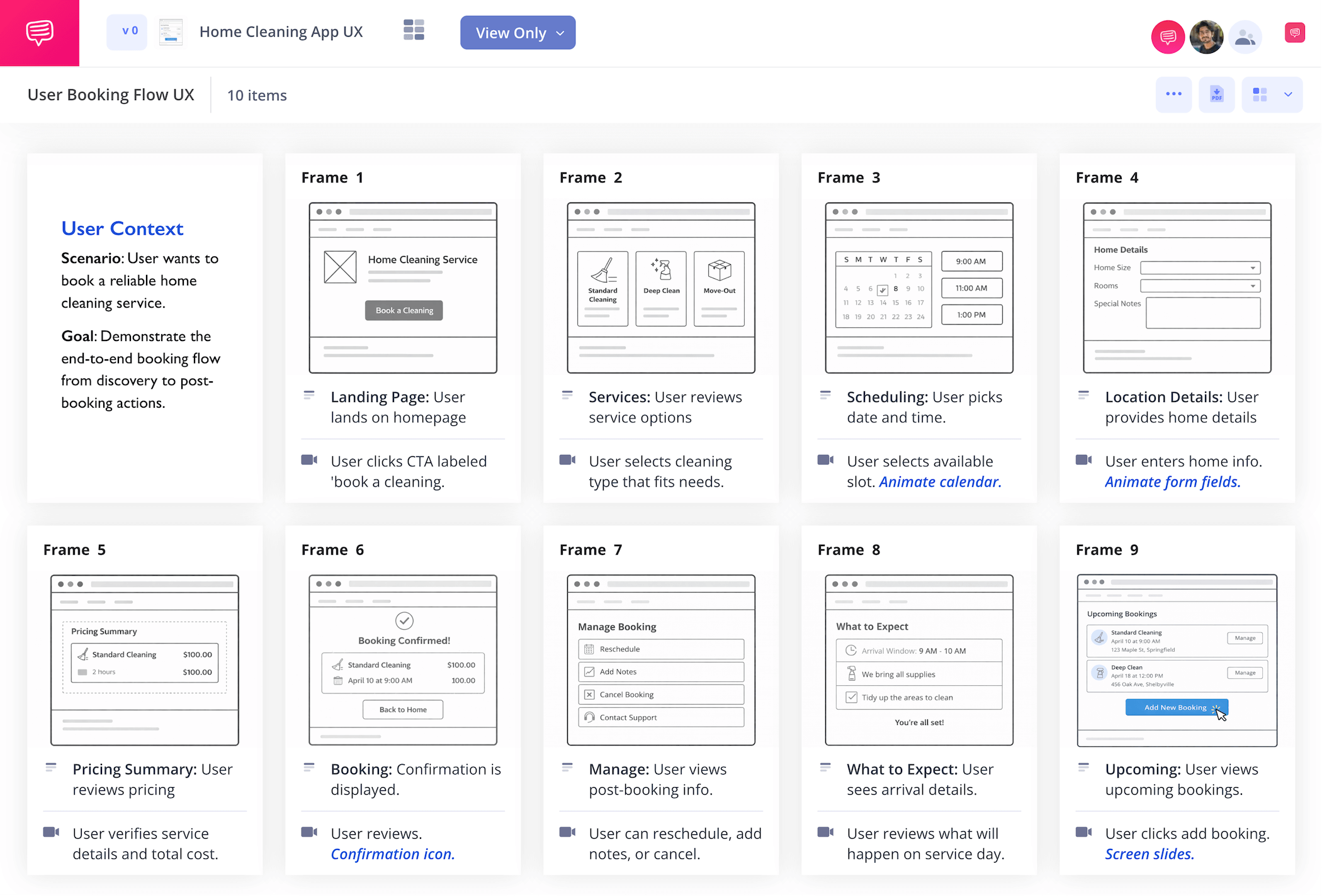
How to design a UX storyboard
If you have a vision in mind for any digital or app based experience, a ux storyboard is a great pre-planning tool to keep by your side. UX design isn’t just about making sure your app or website looks and runs as smoothly as possible, it’s also about understanding your customer’s needs on a personal level.
UX storyboarding visually lays out every step your customers take from why they decide to use your product, to how they obtain your product, and finally how the overall experience made them feel. With insights like these, why wouldn’t you take advantage of storyboarding in ux design? In this guide on how to put together your own ux design storyboard, we’ll walk you through all the important steps in the storyboarding process.
We’ll use StudioBinder’s storyboard creator as our main storyboard ux example, but feel free to apply any kind of storyboard you have available.
Step 1
1. Structure your template
You’ll start by creating a ux storyboard template that can accommodate your needs. Square 16:9 panels (aspect ratio for most modern screens), or more vertical 9:16 panels (aspect ratio for most smartphone screens), are the two options most likely to fit your project.
And structuring your storyboard format at or under 8 panels per page will keep your storyboard clean and easy to follow. Now start placing yourself in the shoes of someone who needs what you’re offering.
What insights their decision to search for your product or service, where do they find your product or service and what makes them choose it out of all other available options? UX storyboards trace each step your customer takes, so write out the details of those steps in your panel description fields.
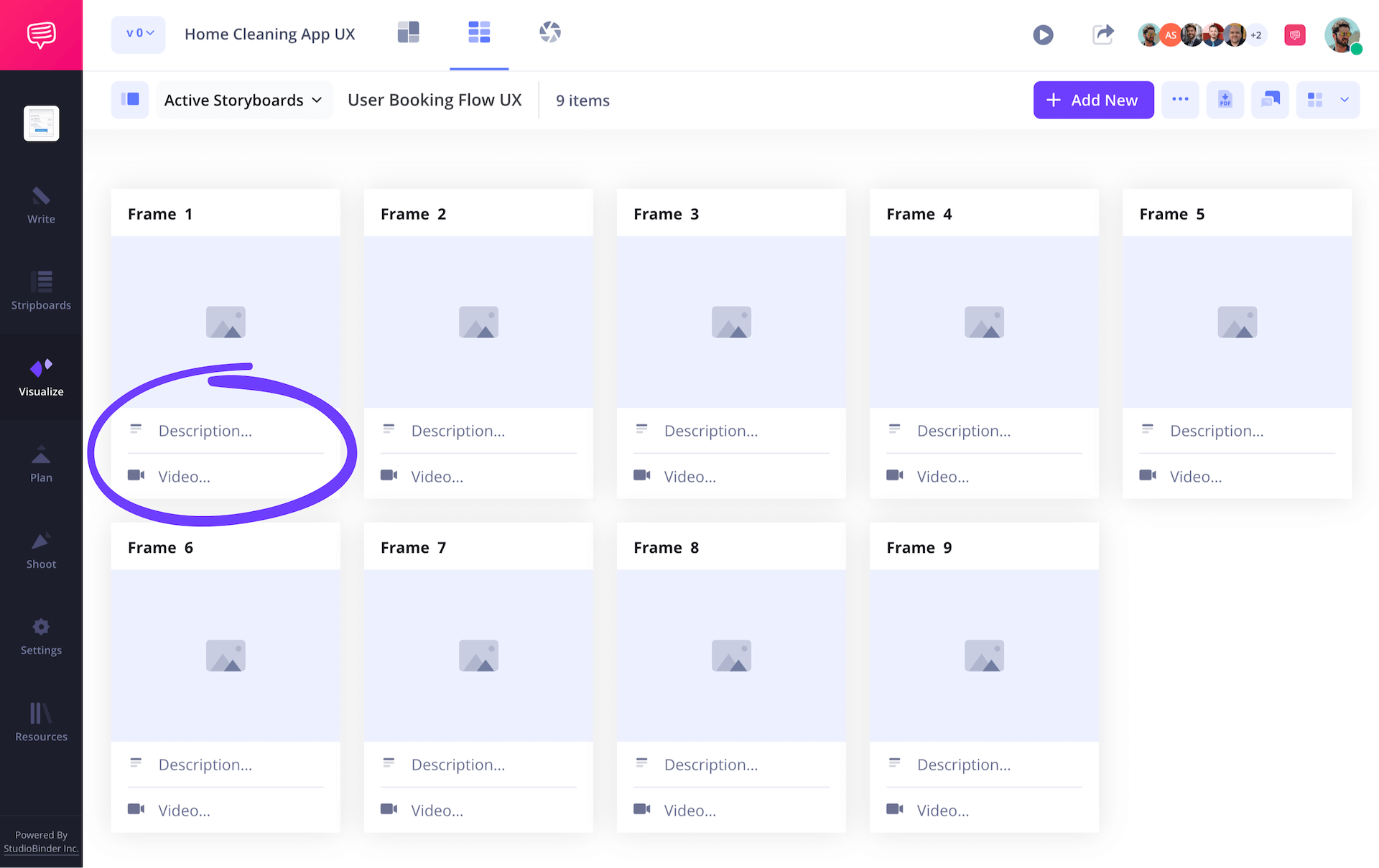
For our ux storyboarding example, we’re going into our sidebar to help structure the amount of storyboard pages we plan to use for this project.
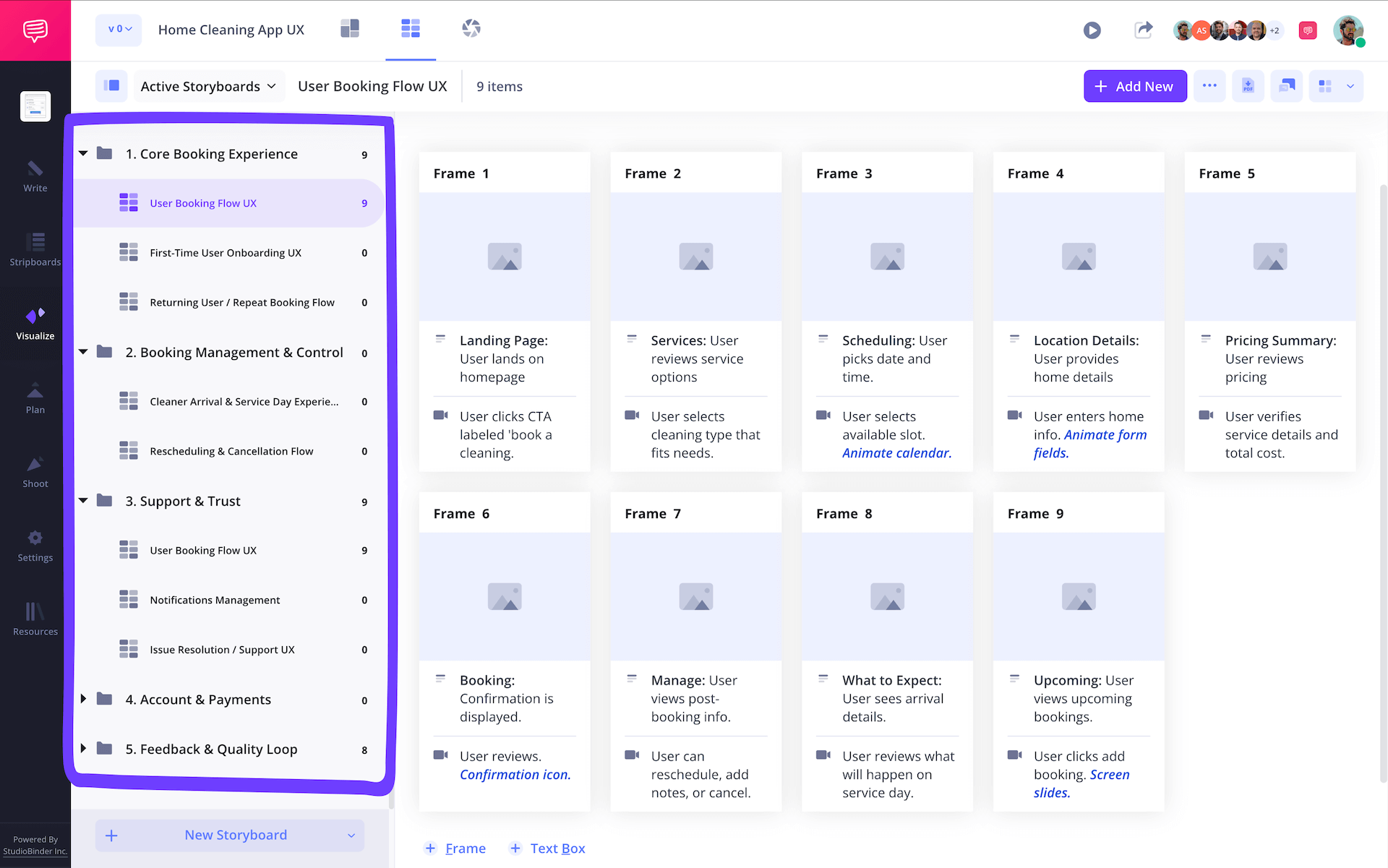
Now with our descriptions written and a set storyboard ux structure we can easily follow, we’re ready to visualize our steps next!
Step 2
2. Add images
Adding images to your ux storyboard won’t be a hassle at all. Even if this is your first time visualizing your app or website interface, these images will mostly use basic shapes to show where certain objects or text are positioned, while your developer will give it all more of a stylized, professional look.
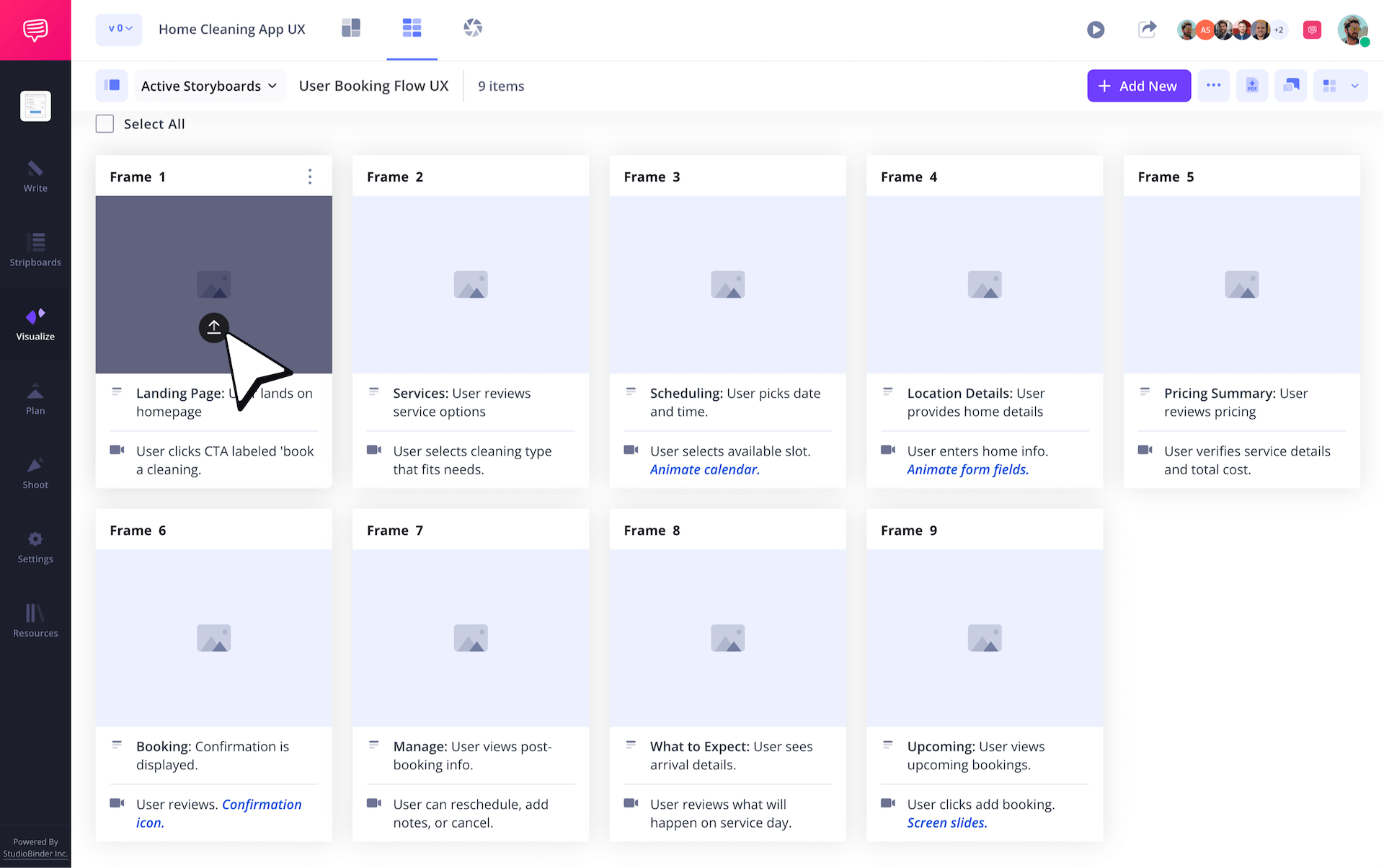
UX storyboards can even use reference images from other ux presentations that inspired yours, or AI images to help you lock down a look and feel you have in mind. When you’re ready, just press Upload on any frame to insert images for your ux design storyboard.
Step 3
3. Organize your storyboard
Storyboarding in UX design goes hand in hand with marketing data insights, so you’ll probably create many different versions of your ux storyboard to better understand the many types of customers and many ways those customers will find and use your digital service.
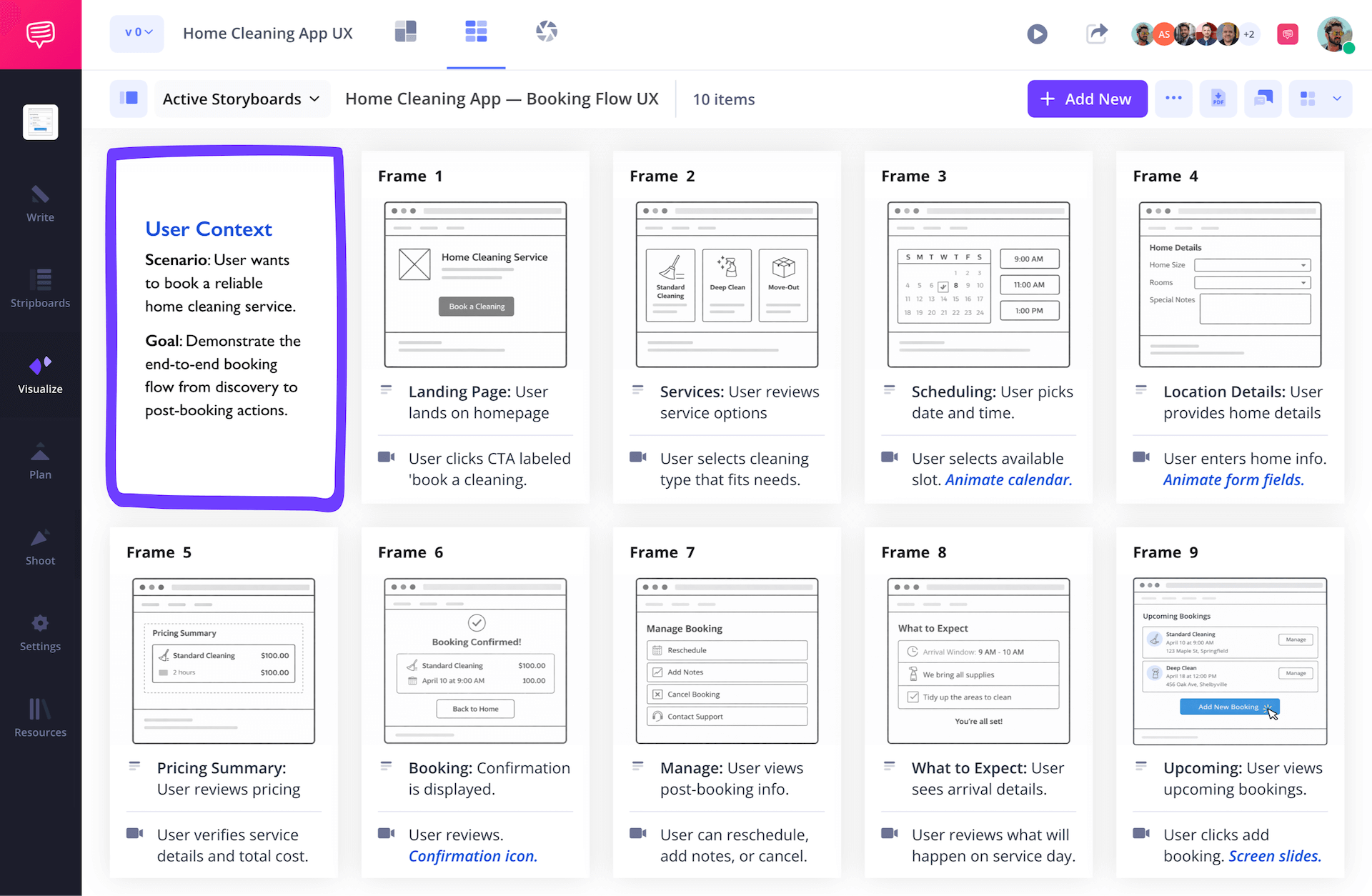
As your ux storyboards increase in number, it’s helpful to organize each version so you can seamlessly refer back to them. For our storyboarding ux project, we’re making text boxes for each of our storyboard pages. These can be quickly customized and then dragged and dropped anywhere on your ux design storyboard.
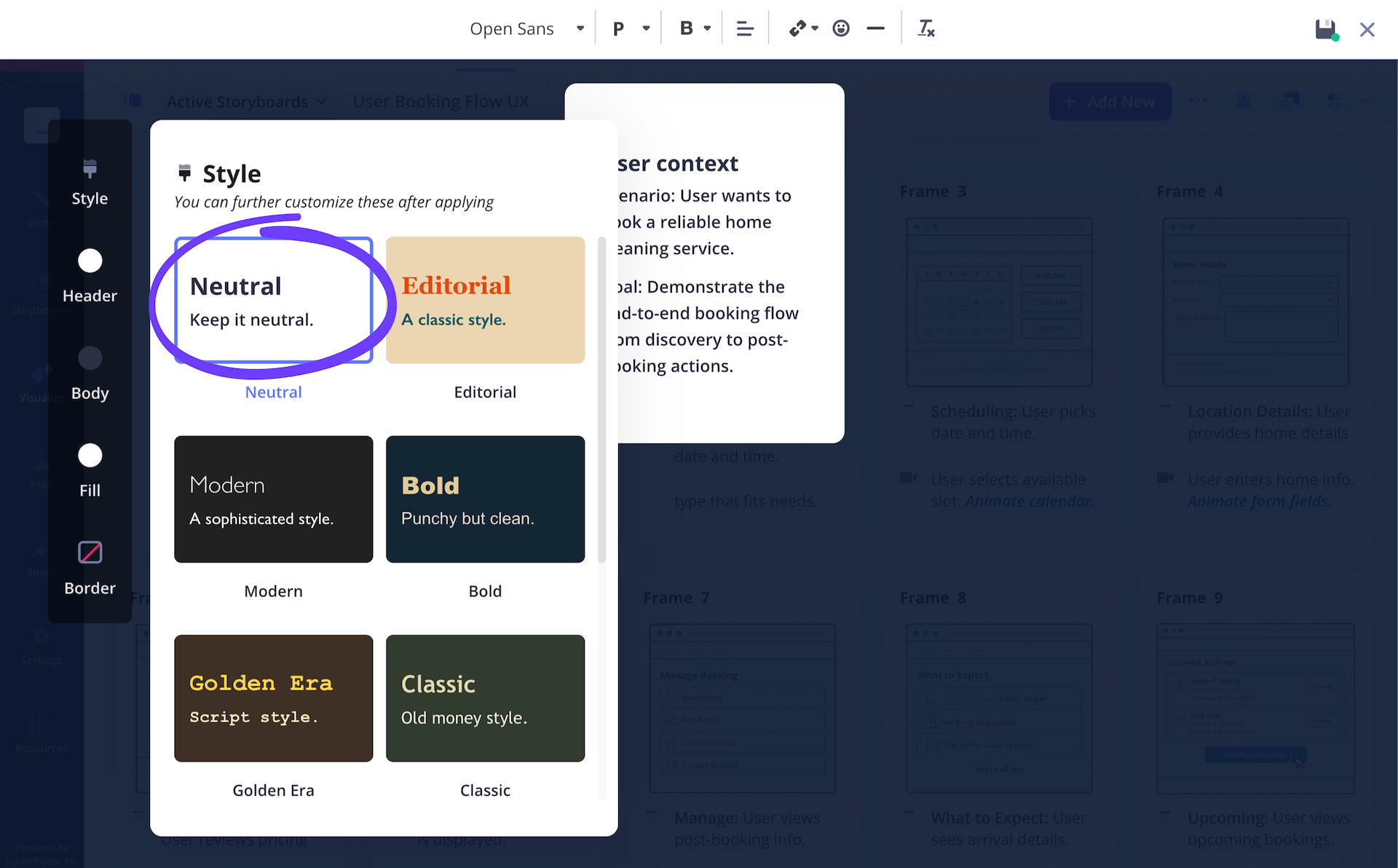
With our style and text locked down, we’ll click Save, then place our text box right at the beginning of our ux storyboarding page. Now we have a placement card that reminds us exactly what this storyboard page explores without having to read through it again.
Step 4
4. Collaborate and refine
If you’re working with coworkers and digital storyboard developers, putting your talents and perspectives together to create the optimal user experience is what storyboarding in ux design is all about.
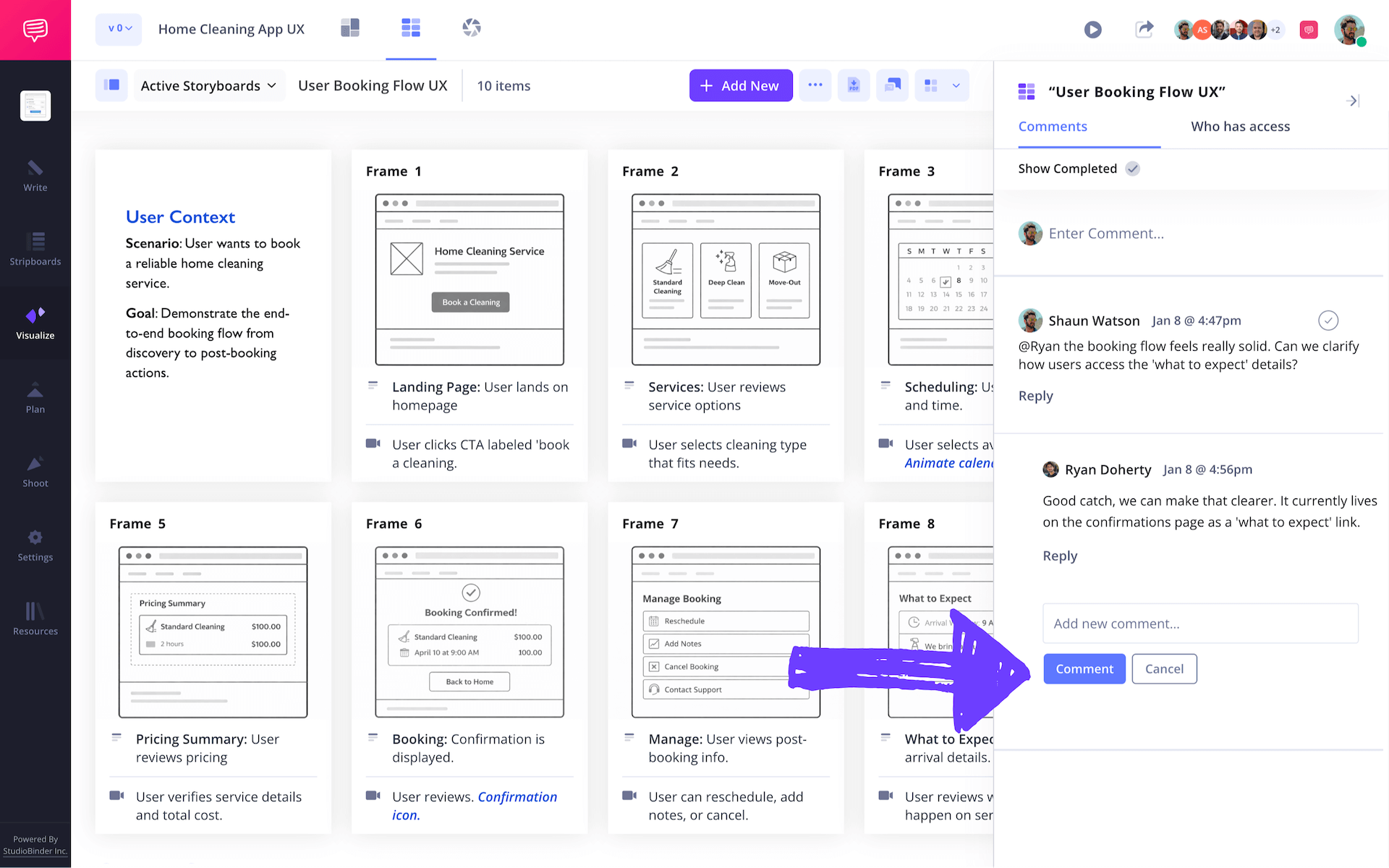
For project managers, startup teams and stakeholders alike, you can use your ux storyboard itself to invite anyone to edit or provide feedback on your project. When sending a personal invite to access your storyboard for ux project, set the permissions to either viewer, commenter, or editor.
With commenter or editor permissions enabled, your collaborators can use the comments section of your storyboard to strike up a discussion on any notes they might have for you.
Step 5
5. Download and share
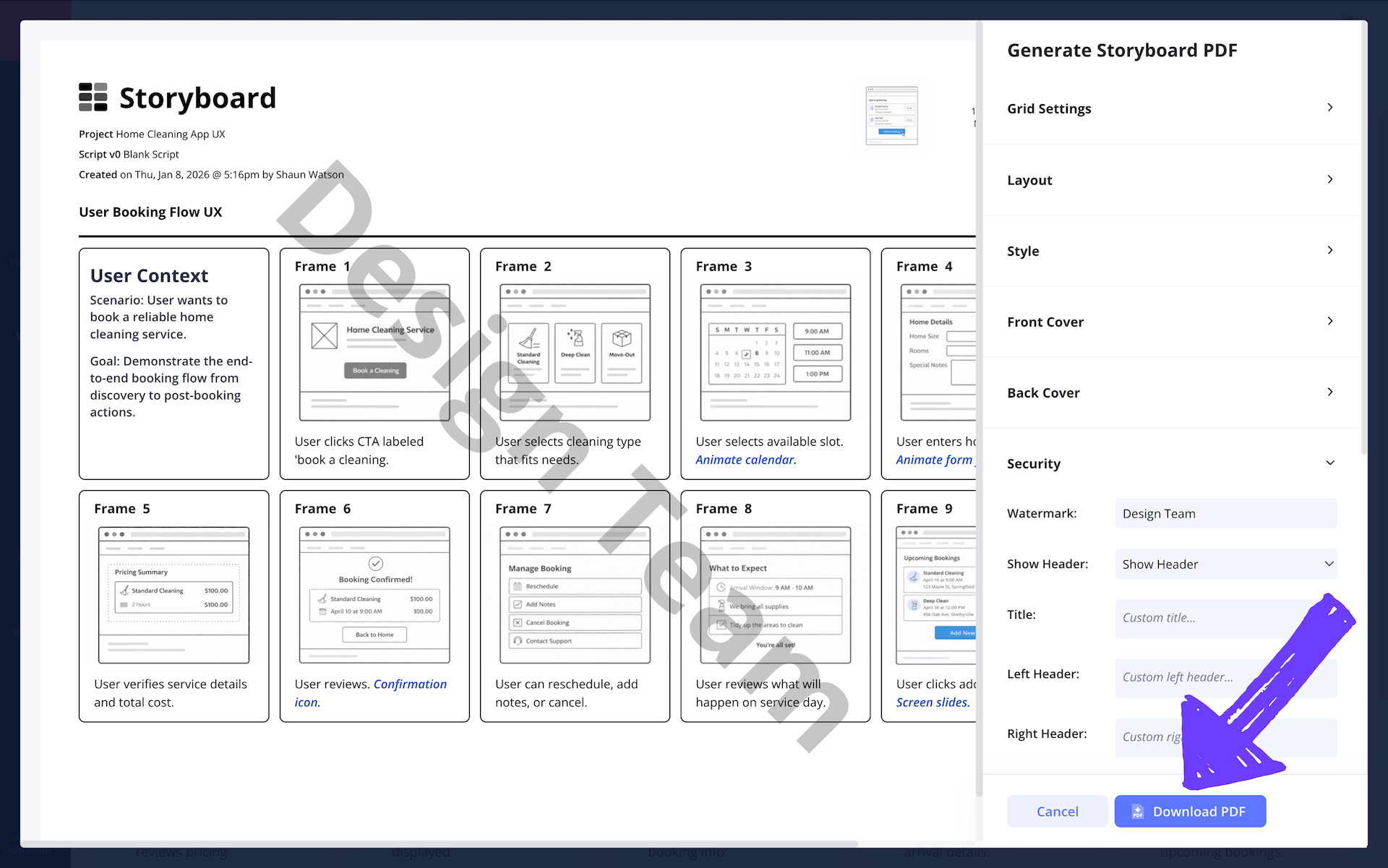
Now that we’ve covered the important storyboard steps to building your ux storyboard, let’s make sure it gets properly saved and distributed to your team. Since any storyboard in ux design project will go through many iterations, downloading each version as a PDF document will help make sure they aren’t accidentally changed or deleted.
You of course also have the option to customize your PDF documents based on any requests that come your way, this way you don’t have to go back and recustomize your actual storyboard. For our storyboard ux project, we’re going into StudioBinder’s PDF generator and making a handful of edits for our digital design team’s copy.
Now that we realigned our panel spacing and made some font size adjustments, we’ll just add a custom watermark in the security tab and call it a day!
Conclusion
All done!
And that, friends, is how to create a ux storyboard! But maybe storyboarding ux projects doesn’t fully scratch that itch you have to continue learning about the storyboard process. In that case, be sure to check out all our free storyboard templates!
Frequently Asked Questions
Your questions, answered
A storyboard for ux design is essentially a storyboard that tracks the entire user experience of your website or digital service. For example, if you’re creating a food delivery app, then a ux storyboard would be used to visualize and detail each step of the user’s experience, from what makes them think about ordering food, to how they search the internet to find your app, and even how they feel by the end of the experience.
It’s a way of not only understanding what the entire interface of the whole experience will look like, but also helps form an empathetic connection to the kinds of people who would benefit from what you have to offer.
Yes, storyboards are technically considered part of the ux process, though they’re not considered user experiences in and of themselves. This is because as the experience of particular users of a product or service is researched and identified, ux storyboarding is initiated as a way of better understanding those incites. For example, you might create a ux storyboard to get a more complete picture of each step a certain age and class demographic goes about finding and using your product or service.
Yes, ux storyboards are technically based in psychology. They may not be used to conduct an actual scientific experiment per say, but they’re built with the intent of understanding how human beings think and make decisions. This is because when building a ux storyboard, the whole idea is to identify why your main user demographic chooses to use your product or service.
Each panel technically breaks down the psychology of how they go about using and interacting with your website or app, which are then also converted into valuable marketing insights.
Storyboarding a user experience is highly valuable if you really want to get into the psychology of why and how your website or app service is used. With this tool, you visualize each step your customer demographic takes, from desiring your product or service, to actually searching for, locating, and using it. When you finish building your ux storyboard, you gain valuable insights around more efficient ways to meet your customers where they’re at, as well as better design initiatives for your website or app interface.
Design your UX storyboard today
Plan out the user journey of your customers with a professional UX storyboard template.
Get started for free
