
home → TEMPLATES → Storyboard
eLearning Storyboard Template

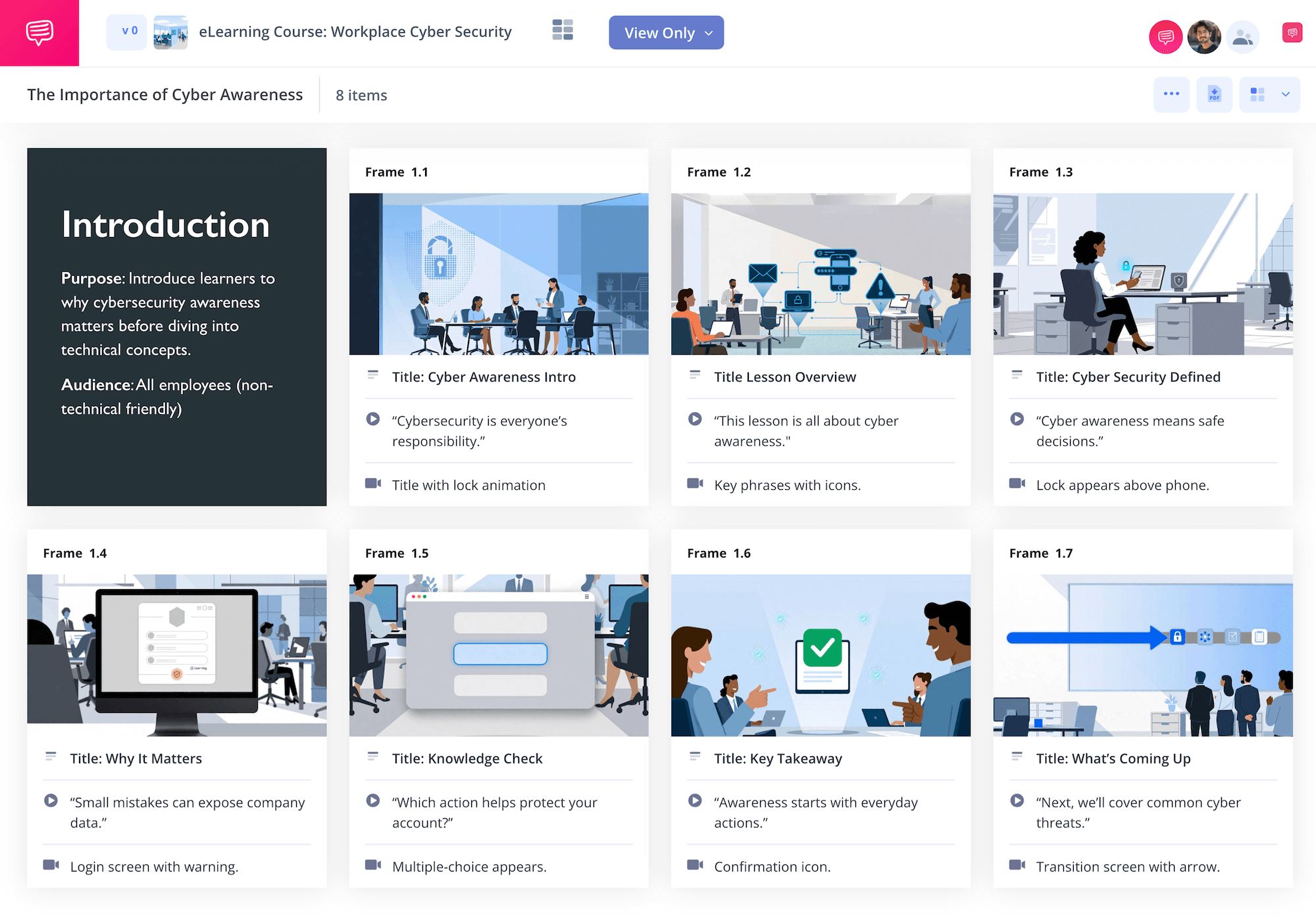
eLearning storyboard template
If you’re looking to create a work training or education tutorial through digital means, then an eLearning storyboard template will help you pre-plan and organize all your instructional ideas. An eLearning storyboard lets you visualize how each step in your digital training course or briefing will look to the viewer, allowing you to save valuable time and cost.
Think of elearning storyboard software as providing a helpful roadmap for your digital developers to work from, this way they can bring your vision to life seamlessly. In this guide, we’ll take you through the most essential steps to building your own eLearning storyboard template.
We’ll use StudioBinder’s storyboard creator to present all our eLearning storyboard examples along the way, but you can use any kind of storyboard template that works for you since these steps are broad enough. Let’s get started!
Step 1
1. Prep your template
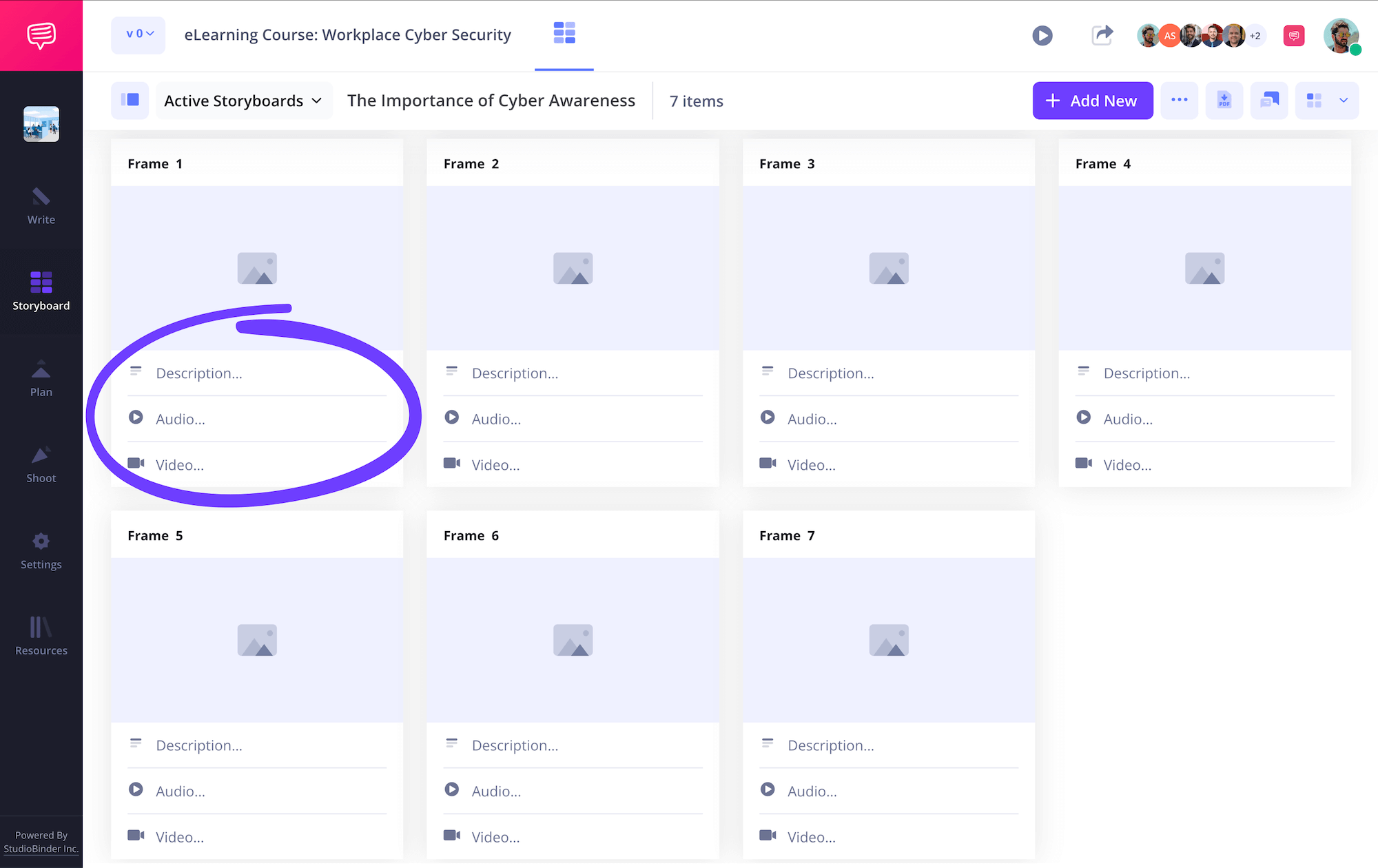
Let’s start by setting up our eLearning storyboard template. Your overall template structure will really depend on how long and detailed your course is, but we recommend keeping each page of your elearning storyboard at displaying only 8 panels or less per page, this way the visual and written information doesn’t get too cluttered.
16:9 panels are also a solid aspect ratio to go by since most modern screens fit that length. Whether you’re creating an interactive online course or a set of video-based lessons, you’ll want to start writing what will be seen and heard by your viewers into your panel description fields.
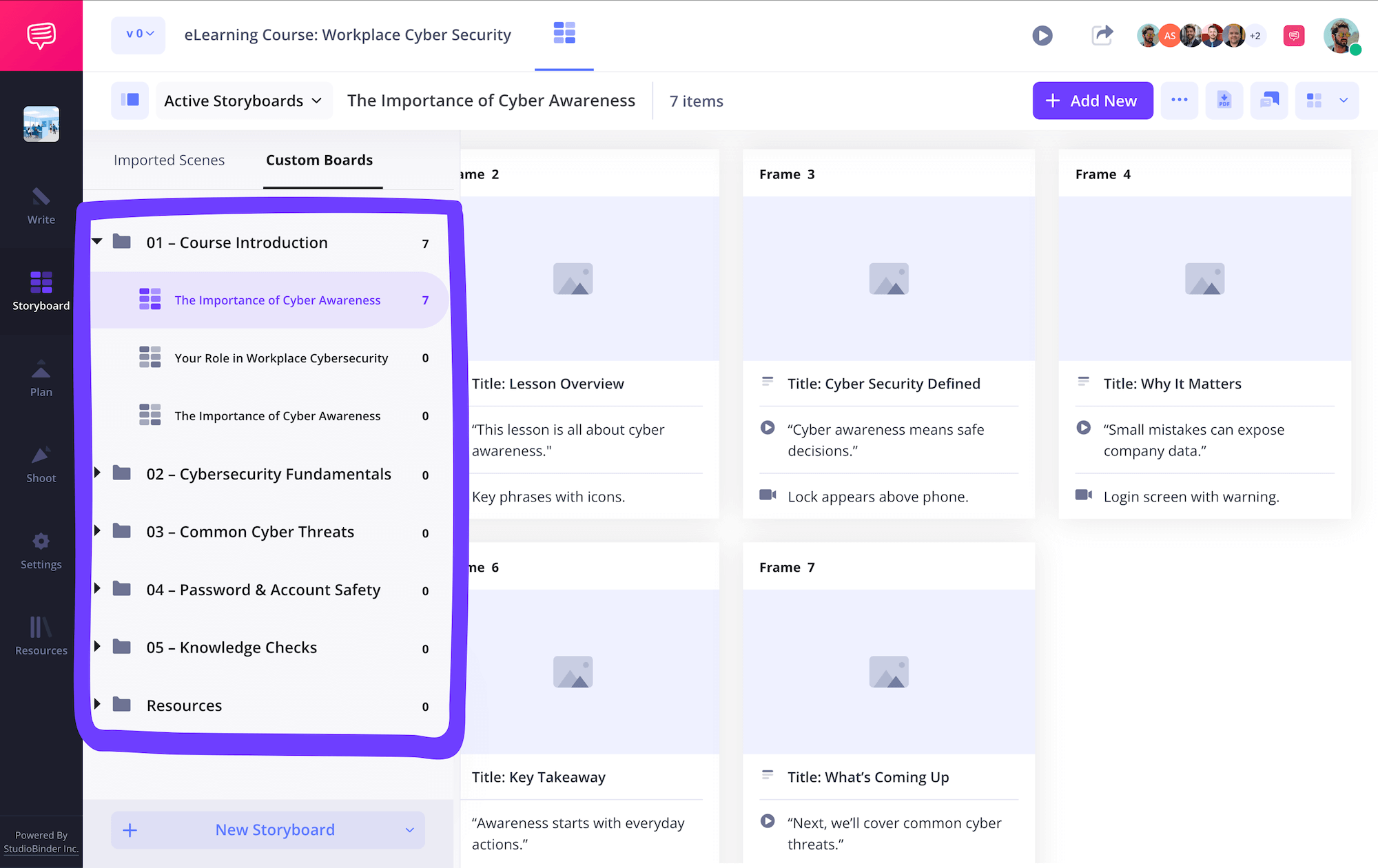
Since this page only represents one of many digital steps we plan to storyboard, we’ll also go into our sidebar and create some groups organized around each important section of our walkthrough. Now we have all our course details written and a clean structural plan, great start.
Step 2
2. Upload images
When it comes to making panel images for your elearning storyboard template, you have a handful of options. Even if you’re not a gifted illustrator, digital design largely consists of basic shapes, so sketching images yourself can be done pretty simply, because it’s more about knowing where and what you want to be seen on screen, rather than how good your eLearning storyboard art looks.
You can also use temp images from other online academic courses or work onboarding tutorials that inspired your design. And of course, AI can mock up many versions of your visuals for you to choose from.
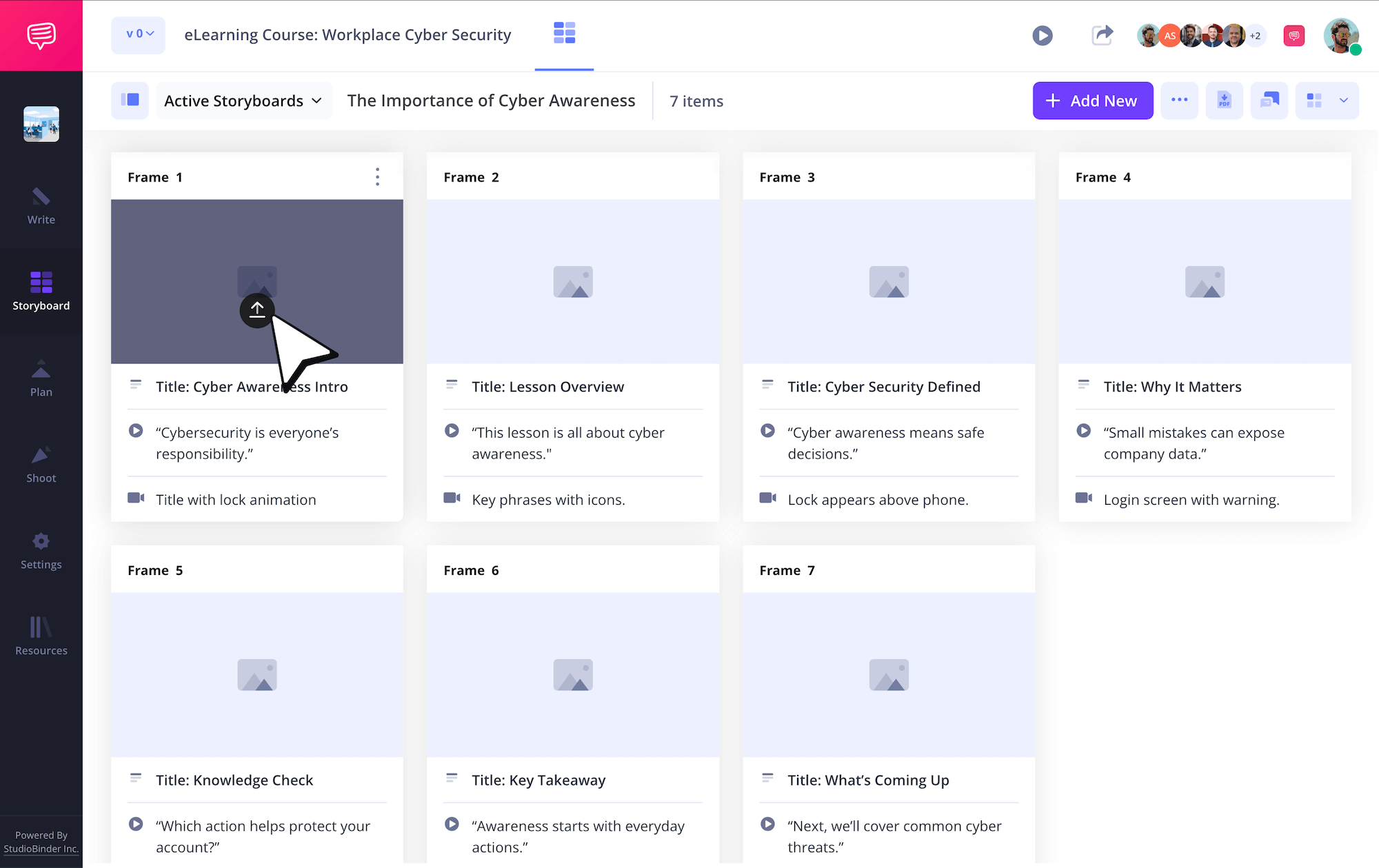
If you’re working in StudioBinder, just click Upload to add any images to your instructional design storyboard panels.
Step 3
3. Organize your course sections
Let’s say you’re building your elearning storyboard template for a workplace safety training course.
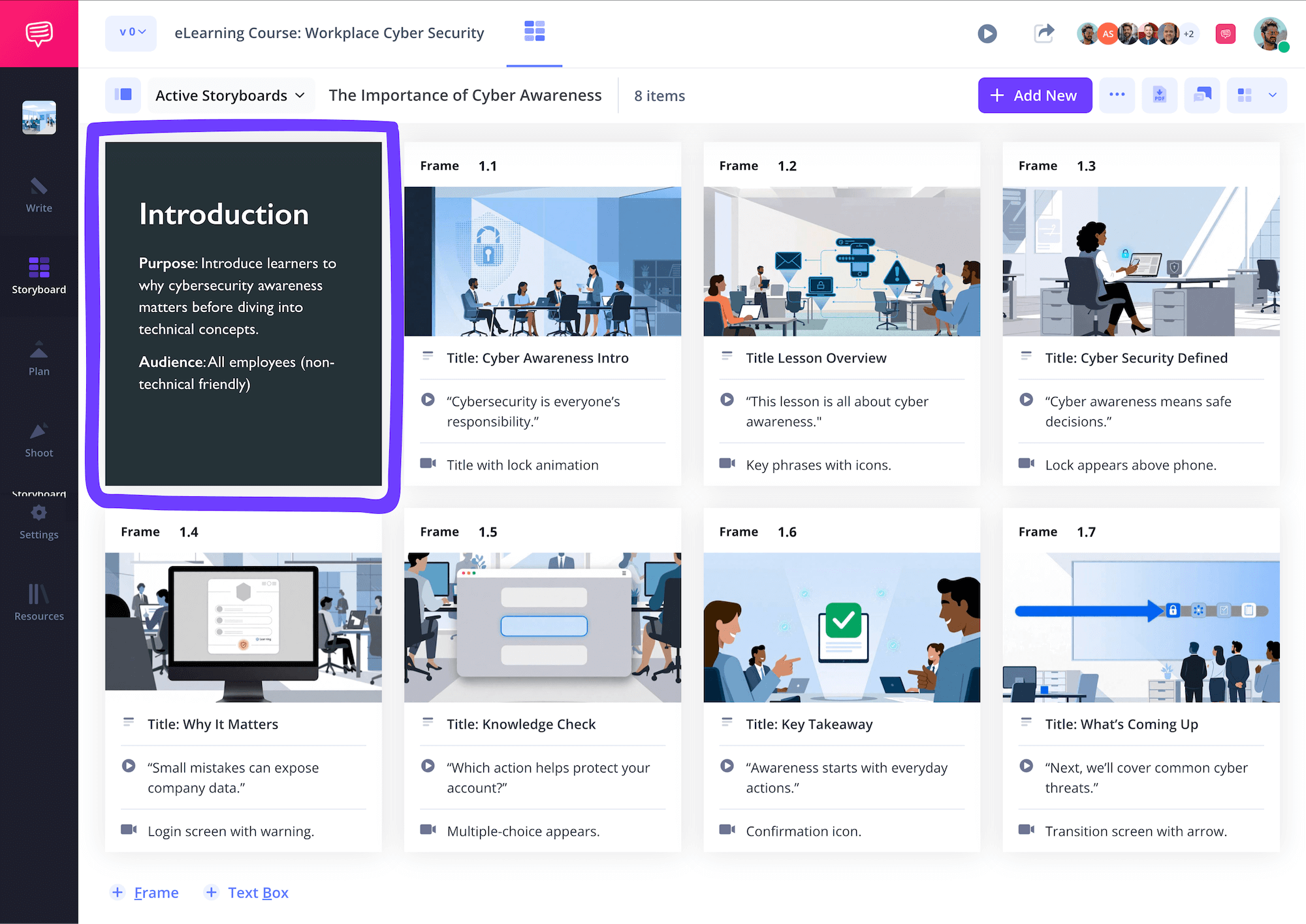
As you create more and more sections, it only gets harder to remember all the details in each group you made. Instead of constantly rereading each page, why not add a title card and logline that defines each of your eLearning storyboard pages?
As you can see in our instructional design storyboard template example, we’re customizing text boxes for each of our storyboard pages. These can be customized with an array of styles and dragged and dropped anywhere on your storyboard.
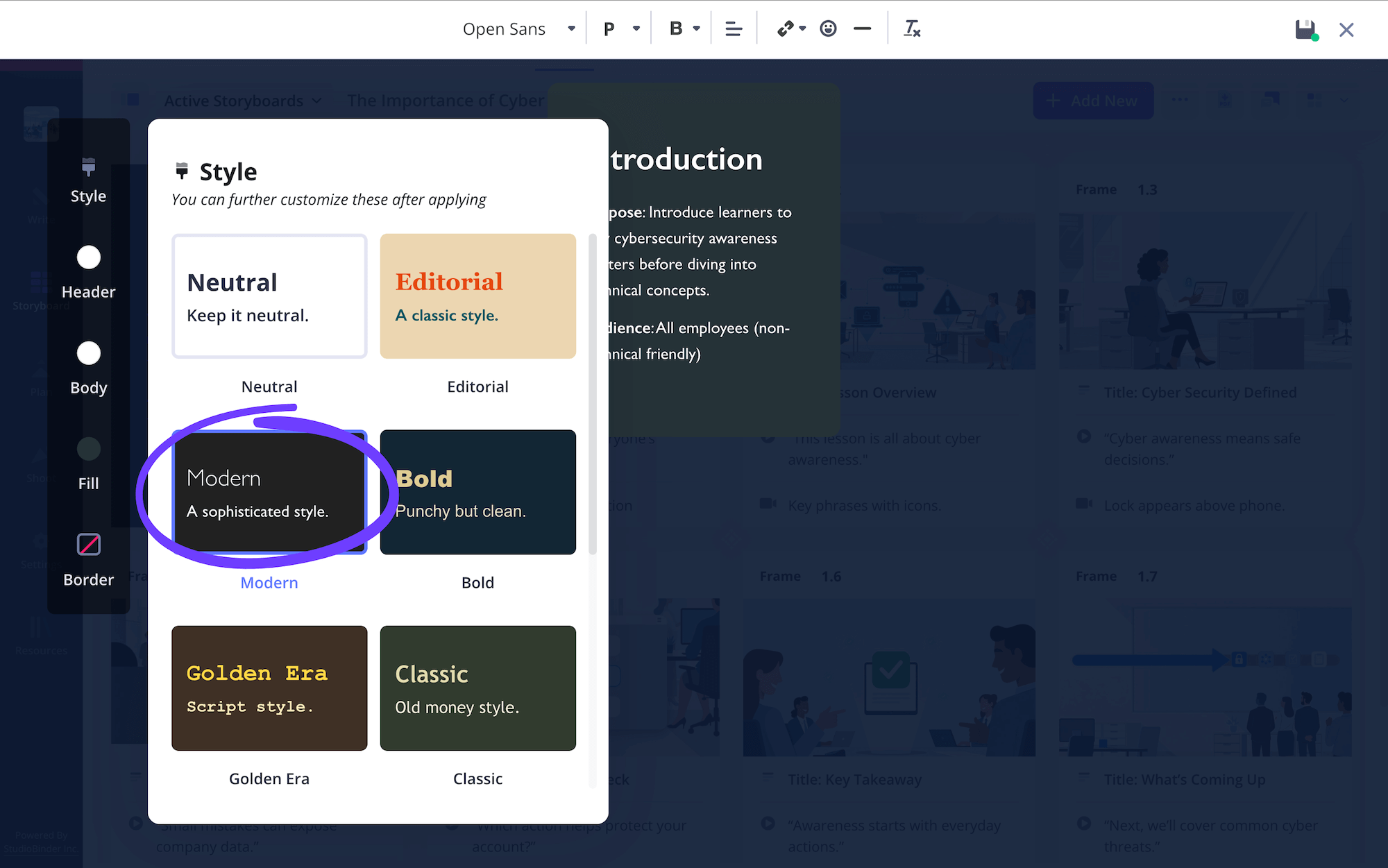
After locking our style and text down, we’ll click Save and place our text card right at the beginning of our instructional design storyboard. Now we definitely won’t forget this section’s purpose!
Step 4
4. Share and collaborate
As you wrap up building the first draft of your elearning storyboard template, you’re now ready to start sharing and receiving feedback from any coworkers or developers.
Maybe you’ll reach out to your recruiting team to make sure your corporate onboarding system is represented accurately, or maybe you need to send your storyboard to your developer to make sure they can understand your vision. Whatever the case, it’ll help to have one platform for all editing and communication.
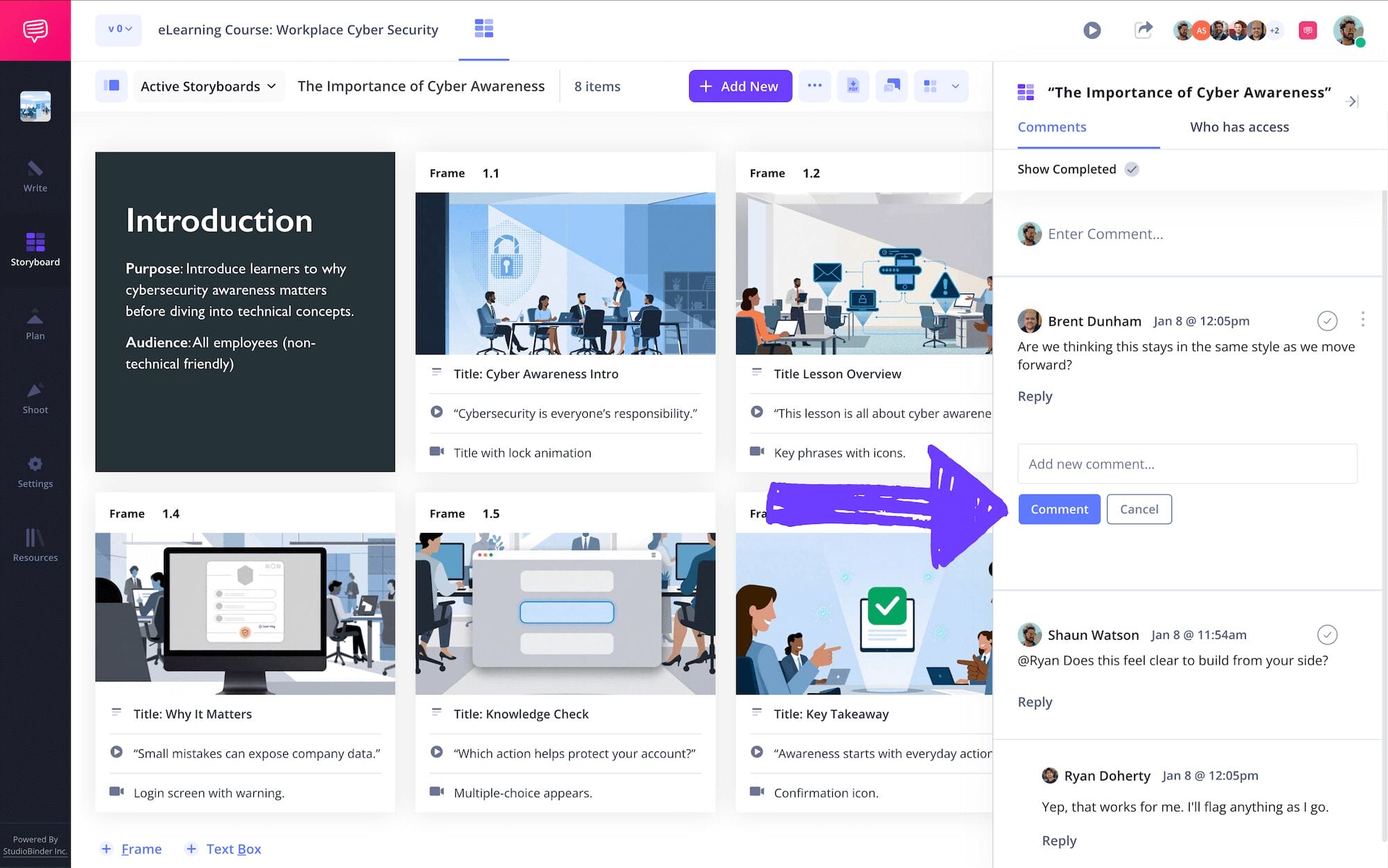
With StudioBinder, you can set each individual invite permission to either viewer, commenter, or editor. With commenter or editor permissions enabled, your collaborator can go into the comments tab of your instructional design storyboard and strike up an actionable feedback conversation with you.
Step 5
5. Convert to storyboard PDF
You’ve built your eLearning storyboard template, you’ve collaborated and refined your vision, now let’s walk through the best way to save and send your work. Converting your eLearning storyboard to a PDF document, not just when you’re finished, but throughout the entire process, cements your storyboard as an unchangeable document that you can always refer back to.
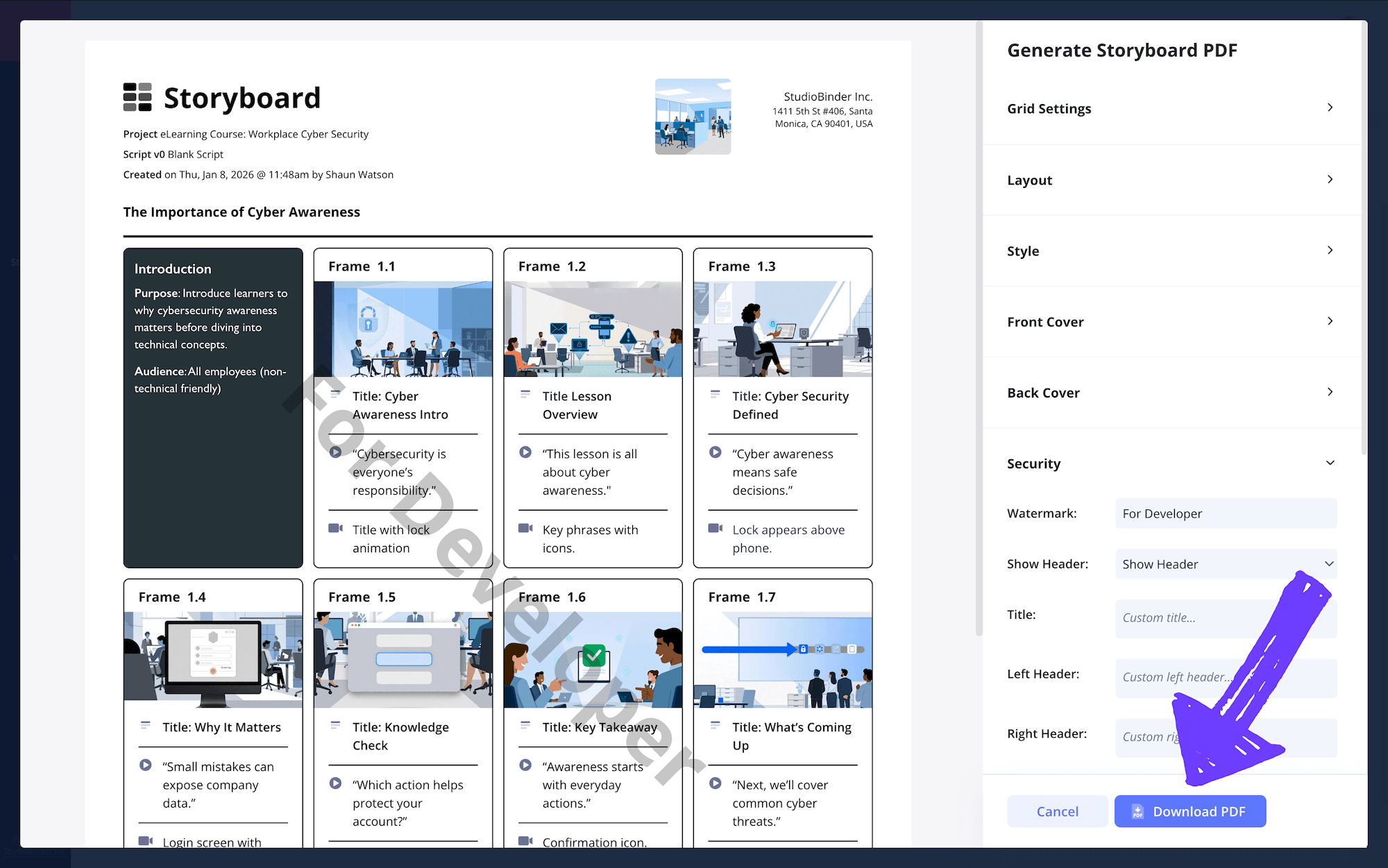
Not only that, once your developer is ready to put your work to screen, you can print or send them a PDF version of your storyboard to work from. For our own storyboarding instructional design project, we’ll go into StudioBinder’s PDF editor and add a front and back cover for the copy we’re sending to our lead developer.
Now we’ll add one last touch to our document with a watermark in case it gets misplaced.
Conclusion
All done!
And that’s a wrap on our elearning storyboard template tutorial! If you’re craving more template breakdowns that extend past just these eLearning storyboard examples, be sure to check out all our free storyboard templates when you get a chance!
Frequently Asked Questions
Your questions, answered
If you’re looking for a simple breakdown of how to build an elearning storyboard, look no further! Once you’ve established how you want your online tutorial or work onboarding process to look, find a template online with the structure you need and begin writing each new screen, transition, or set of questions in the descriptions near each of your panels.
Now that you have your descriptions established, just bring them to life with images. You can draw your own, find reference photos from other online tutorials, or even use AI to whip up a rough idea of what your developer will eventually perfect. Now just keep drafting until your storyboard reflects the kind of digital tutorial you’re looking for.
An elearning storyboard is unique in that the images can often be sketched without much artistic skill because you’re really just drawing shapes and text, with your focus more on where you want each item positioned on the screen.
But even if you’re still not confident in your illustration skills, you also have the option to use screenshots of other digital design tutorials that inspire you. Since the storyboard is ultimately just a reference point, your designer will give it a more unique identity for your business or academic establishment.
And of course, AI can also be used to create a rough idea of what you want your webpage to look like.
Writing on your elearning storyboard template will mostly be done in the description boxes near your panels. Here you’re essentially describing what you want the course employee or student to see on each page.
If you’re making a storyboard for a video tutorial, separate all narration with “VO:” before writing out the dialogue. You can also identify movement or graphics with “visual/motion:” The key is to distinguish between each visual detail to make your storyboard digestible at first look.
If you’re planning a digital course or education tutorial, an elearning storyboard will really help you hone your vision.
Since digital course and development walkthroughs can get pretty difficult to keep together in your mind, writing down your ideas will help, but visualizing what you want will not only help your developer better understand what you want, it will also give you personal insights on how to better accommodate your own vision.
As you look at your elearning storyboard, you’ll notice transitions and maybe even entire sections that don’t quite fit into the workflow, saving you time and money by noticing these things before incorporating them.
Create your free storyboard
Visualize your eLearning storyboard with our free template.
Get started for free
