
home → TEMPLATES → Storyboard
Storyboard PPT Template Alternative

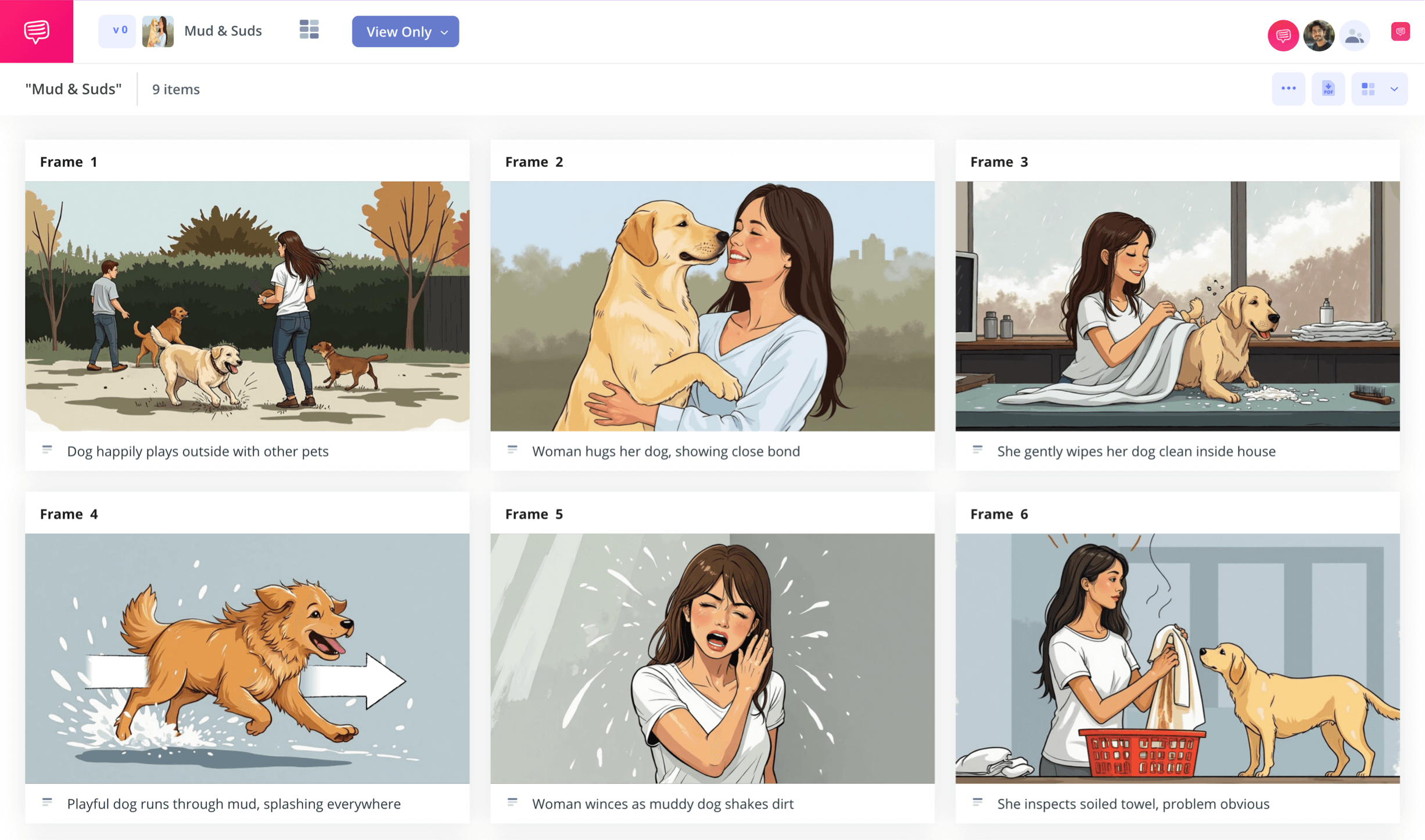
Storyboard ppt template
Whether you need a storyboard to present within a powerpoint presentation, or a storyboard to help you pre-visualize what your powerpoint presentation will look like, a storyboard ppt template is just the tool for you. With your own powerpoint storyboard template, you can create a graphic layout of what your presentation will show your audience in sequential order. Or if you have a slide, or series of slides in your powerpoint presentation that need to showcase the details of a custom-made storyboard, you can create and then insert your storyboard into your powerpoint slides. Whatever the case, building your own storyboard before presenting with powerpoint to clients, coworkers, or any kind of audience is a helpful way to showcase a visual narrative from imagination to screen.
Of course, any storyboard ppt template will need to first be approached with a general understanding of the storyboarding process. To guide you through this process, we’ll be using StudioBinder’s storyboard creator, but feel free to use whichever kind of storyboard works for you as you follow along.
Step 1
1. Ready your template
It’s always good to start by considering the storyboard dimensions and layout that will work best for your storyboard ppt template. If you’re pre-planning a powerpoint presentation with a storyboard, this will really come down to your own personal preference. But if you want your powerpoint storyboard template to appear within any of your powerpoint slides, make sure the template size and layout fits comfortably within those slides. After you start a new storyboard project with StudioBinder, you will be automatically prompted to choose from several formatting options that can also be changed at any time in the settings.
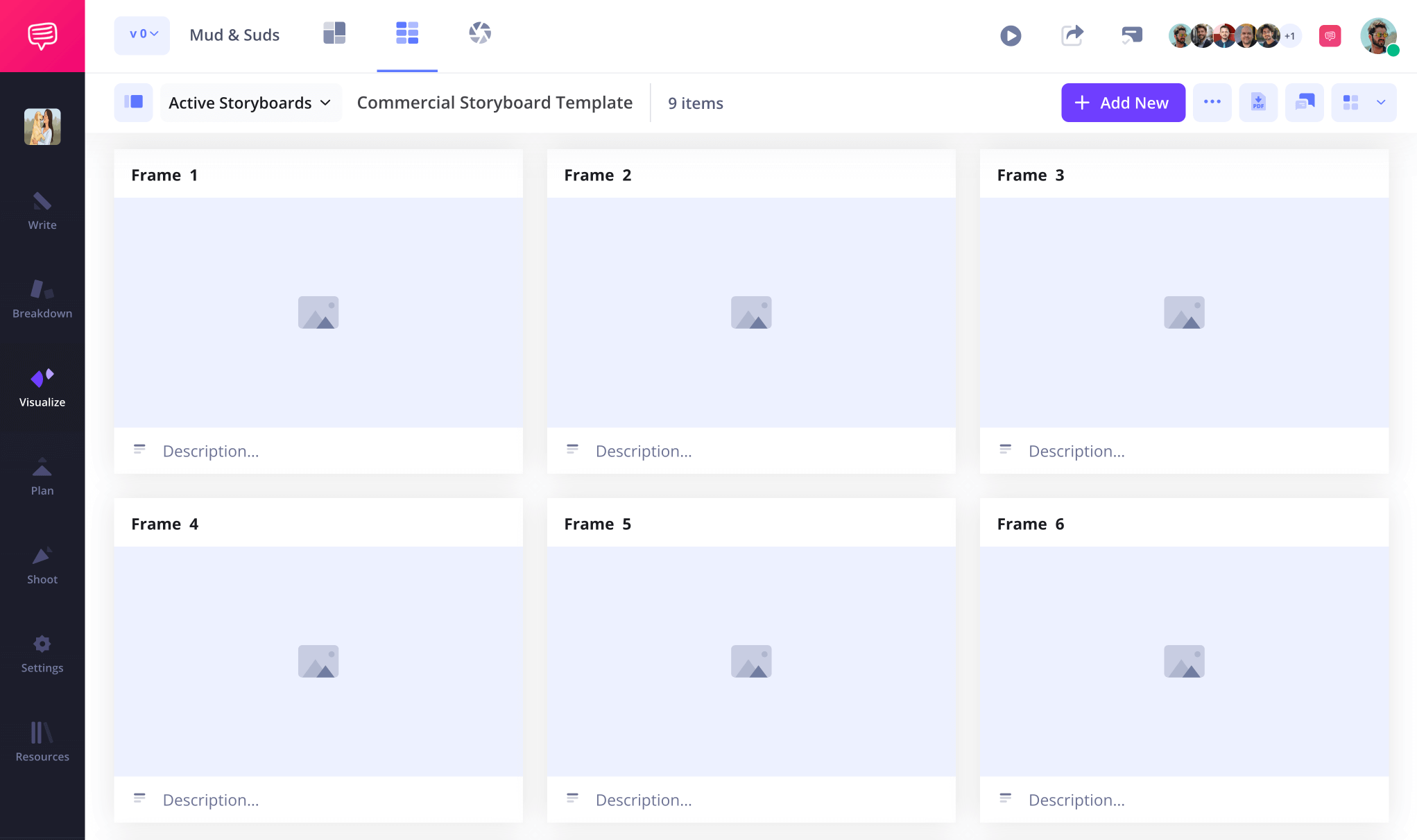
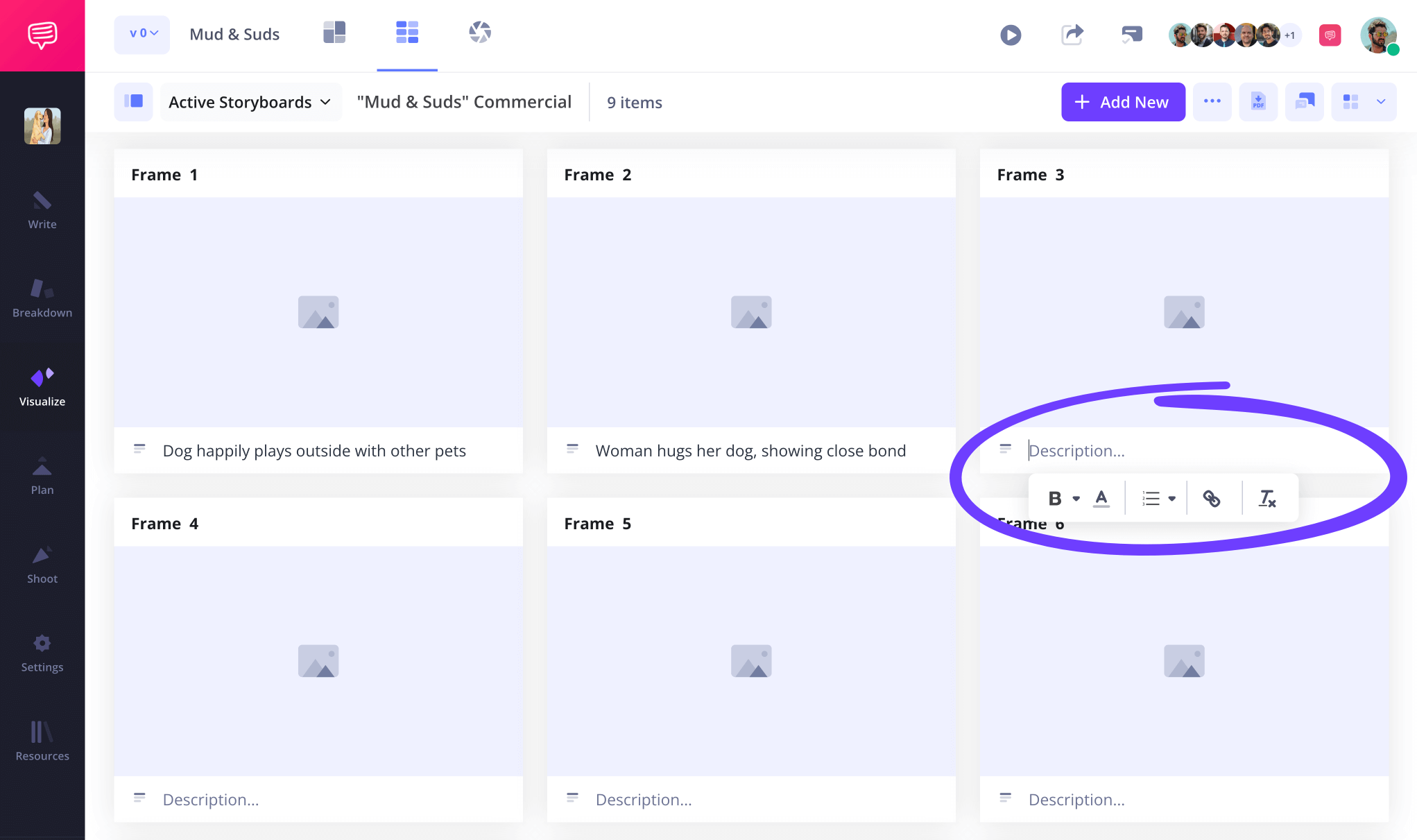
With a storyboard powerpoint presentation, it’s likely you’ll want to limit the fields under your frames to just the description field since audio and video are typically used for film production purposes. So, customize those description fields in the settings bar if needed, then just click any empty field and start typing out what you want to see in each shot.
Step 2
2. Apply images
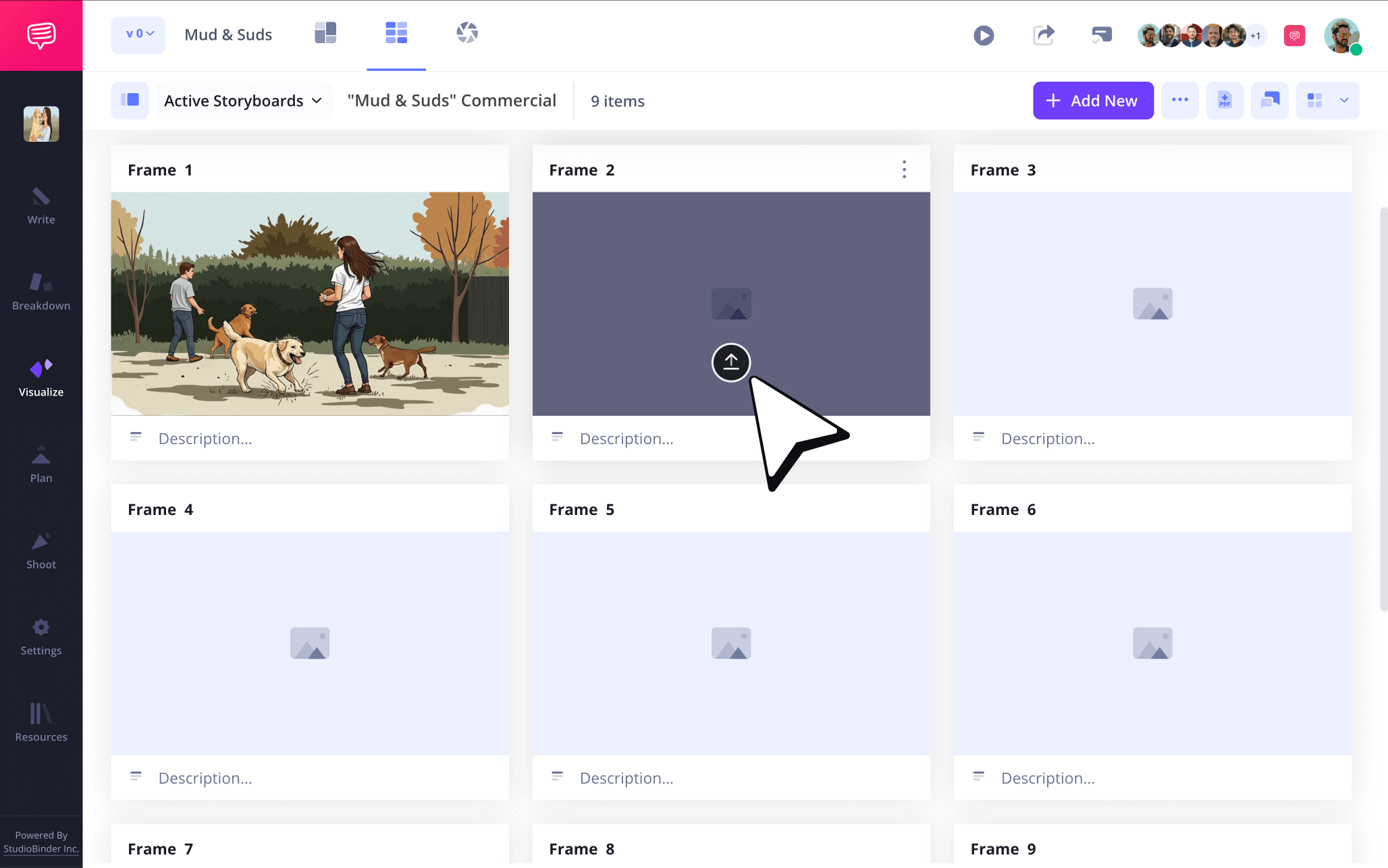
If you’re using your storyboard ppt template to give yourself a rough draft idea of what your powerpoint presentation will look like before you make it official in powerpoint, this is the stage where you’ll lock down the images you will apply to your slides. But since you’re storyboarding first, you’ll have plenty of creative freedom to test out all sorts of visual ideas.
To start adding your images, whether sketched or found on the internet, just click upload on any frame and start testing out the overall visual flow.
Step 3
3. Include storyboard arrows
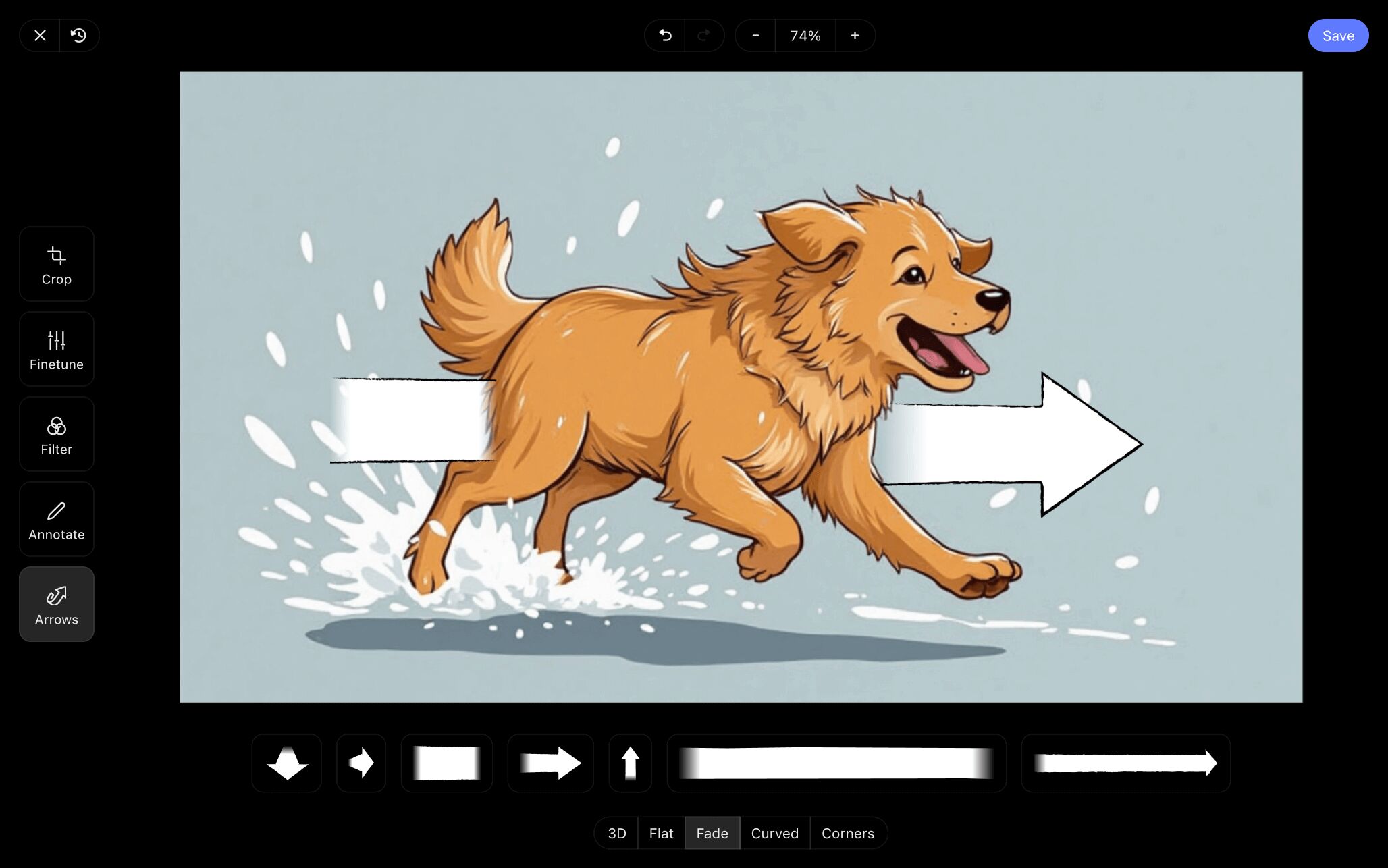
Storyboard arrows are often used during the film production process to bring more attention to camera or environment action that isn’t conveyed well enough in the image alone. But when it comes to a storyboard powerpoint template, you may want to add custom arrows to draw more attention to corporate shareholder growth numbers, or to point out the subtle differences in your company’s new brand logo. Whatever your need, StudioBinder has a wealth of image editing options for you to use.
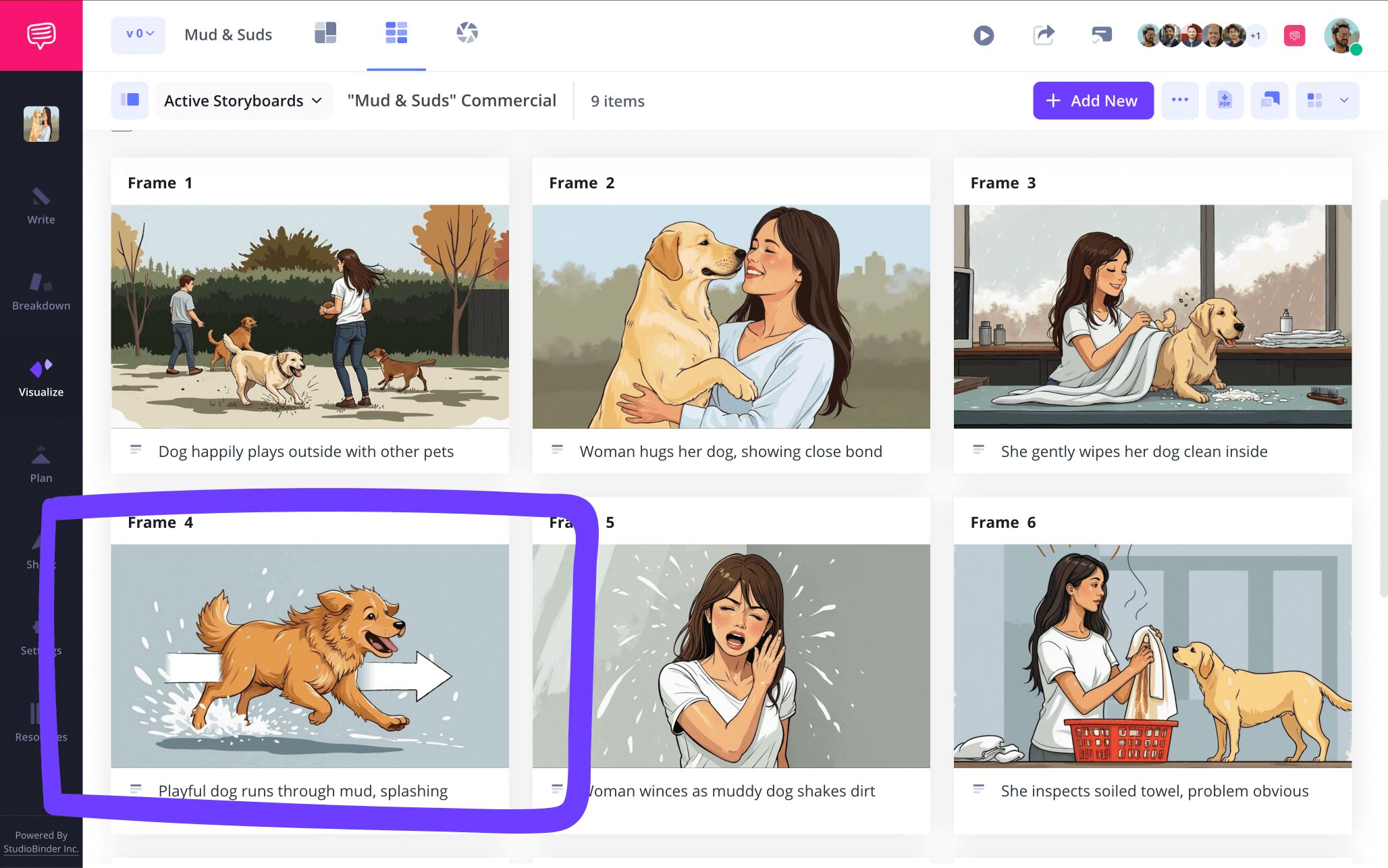
In our powerpoint storyboard template example, a shot in our storyboarded commercial needs to emphasize that our star dog is going fast, so we applied a fade arrow.
Once our applied arrow looked good enough to convey the action we wanted to communicate, we clicked save and the new version of our image was inserted into our storyboard ppt template.
Step 4
4. Share and collaborate
Let’s say you’re putting together your storyboard powerpoint template for a presentation you’ll be giving to some potential business clients. After starting the process of building your storyboard, you eventually want to reach out and see if your coworkers and managers think you’re on the right track. Instead of getting lost in sending overly cropped screenshots and communicating through multiple platforms, you’ll want a one-stop place where everyone can view, edit, and give feedback on your storyboard.
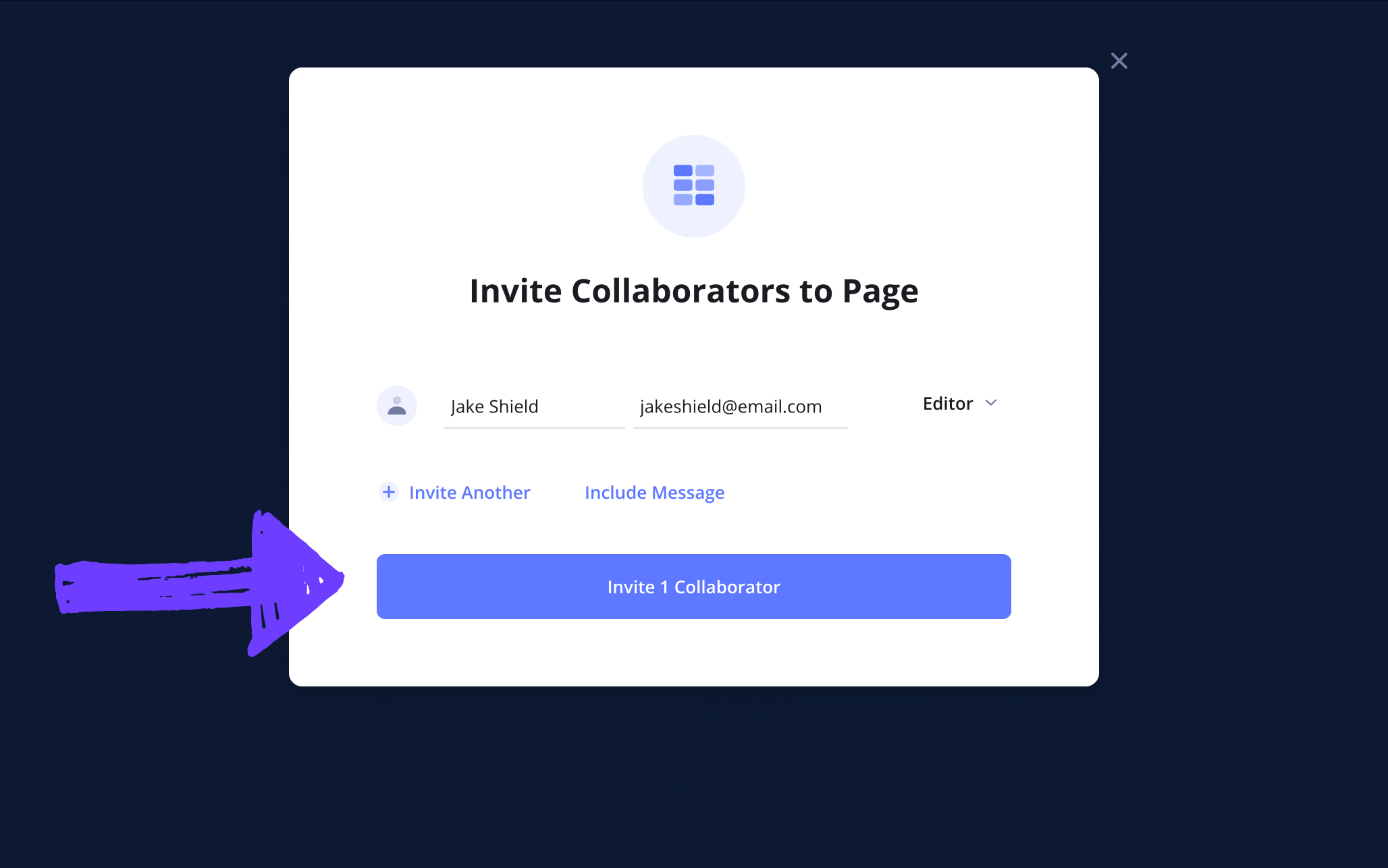
With StudioBinder, there’s not only a send-only-link for anyone who just needs to take a look at your storyboard ppt template, there’s also the option to set any invited guest’s permissions to viewer, commenter, or editor.
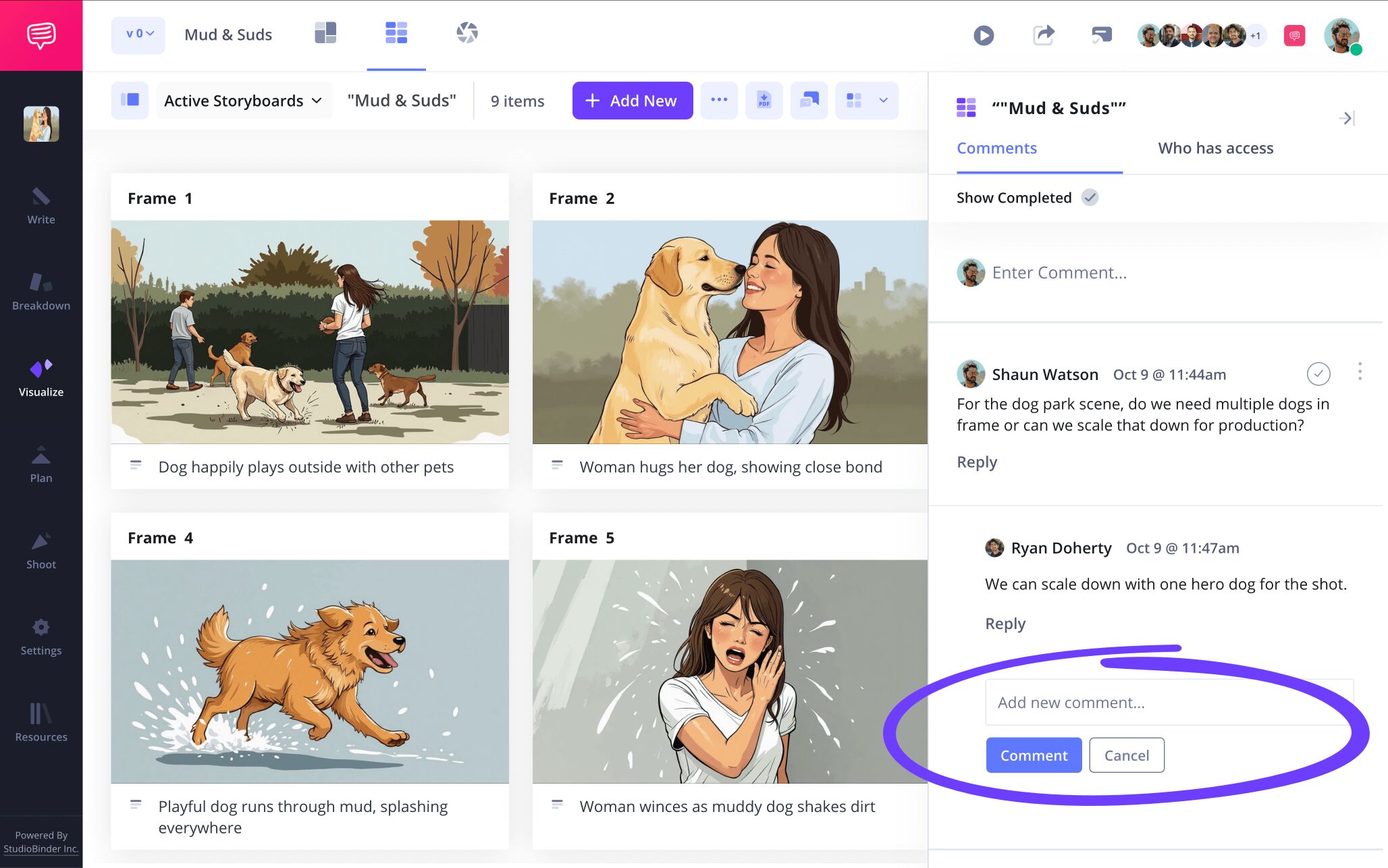
With their commenter or editor permissions enabled, your invited coworkers can communicate their thoughts with you through the comments tab on the right. Reply back and get a productive dialogue going as you collaborate to ensure your storyboard powerpoint presentation is the best it can be.
Step 5
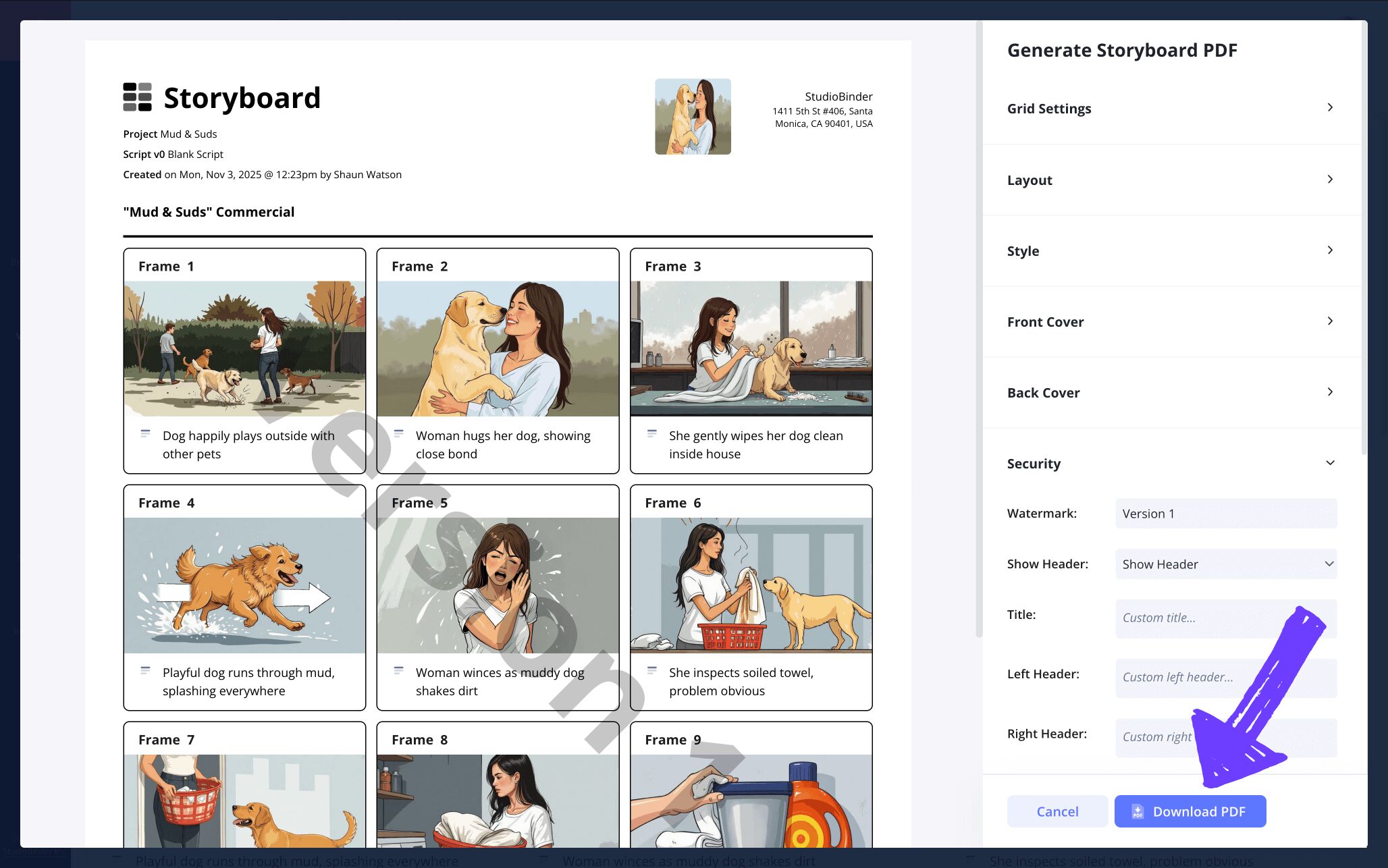
5. Download storyboard PDF
Now that you’ve put all your effort into ensuring the best possible images and descriptions perfectly capture what you want your powerpoint presentation to look like, it’s time to make all your hard work official by downloading your storyboard as a PDF document. By making the transfer to PDF, you’re creating an unchangeable document that will be used either within your powerpoint slides, or as a guide to creating your powerpoint.
With StudioBinder, you can customize your storyboard PDF using a variety of formatting options. If you want to send a copy to your boss that stands out as professional, create your own front and back covers. And if this is a particularly secret storyboard powerpoint presentation project that you don’t want getting leaked, add a watermark and custom title to make sure the document stays with who it’s intended to stay with.
Step 6
6. Present your storyboard
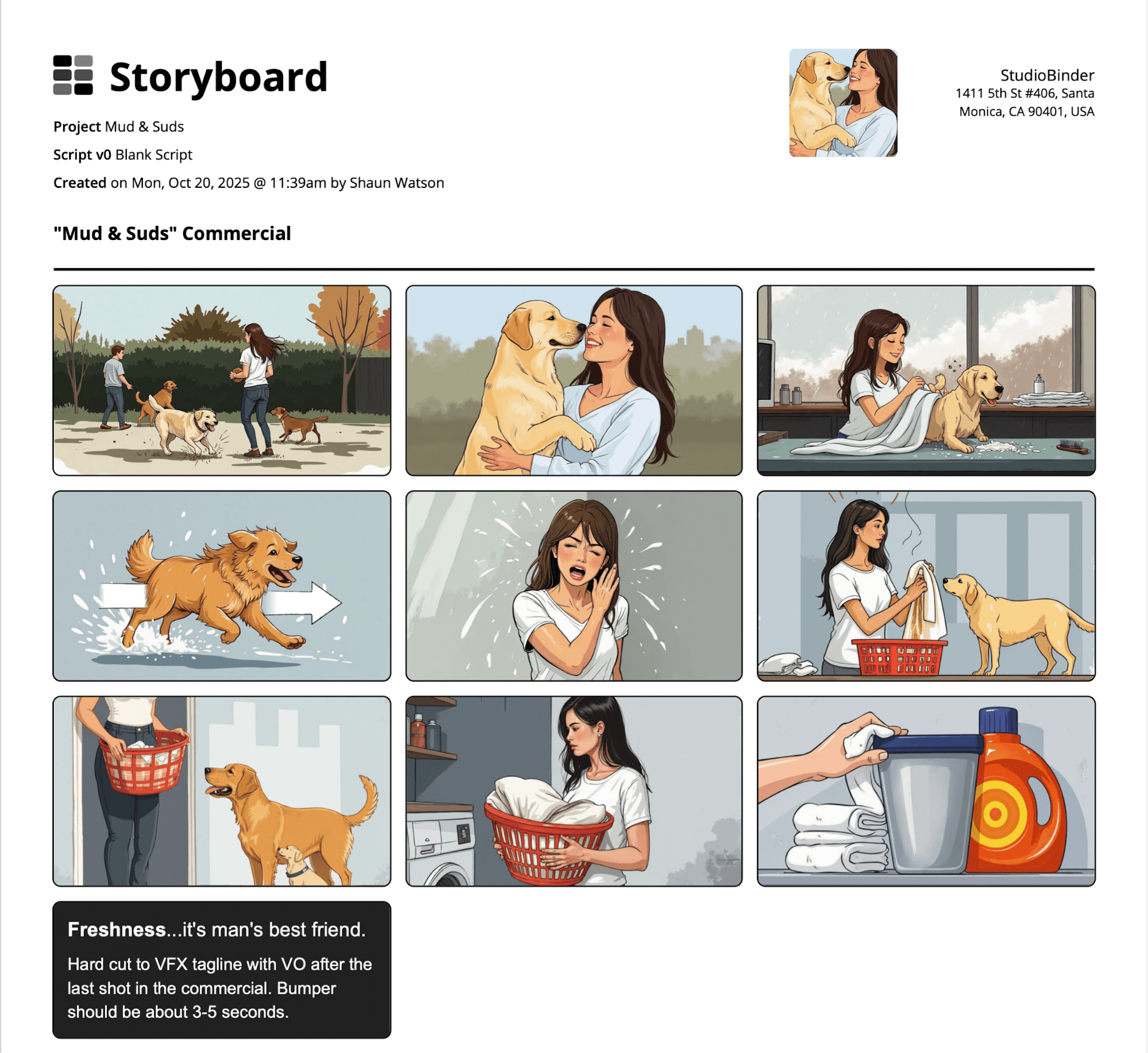
With your storyboard now converted to a PDF, you can use it in whichever way works best for your powerpoint presentation. Maybe the document itself will be placed within your presentation as you pitch your tv commercial ideas to your clients. If your storyboard ppt template was made as a guide to help you build your final powerpoint presentation, you can use your digital or printed PDF copy, or even the view-only-link layout. Whichever works best for you!
Conclusion
You're finished!
Now that you’ve walked through each step on the road to making your very own storyboard ppt template, you’re ready to knock your next personal or company powerpoint presentation out of the park. But if you find yourself wondering what other storyboarding options are out there for you to creatively dive into, be sure to check out StudioBinder’s free storyboard templates. Happy presenting!
Frequently Asked Questions
Your questions, answered
A storyboard ppt is essentially a storyboard powerpoint presentation that has a variety of potential uses. You may want a specific kind of storyboard template that has all the right formatting and dimensions to fit within your powerpoint presentation slides. Or, maybe you want to use a storyboard to lay out what your powerpoint presentation will look like, basically using the storyboard as a sort of first draft in the process. Any of these use cases answer the question: what is a storyboard ppt?
Using a storyboard ppt isn’t necessarily an essential step in creating a powerpoint presentation, but depending on your needs, it can be pretty helpful. If your powerpoint is about storyboarding in any way, then you’ll want a storyboard ppt that has all the right formatting and dimensions to fit into your presentation’s slides. If you essentially want a first draft of your powerpoint presentation, then creating a storyboard that treats each frame like a slide in your powerpoint can be a beneficial first step in the process.
Using a storyboard ppt can invite some unwanted mistakes. In order to avoid running into problems, we listed out a handful of the most common mistakes while using a storyboard ppt:
- If you’re inserting your storyboard into a powerpoint slide, make sure you apply the accurate dimensions to your storyboard.
- If you’re working with coworkers, make sure they have easy, editable access to your storyboard.
- If you’re using a storyboard as a first draft for your powerpoint, make sure the images can be converted into a larger size.
- Even if you’re presenting to clients, don’t be afraid to get a little quirky and creative, a little personality goes a long way!
- Write out what you want to say in each slide before choosing images to match, this way your image searching will have more intent.
A storyboard ppt is essentially a storyboard for a powerpoint presentation. It will have all the markings of a traditional storyboard, only the dimensions and images may need to be specifically formatted to fit within your powerpoint slides. If you’re using a storyboard as a pre-visualization plan before you create your powerpoint, then the storyboard would be no different than any other kind of storyboard, just formatted to your specific liking.
Storyboard PPT template alternative
Visualize your storyboard with our free storyboard ppt template alternative.
Get started for free
