
home → Guides → StoryboaRD
How to Create a Commercial Storyboard

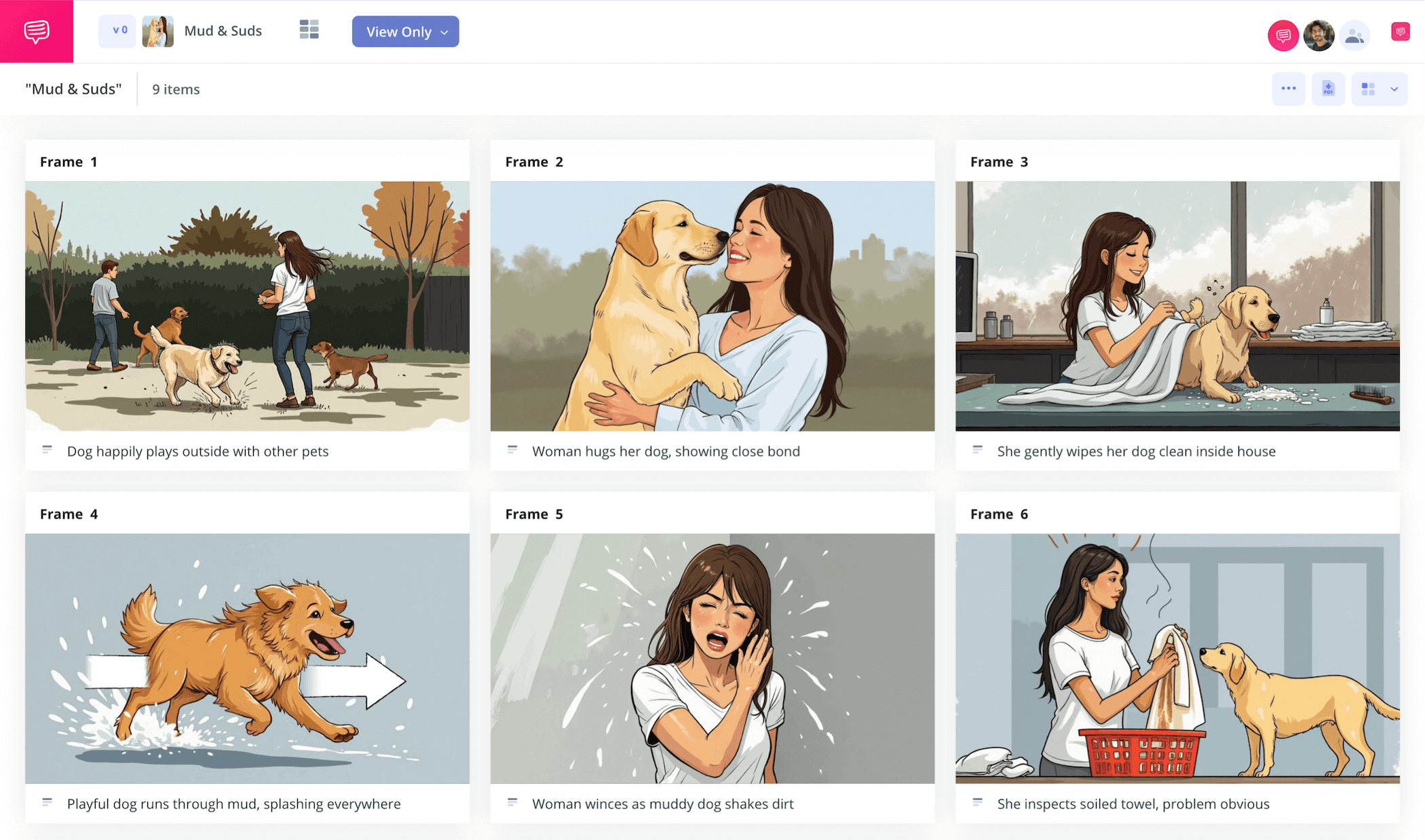
How to create a commercial storyboard
If you want to reach the ultimate level of preparation before shooting or animating your video project, you’ll want to immerse yourself in how to create a commercial storyboard. But knowing how to make a storyboard for a commercial is just the start, you also have to understand the medium of your project and the central idea you want to communicate in order to take full advantage of the storyboarding videos tool.
For example, ‘how to create a music video storyboard’ and ‘how to build a storyboard for a video that an advertising client requested’ have all the same broad features, but at the heart, they’re assembling their visual narrative with two very different purposes in mind, and will therefore mostly focus on two very different qualities. So let’s dive into how to create a storyboard for a commercial.
In this how to storyboard a commercial guide, we’ll take you through the broadest yet most important steps to consider while building any advertising storyboard. And since these steps will be kept broad enough, you can use any kind of storyboard template you have available. But if you’d still like to follow all these steps right alongside us, we’ll be using StudioBinder’s storyboard creator. So, without further ado, let’s get to storyboarding!
Step 1
1. Format your template
The first step to ‘how to create a commercial storyboard’ is making sure you have a well-formatted storyboard. For just about any advertisement that isn’t a reel on social media, the typical frame aspect ratio standard is 16:9, so it’s a safe bet to keep your panels around that size so you know how much visual information you can contain.
No more than 3 to 6 panels per page will also keep your storyboard visuals and details focused so the information doesn’t get jumbled. In StudioBinder, you’ll start a new project and answer some of these basic setup questions, formatting your storyboard to look something like this:
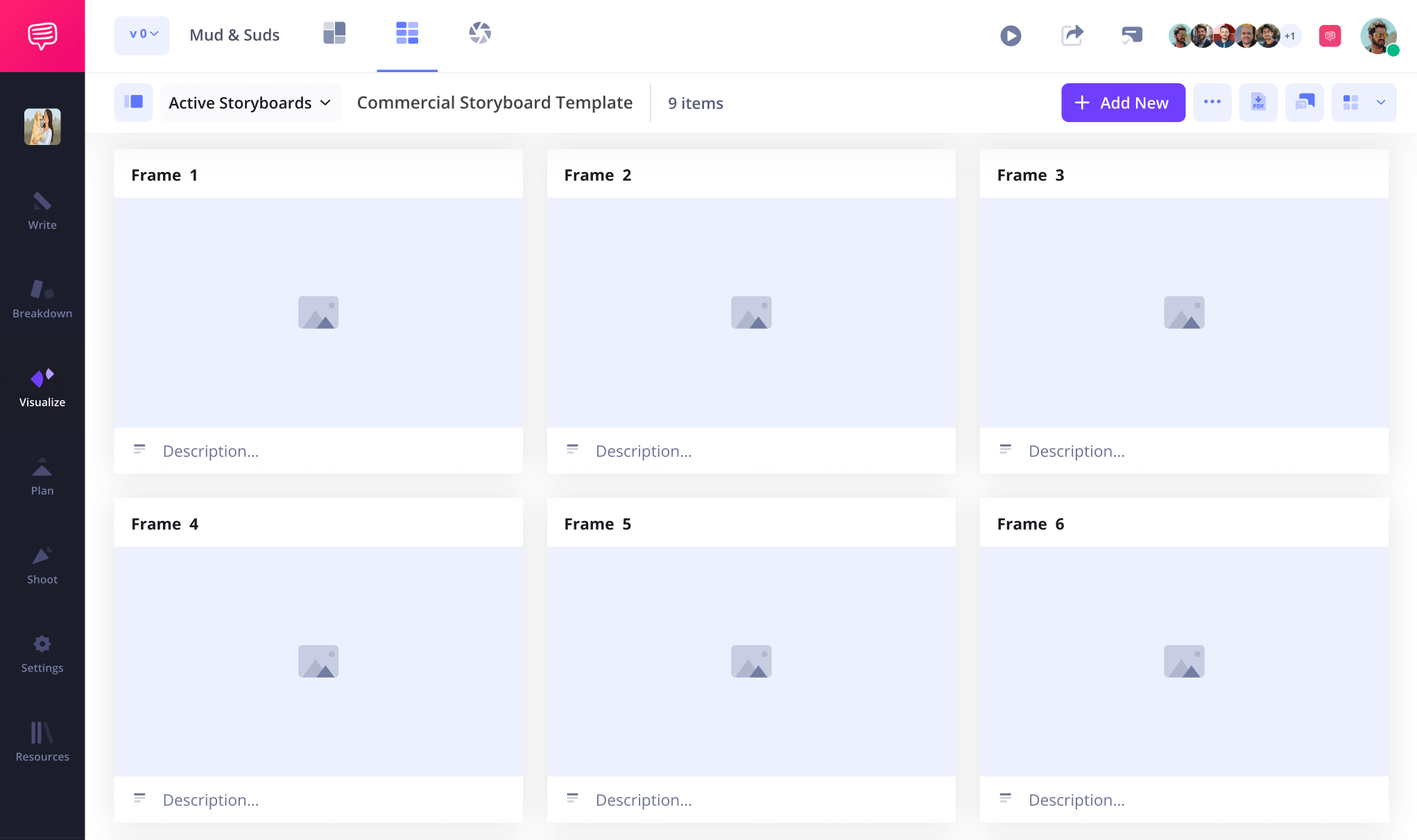
If you have a script ready, you can upload it into StudioBinder and quickly transfer script details into descriptions on your ‘how to storyboard a commercial’ project. However you’re writing out your descriptions, make sure you’re finding the pace and flow while deciding how much brand information should be included from frame to frame.
Step 2
2. Add images
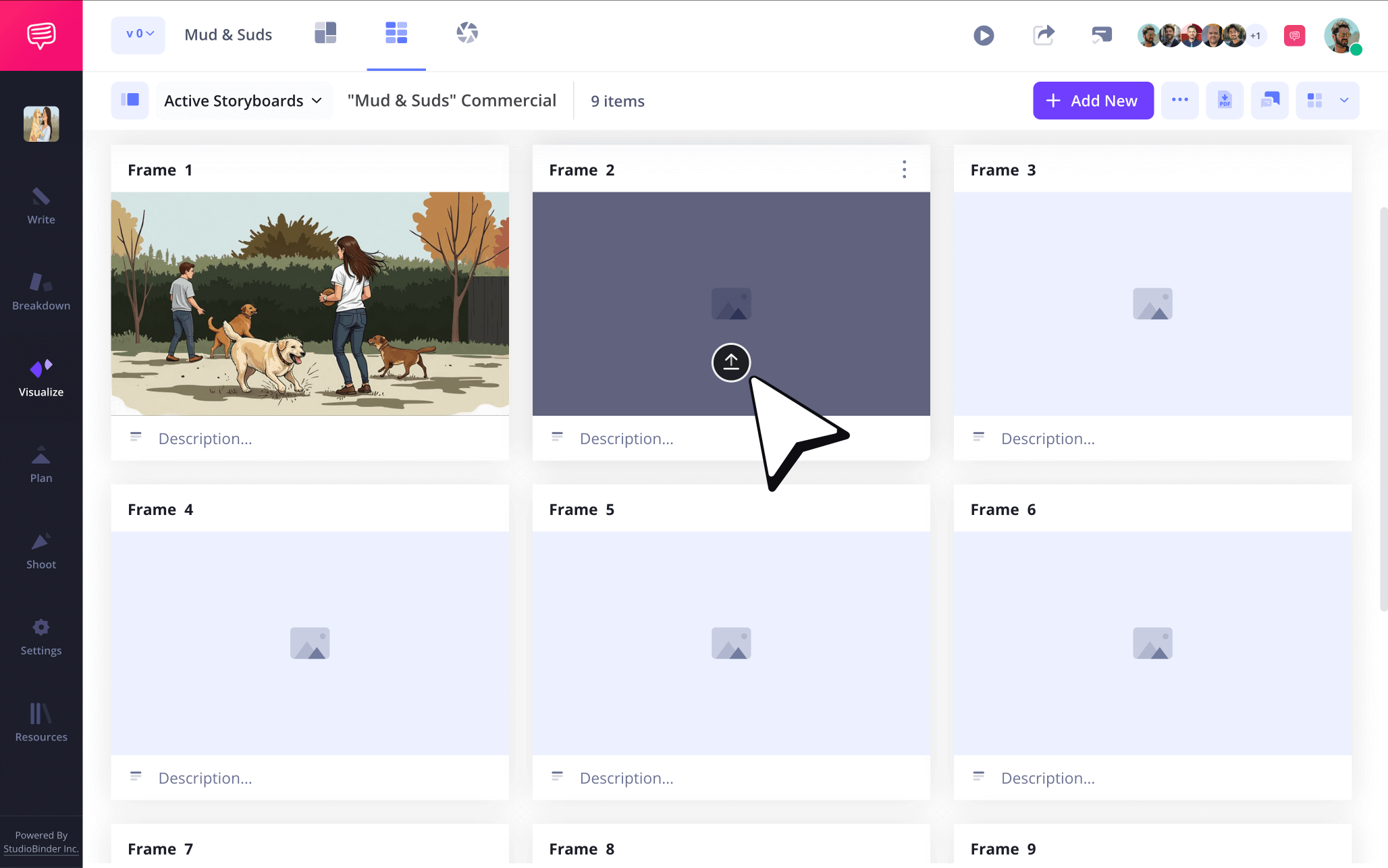
Once you have your pacing and overall structure defined through your panel descriptions, now you’re ready to start adding some life to your ‘How to create a commercial storyboard’ project. For a more information-based advert video, consider when you’ll cut to narrative footage and how long you’ll show your product details. We commend anyone with natural illustration skills, but there’s also nothing wrong with using temp images found online.
If you’re working on your ‘how to create a storyboard for a commercial’ project in StudioBinder, just click upload on any panel when you’re ready to start inserting images.
Step 3
3. Use storyboard arrows
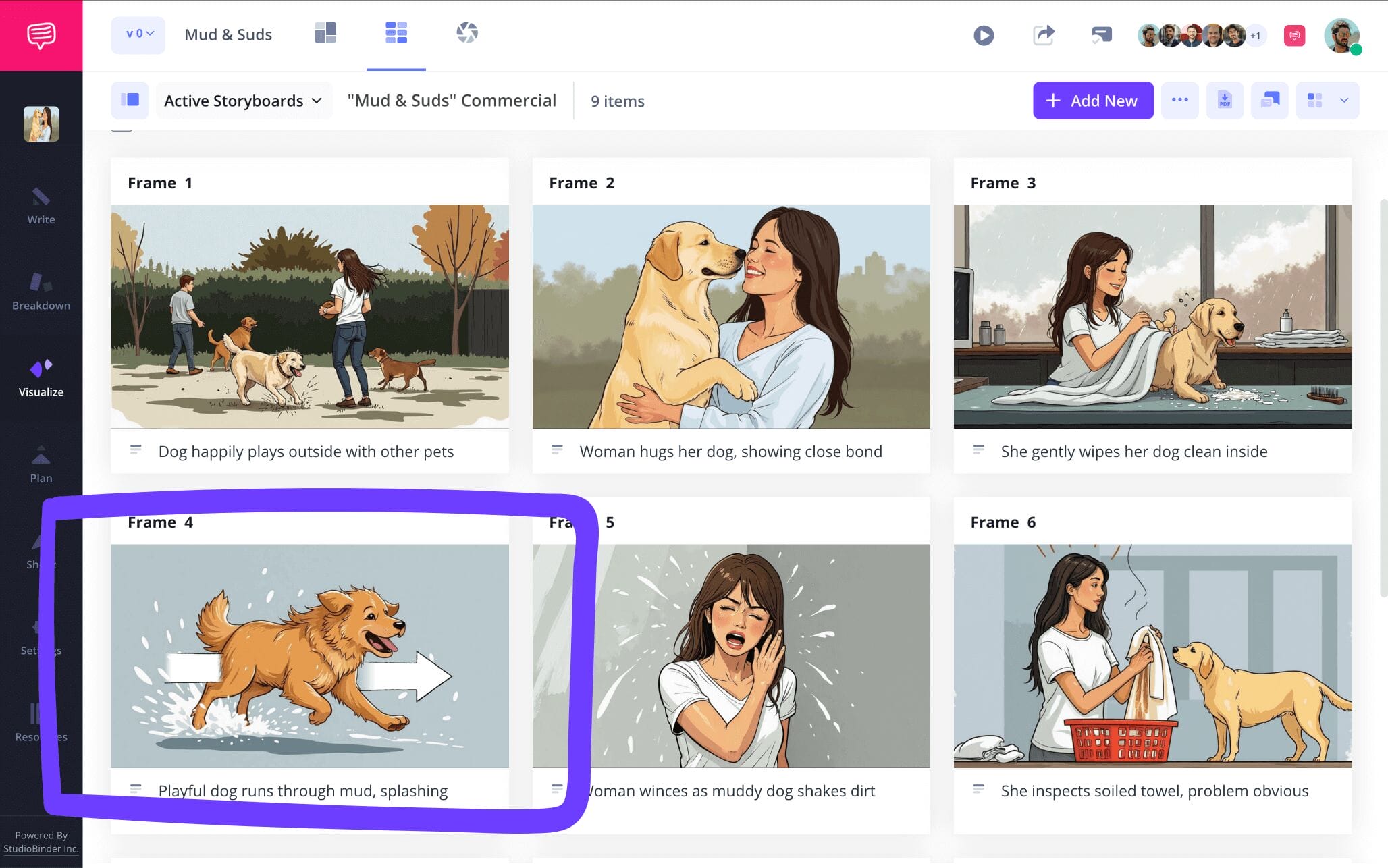
Taking advantage of storyboard arrows is an essential part of learning how to storyboard an advertisement. It might be a perfectly timed swish pan as the chorus of the television commercial’s song hits strongest of all, or a subtle sight gag occurring in the background of the main product action. Whatever the situation, sometimes an image needs some help showcasing a vital moment of action when you're wondering how to create a commercial storyboard.
As you can see in our ‘how to make a storyboard for a commercial’ example, our star dog’s speed running moment needs a little extra emphasis so our product client will feel the swiftness of the moment as intended when we present our storyboard to them.
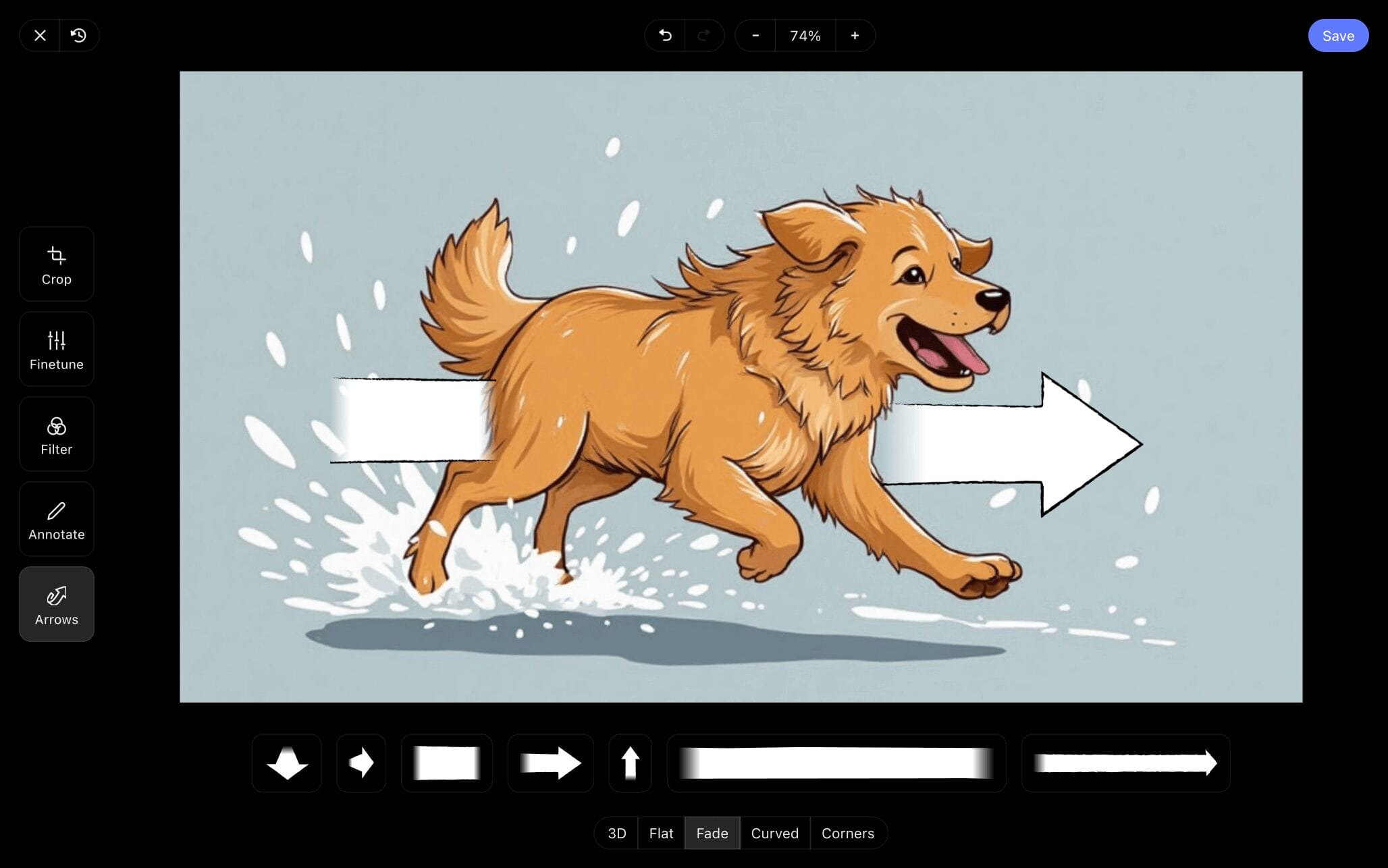
So, we went into StudioBinder’s image editor and found a fade arrow that communicates what we’re going for perfectly. Once we tinkered around with the arrow’s size and considered if we needed to add some text to the arrow, we decided the arrow itself will do (unless our brand client feels differently that is). Then we clicked Save and our newly edited image was added right into our ‘how to make a storyboard for a commercial’ project.
Step 4
4. Collaboration and feedback
It should go without saying that collaboration is a key feature of how to create a commercial storyboard. With the digital tools available nowadays, you can practically make an entire TV spot all on your own. And while this is certainly a benefit for many reasons, gaining perspective through notes and feedback from another person is a valuable creative tool that can’t be matched.
But if your ‘how to storyboard a commercial’ project is being crafted entirely behind a computer screen, when will you get a chance to experience the value of feedback?
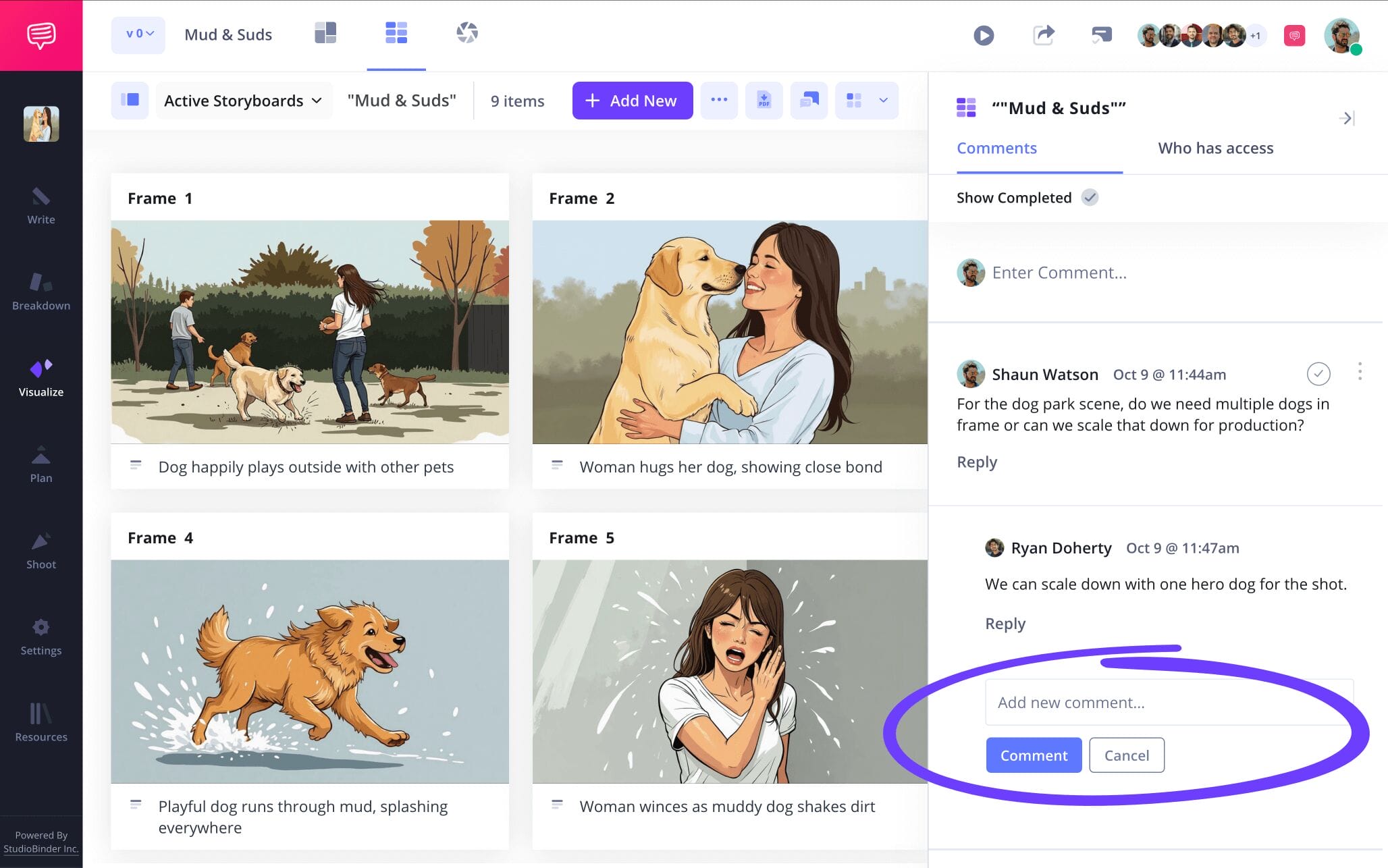
With StudioBinder, you can send anyone a link to view your storyboard, as well as use your storyboard itself as your collaborative platform. When sending an invite, choose between enabling viewer, commenter, or editor permissions.
With commenter or editor permissions on, your collaborators can take to the comments tab and start a feedback dialogue with you. It doesn’t get much more convenient than that, right?
Step 5
5. Create a storyboard PDF
You won’t officially know how to create a commercial storyboard until you know how to make sure your work doesn’t get accidentally lost or deleted. If you’re working in digital advertising, consistently saving your storyboard as a PDF document makes sure all versions and drafts of your project are copied and kept.
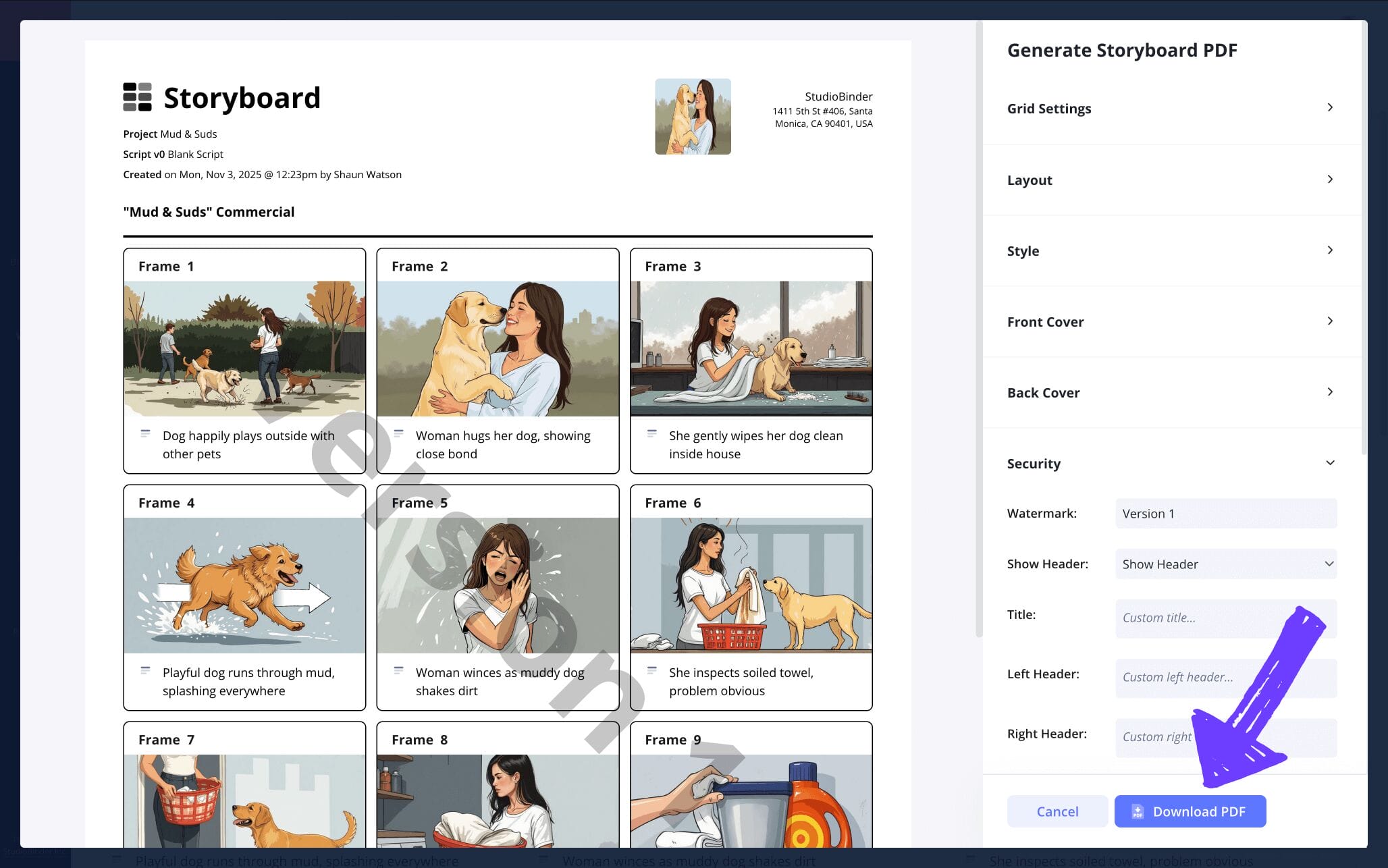
Just as well, you can customize different PDF versions of your storyboard for any department that needs to work with it. Even if you’re working on a solo product explainer video, getting in the habit of saving each version of your storyboard as a PDF is only going to benefit you.
For our ‘how to create a storyboard for a commercial’ example, we have to make some changes to our storyboard PDF for our marketing department’s copy. So, we’ll go into StudioBinder’s PDF editor, remove the borders around our panels, adjust the font size, and then add a watermark for extra safety.
Conclusion
Finished!
You came, you saw, you learned how to create a commercial storyboard! We hope this guide provided you with some value. And remember, these are just guidelines, the best creative work comes from using the steps that work for you and your project, and then paving your own path with your own intuitions from there! For more storyboarding needs, be sure to also check out all of StudioBinder’s free storyboard templates.
Types of Commercial Storyboards
How to make a storyboard for music video, animation, film, and video projects
When it comes to ‘how to storyboard a video,’ the broad idea of what you’re doing is the same across the board for any type of video project. You’re essentially creating a blueprint of what the final version of your video will look like and all the technical needs it will require, visually laying out all the important beats or frames of your scene or sequence like a comic book.
This will then prepare you for the actual shooting or animating phase of production. Depending on your medium or video type, however, you’ll want to keep the core of your ‘how to make a storyboard for a video’ project focused on their defining elements. Here are some common storyboards and what you’ll want to think about while working on each one:
Corporate or explainer video
Focus on communicating with simplicity and clarity. When you’re selling a product or idea, always keep your talking points tethered to the ‘why,’ why is this beneficial for the viewer and how will these visuals and talking points showcase that? Unlike most narrative storyboards, you’re not trying to provoke the abstract or the unconscious, you’re instead aiming to be direct, almost like you’re breaking the concepts down for a child to understand. This is key when you're figuring out how to create a commercial storyboard.
Music video
This is the least logic-based type of storyboard. With the visuals you’re assembling, you’re listening to the feeling the music provokes and assembling your story beats based on things like melody and tempo changes. Sometimes there won’t be a narrative at all, just sound and visuals that incite mood for the music video.
Film
With a film storyboard, you’re tracking both character arcs and plot advancement, making sure it all stays balanced and intentional. Most importantly, these also tend to be more strategic and logistical since you’re typically working with a larger production to ensure time and budget are well established for the scene’s shooting day.
Animation
Since you’re creating all the shot angles, characters, and environments virtually, animation storyboards are greatly focused on character/surrounding designs, performance, sound and movement. Not to mention that they need to encapsulate so much important VFX information. The animatics stage comes after and brings the stagnant storyboard to life, but this storyboard is really the blueprint for the entire production, so every angle of a scene needs to be covered and crystal clear before moving on.
Frequently Asked Questions
Your questions, answered
Creating a storyboard for any kind of video is a great way to both prepare yourself for the final version of your project, and understand the purpose and direction of your project better than ever. These are the broadest and most essential steps when you’re ready to start building your storyboard:
- Brainstorm your ideas
- Format your blank storyboard template
- Write basic narrative beats near each panel
- Illustrate or use temp images
- Write out shot details and technical needs
- Revise and make a new draft if needed
While specific storyboarding approaches can vary depending on the type of video or animated project you’re working on, there are 7 universal steps that are considered essential for any kind of storyboard. Below is this list of steps for you to consider as you start your own storyboarding project:
- Lock down your core concept
- Write out the script (or at least a broad story breakdown)
- Divide the story into key scenes
- Format a blank storyboard template
- Illustrate images in each panel
- Add details in the description boxes
- Edit, draft, and finalize
ChatGPT, like most large language model systems, is capable of creating a storyboard for you. However, we suggest using ChatGPT to just build your template structure, rather than all the images and descriptions as well. Storyboarding is an intimate creative process where the creator can better understand their work from a new perspective, which can’t be achieved if ChatGPT is doing all the work for you.
A storyboard for a video has one of the most basic storyboard structures of all. Typically, this consists of 3 to 6 panels per storyboard page and 16:9 panel sizes. Usually there is a medium amount of description space near each panel, but not as much as an animation storyboard for example, which will have a lot more technical details that require more space.
Create your free commercial storyboard
Visualize your commercial storyboard with our free template.
Get started for free
