
home → TEMPLATES → Storyboard
Basic Storyboard Template

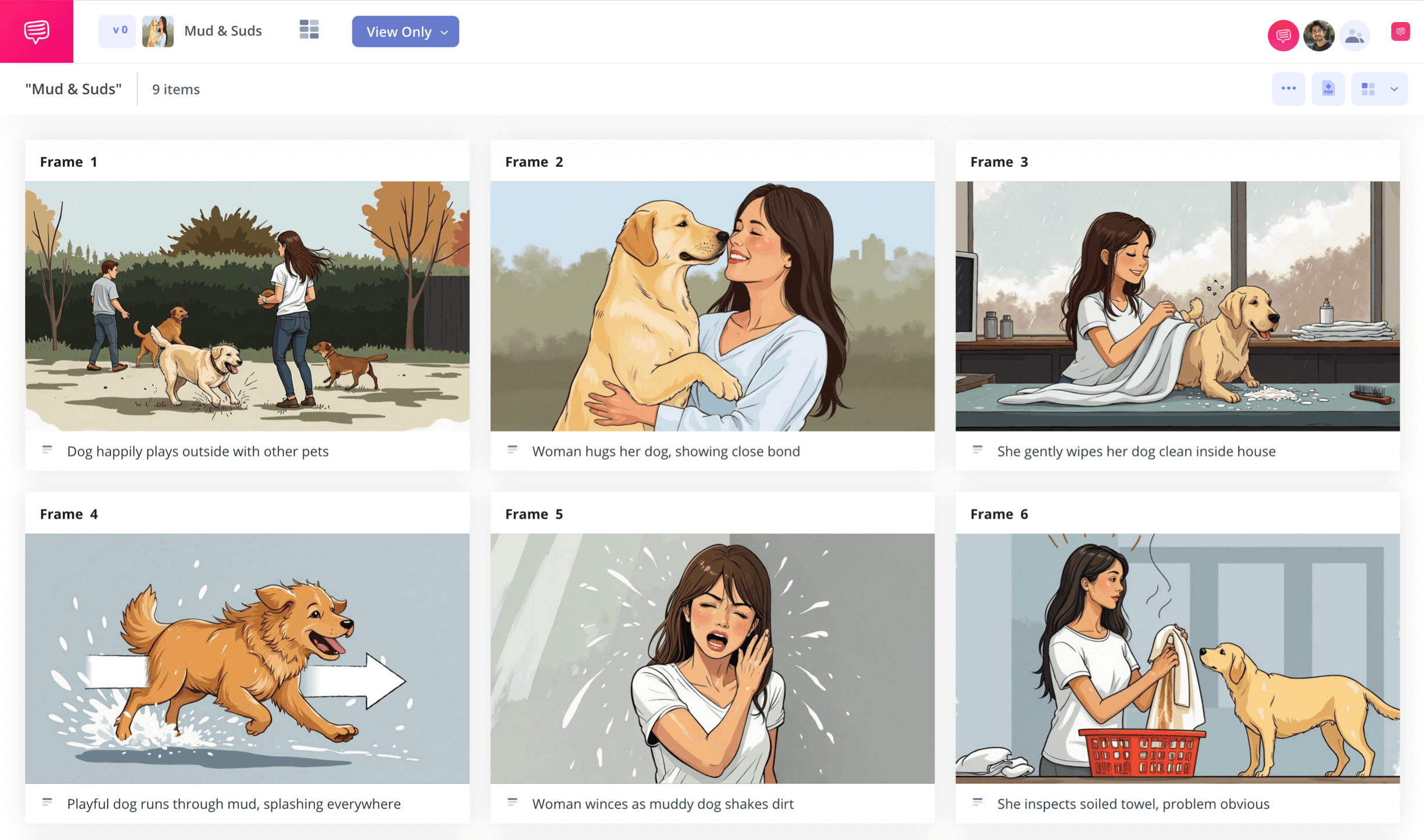
Basic storyboard template
If you want to learn the basics of storyboarding, what better way than to start building your own basic storyboard template? No matter the kind of visual narrative you want to bring to life, whether it’s for a short film, feature film, animation, advertising campaign or more, you can’t go wrong with applying all the storyboarding basics in the early stages of your project. With a basic storyboard, you’ll use the most tried and true storyboard setup: panels showing action from left to right and descriptions that tell you what’s happening in those panels.
In the below visual guide on how to take advantage of all the storyboard basics, we’ll use StudioBinder’s storyboard creator as our guiding example. But given that we’re just covering the basics, you can use whatever kind of basic storyboard template that works best for you. Now let’s get started!
Step 1
1. Format your template
You’ll want to start by finding the right storyboard dimensions that work for you. Don’t overthink it though, this can be as easy as looking at any basic storyboard template online and deciding it looks fit for your project needs. If you’re working in StudioBinder, you’ll notice starting a brand new storyboarding project automatically prompts you to decide on the amount and size of the panels you want displayed on your basic storyboarding project. Once you’re done, it will look something like this:
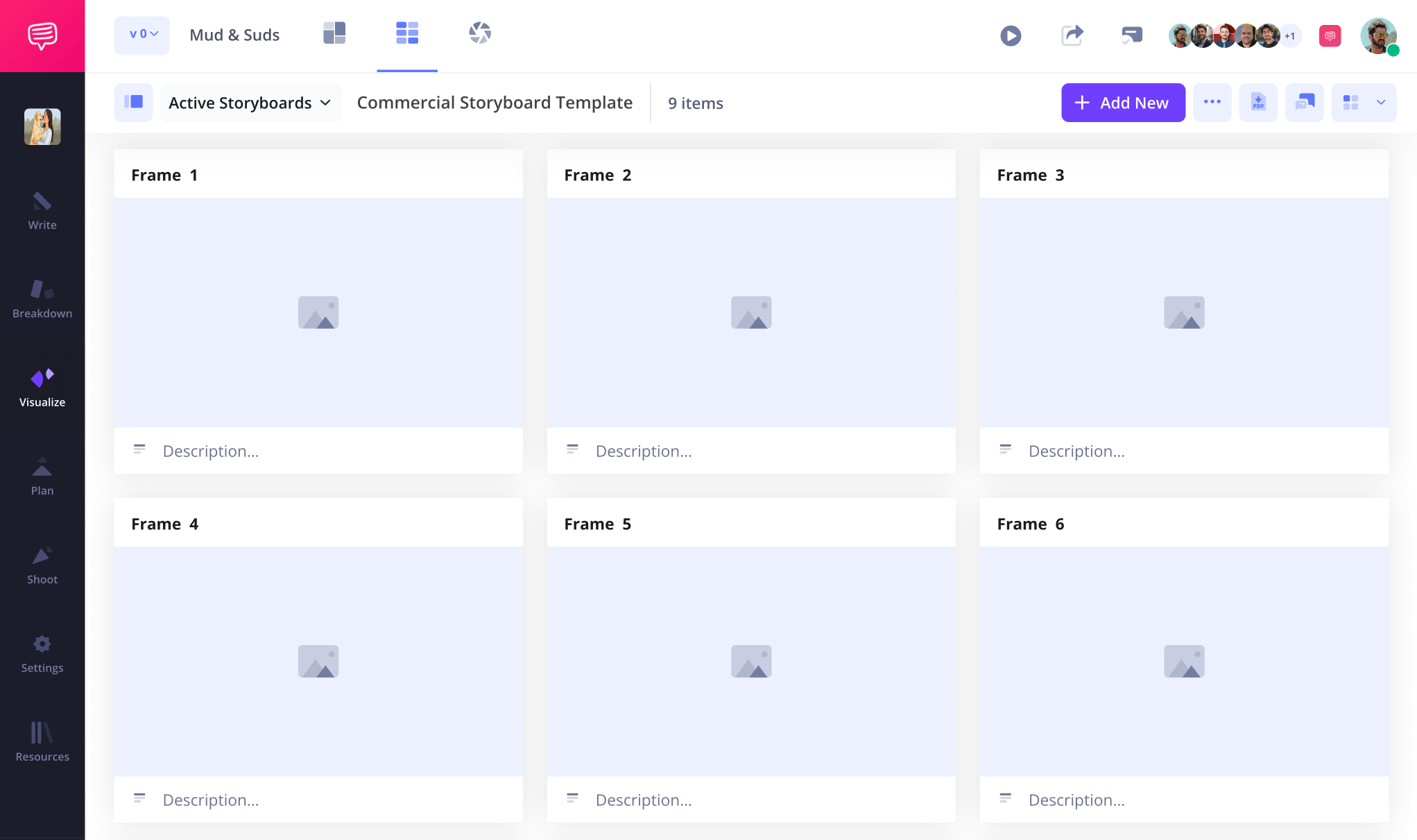
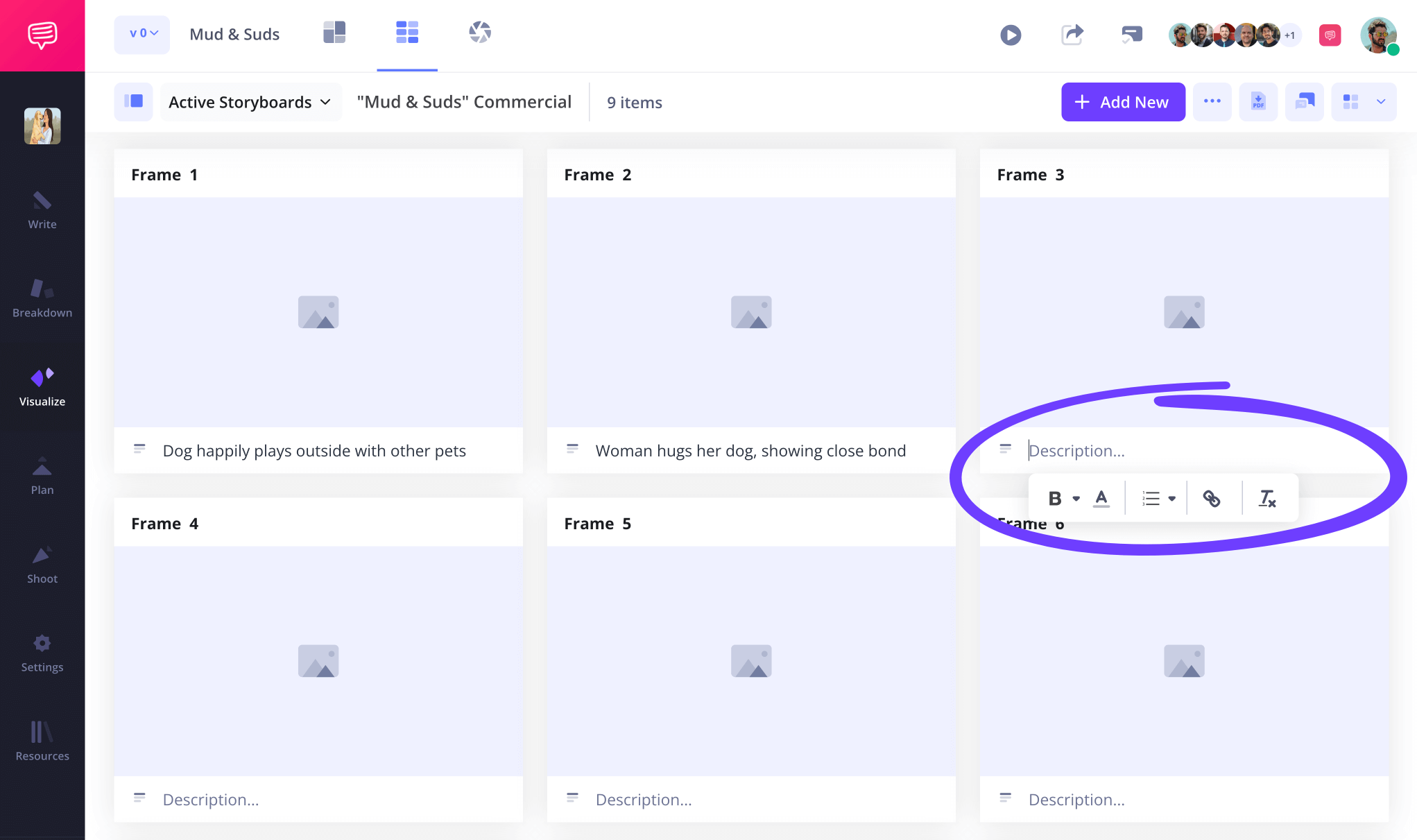
It’s common to begin writing out your narrative ideas in the description space below each panel before adding images. This will help you find the flow and story structure you’re aiming for. Just click on any empty description field to do this in StudioBinder.
Step 2
2. Upload images
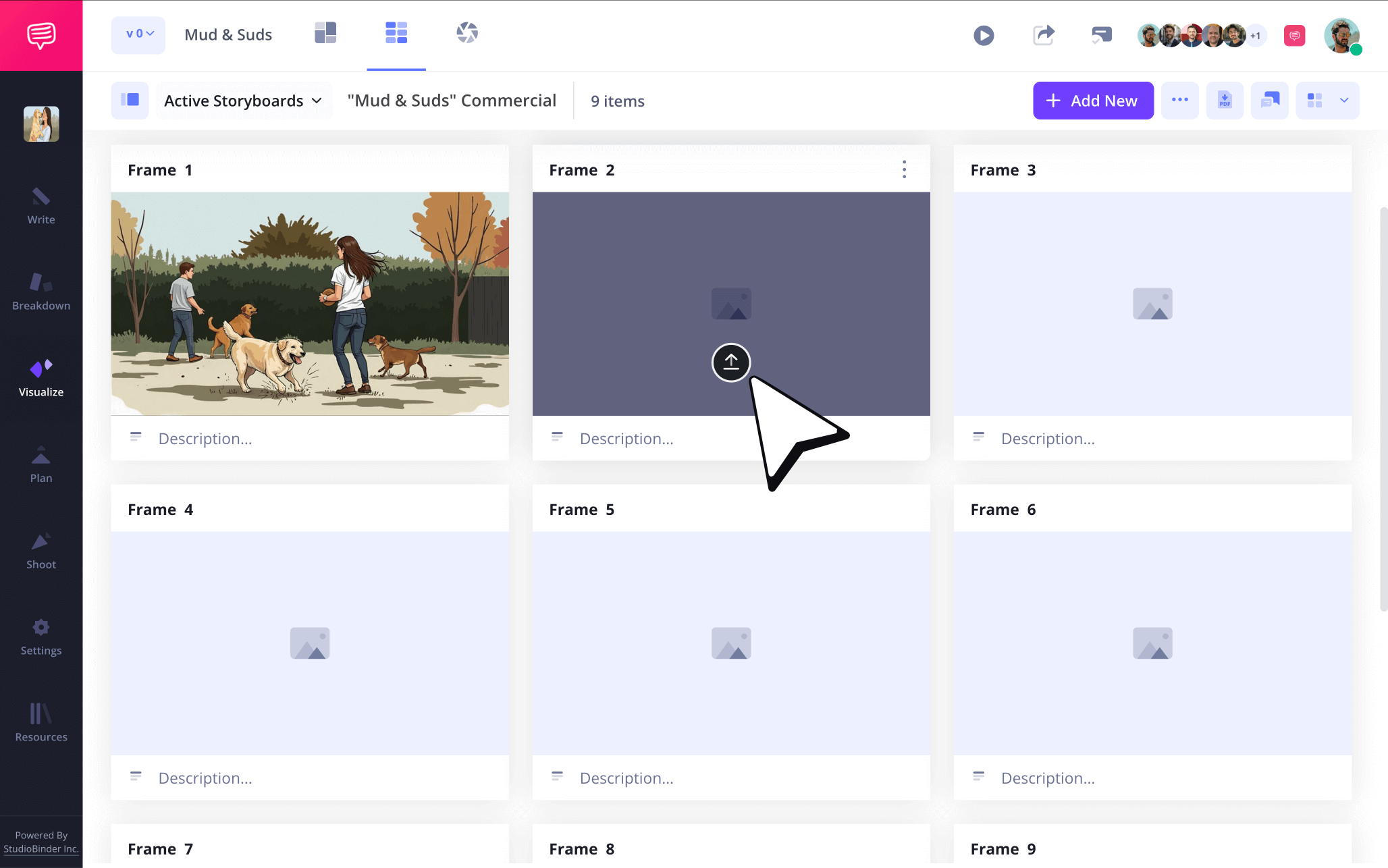
Now that you have the basics of your story structure set, it’s time to start filling up those blank panels on your basic storyboard with images. If you’re something of a storyboard artist yourself, let that creative talent out and start illustrating. But don’t worry if you’re no professional, stick figures and online reference images have been used on both the most famous and the most basic storyboards of all time.
When you’re ready to have those images uploaded into your storyboard basics project, just click upload.
Step 3
3. Use storyboard arrows
If you want to get all the storyboard pro basics down, learning how to add storyboard arrows to basic storyboard images is a must. Arrows are great tools because they help prevent the profound hassle of having to return to the drawing board. Say the camera or character action in an image just isn’t being communicated in the way you hoped. Sometimes all you have to do is add an arrow to help indicate that action.
In StudioBinder’s editing suite, you can choose from an array of arrow options. In our storyboard basic example, we wanted to make sure the cute little puppy in our commercial is seen running as speedily as possible, so we added a fade arrow to make sure this doesn’t go unnoticed.
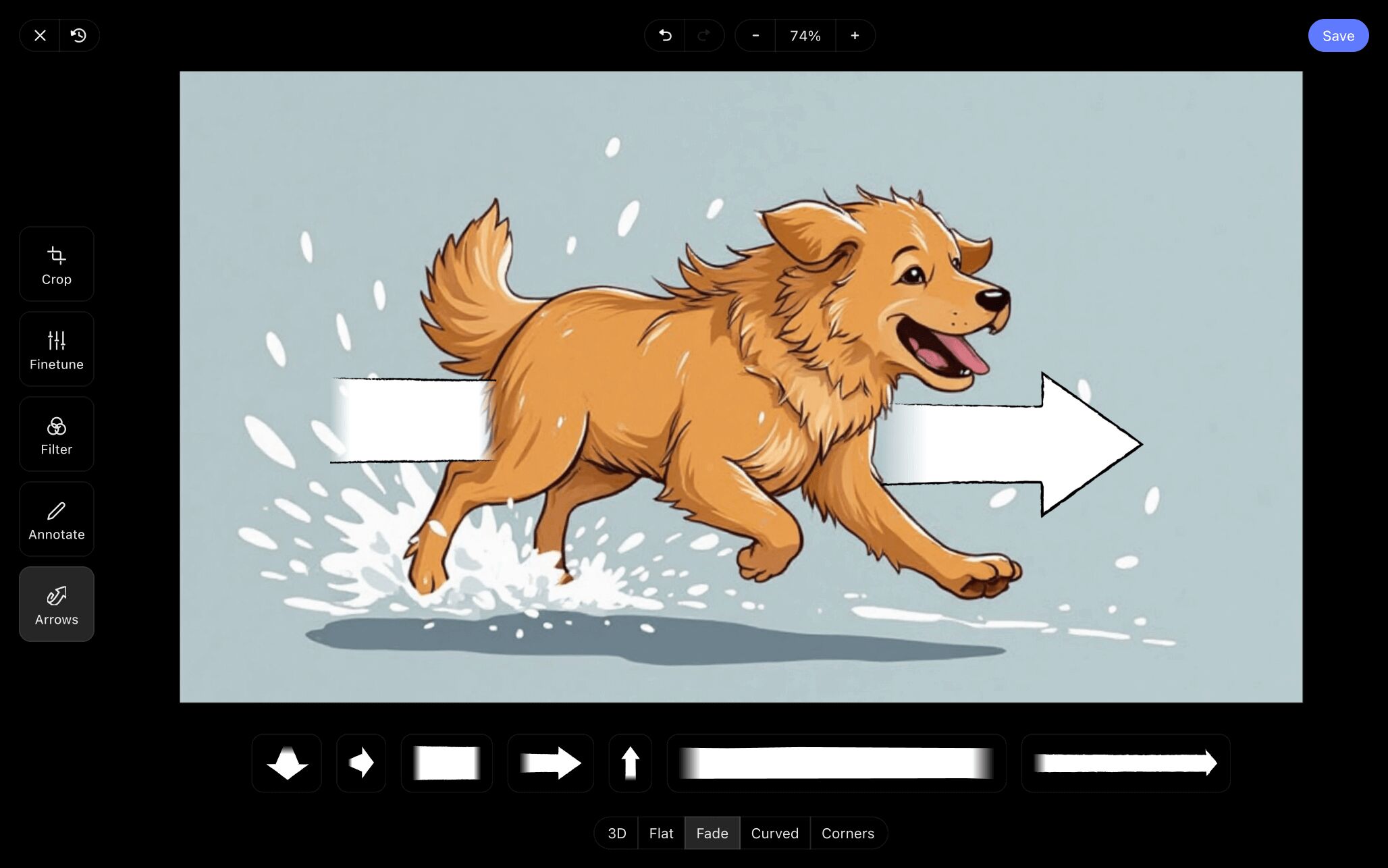
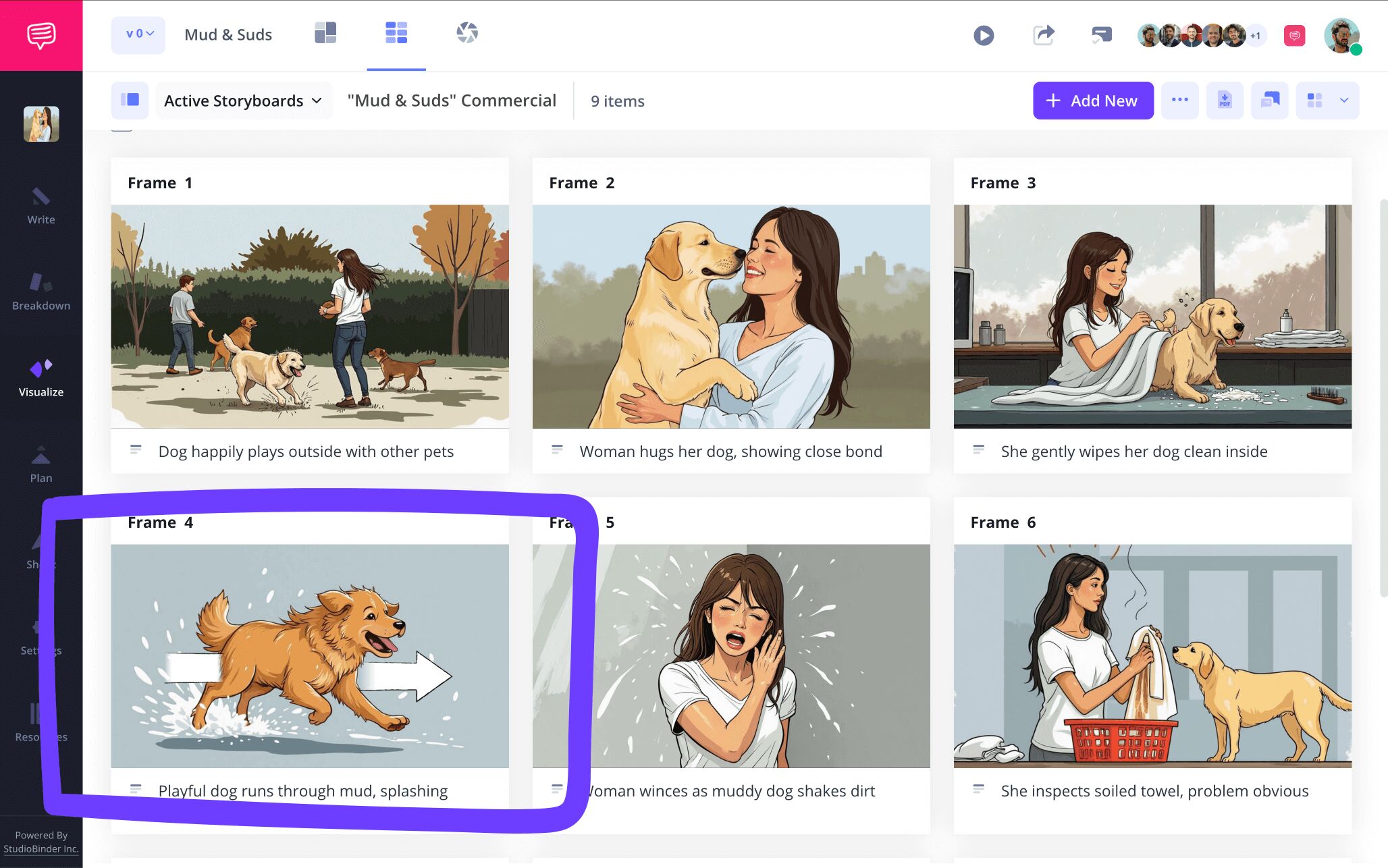
After we customized the size of our storyboard arrow and also tuned up our image with some of the other editing options available in this mode, we clicked save and our newly customized image was added directly into our basic storyboarding project.
Step 4
4. Collaborate and comment
Sometimes the greatest threat to the basics of storyboarding is our own tunnel vision. This is of course why collaboration is key when visualizing any storyboard idea. Even if you’re working on a private basic storyboard project, it’s always beneficial to have a trusted friend or colleague take a look at your work to make sure it reads to others in the same way it reads to you.
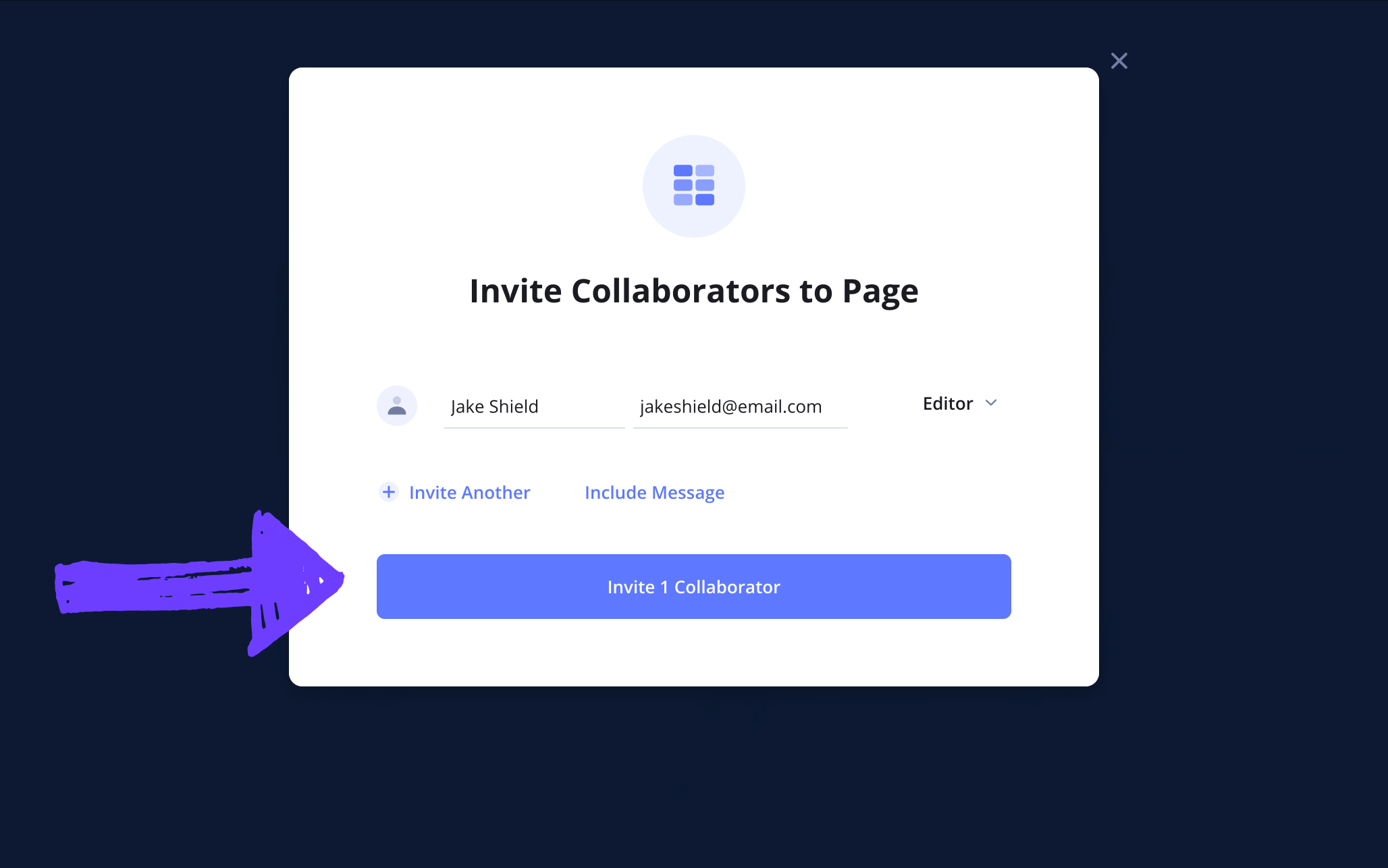
Send a view-only-link to those looking for a quick glance. But if collaboration is what really gets your creativity fired up, set your invitee’s permissions to either commenter or editor.
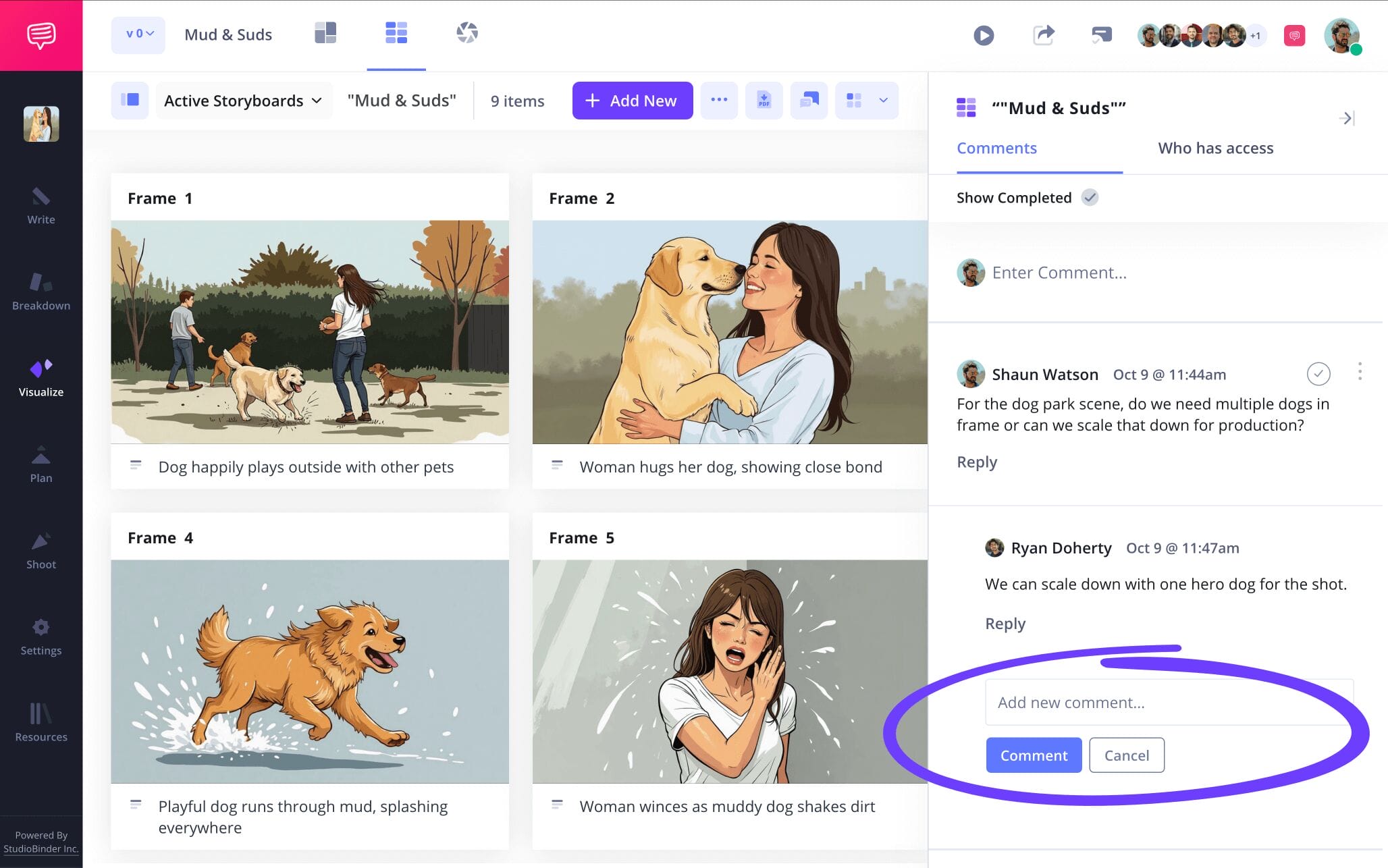
Now your collaborator is looking over your storyboard basic project with a handful of notes. Instead of waiting for that next coffee meetup to receive those notes, have them write them in the comments section instead and get a productive convo going.
Step 5
5. Create a storyboard PDF
Now that you’ve built your basic storyboard template and applied all that helpful feedback through one more pass, you’re ready to put an officially done stamp on your beautiful work. In other words, you’re ready to convert your basic storyboard into a PDF. With a PDF download, you’re creating an official document that both you and anyone you’re collaborating with can use throughout the subsequent production stages.
Want to add a front and back cover to make sure whoever receives your storyboard basics project knows they’re working with a professional? With StudioBinder’s PDF customizing suite, you can do this and so much more. For our storyboarding basics project, we were eager to add a watermark before we sent our document out to our crew because we had to deal with leaks before, and we can tell you firsthand, they’re no fun.

Conclusion
Finished!
Now that you’re done taking this step-by-step journey with us, we hope our basic storyboard examples provided a helpful enough guide to get you through the work of building your own basic storyboard template. But if you feel learning the basics of storyboarding wasn’t quite fulfilling enough, browse all our free storyboard templates to find what fits your style best.
Frequently Asked Questions
Your questions, answered
To make your own storyboard, you have two options to start out. You can use a ready-made template online, or you can build your own storyboard structure from scratch. If you’re building your own, you can create the panel layout and dimensions physically with a pencil and ruler, or you can use a program like Word to create them digitally. Once you have a basic storyboard template ready, start by filling out the beats of your story in the space near each panel. Then sketch or upload images to showcase the action of those descriptions.
In essence, storyboard means precisely what the word implies: a story that is displayed on a board. Storyboards are most known for being used in the film industry, but they can technically be helpful in pre-visualizing any kind of narrative. They consist of a series of square panels laid out on a physical or digital surface, each panel showcasing a sketched image of a frame or moment in a scene. Near each panel is a description of that image, providing need-to-know information like camera setup, character descriptions, and more. When a storyboard is complete, it looks and reads much like a comic book, showcasing an entire planned scene or sequence from left to right.
While storyboarding can be applied for many different purposes beyond just planning out a scene or sequence in a film, there are a handful of universal uses to this pre-planning tool. Here is a small list of essentials you won’t want to forget while building a storyboard:
- Brainstorm your ideas
- Label each panel with scene or sequence numbers
- Write out each storybeat in the description
- Draw or upload images into your panels
- Review, edit, and make sure it all flows together.
Adding images to your storyboard doesn’t have to be complicated, in fact, it’s not uncommon for some professional storyboards to include images pulled from the internet. Many people think you need to be a professional artist to draw storyboard images, but the purpose of a storyboard image is to communicate information, not showcase your artistry skills. So, if your image consists of stick figures and squiggly lines, don’t worry about how fancy it looks, just ask yourself this essential question: are the positions of my camera shots, characters, and environments coming through? If the answer is yes, then that’s what matters most.
Create your basic storyboard
Visualize your basic storyboard template with our free software.
Get started for free
