
home → TEMPLATES → Storyboard
Google Slides Storyboard Template

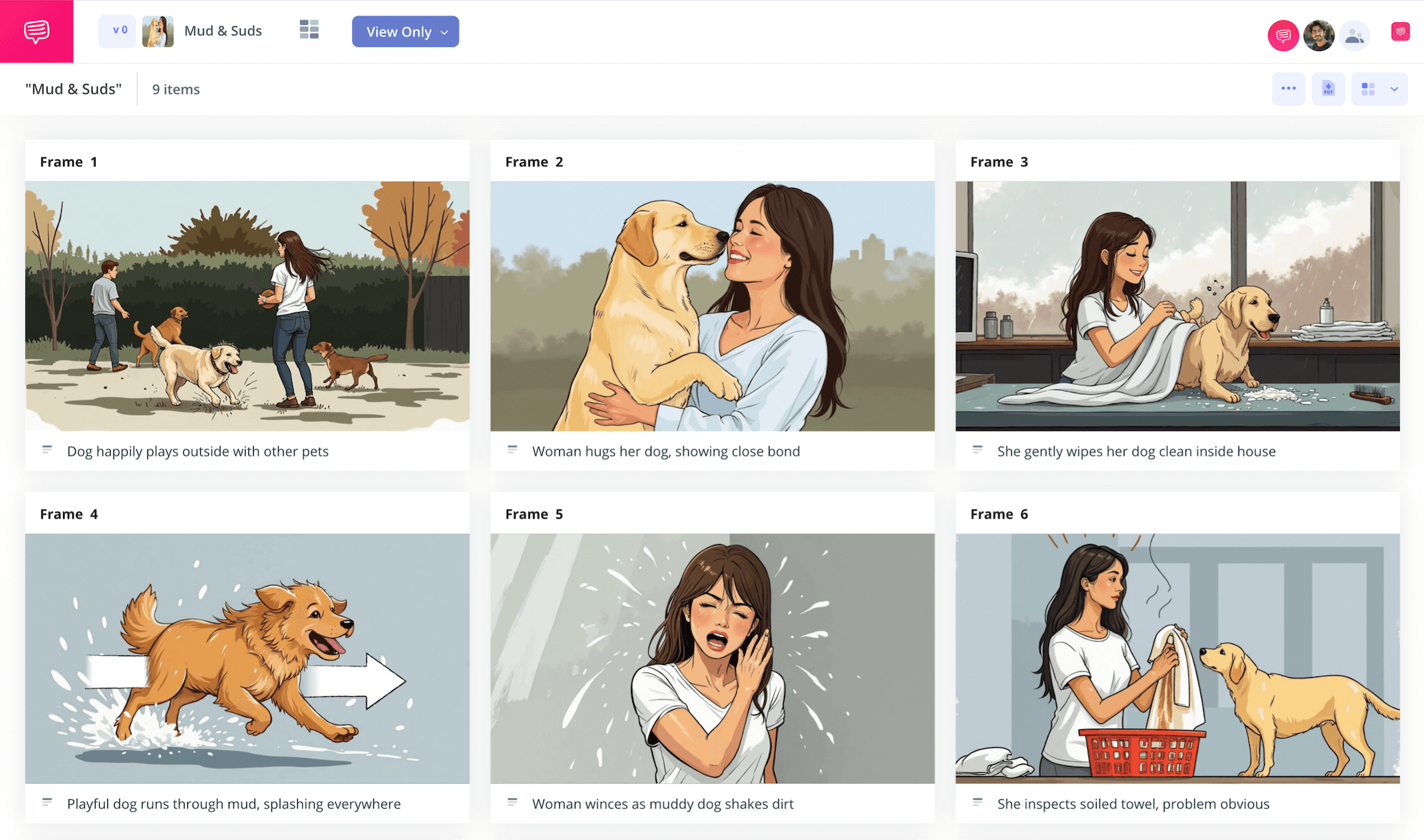
Google Slides storyboard template
A Google Slides storyboard template may be just the pre-planning tool you need for your next visual project. With a storyboard google slides template, you can plan out anything from a big, expensive Hollywood feature film, to your child’s grade school presentation on their favorite picturebook. The sky’s the limit when you have a trusty storyboard template for Google Slides because this tool essentially provides a basis for you to lay out your ideas beat by beat, perfect for optimal narrative or presentation flow and saving time and money with a better grasp on what’s absolutely necessary to keep in your project and what you can cut out.
In this guide on how to approach using a Google Slides storyboard template for your own project, we’ll break down the most important steps using StudioBinder’s storyboard creator. But of course, even if you’re working with a unique Google Slide storyboard template, you’ll still be able to follow along since these steps are broad enough to apply to any storyboard project.
Step 1
1. Prep your template
If you’re working directly in Google Slides, you’ll want to structure your Google Slides storyboard template in a way that meets your specific project. If it’s a class or work presentation you’re preparing for, you’ll want to go with larger panels so everyone in the back of the room can make out your visuals too. If it’s a film narrative you’re working on, then the standard 16:9 panel aspect ratio should suit you well and leave enough room for shot numbering and descriptions.
Starting a new storyboard project in StudioBinder automatically has you setting up these structural details, but you can also always reconfigure them at any point in the settings.
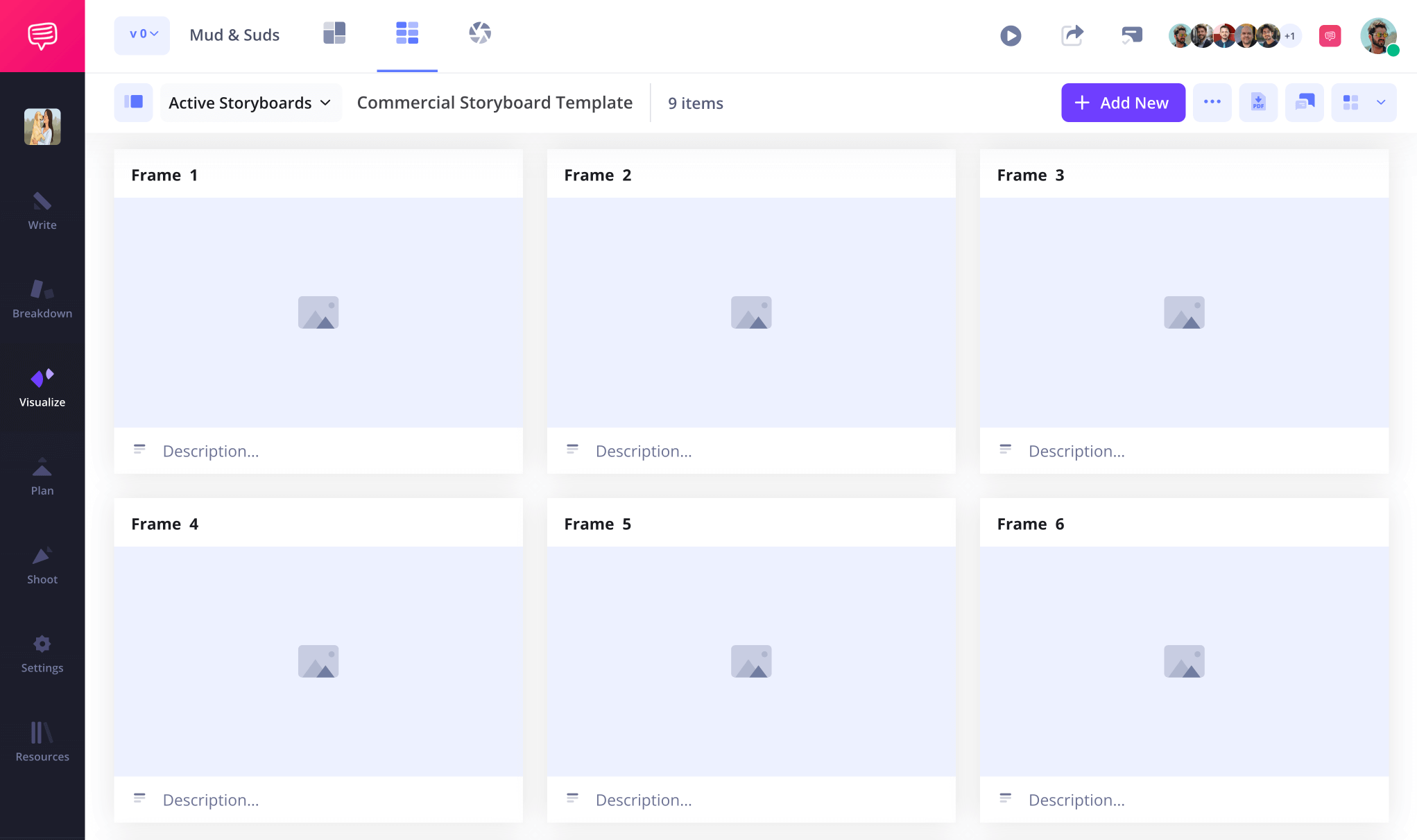
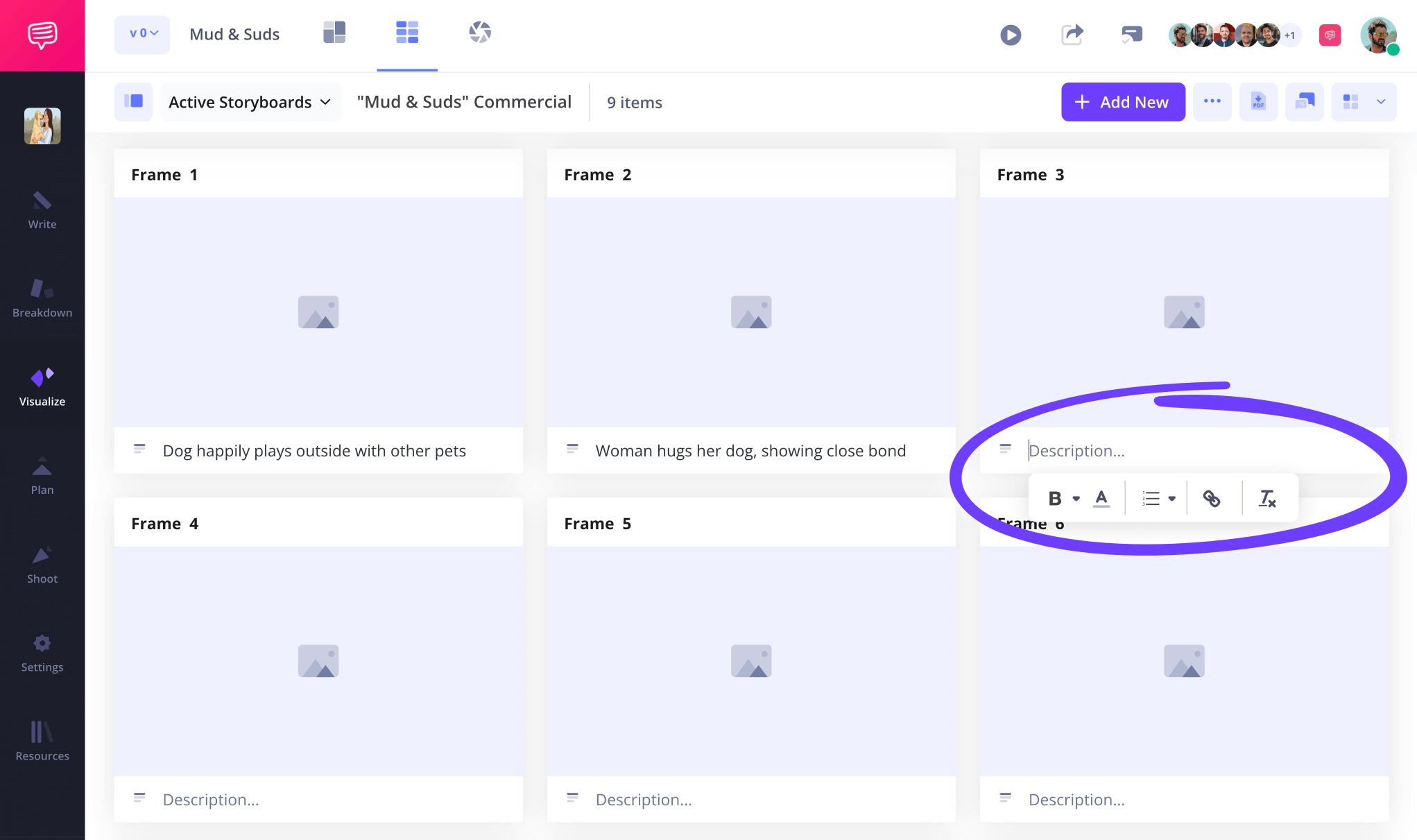
A presentation may require just a little description space for some talking point notes, while a short film might fill every last square inch of description space on your storyboard template Google Slides project. Whatever the case, start establishing those talking or story beats in the description fields below your panels.
Step 2
2. Add images
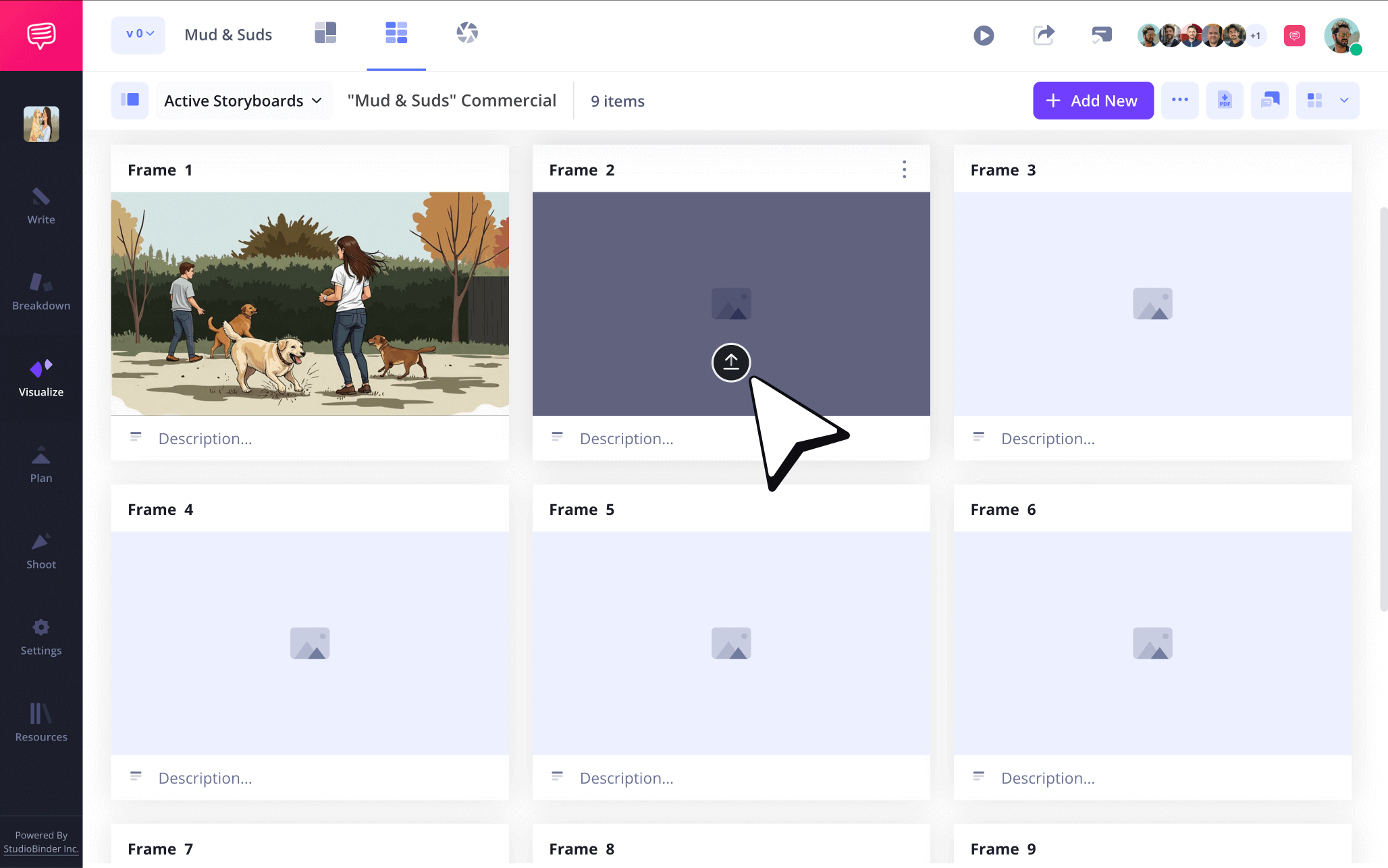
Now it’s time to jump into the most important part of your Google Slides storyboard template: visuals. Storyboarding traditionally consists of storyboard artists illustrating the details of a shot into each panel, but if you’re preparing for a presentation, then you may be using your own online found or company produced images for your free storyboard template Google Slides project. In any case, you have all your defining narrative moments written out on your storyboard Google Slides template, now just let that visual imagination flow!
Insert images onto your StudioBinder storyboard by clicking Upload on any panel.
Step 3
3. Apply arrows
Adding storyboard arrows to images is a great tool for just about any Google Slides storyboard template project. For business presentations, they can help highlight important information like graph number spikes. If it’s a film or video project you’re working on for your storyboard template Google Slides project, then arrows can help visually identify a specific camera movement that’s vital to know for a shot. Before replacing or redrawing an image, just think, can an arrow fix what’s not working here?
For our Google Slides storyboard template free example, we went into StudioBinder’s image editor and found a fade arrow that fixed our issue perfectly.
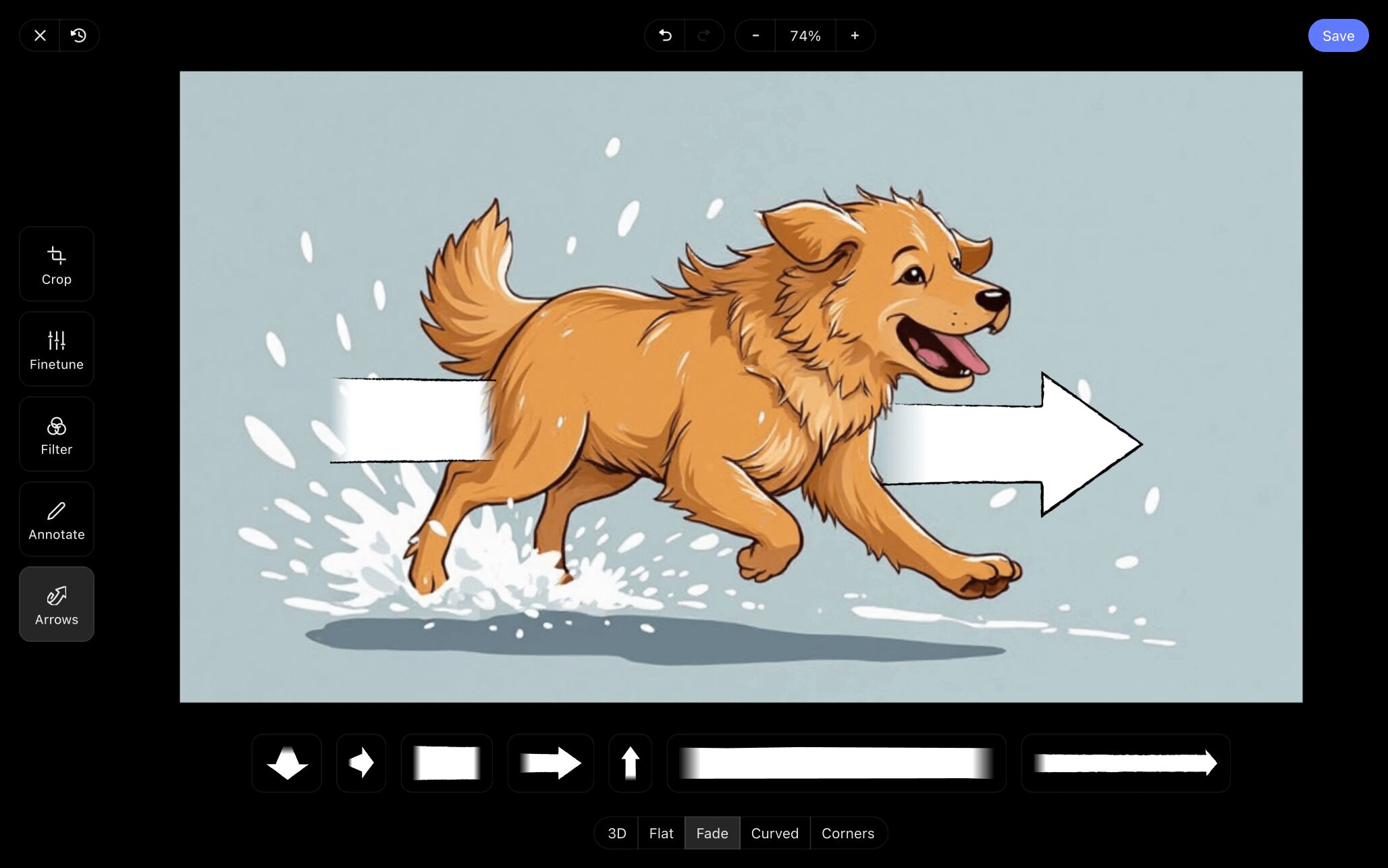
Once we resized our arrow to show the accurate speed and direction our star canine needed to be running, we clicked Save and our edited image was added right into our free storyboard template Google Slides project.
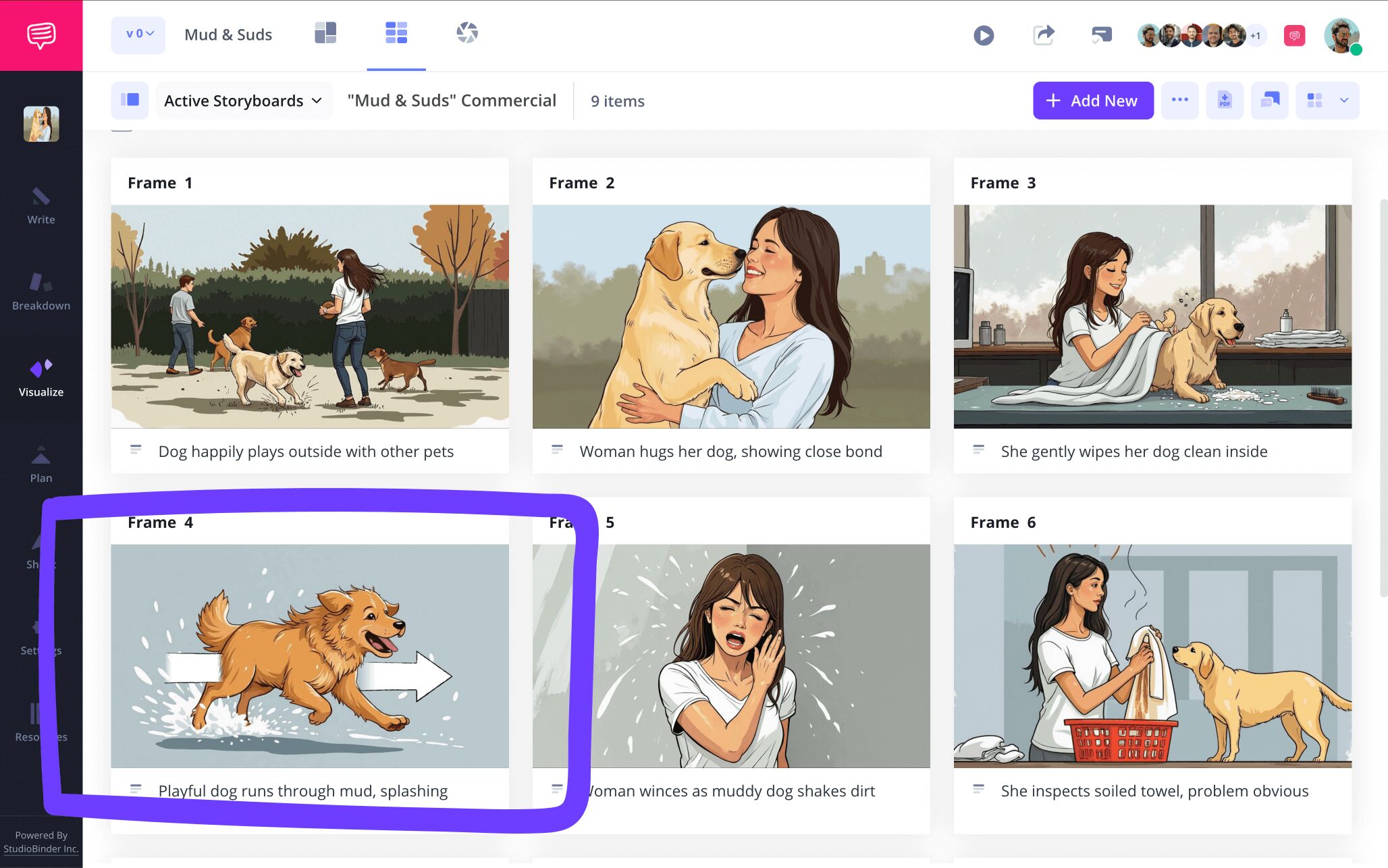
Step 4
4. Share and collaborate
Whether your Google Slides storyboard template project is for filmmaking, advertising, content creation, or anything else under the sun, collaborating with others to make sure it’s the best it can be can only help your cause. It’s helpful to approach collaborating on your Google Slides storyboard template free project with an open mind, this way you won’t be too precious over cutting out features that may be interesting in their own right, but don’t work within your storyboard template Google Slides project as a whole.
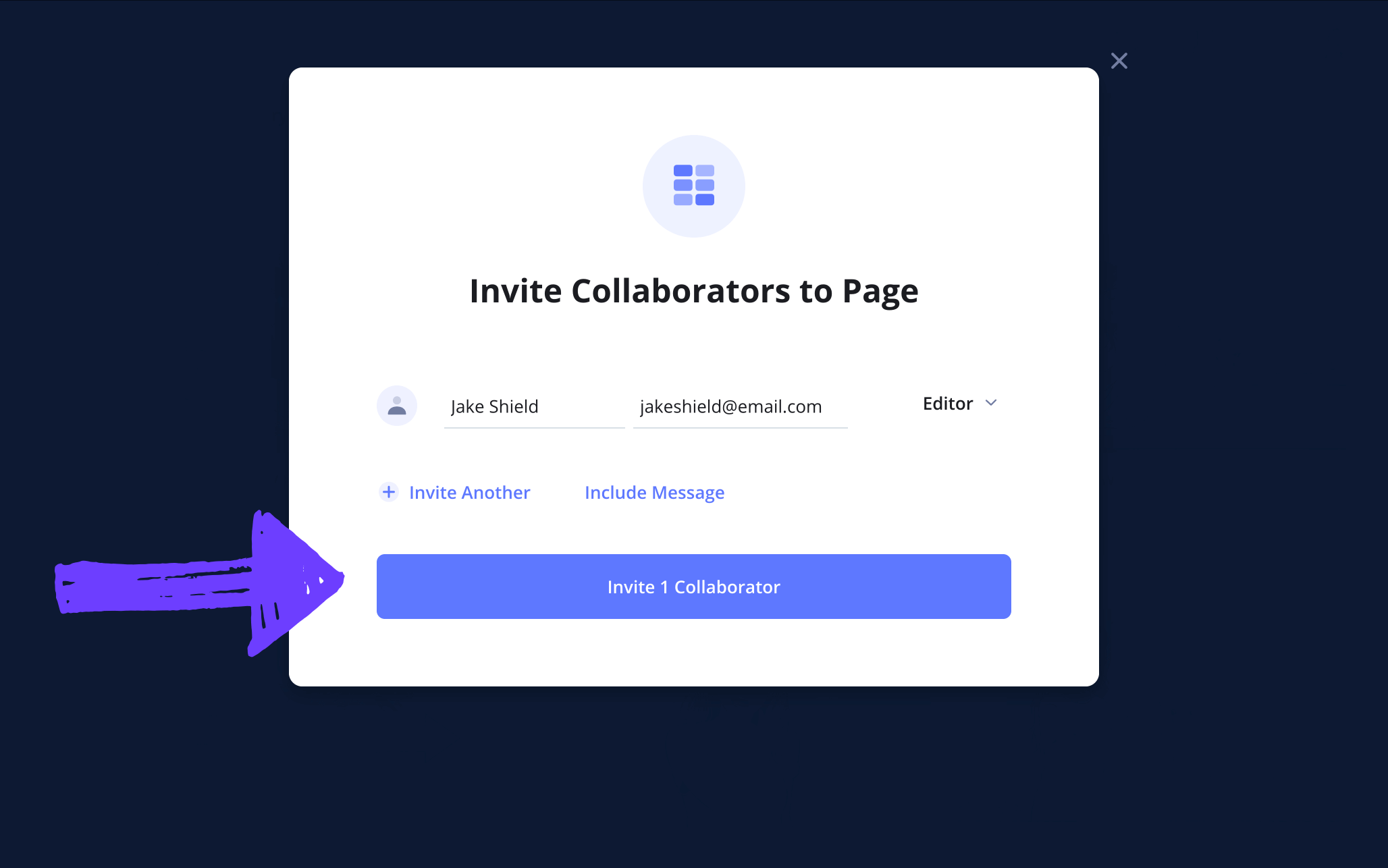
With StudioBinder, you can set any individual invite permissions to either viewer, editor, or commenter.
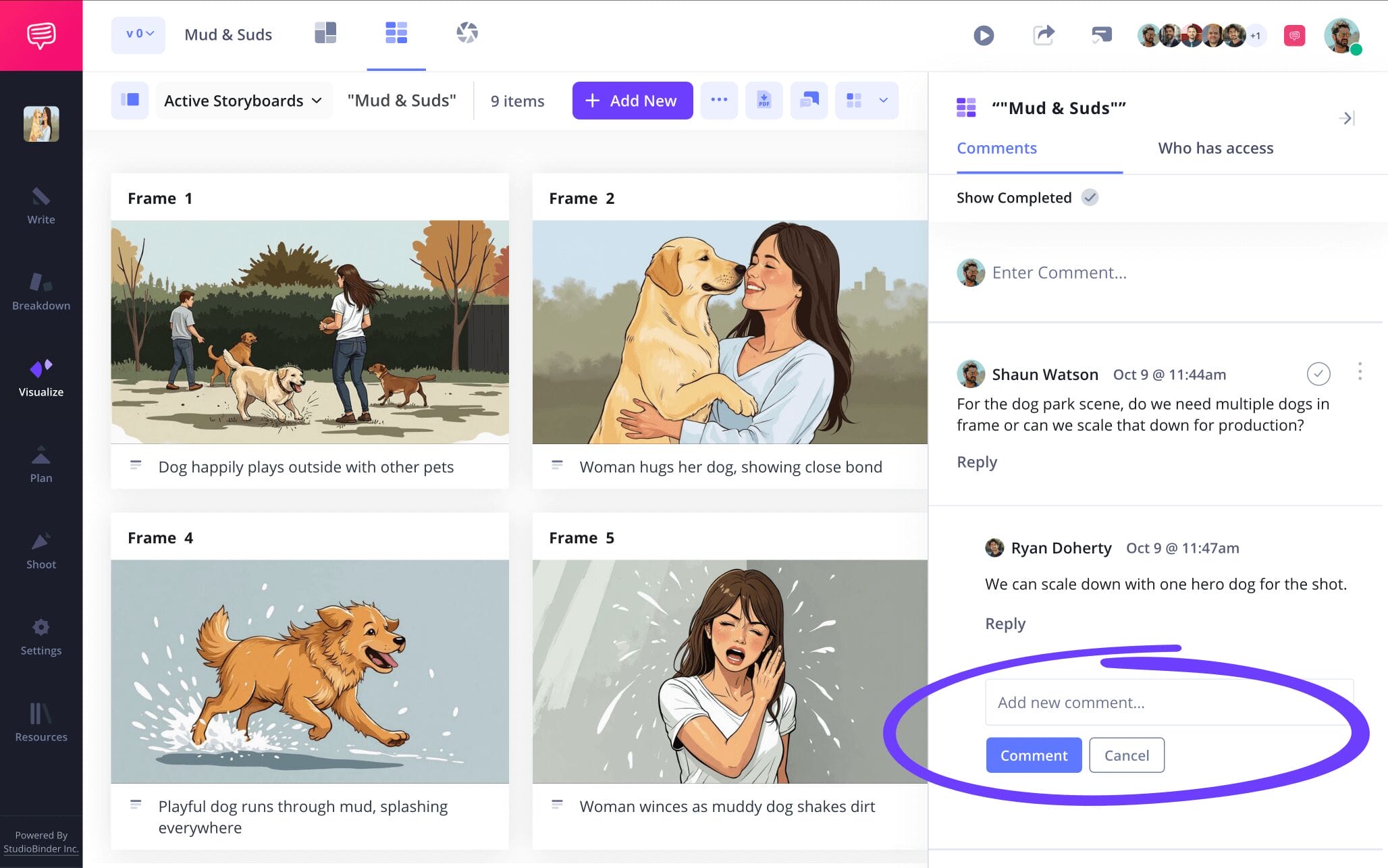
Anyone with commenter or editor permissions enabled can use the Comments section of your Google Slide storyboard template located to the right. Reply back and get a productive back and forth going!
Step 5
5. Create a storyboard PDF
As the building of your Google Slides storyboard template comes to an end, you’ll want to make sure that nightmare of your dog ripping up your homework the night before doesn’t come true. Converting your storyboard template for Google Slides project to a PDF is a safe way to make sure nothing you’ve worked so hard on gets unintentionally edited or deleted. Just as well, a PDF of your storyboard allows you to print and share as many copies as you’d like.
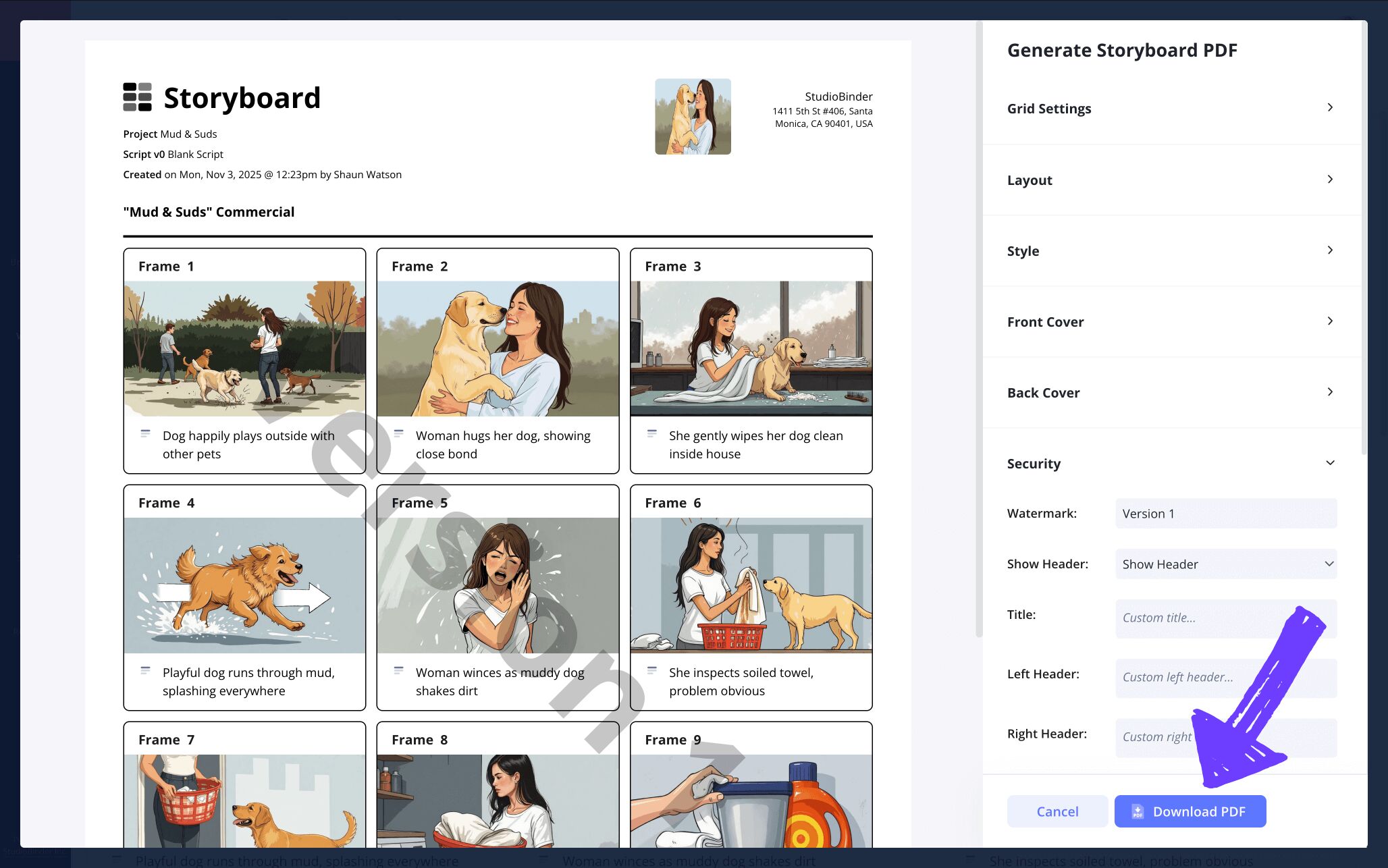
For our own free storyboard template Google Slides example, we used StudioBinder’s PDF editor to customize a front and back cover to keep it nice and professional. Then we remembered what happened the last time we shared our storyboard Google Slides template PDF with the rest of production, so we went into the security tab and added some custom watermarks to be extra safe.
Conclusion
Done!
We hope this guide on how to make the best of your Google Slides storyboard template helped get you through all your project needs. And remember, Google Slides storyboard template free projects aren’t the only kind of template projects StudioBinder can help you with, so be sure to browse through all our free storyboard templates!
Frequently Asked Questions
Your questions, answered
You essentially have two options when it comes to making your own google slide storyboard. One is to make it by scratch. To do this you’ll go to File, Page Setup and adjust the storyboard dimensions. Or, you can use a pre-made storyboard template that can be copied and inserted directly into Google Slides. To do this, just put in a google search for google slide storyboard templates, along with the dimensions you prefer. From there, choose whichever template fits your project needs.
Yes, ChatGPT can create storyboards, although not as magically and fast as you might initially assume. For example, you can’t just prompt ChatGPT to make the best story ever with the best storyboard detailing it. You still have to have a solid story idea and a solid intuition for guiding the system. You’ll want to start with one aspect of the storyboard at a time, making sure each detail comes out the way you envision. When you get to images, you’ll need to be as descriptive as possible. Afterall, the storyboard will only be as well done as you prompt it to be.
When it comes to digital storyboards, you have quite a lot of options to choose from. Word, Google Slides and Powerpoint are some of the leading websites and apps to build a storyboard from. Best of all, you won’t even need to build your storyboard from scratch. A simple google search will pull up all sorts of different storyboard templates to choose from. Any of these templates can then be easily copied and inserted into these apps. So, the question is then, who offers the best storyboard templates? Well, we hate to toot our own horn, but StudioBinder has a large list of templates that come in all shapes and sizes to fit any of your project needs. Take a look for yourself if you’d like!
Using a storyboard template for google slides is mostly helpful for any storyboard project that you want to emphasize the visuals over anything else on. This is because Google Slides, not unlike powerpoint, is used most often for work or class presentations. The default frames are expanded for optimal visual clarity. But of course, you can also find any kind of storyboard templates with dimensions that fit your needs through a quick search. These can then be copied and inserted into Google Slides quickly and easily. So given how user friendly it is, why not use Google Slides as your storyboard template?
Create your free storyboard
Visualize your Google Slides storyboard template with our free software.
Get started for free
