
home → TEMPLATES → Storyboard
Screenplay and Storyboard Template

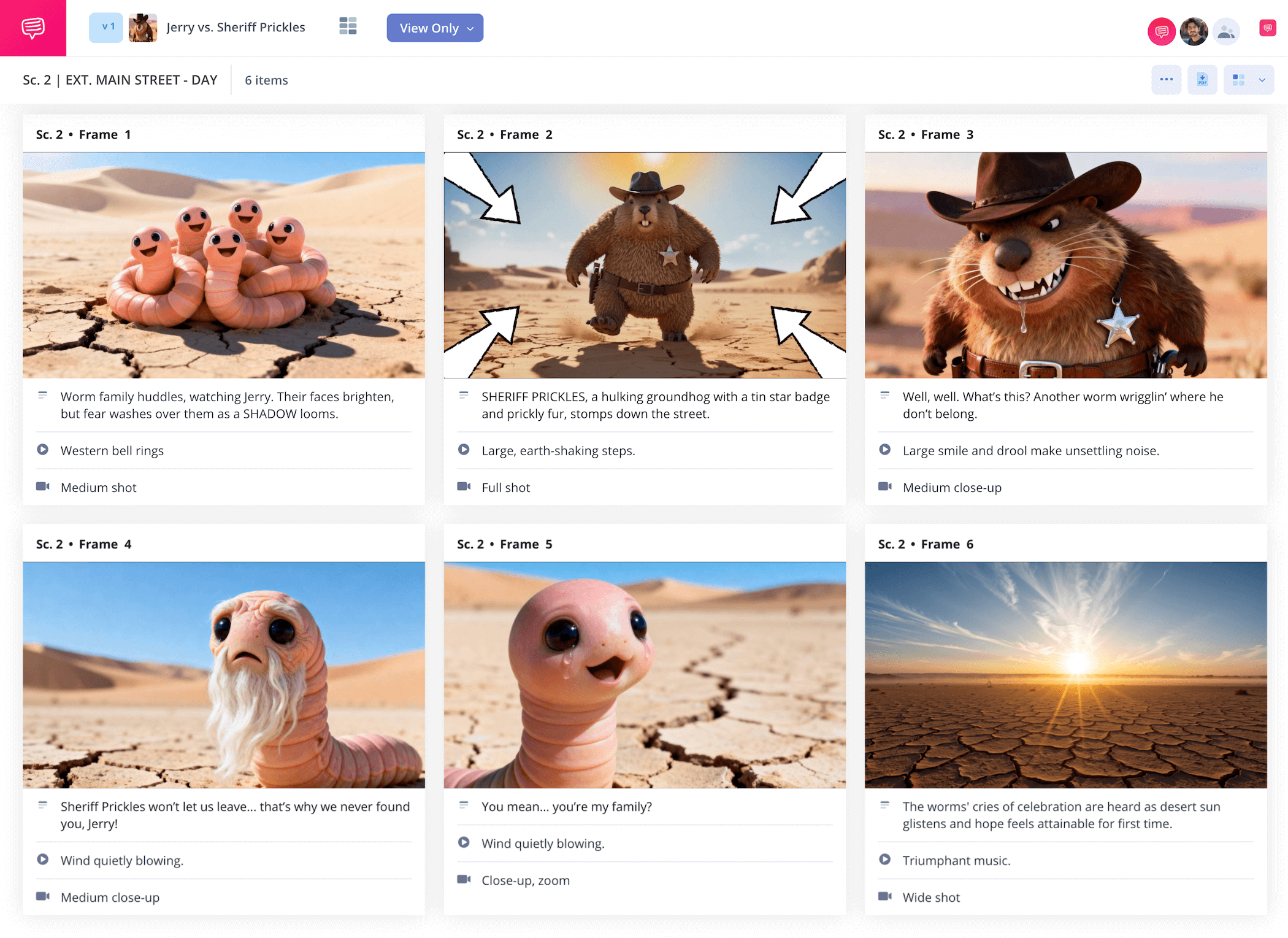
Screenplay and storyboard template
If you’re looking for the kind of storyboard that makes it easy to place your script and storyboard together for quick transferability, then a screenplay and storyboard template just might be perfect for you. With a screenplay storyboard, you’re focusing on bringing each and every line from your script into your storyboard description space, your main goal being to transfer all those well-written lines into a well-paced visual language. Then comes creating images that bring all that descriptive imagery and all those characters to life on your storyboard screenplay template. But we’re getting ahead of ourselves.
For this guide, we’ll detail all the best storyboarding methods to keep in mind as you build your storyboard directly from your script. We’ll use a storyboard script project we created with StudioBinder’s storyboard creator as our leading example, but feel free to follow along with any kind of script and storyboard template you prefer!
Step 1
1. Structure your template
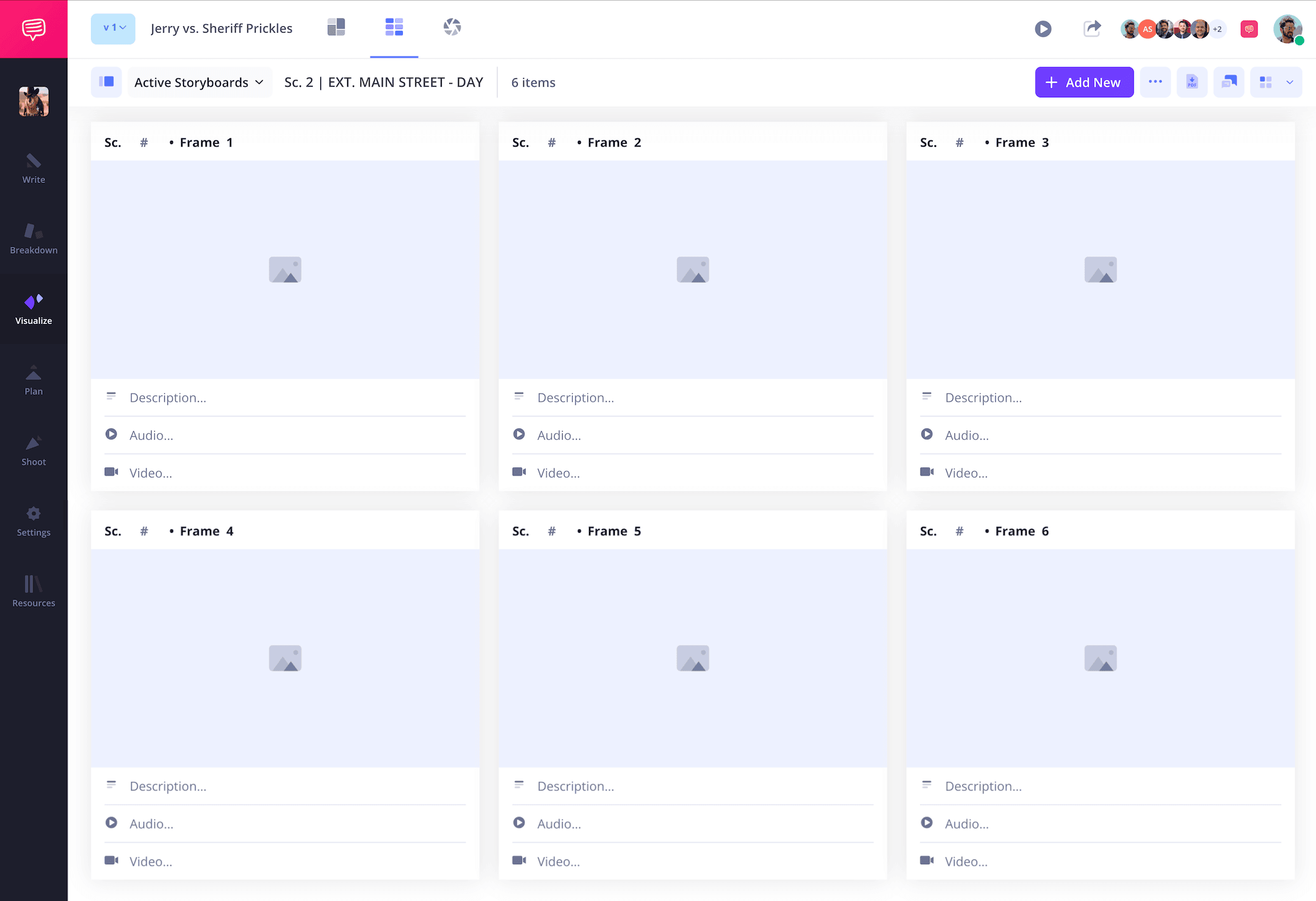
To make sure your screenplay and storyboard template is the right size to build on with your screenplay also in view, you’ll want to keep a pretty standard layout. 16:9 panels and no more than six (we recommend just three) panels per storyboard page.
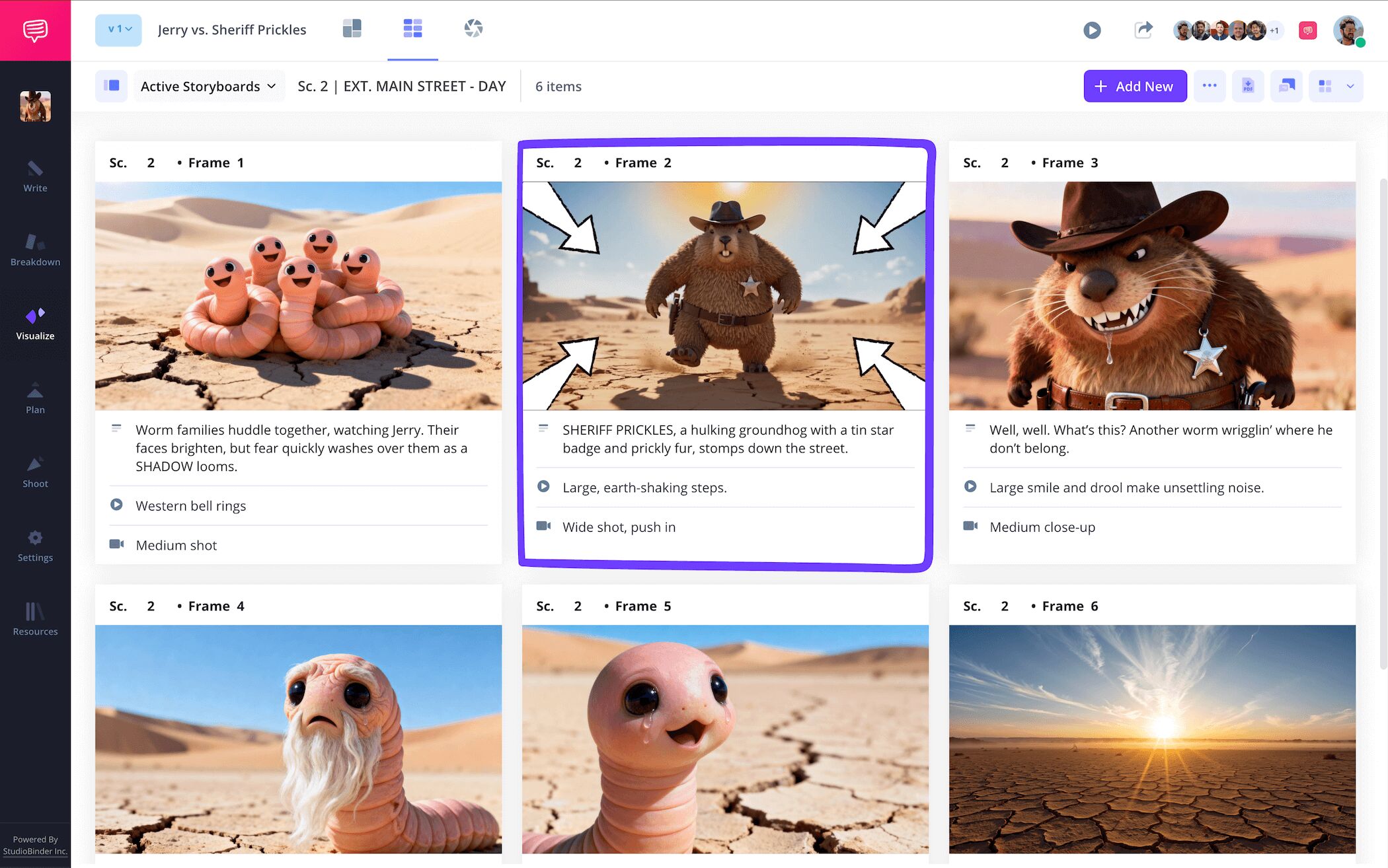
This way you have plenty of room to add in all the image and description detail each script line calls for. You’ll answer some of these basic storyboard setup prompts when you start a new project in StudioBinder. Then, when your screenplay storyboard is all configured, it will look along the lines of this:
Step 2
2. Import screenplay
With your screenplay and storyboard template structure and dimensions established, you’re ready to introduce your script. If you’re working with pencil and paper, you’ve placed your screenplay comfortably next to your screenplay storyboard template and you’re analyzing each line, visualizing the kind of pace you’re creating as you re-write the script lines into each description.
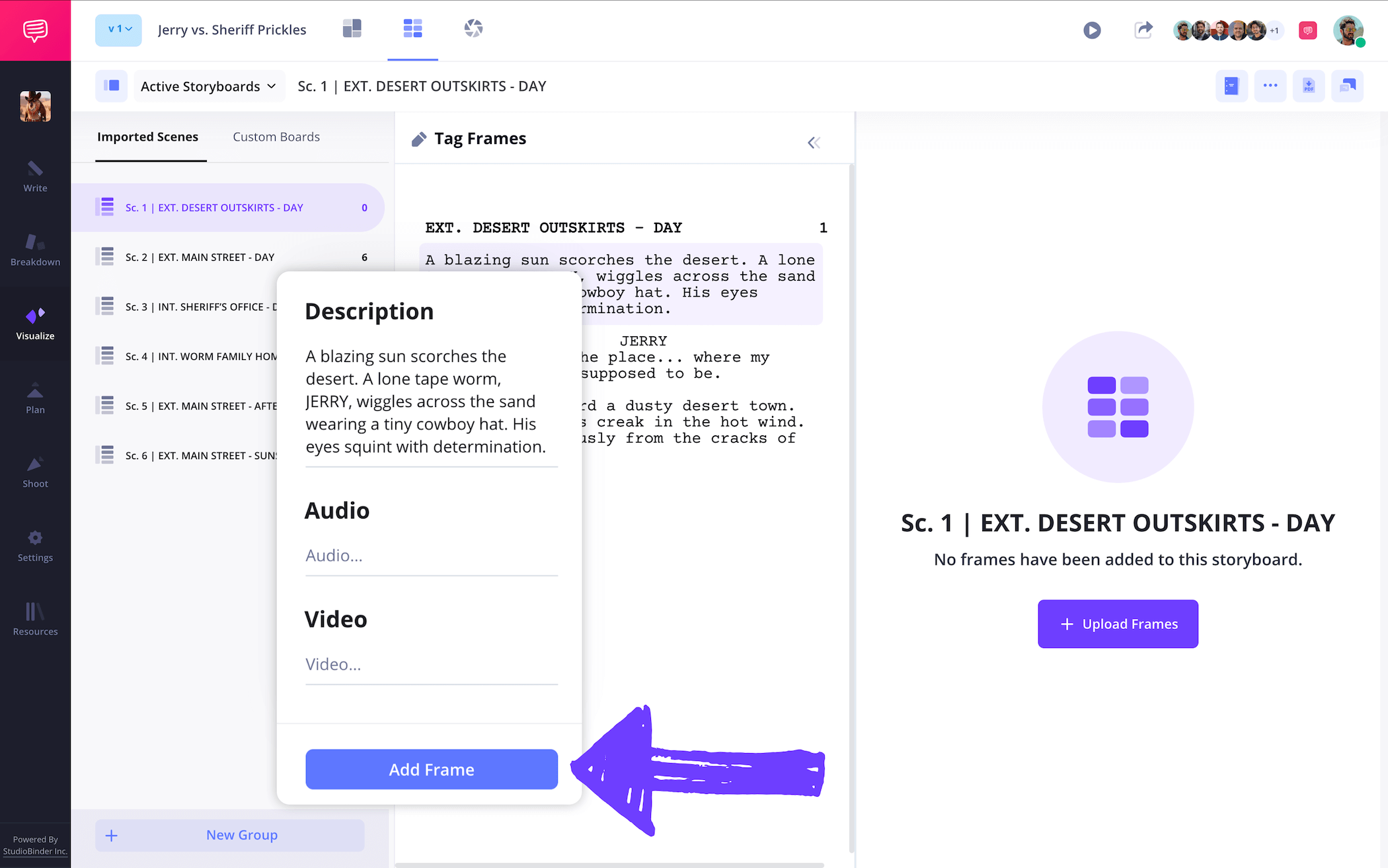
In a way, you’re essentially editing your script all over again, deciding how many lines can be conjoined or separated in a given frame. With StudioBinder, you can import your script directly into your storyboard screenplay project and view it side-by-side with your template.
Then you can use the shot tagging feature to turn your screenplay lines into shot descriptions. This way you can quickly visualize how many lines should go in each panel and why on your storyboard script project.
Step 3
3. Add images
Now that you’ve completed the hard work of creating a sense of tone and pacing with your script to panel descriptions on your screenplay and storyboard template, the fun part of bringing each of those individual panels to life begins! Don’t worry, you don’t need to be a gifted storyboard artist, the digital storyboarding age offers more than enough image creating options.
You might pull some temp images online that reflect the mood and ideas you’re aiming for on your script for storyboard template, or you might just go with simple stick figure drawings. It’s a storyboard, not an art class afterall, the images on your screenplay storyboard really only need to communicate the essential shot information.
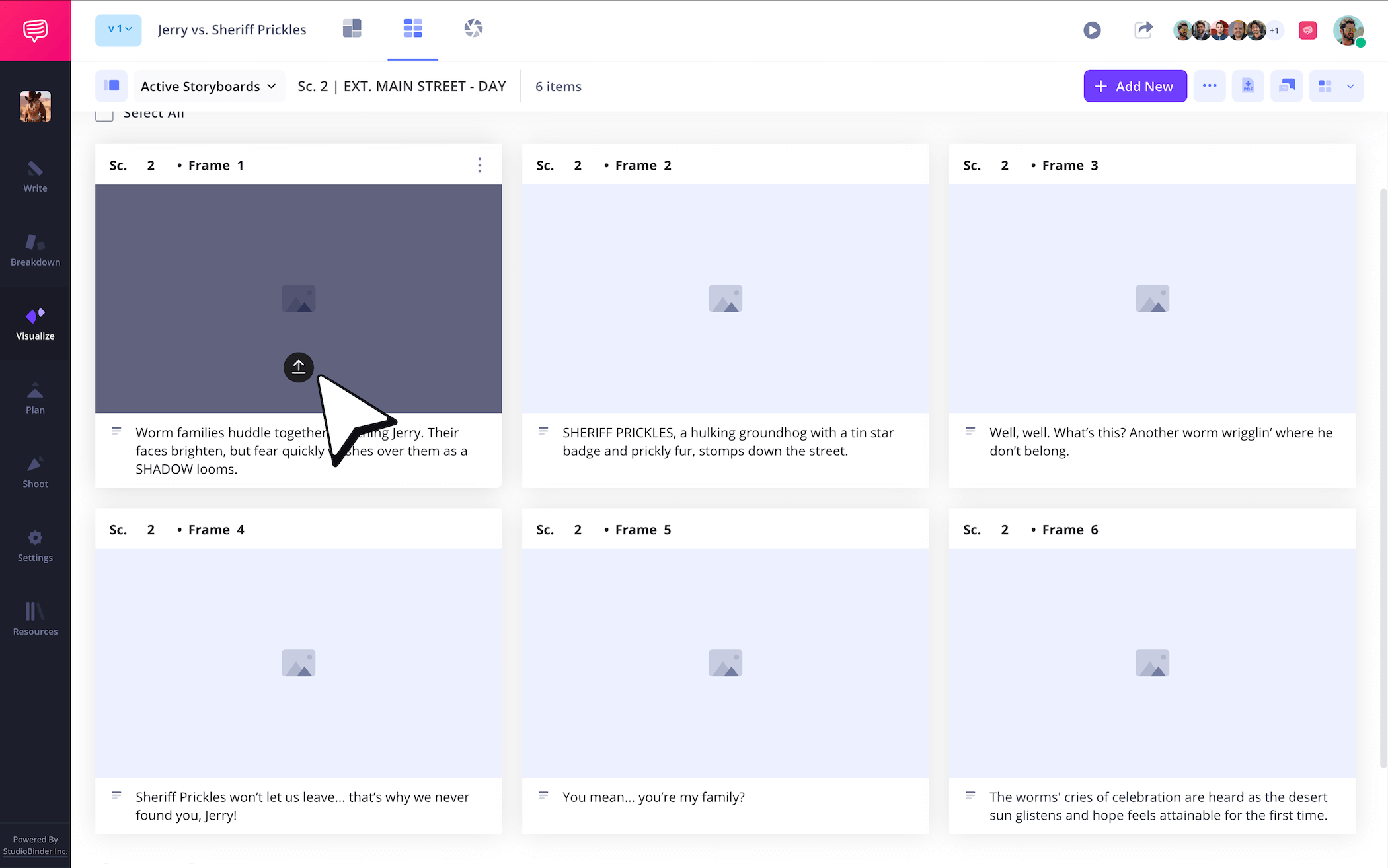
To add images to your storyboard screenplay project in StudioBinder, just click Upload on any frame.
Step 4
4. Include arrows
Storyboard arrows are a great way to help indicate a certain action that isn’t quite getting through in your image and is also too important to just leave written in the description space of your screenplay and storyboard template. Arrows are especially helpful because they’re easy to draw into already finished images. On the digital side, StudioBinder’s image editor offers a large list of pre-made and customizable arrows to add into any image on your script for storyboard project.
As you can see in our own animation storyboard sample, we added some essential arrows that helped communicate a zoom shot we wanted to emphasize.
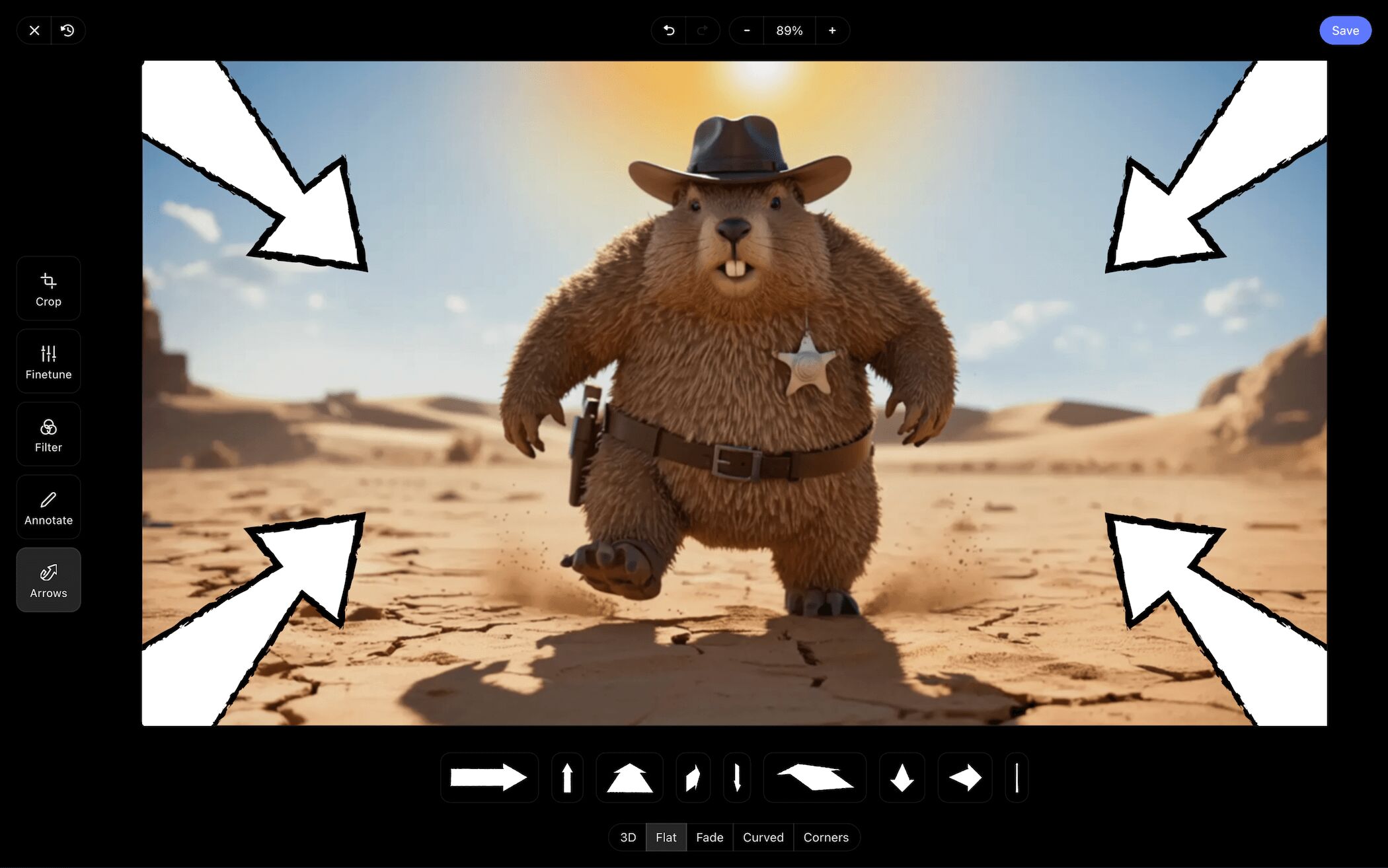
Once our arrows were all resized and locked in, all we had to do was click Save. Then we went back to our screenplay storyboard layout to find our newly edited image added in.
Step 5
5. Collaborate and share
Even if you wrote your script and built your screenplay and storyboard template in complete solitude, finding another perspective for some feedback can only benefit the work. With StudioBinder, you can basically turn your script and storyboard project into a central hub for your entire production team to collaborate with you on.
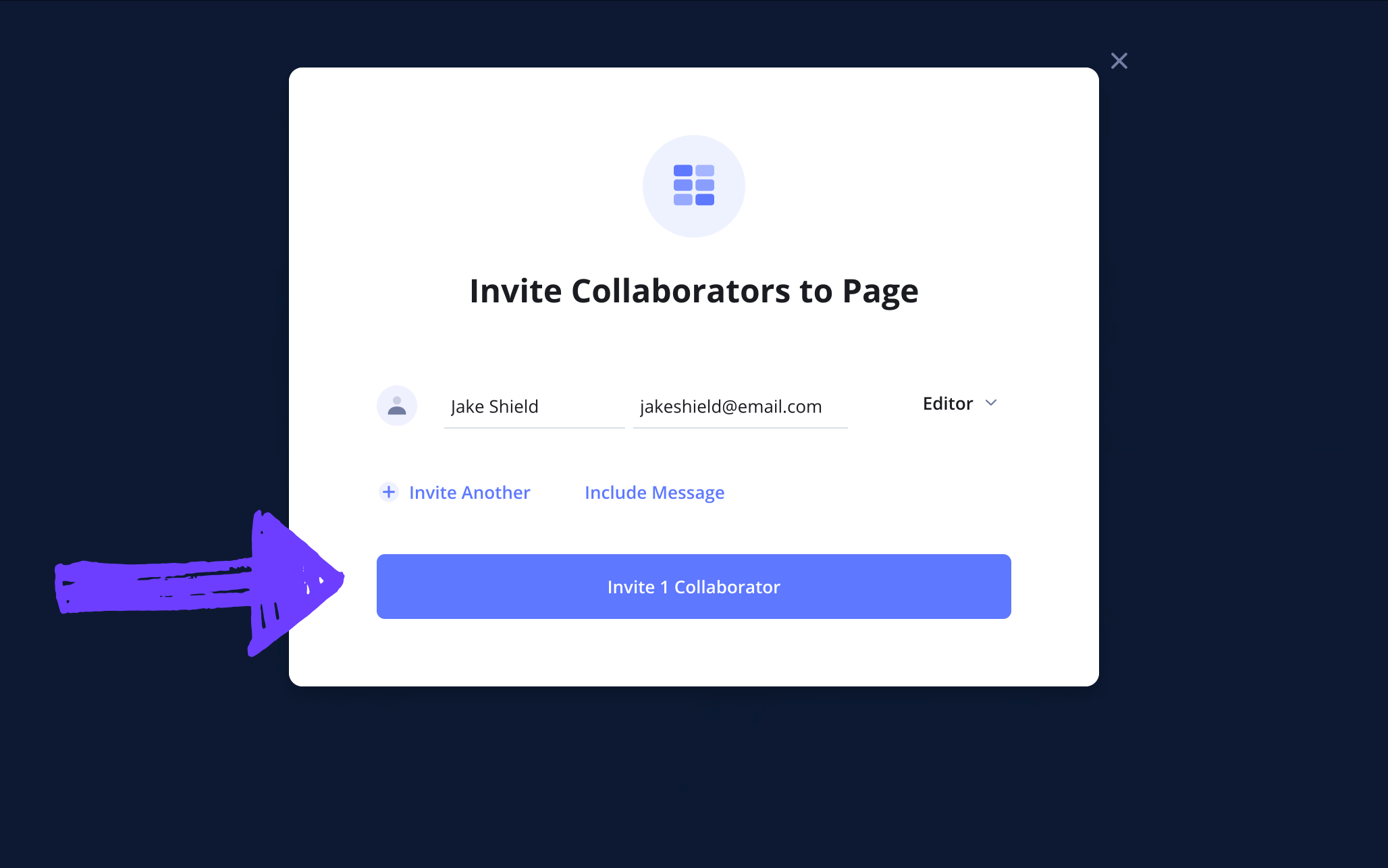
You can send a straightforward view-only-link, or you can get much more detailed and set your invitee’s permissions to either commenter or editor.
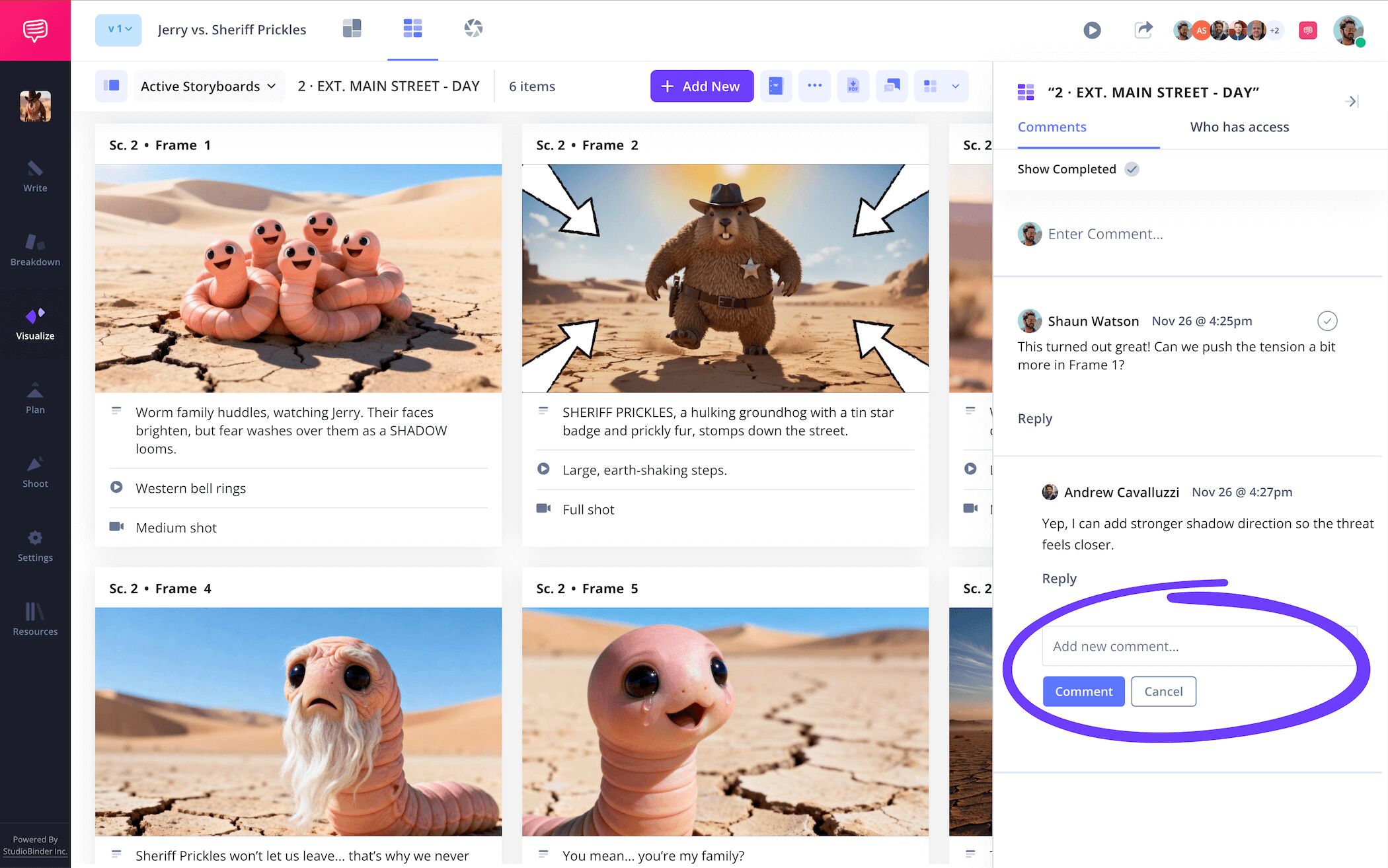
Now your collaborators with commenter and editor permissions enabled can write out their feedback in the comments section. Even better, you can reply back so you can all get to the bottom of what will make your storyboard script project the best it can possibly be.
Step 5
5. Download as storyboard PDF
You may be finished building your screenplay and storyboard template, but that doesn’t mean you’re quite done yet. In order to make sure all that hard work you spent on your script for storyboard project doesn’t get lost or accidentally deleted or edited, it’s always good to get into the habit of downloading it as a PDF document after completion.
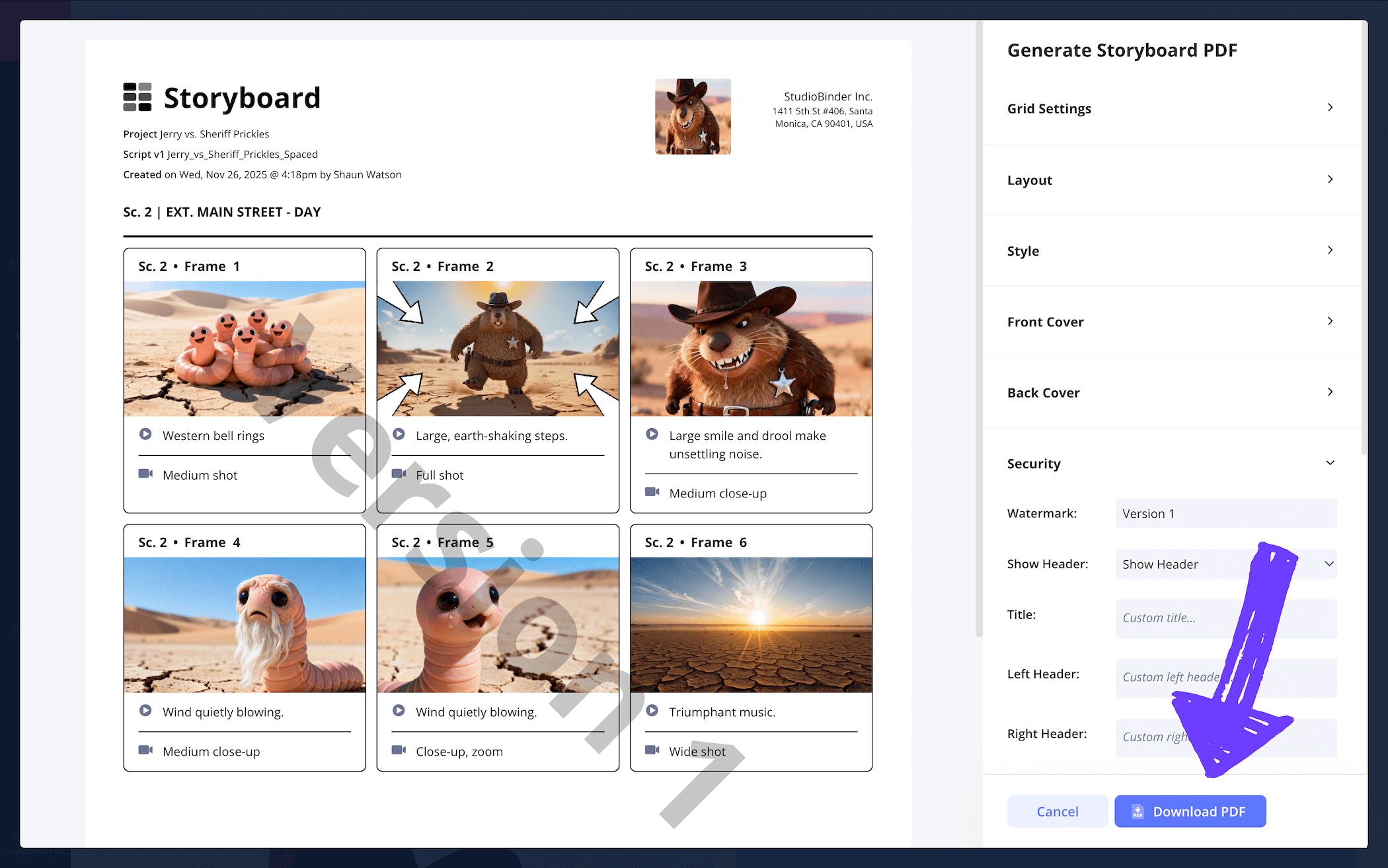
As you can see in our animation storyboard sample, after we were done with the storyboarding process, we went into StudioBinder’s PDF editor and made some customizations to make it look professional and readable for when we print it and bring it on set.
After the font and coloring was adjusted to exactly where we wanted it, we were sure to add a custom watermark as well, because we lost our last screenplay storyboard template, and that memory still haunts us to this day.
Conclusion
You're all done!
Now that you’re good and familiar with all the essential steps to building your own screenplay and storyboard template, you’re probably eager to take that script you’ve been wanting to turn into a short film and jump straight into the storyboarding process. If you find yourself with any more storyboarding needs down the line, make sure you browse through all our free storyboard templates!
Frequently Asked Questions
Your questions, answered
A screenplay and storyboard template refers to the process of building a storyboard directly from a script. With a screenplay storyboard, you have your script right next to your storyboard template, and you’re transferring each and every line into the storyboard. As you do, you’re considering the pacing and mood that will be established from one panel to the next. Then you create images out of those descriptions, essentially building the visual language of your film or animation narrative straight from your screenplay.
You’ll want to use a screenplay storyboard if you have a finished script that you’re inspired to turn into an onscreen narrative. A screenplay storyboard is really any storyboard template that is built directly from a script’s lines. This is done by taking each location description, line of dialogue, etc. in the script and transferring it directly into the storyboard’s panel descriptions as you find the pacing and tone with each line in each panel. While this is a traditional method, there’s no exact rule on how to build a storyboard, even if you have a finished script. You can even begin building your storyboard with images before any descriptions. It’s really up to your creative process.
If you’ve been told you can’t start building a storyboard until you have a finished script, then we’re happy to debunk this myth for you. You definitely don’t require a finished script for the storyboarding process. Think of a storyboard as a creative tool, how you use it will depend entirely on your own creative process. You may have a vague idea of a story in your head and the storyboard is your unique way of finding that story through the methodical laying out of images and descriptions. The sky’s the limit. But if you’re working in a professional film production setting, however, then yes, you’ll most likely be tasked with building the storyboard from a script. Though this is a common industry practice, a storyboard is still a tool for you to use however you wish for your own personal projects.
Creating a screenplay storyboard template is less in the structure of the actual storyboard itself, and more in the method of how you’re using the storyboard. Your storyboard dimensions can be set at whatever you prefer, but we recommend 16:9 aspect ratio panels and no more than six panels per page. This way you leave enough room for all the script details you need in each panel and description box. If you’re working with a physical storyboard template, you’ll have your script right next to it and ready to be re-written into your panels. If you’re using a digital storyboard, upload your storyboard and position it right next to your storyboard so you can copy those script lines right into the description fields. Once you’ve written and paced out all your panel descriptions, you’re ready to start bringing those panels to life with images. And there you have it, that’s how you build your own screenplay and storyboard template.
Create your free storyboard
Visualize your screenplay and storyboard template with our free software.
Get started for free
