home → TEMPLATES → Storyboard
Storyboard Google Docs Template

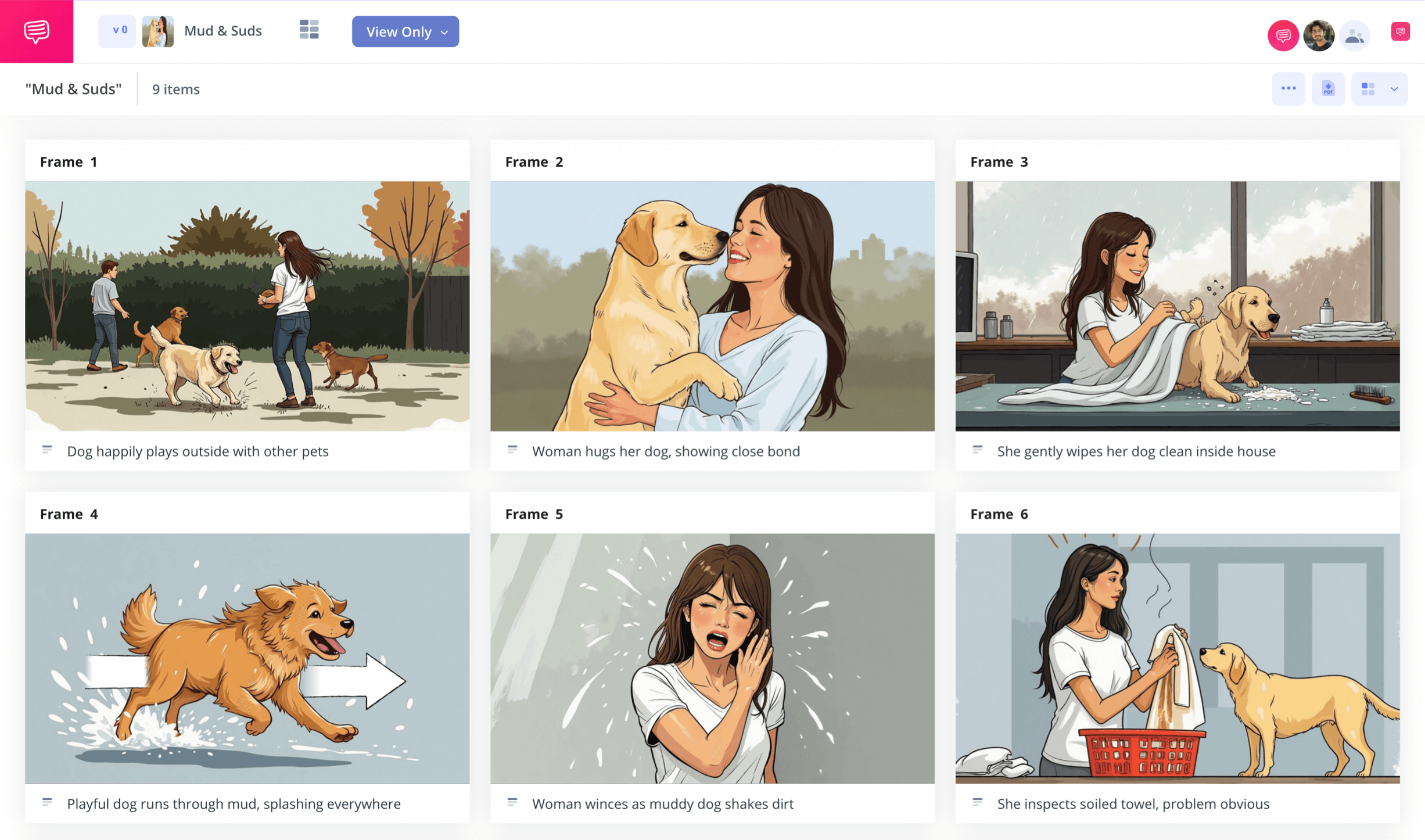
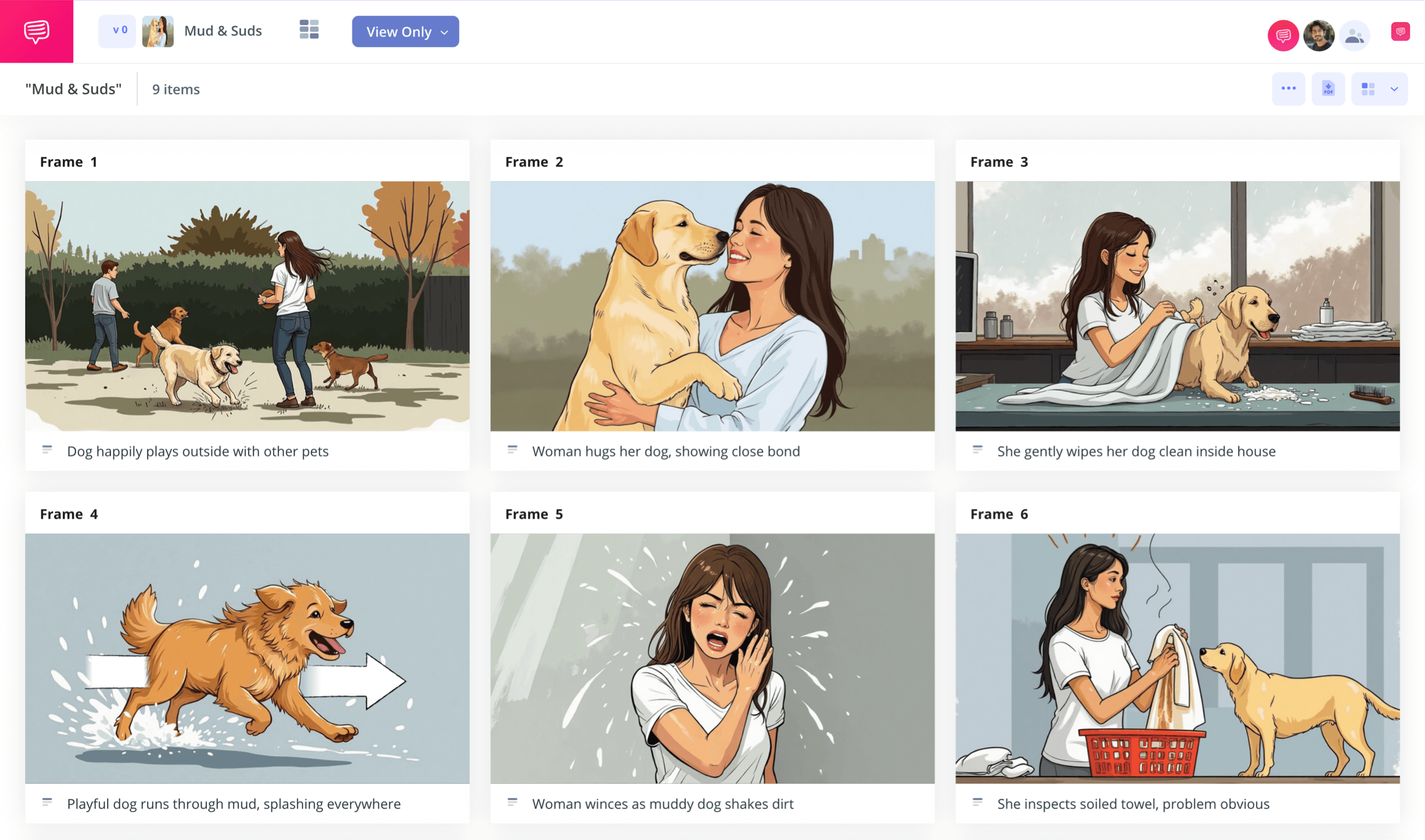
Storyboard Google Docs template
If you’re looking for a clean and efficient way to plan out your next visual narrative project, a storyboard Google Docs template will provide you with all you need to get the job done. Whether you make your own Google Docs storyboard template right in Google Docs yourself, or you find one of the many available templates online that can be downloaded and applied to Google Docs, a Google Doc storyboard template is one of the easiest ways to get your project off the ground. Once you see your ideas laid out from one story beat to the next on your storyboard Google Doc template, the process of making your visual project a reality will be a piece of cake.
With this ‘how to build your storyboard Google Docs template’ guide, we’ll take you through the broadest, most important steps using StudioBinder’s storyboard creator. These steps can be applied using any storyboard template, so whether you’re using pen and paper or your own customized Google Docs storyboard template, you’re in good hands.
Step 1
1. Ready your template
You won’t get much done without the right kind of storyboard Google Docs template, so make sure you choose wisely. If you’re planning a feature or short film, 16:9 frames are the typical standard. The Instagram video size should ideally be 9:16, however, 4:5 is also an acceptable aspect ratio. But since this is the planning stage, your storyboard aspect ratio doesn’t need to align exactly with your final video aspect ratio, it’s just helpful to keep in mind when considering image real estate. StudioBinder prompts you to answer some of these basic layout questions when you start a new project. When you're ready, your storyboard will look something like this:
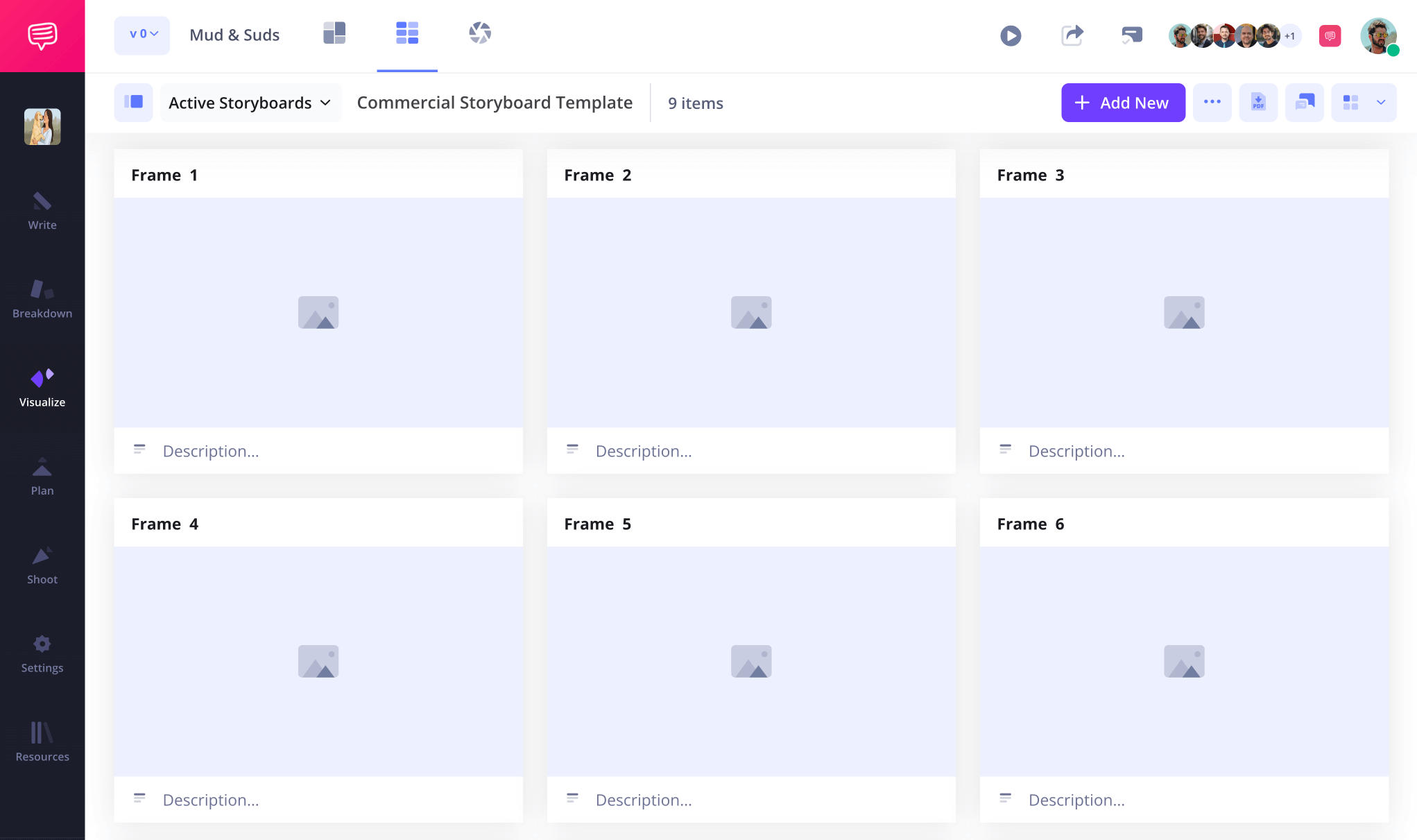
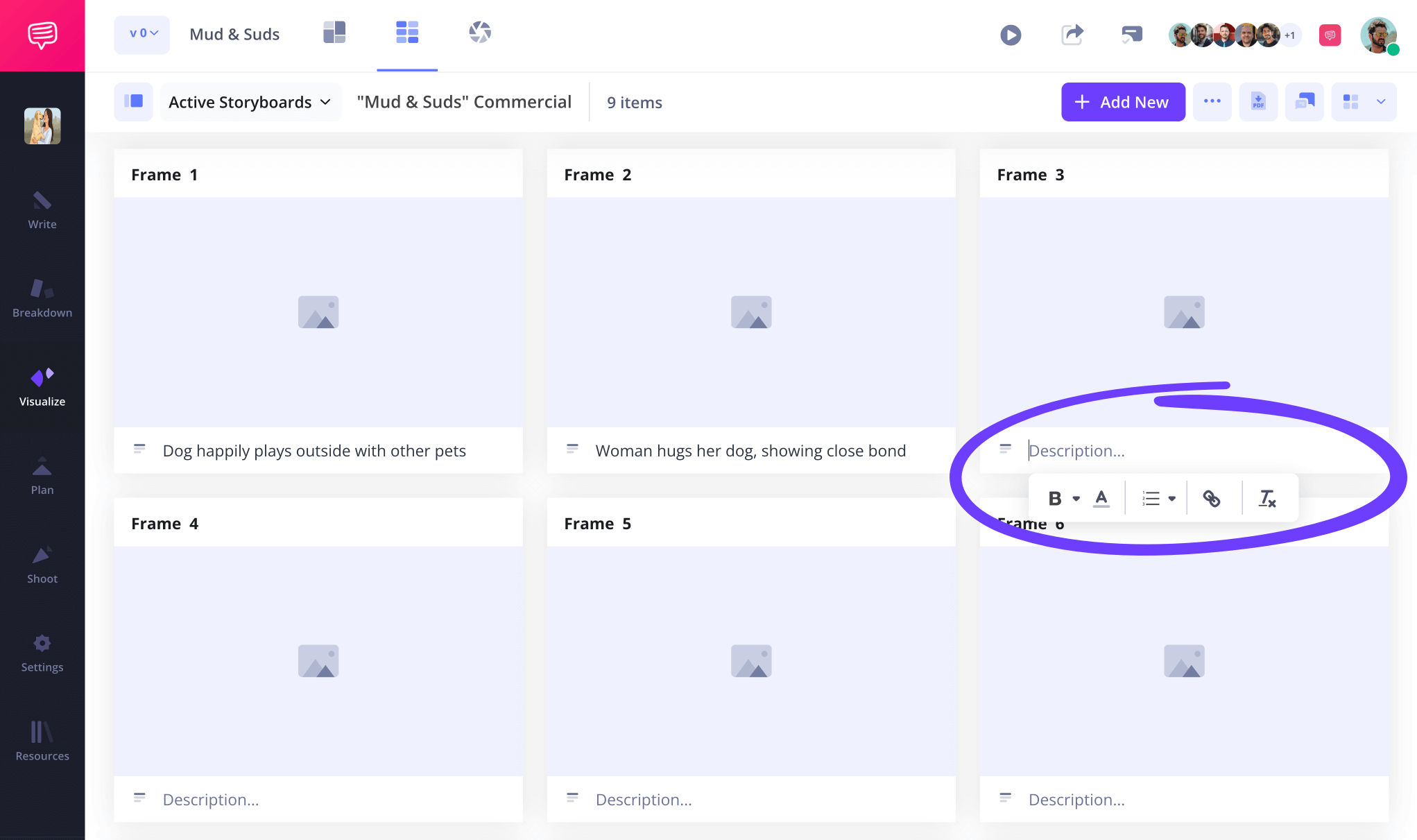
Description space is also important to keep in mind on your storyboard template Google Docs project. Do you need both an audio and description tab, or does just one minimal shot description space work for your specific project? Once you get your configuration down, start typing into the description fields.
Step 2
2. Upload images
Now you’re ready to fill that storyboard Google Docs template up with images. While we recommend sketching images into your storyboard, even if you’re just using stick figures for your characters, the truth is the internet allows for all sorts of image creating opportunities. For example, if you’re using your Google Docs storyboard template for an explainer video, you might pull some reference images from the internet to indicate when you’ll cut from yourself to b-roll footage. Even AI images that help you find the abstract tone and look for your narrative aren’t out of question.
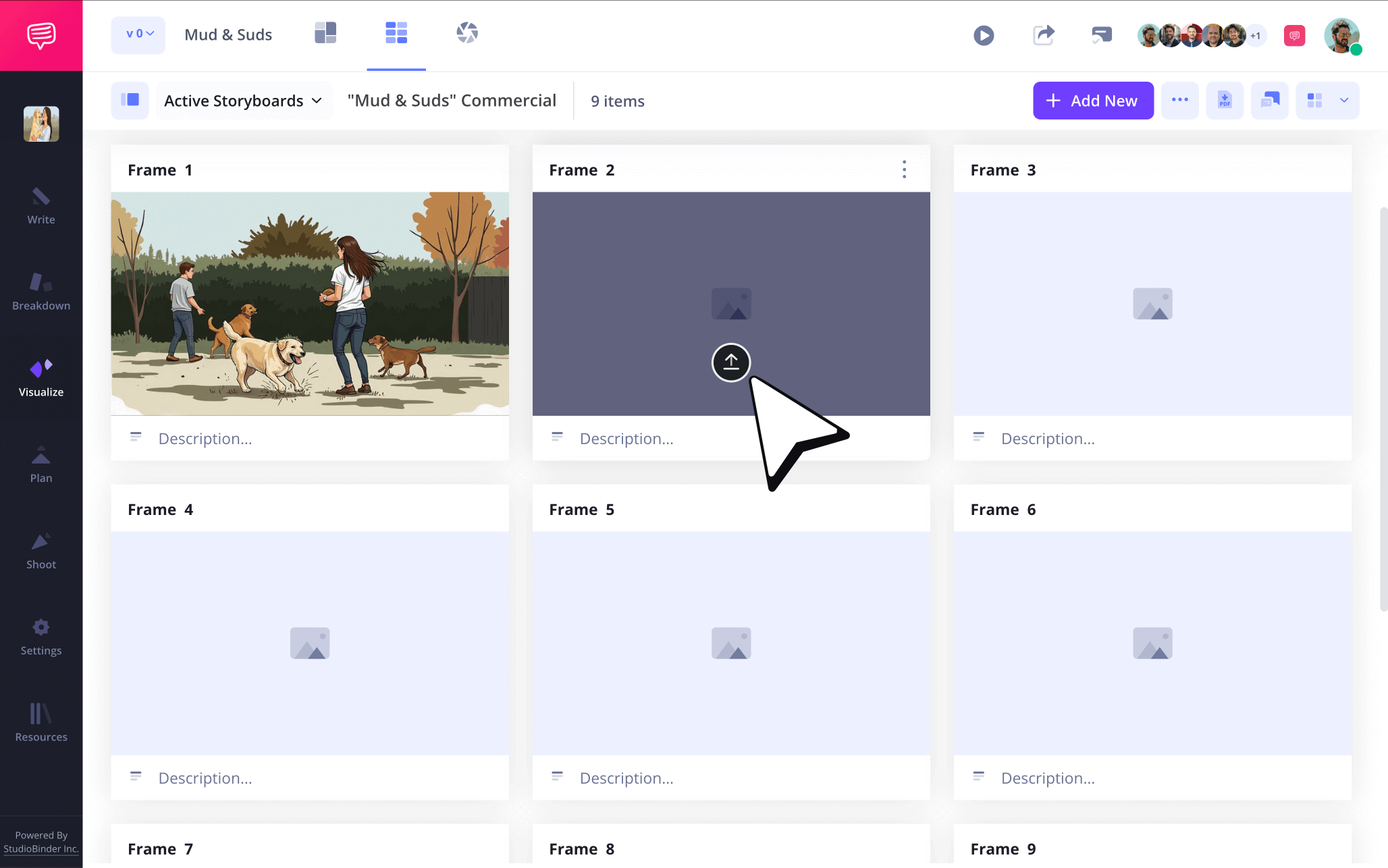
To insert images into your storyboard template Google Docs project in StudioBinder, just click Upload.
Step 3
3. Insert arrows
Storyboard arrows are a great tool for any storyboard Google Docs template. Maybe you drew an image that doesn’t quite communicate the right action, or maybe you pulled a temp image from Google and it’s missing just a little more visual information to complete that perfect camera movement you see in your head. Whatever the case, it’s good to keep arrows in mind while building your storyboard template for Google Docs.
To get some arrows onto your Google Doc storyboard template images in StudioBinder, go into the image editor and choose from a long list of customizable arrow shapes and sizes.
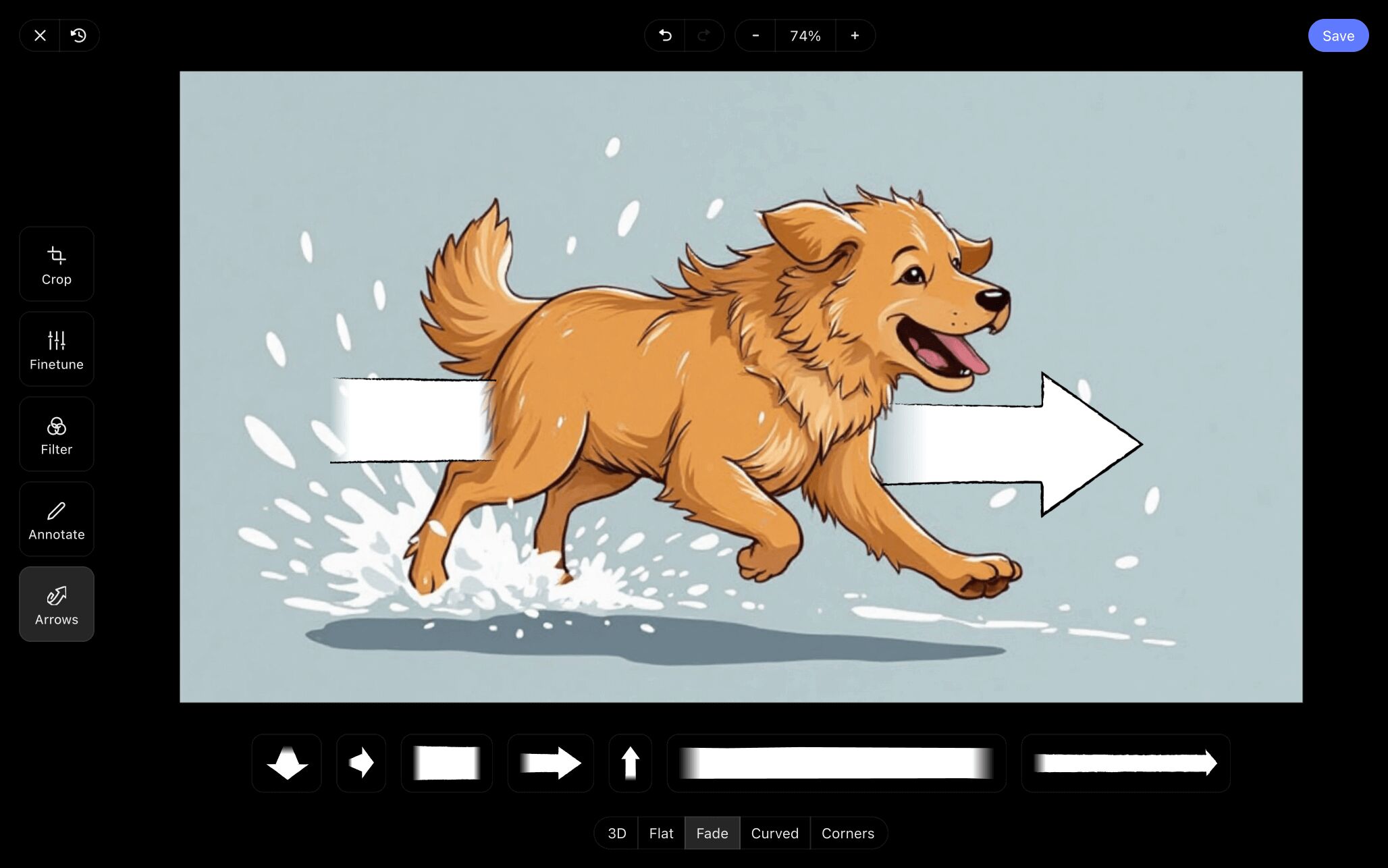
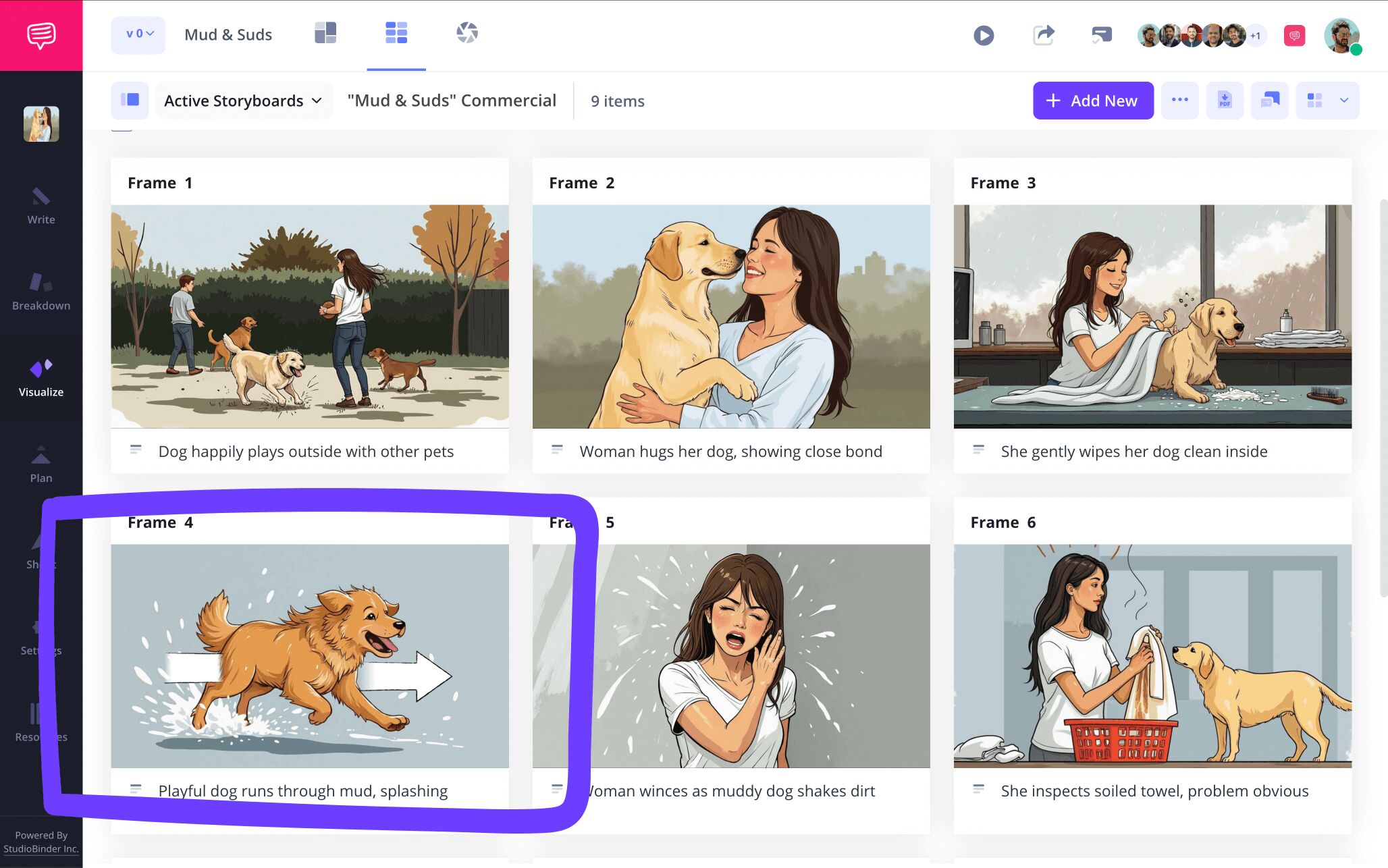
Once you find the arrow that solves your problem, customize it to the right size and consider adding some text for extra clarity. When it all looks good as can be, just click Save and your freshly edited image will be added to your storyboard Google Doc template.
Step 4
4. Collaborate and share
A storyboard Google Docs template can be used for anything from a major Hollywood film production to short form content that will be shot alone in your garage. But either way, collaboration is a key part of making your visual narrative all the better. If you’re working solo on your storyboard template Google Docs free project, reach out to a trusted friend to get their perspective. If you’re in, say the film pre-production or digital advertising game, then you already know the importance of efficient communication with your whole team.
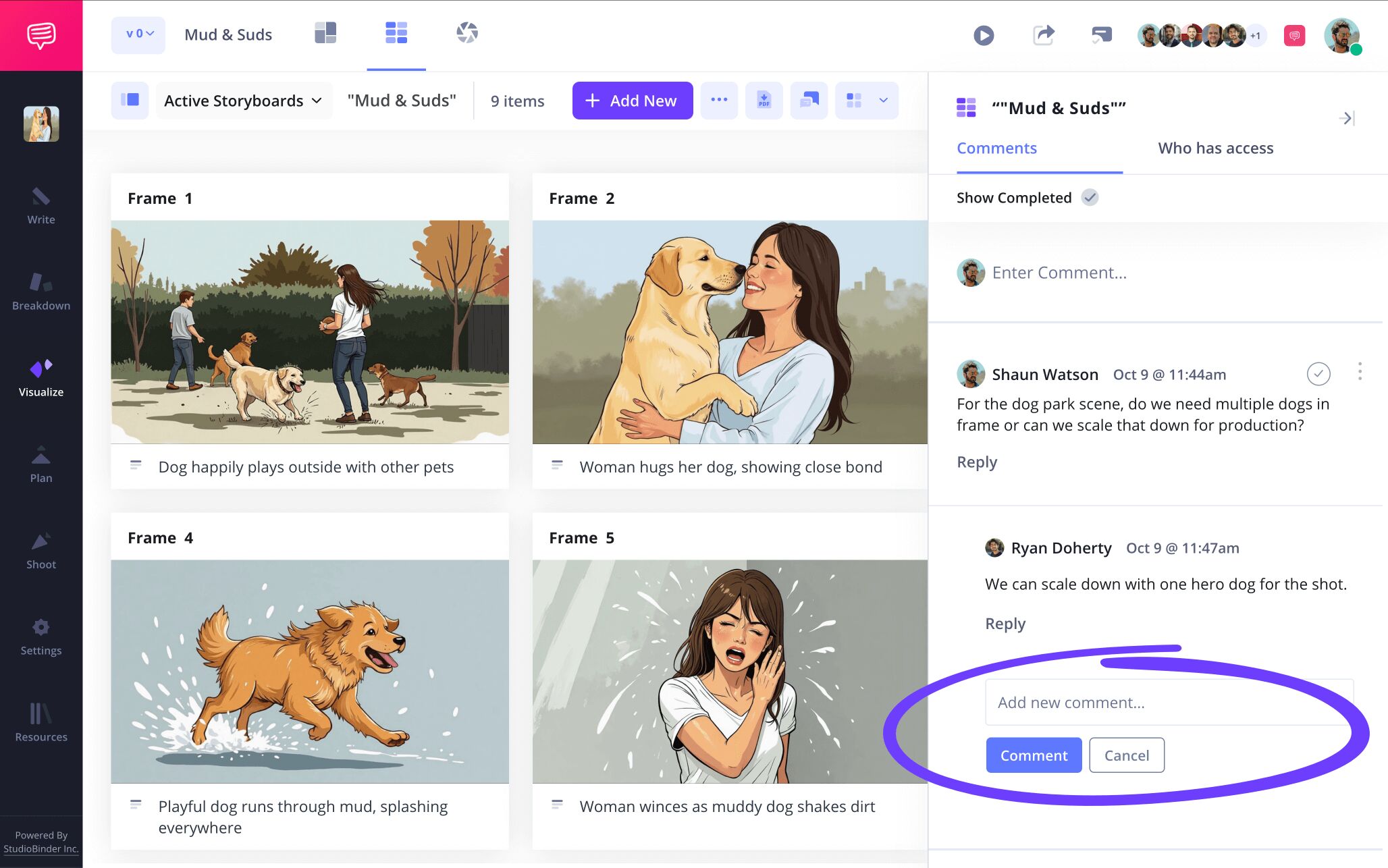
In StudioBinder, you can set unique permissions for each individual invite, selecting between either viewer, editor, or commenter.
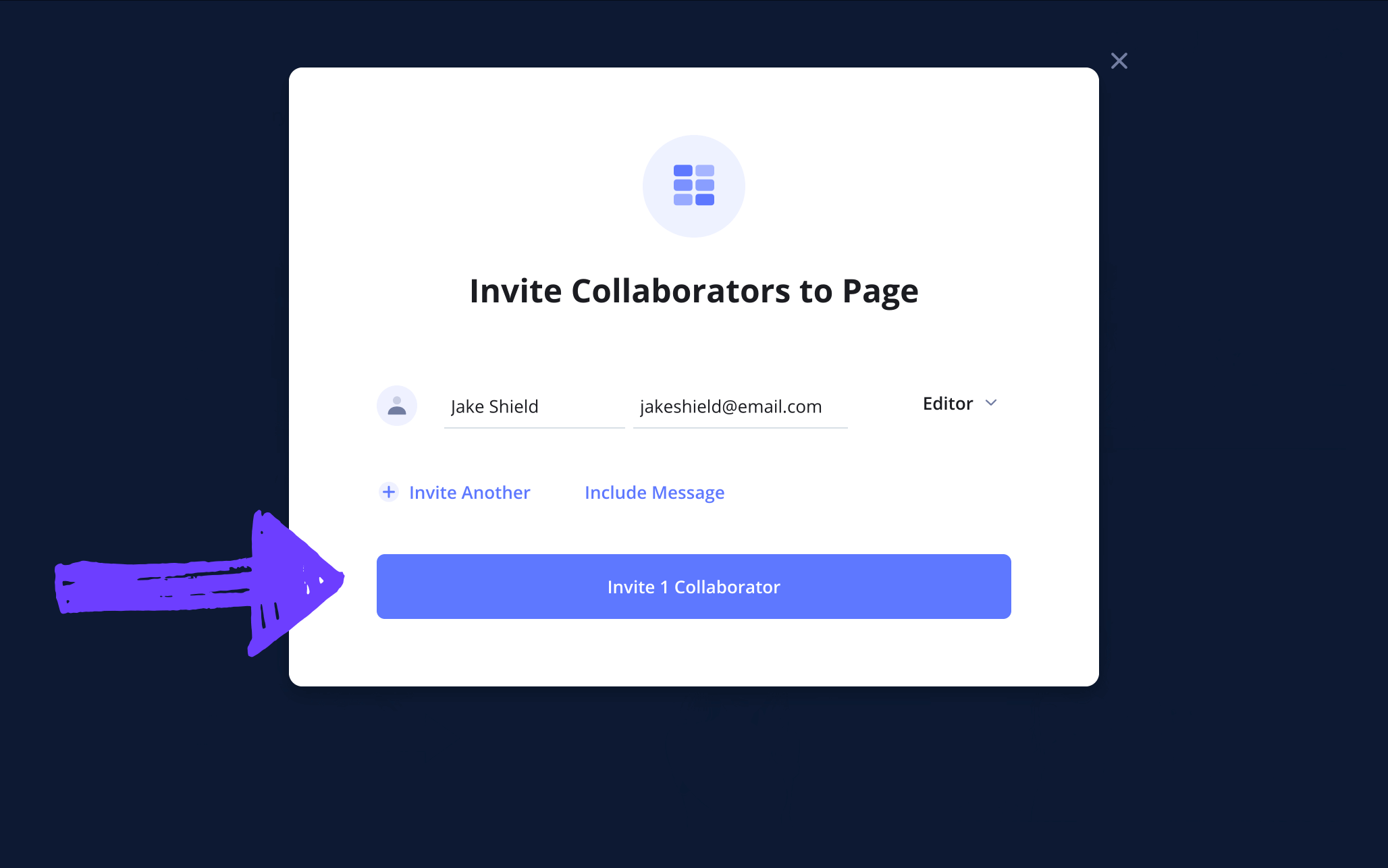
With commenter or editor permissions enabled on your storyboard template for Google Docs project, the storyboard itself becomes your hub for communication. Just tell your invitee to put their feedback in the comments tab and get the conversation started from there!
Step 5
5. Convert to storyboard PDF
Now that you’re reaching the end of your storyboard Google Docs template build, you’ll want to lock all that hard work down since the structure itself can be a bit fragile. By converting your storyboard template Google Docs project to a PDF, you’re making a document that holds all your storyboard information together without any room for accidental changes or, god forbid, deletion. You can make as many copies of your video storyboard template Google Docs project as you want once it’s a PDF, and print it for as many people as you need as well.
In StudioBinder, you have plenty of PDF editing options for your free storyboard template Google Docs project. Customize your frames and font, add a front and back cover, you have plenty of options to make your PDF storyboard Google Doc template look just the way you want. Oh, and if leaks are a concern, you can’t go wrong with a custom watermark!
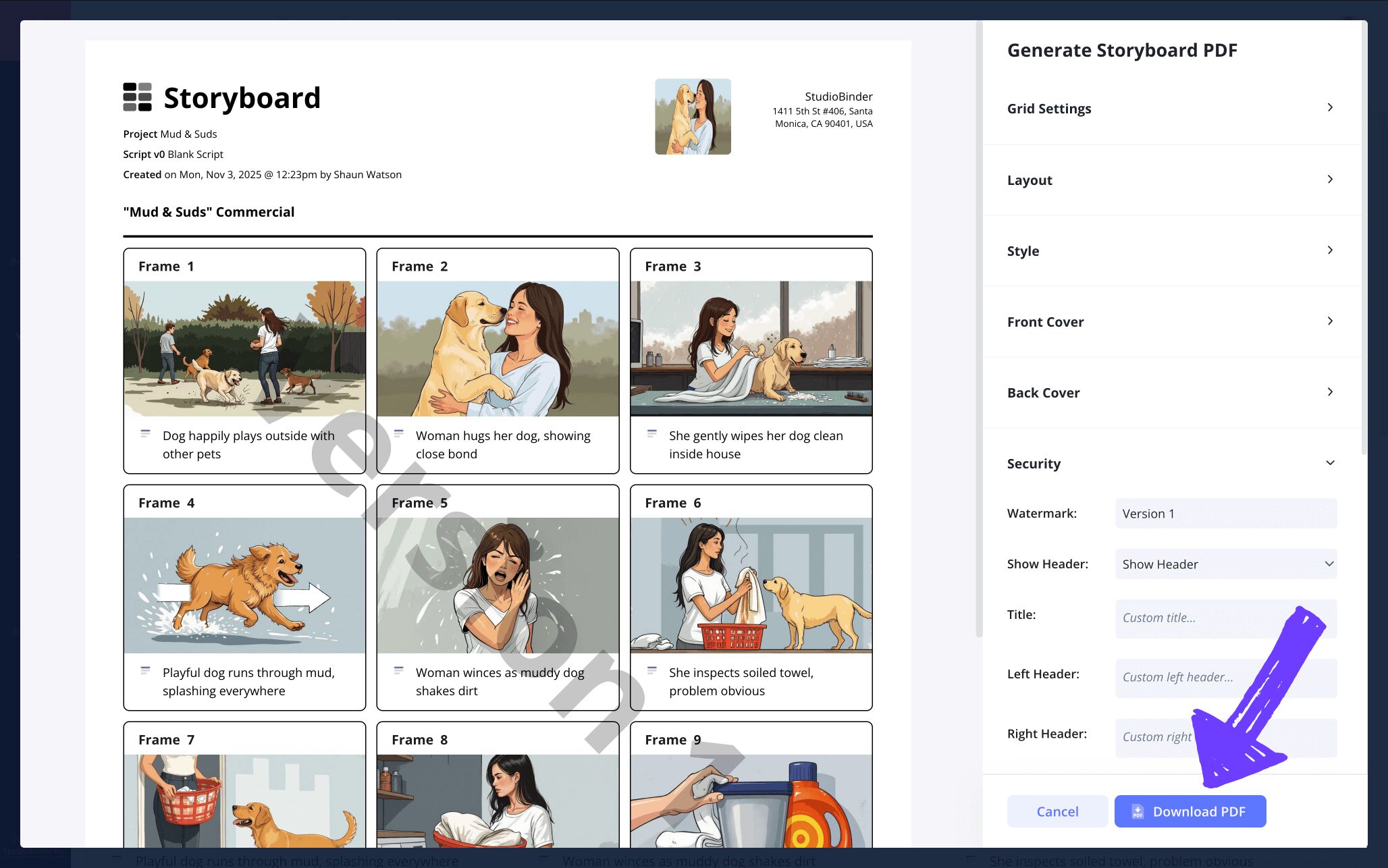
And there you have it, you successfully turned your editable storyboard template Google Docs project into a professional looking PDF document!
Conclusion
You're finished!
Now that you have a strong head on your shoulders when it comes to making the most out of your storyboard Google Docs template, you’re ready to take on the next phase of your visual project with ease. But a storyboard template for Google Docs isn’t the only kind of storyboard template StudioBinder has to offer, so check out all our available free storyboard templates.
Frequently Asked Questions
Your questions, answered
Yes, Google Docs does have their own storyboard templates available to use for free. However, if you have a very specific storyboard structure and format you’re looking for in a template, you're most likely to find it through your own Google search. All kinds of different websites create and format all kinds of different storyboard templates that can be easily inserted into a Google document, so be sure to browse through the endless amount of options a Google search offers over the limited options in Google docs itself.
Making a storyboard template in Google docs is pretty straightforward. You’ll start by inserting a table into your document, which will establish your rows and columns. Use your table cells for your shot numbering and descriptions, then format larger rectangular cells as your image frames. You can just click insert, image to apply your images into each cell. If building your storyboard Google docs template from scratch like this sounds like too much work, you also have the option to find pre-made Google doc templates through a basic Google search. Happy storyboarding!
A Google Docs storyboard template is a storyboard template provided either by Google themselves, or an external template creator. It provides the basic structure of a storyboard, from shot frames to description fields, so you can use it to help pre-plan and visualize whatever project you’re taking on. While you may find what you need directly from Google, we recommend searching around for the many pre-made templates available online if you have a very specific layout and structure you’re looking for.
If you have any kind of narrative project you’d prefer to visualize and plan out before jumping in head first, a storyboard Google Docs template is one of the most convenient storyboard templates you can find. First of all, it’s free (and in this economy that might be its best trait). Second, both Google Docs and countless other websites have designed pre-made storyboard templates of all shapes and sizes that can be easily inserted into the Google Docs format. This way you can worry less about creating the outline of your storyboard and worry more about bringing that beautiful vision to life!
Create your free storyboard
Visualize your storyboard Google Docs template with our free software.
Get started for free