
home → TEMPLATES → Storyboard
Storyboarding Template

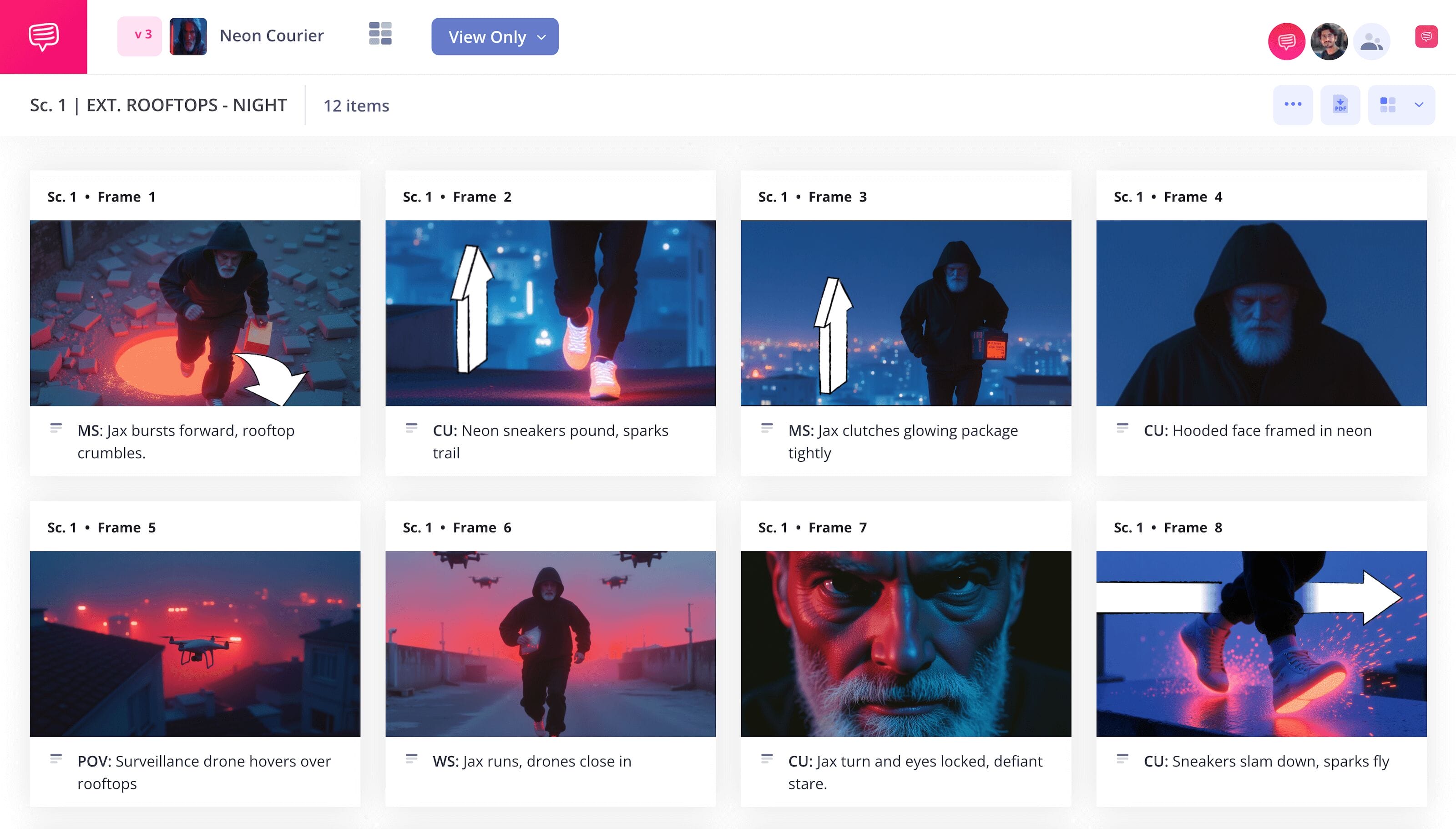
Free storyboarding template
If you’re looking to plan out your next film project in the most seamless way possible, then look no further than the best pre-production tool used in the film industry: a storyboarding template. A storyboard template is essentially the middleman between scripting your story and bringing it to the screen. With a storyboard layout, you can see shot for shot how your story will unfold, revealing details a screenplay can’t quite capture, such as tone, pacing and cinematography. This vital information will then be used in the shooting or animating process, providing you with a clearer confidence around how your story and characters need to be captured visually.
By following the below guide, you’ll gain a sharp understanding of how to best take advantage of a storyboarding template. Each step will use StudioBinder’s storyboard creator as a visual example, but this is still a broadly useful guide for any storyboard template approach. Let’s get to it!
Step 1
1. Format your template
When it comes to the overall size and dimensions of a storyboard, everyone involved in film pre-production will have their own unique preferences. Which is why you’ll want to establish which storyboard layout works best for your personal needs. Starting a new project in StudioBinder will prompt you to establish the basic format of your project. So, once you finish the initial formatting, your storyboarding template will look similar to this:
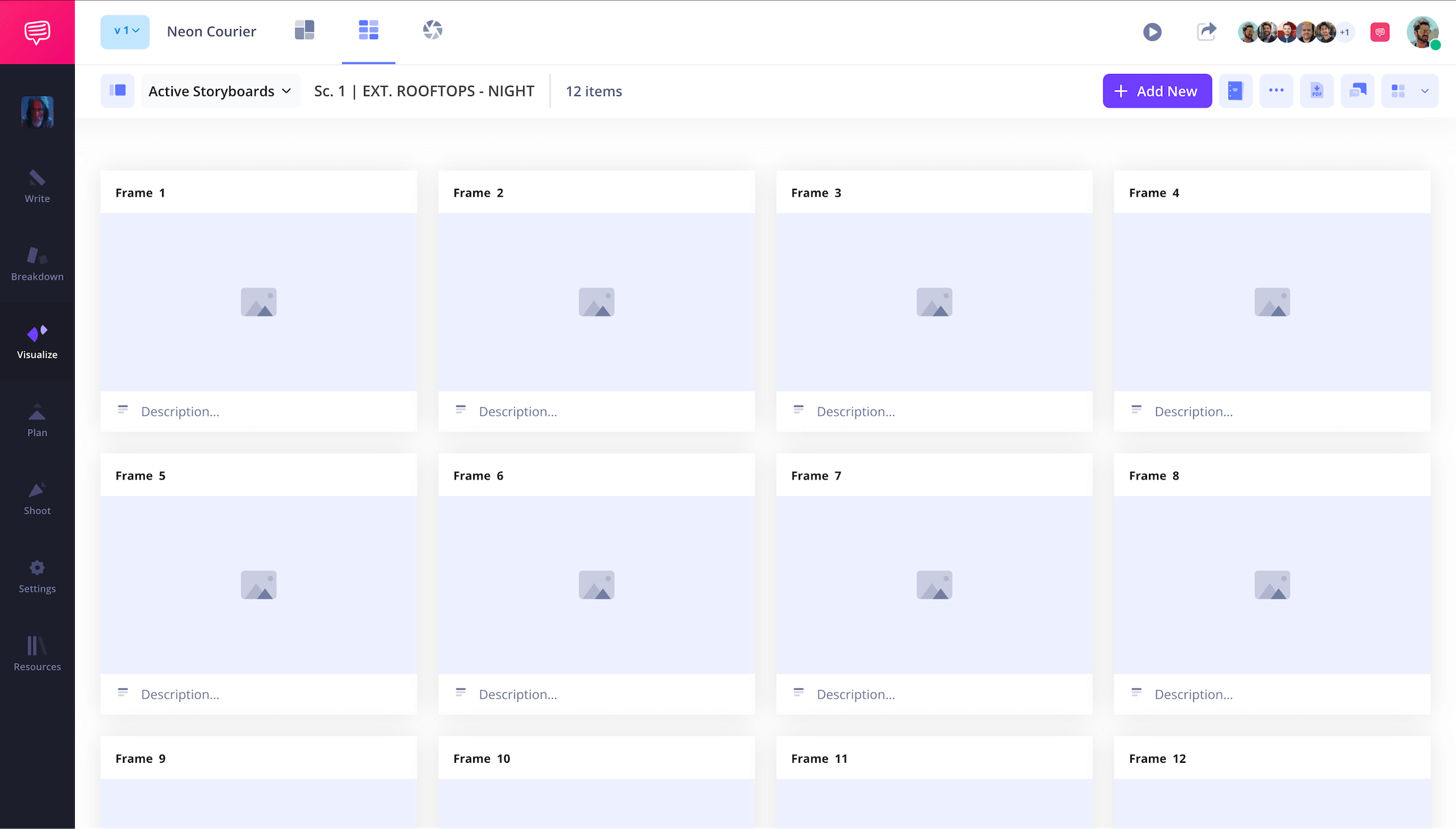
If you find your visual layout taste shifts at any time during the storyboarding process, you can make any storyboard layout changes in the settings. In our example, we removed the audio and video description fields below our panels to highlight the more important information in our main description field.
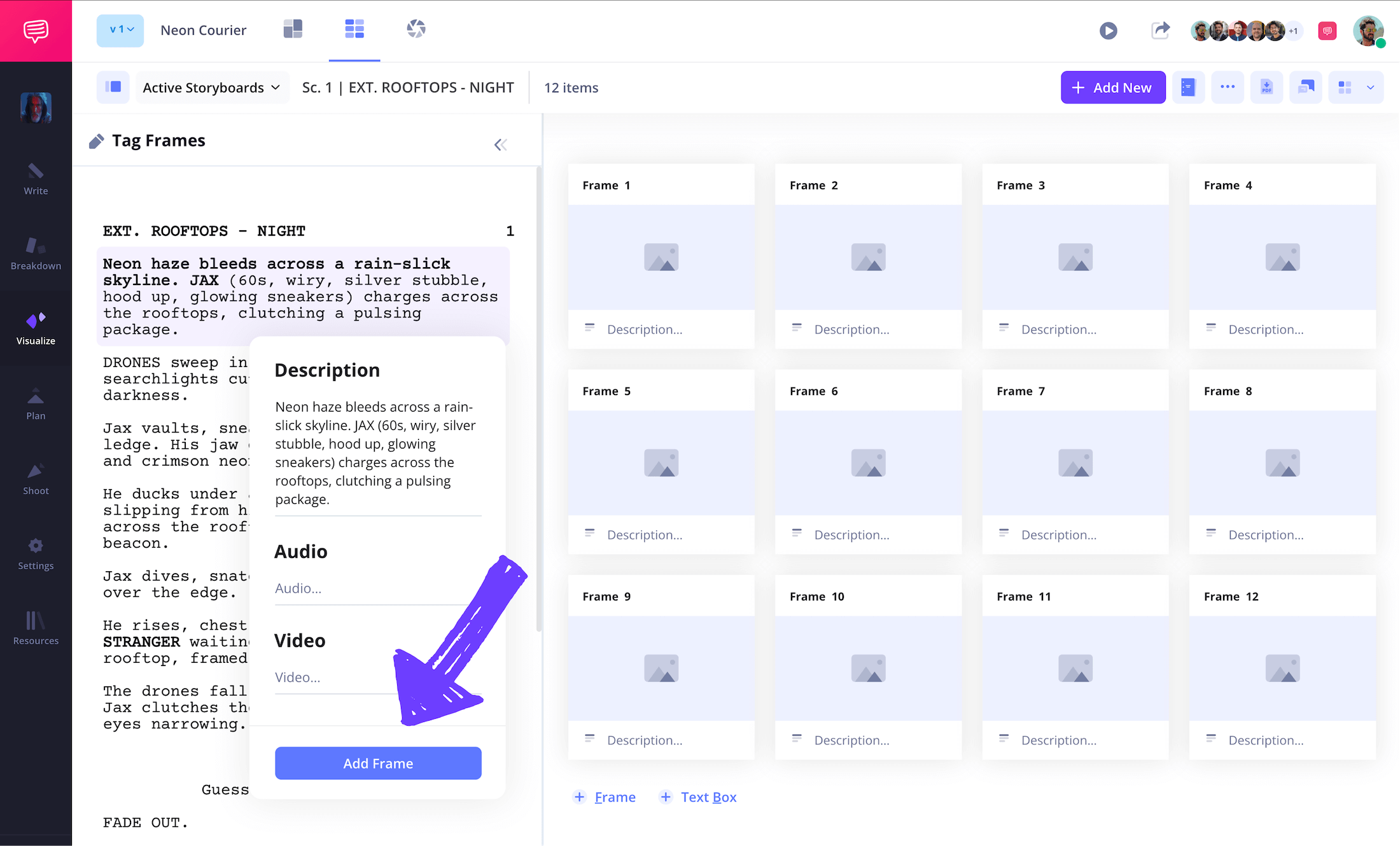
You also have the option to upload your script into StudioBinder. Then you’ll be able to automatically turn any line in your script into a description using the Shot Tagger.
Step 2
2. Insert images
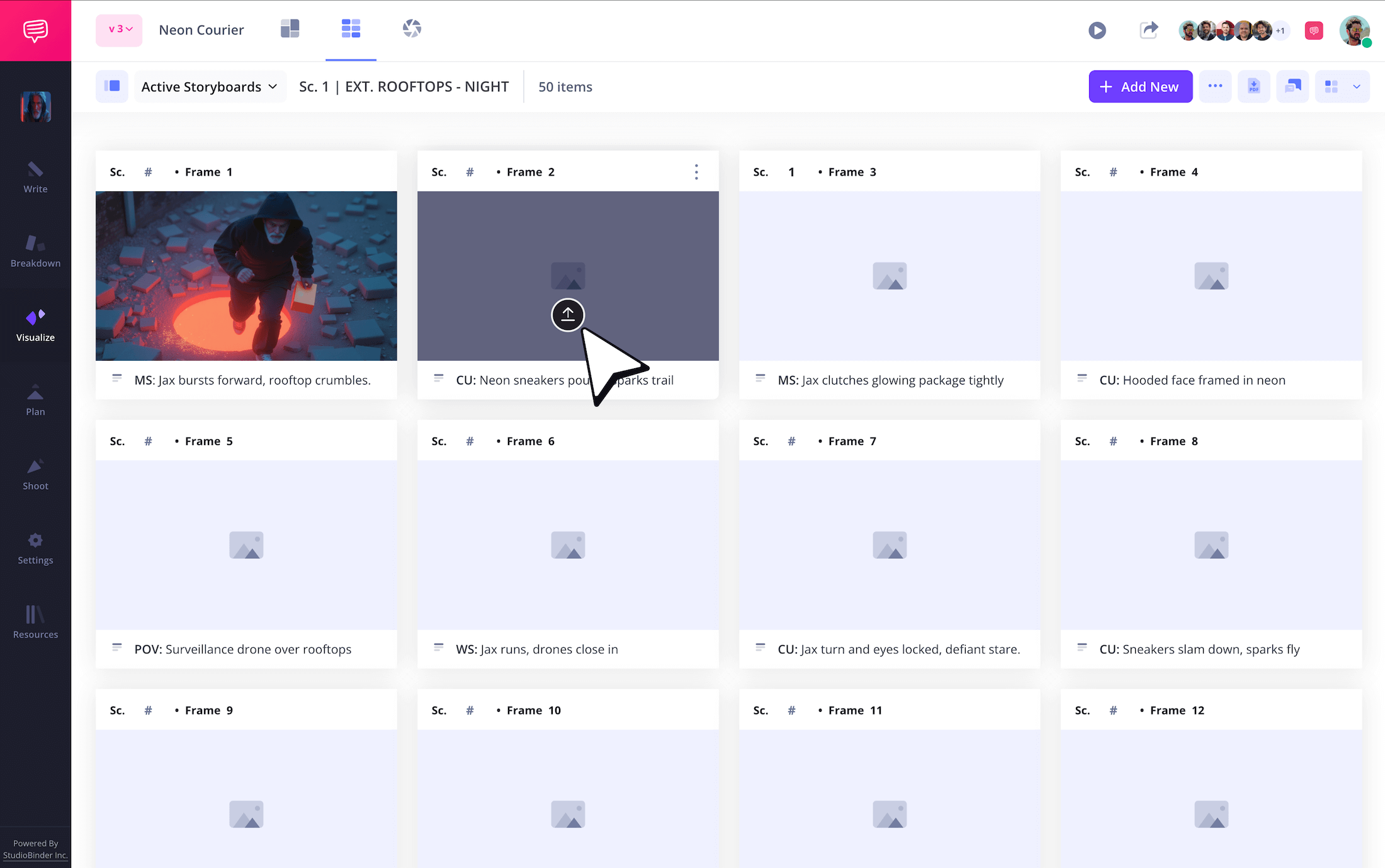
With all your description details written below each frame to communicate just the right visual information, you’re now ready to bring some life to your storyboarding template with images. There’s no one correct method for introducing images into your storyboard template, some artists even prefer to insert online images that capture a style they can pitch a film director on before they officially start illustrating.
Whatever your method, just click upload on any frame to easily insert your image.
Step 3
3. Show action with arrows
Let’s say you’re happy with how all your images look on your storyboarding template, but one keeps jumping out at you as incomplete. After looking at it for a while, you realize that the image looks static when it should capture a swift camera movement. The best fix for this? Arrows!
The addition of an storyboard arrow in an image can have a significant impact on what that image says. With StudioBinder’s image editing option, you can easily add arrows without having to go back to the drawing board and start from scratch.
Adjust the size of your customizable arrow and even add some text if necessary.
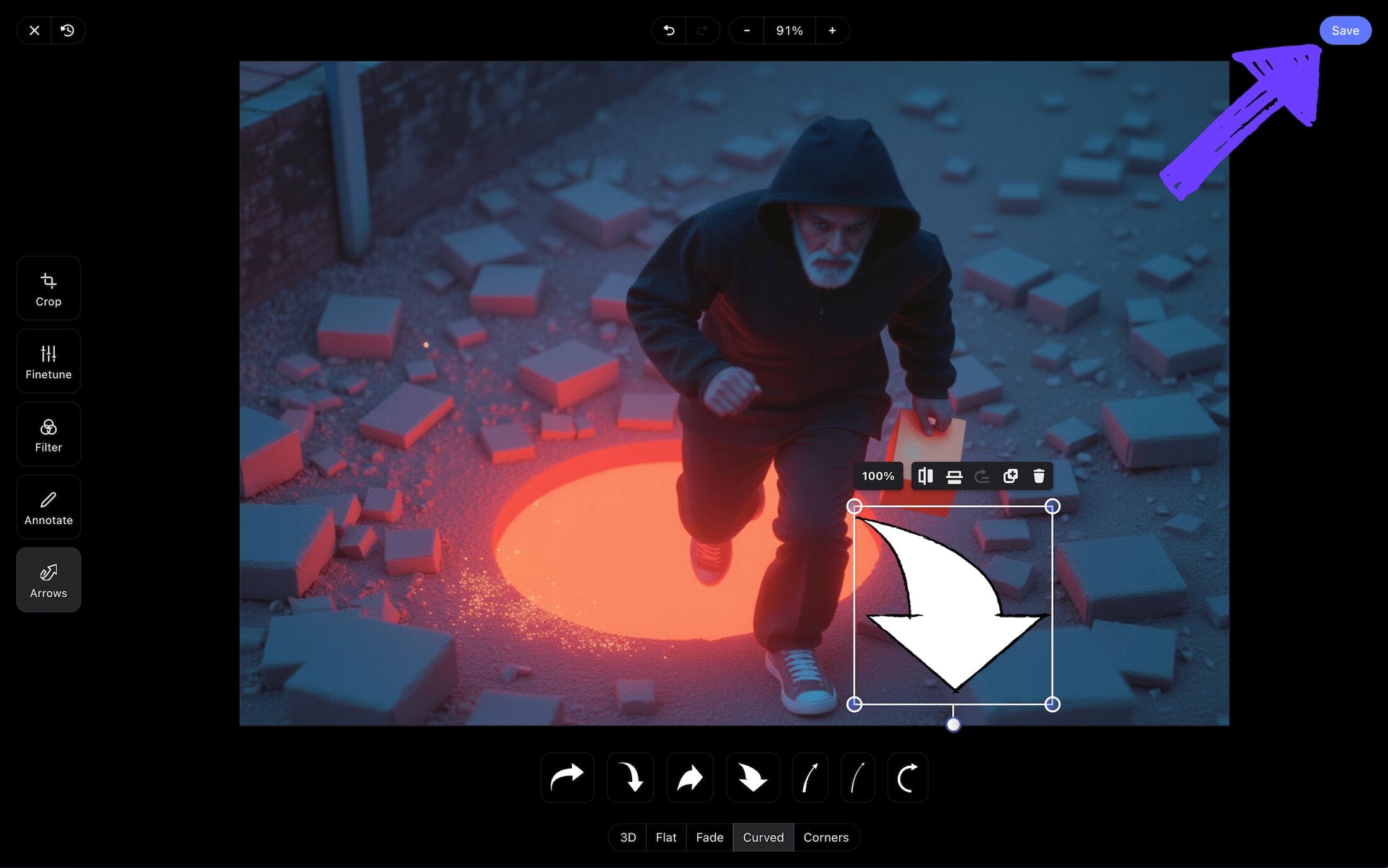
With your arrow placed in just the right position to communicate camera or character movement, just hit the save button and you’ll see your edited image added in your storyboard.
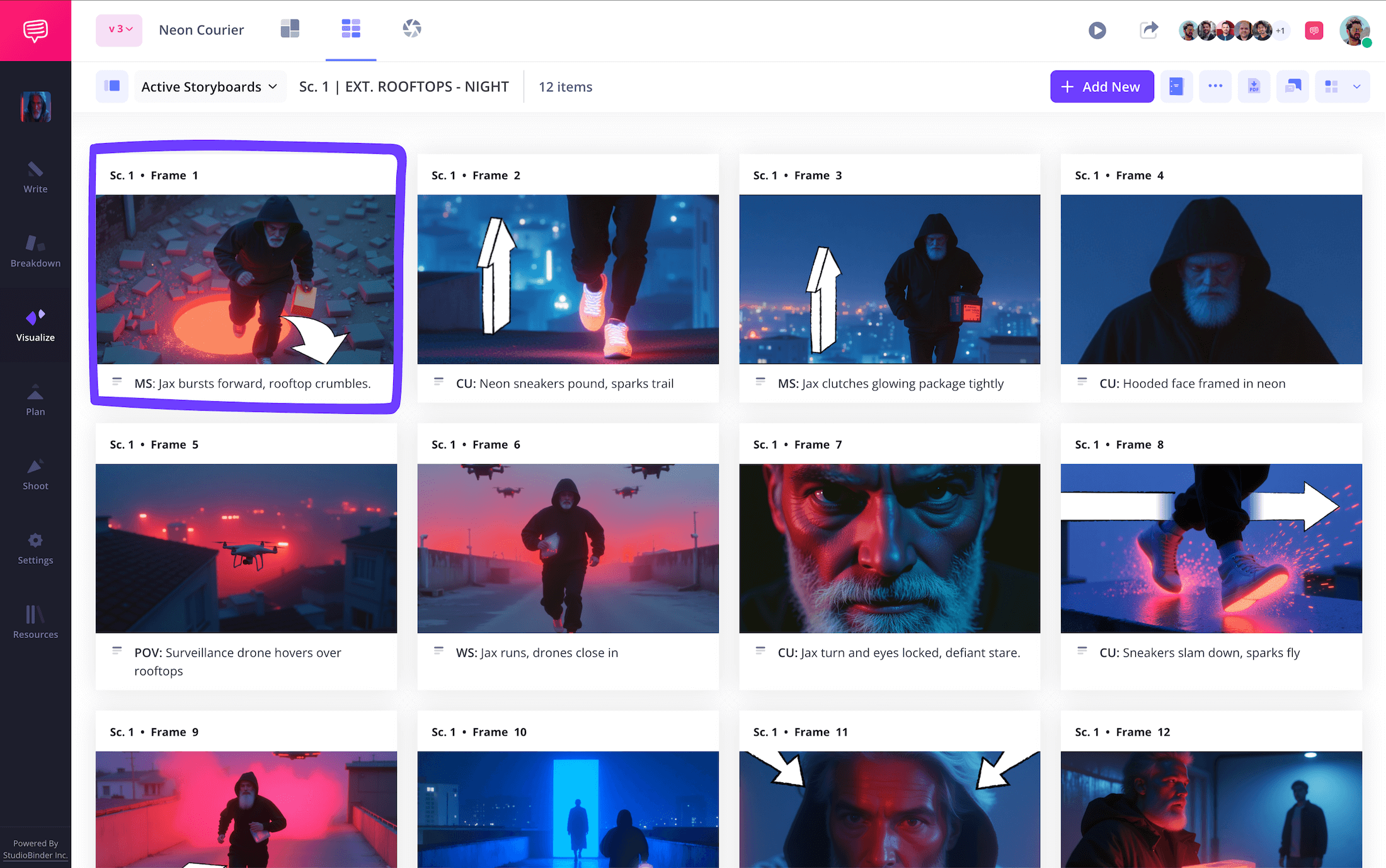
Step 4
4. Collaborate and comment
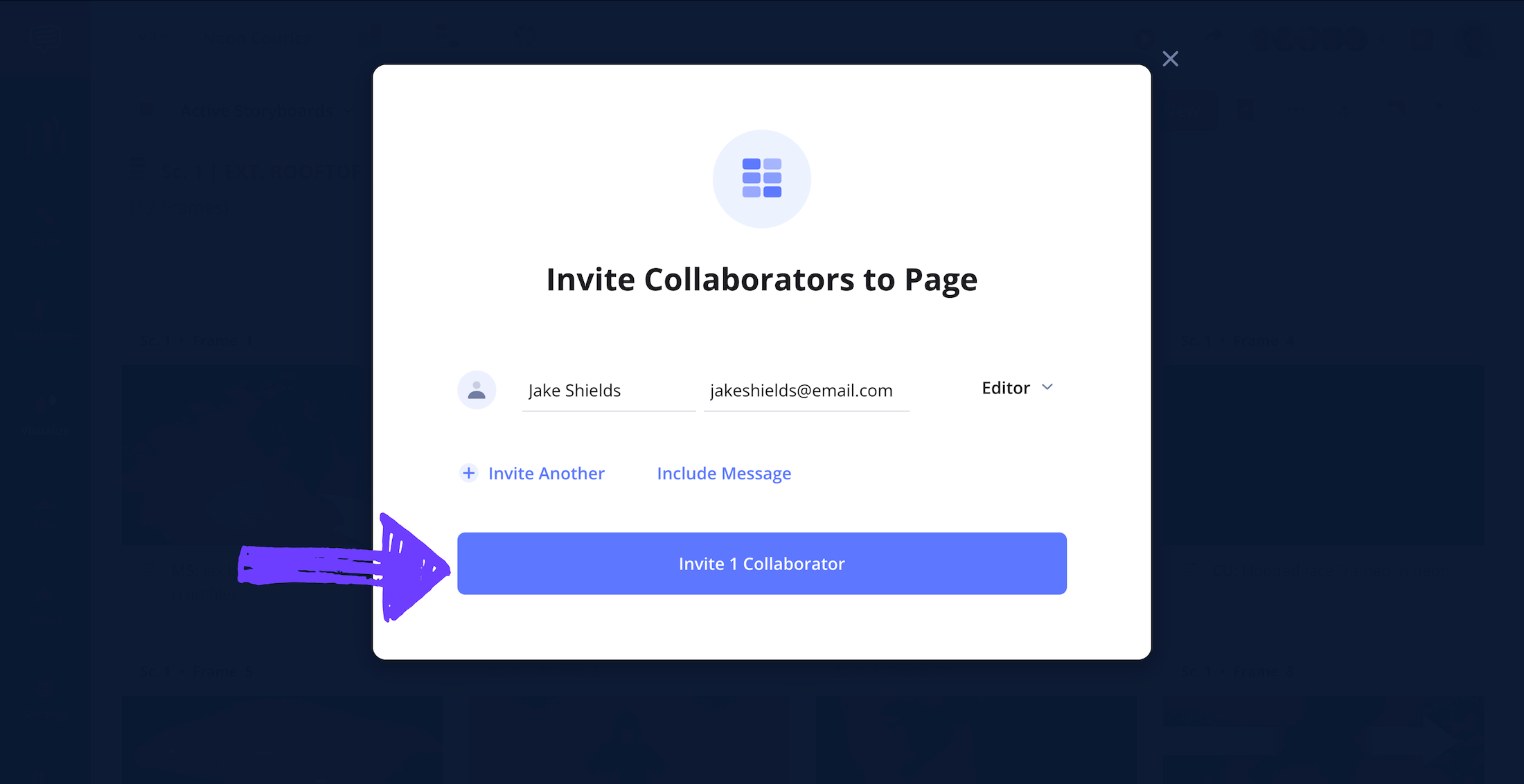
Now that your template for storyboard project is really starting to take its final storyboard form, you’ll want to bring more of your production team in to analyze your work and provide feedback. StudioBinder lets you easily send a view only link for anyone who’s simply curious about your progress. But what if your coworker or your art director wants to send you some detailed notes, or even make edits to your storyboarding template on their own?
You have full control over any of these options. All you have to do is send an invite, and then set the permissions around that invite to viewer, commenter, or editor.
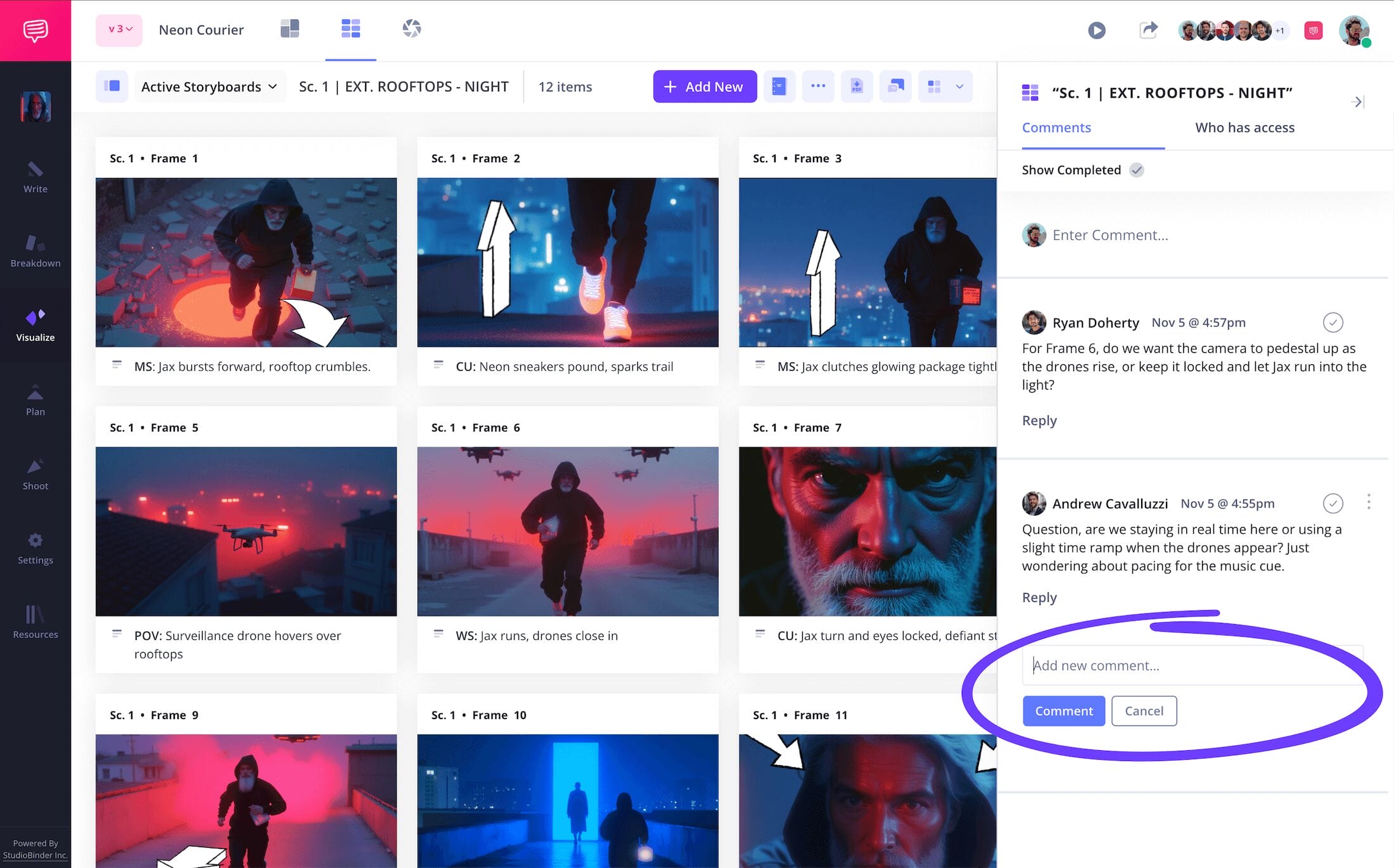
Now maybe some of your invitees with commenter or editor permissions turned on want to detail the reasons why they think certain changes should be made to your storyboard. This can be done in the comments tab on the right, where you can discuss any and all storyboard edits.
Step 5
5. Make your storyboard a PDF
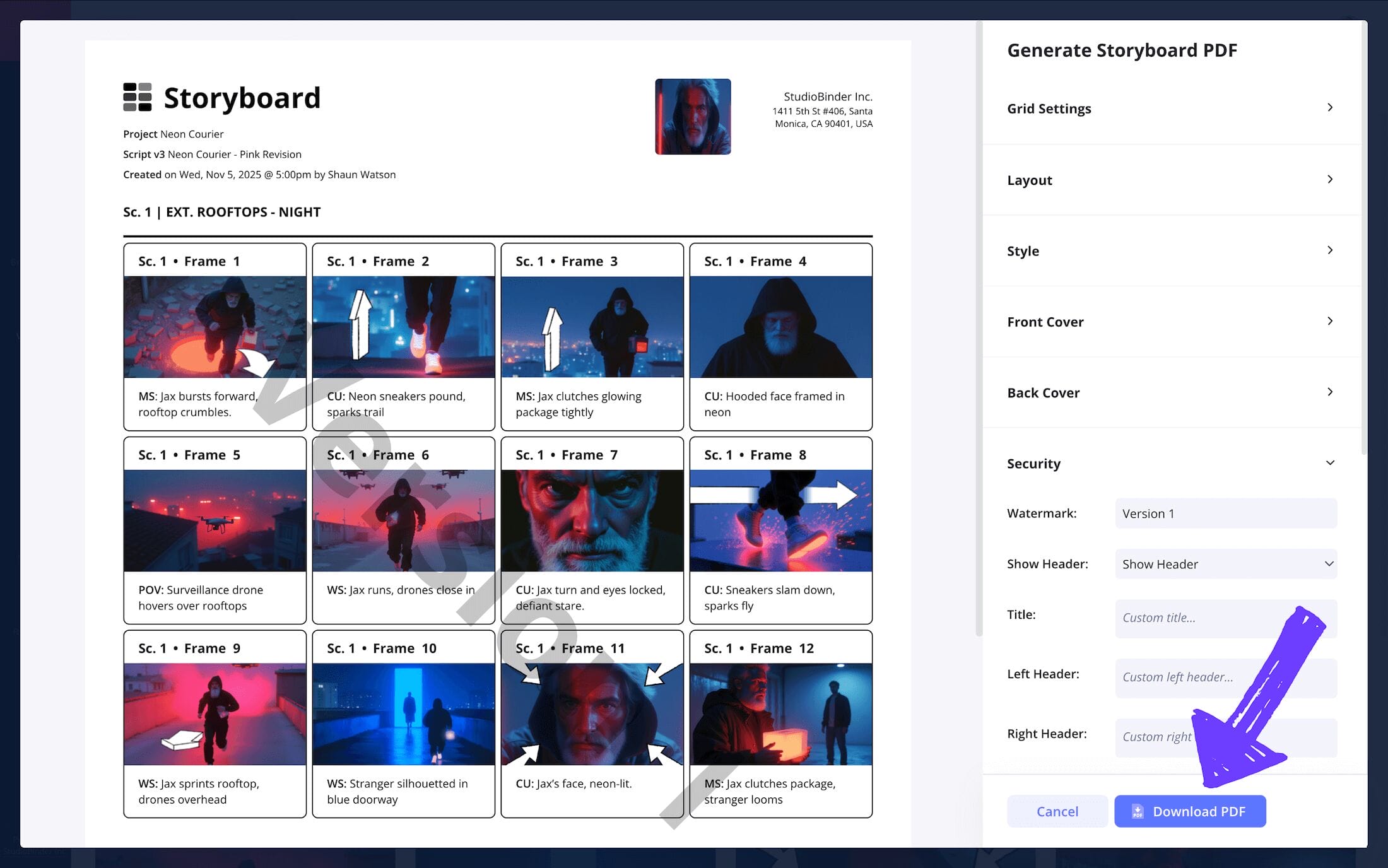
At this point, you’ve built your storyboarding template and collaborated with your team to make it as presentable as possible. Now you’re ready to make it all official by downloading and converting your storyboard into a PDF. Depending on who you’re sending your storyboarding template to, you may want to apply some customizable features on StudioBinder’s generate PDF page.
Here, you’ll find plenty of customizable options, from grid settings to the ability to create a front and back cover for your PDF document. In our example, we decided to add a custom title and watermark to make sure our hard work doesn’t end up in the wrong hands.
Conclusion
All done!
Now that you’ve gone through every step in the process of making your own storyboarding template a reality, taking on your own storyboard project from here should be a piece of cake. But don’t forget, Studiobinder offers a large quantity of free storyboard templates, so be sure to explore all available options!
Frequently Asked Questions
Your questions, answered
In simplest terms, a storyboard is exactly what the word itself implies: a story that can be viewed on a board. This valuable tool is created throughout the film pre-production process, allowing filmmakers to visualize how their story will unfold once it’s put to screen. The storyboard itself can be physical or digital, so long as it contains panels for images and description boxes for shot descriptions.
Storyboarding is the act of creating a visual layout of your screenplay during the pre-production process in film. Depending on the size and budget of a project, the director themselves, or professional storyboard artist will be tasked with assembling the storyboard. This pre-production step is so important because it helps with everything from budget to the filmmaker's confidence when they start their shoot.
If you’re using a storyboarding template, there are some useful tips worth remembering. To make this advice as clearcut as possible, we compiled the five most important tips:
- Find the layout that works for you, from size to dimension.
- Whether at the start or beginning, always collaborate to get a second opinion.
- Don’t overcrowd your description fields, consolidate information if necessary.
- Don’t overthink while sketching an image, just think: camera shot viewpoint.
- Download and customize your storyboard as a PDF for optimal professionalism.
The best kind of storyboarding template for you will depend on a number of factors. First, always consider your production budget, you may not be able to afford all the bells and whistles of a storyboard found in a Hollywood blockbuster’s pre-production offices. The good news however, is that the quality of a storyboarding template will not speak to the quality of the storyboard itself. Afterall, quality comes from the story itself, and how well each shot helps accentuate that story. So, even if you’re just using pen and paper, you can still create a top notch storyboard!
Create your free storyboard
Visualize your film ideas with our storyboarding template.
Get started for free
