
home → Guides → StoryboaRD
How to Storyboard an Animation Project

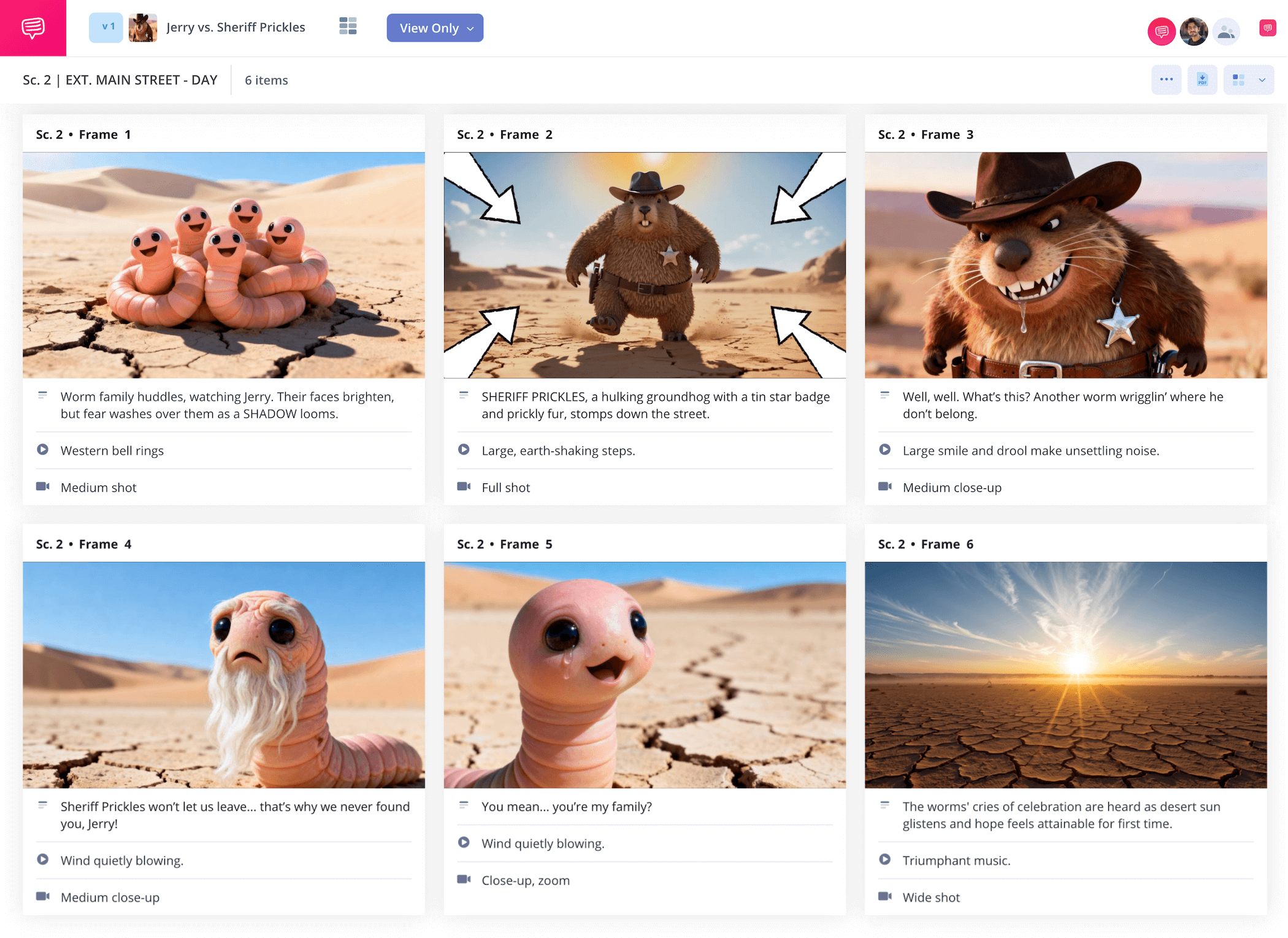
How to storyboard an animation project
If you want to make sure you get the most out of the animation pre-production process, then you’ll want to learn how to storyboard an animation. Knowing how to make a storyboard for animation starts with understanding your story and characters at their most basic level, before visually breaking the story into specific shots or key moments on the storyboard. With each shot illustrated and all the details you need to know about the shot written near each panel, you’re able to look at your story and how it will come to life long before you begin working on the animatics and animation stages.
As you can probably tell, the storyboarding stage is most important in animation, because everything from the environment to the subtlest expressions on each character’s face have to be created digitally, which means the animated storyboard is a detailed blueprint that will guide just about every decision through the rest of production.
In the below guide on how to make an animation storyboard, we’ll take you through each essential step in the storyboard animation process. But even though these steps are essential for animation, they’re still broad enough to apply to any kind of storyboarding process. We’ll be using StudioBinder’s storyboard creator as our main animated storyboard example, but feel free to use any kind of storyboard you prefer. And with that, let’s jump into how to create an animation storyboard!
Step 1
1. Format your template
We’ll start simple on our ‘how to storyboard an animation’ journey and make sure we have a solid storyboard structure first. Animation storyboards often require a hefty amount of space for all sorts of production notes and descriptions, so consider keeping it to just one panel per row so all details can be filled out with plenty of space to the right.
If you go with more panels per row than that (like we did with our ‘storyboarding for animation’ example), just make sure you know the amount of description space you’ll need so you don’t find yourself writing past the edges of your storyboard. 16:9 panels are an industry standard, as well as no more than 3 to 6 panels per page so everything is comfortably legible.
When you start a new StudioBinder project, you’ll be prompted to make some of these basic setup decisions, leaving your template looking something like this:
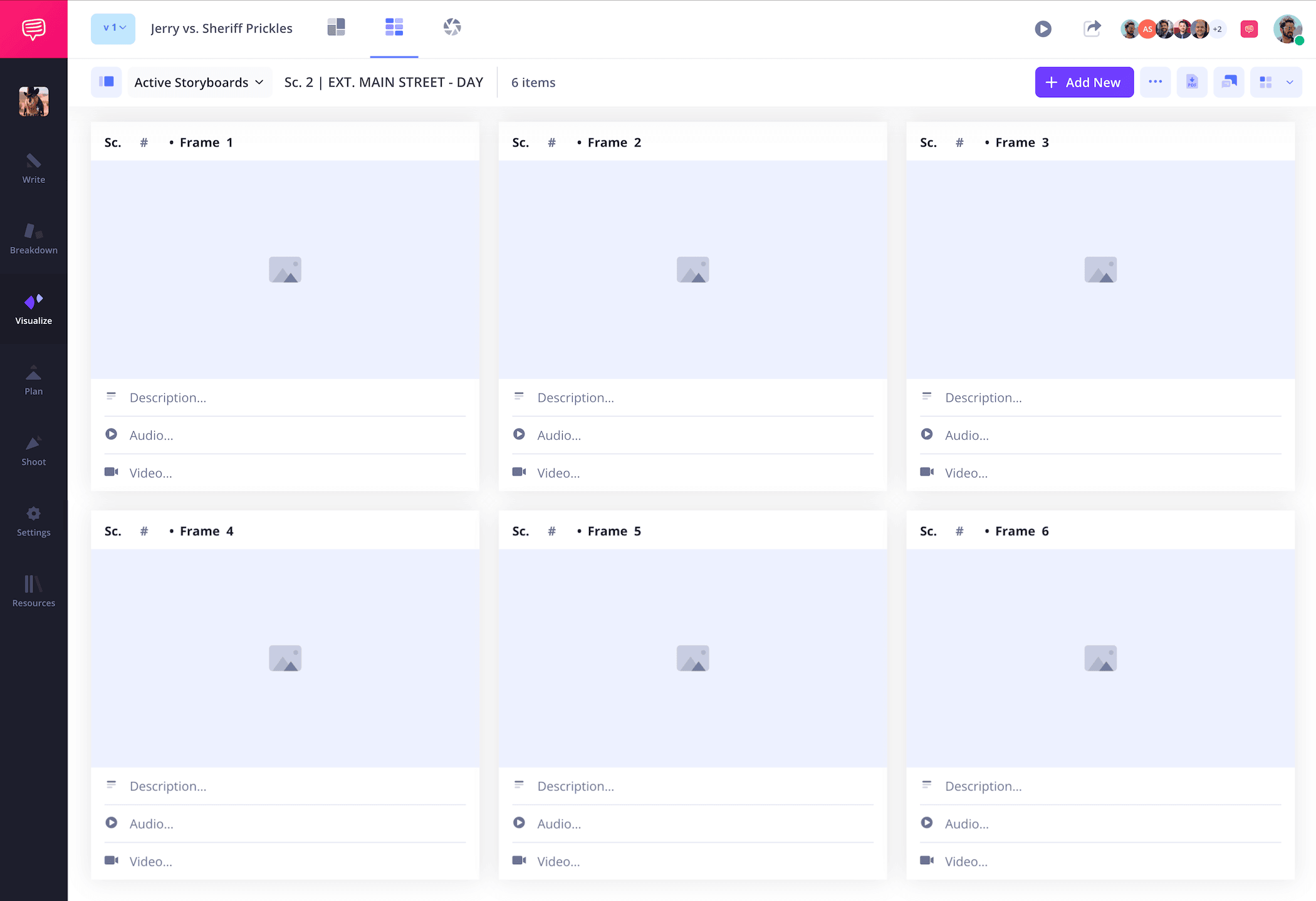
In western animation, it’s often the case that scripting and voice acting are completed before any animation storyboards are created. If this is the case with your project, you can upload your screenplay directly into StudioBinder and transfer script lines into descriptions instantly. Now, with a sense of pacing and dialogue established through your panel descriptions, you’re ready to take on the illustration phase with confidence.
Step 2
2. Upload images
Images are most important of all when tracking how to storyboard an animation. Getting all the right motions and movements down so the following animatics stage can blend everything together certainly takes skill, but it’s also helpful to remember that the images themselves don’t need to be works of art, they just need to establish and communicate action and placement.
You already have the story beats and pace set with your descriptions, so don’t be afraid to get a little loose with the creativity here, a sense of life is the defining quality of any great animation short or feature.
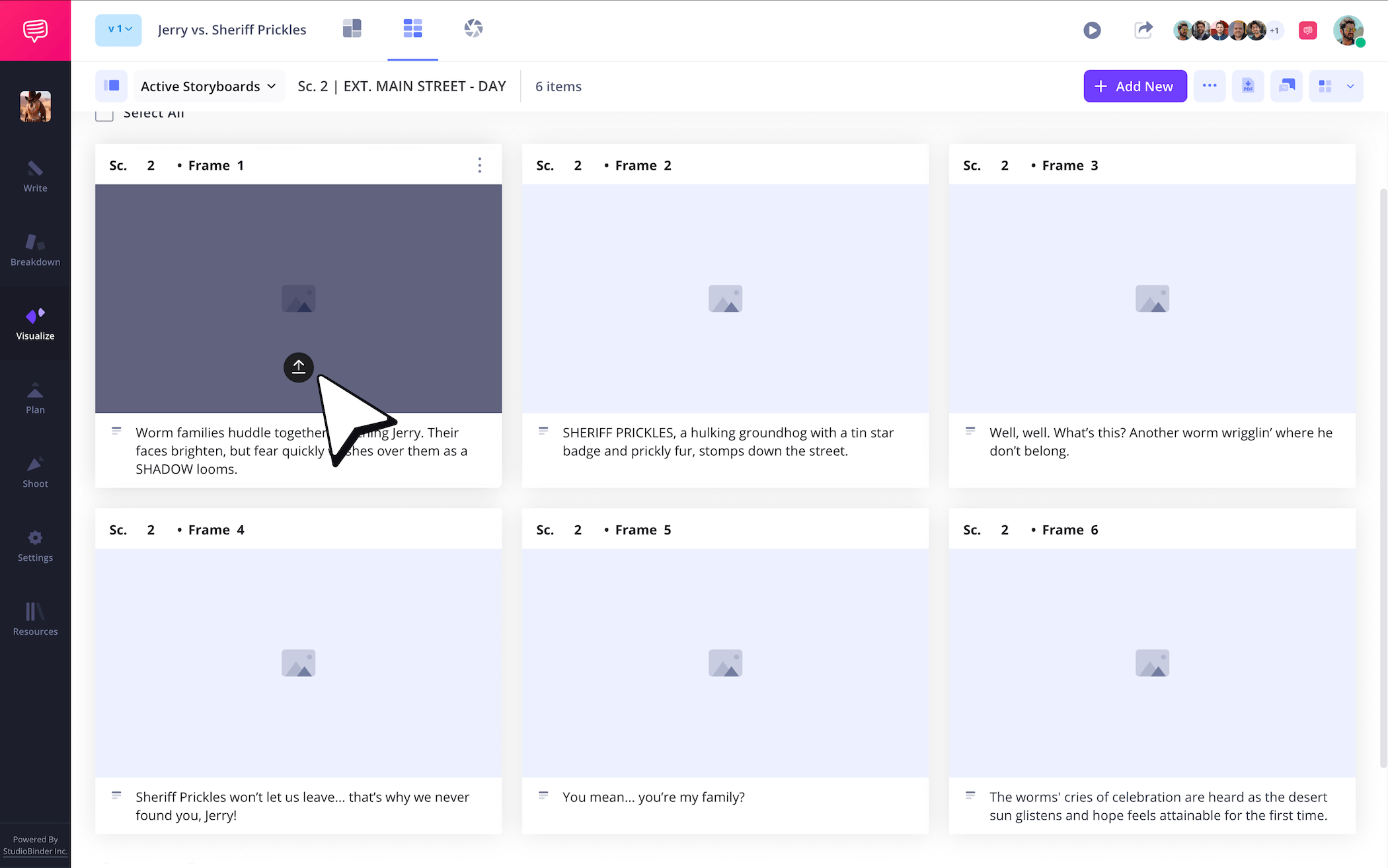
To upload images directly into your ‘how to make a storyboard for animation’ project, just click Upload on any blank panel.
Step 3
3. Add storyboard arrows
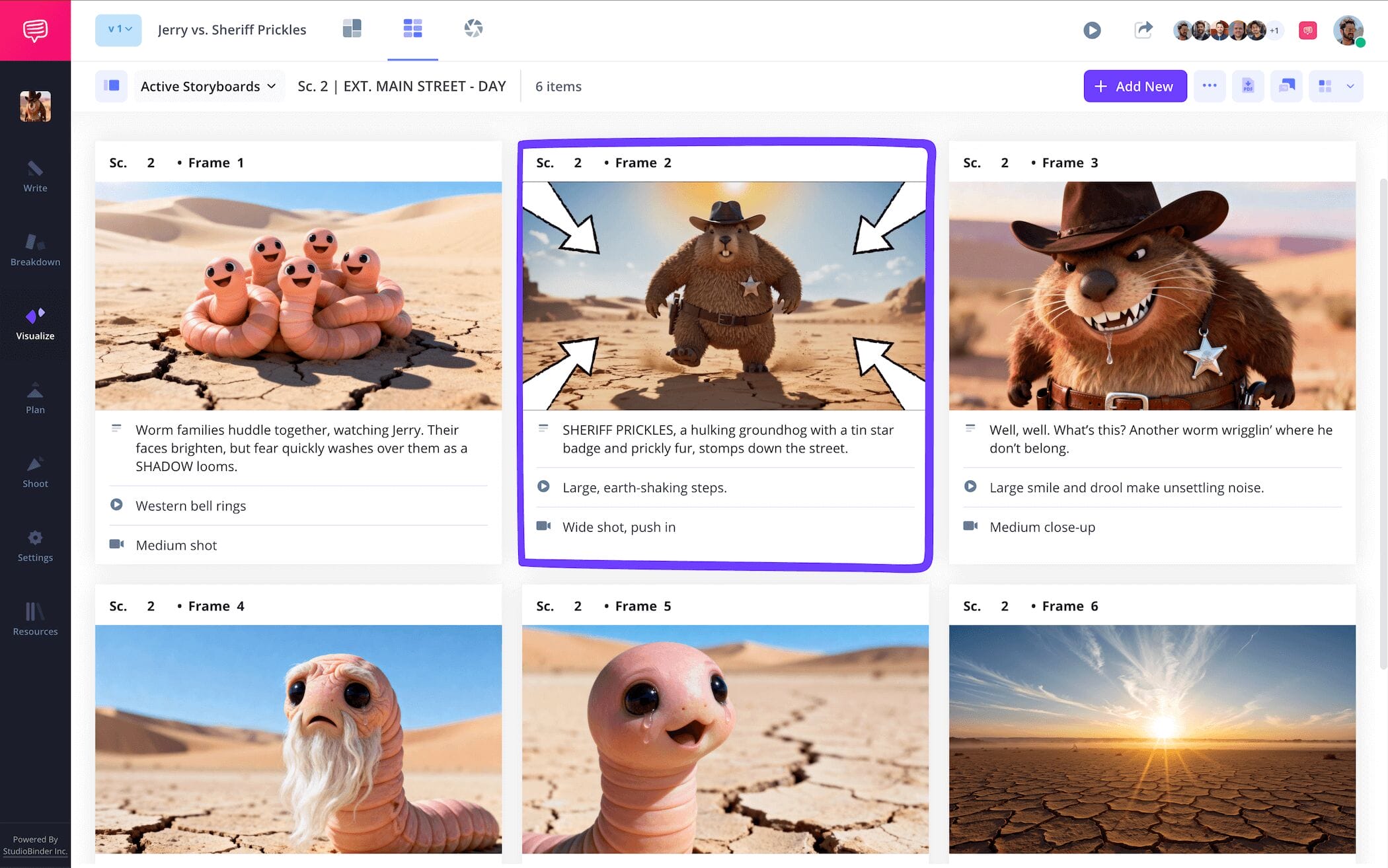
Sometimes a specific camera or character movement is too essential to a moment to just explain in the description field of your storyboarding for animation, which is where the beauty of storyboard arrows comes in. Maybe the big fluffy teddy bear slips on a banana peel and the joke is in how many times he flips through the air before landing head first, or maybe a certain camera movement helps define the emotional crux of a moment, whatever the case, storyboard arrows can be used to signal an essential action within a frame.
For our ‘how to storyboard an animation’ example, we realized during the storyboarding process that our big prickly villain’s entrance needed a little more power. So, we’ll go into StudioBinder’s image editor and find some arrows that can help us communicate a zoom shot that should really increase the intensity of the moment.
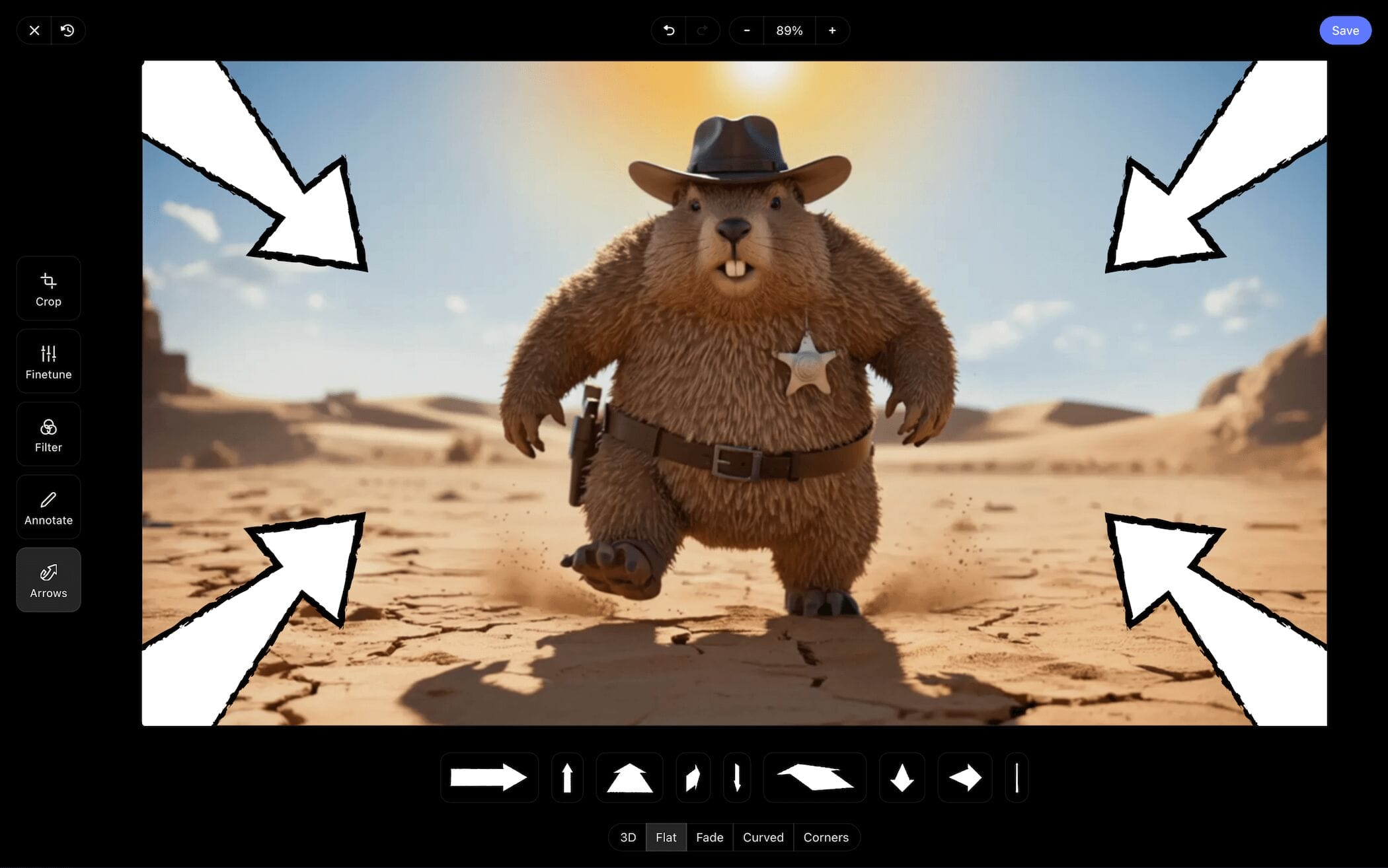
Now that we’ve customized a set of arrows to indicate the zoom shot we want, our problem has been solved! All we have to do next is click Save and our freshly edited image has been added into our animated storyboard project.
Step 4
4. Collaborate with your team
If you’re storyboarding for animation, then you’re most likely working with a sizable production team. So, what’s the best way to get your team together so you can exchange notes and determine the next best draft? While we prefer the simplicity of sending letters by owl, we know that’s not very practical for a ‘how to storyboard an animation’ guide.
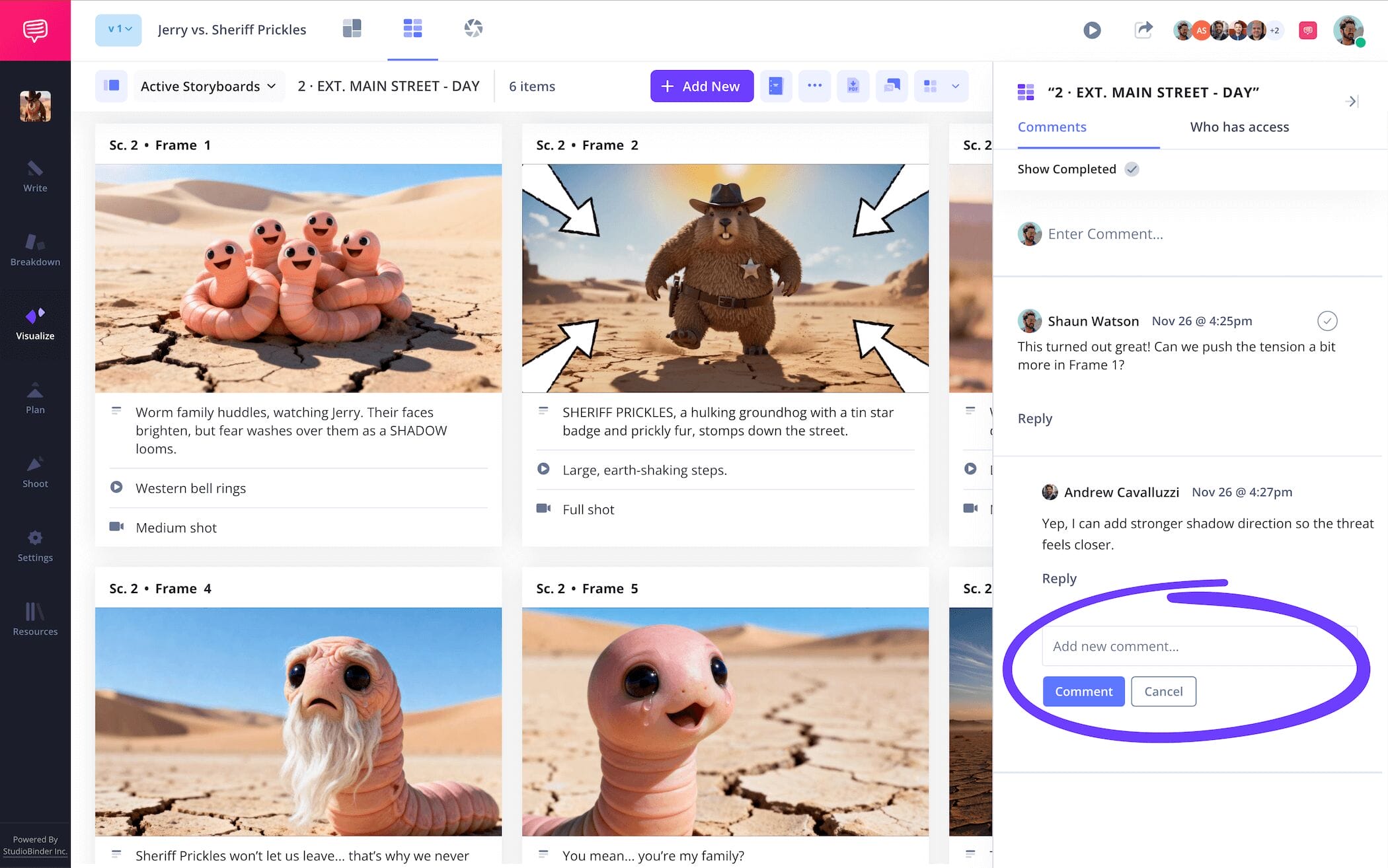
So, be sure to establish a singular digital platform where your entire team can exchange feedback and ideas as your storyboard animation project continues to evolve. If you’re working in StudioBinder, then you’re in luck, because your storyboard itself can act as a central hub for gathering your production team and exchanging notes.
When you send an invite to anyone you want to join your ‘how to make a storyboard for animation’ project, you can set their individual permissions to either viewer, commenter, or editor. Then, anyone with commenter or editor permissions enabled can go into the comments tab and discuss their notes with you.
Step 5
5. Convert to PDF
You’re nearing the end of your ‘how to storyboard an animation’ journey, but that doesn’t mean you’re done just yet! You’ll want to save and secure your storyboard so the evil deleting fairy doesn’t take it away from you! Okay there’s no such thing as the evil deleting fairy, but if you want to make sure your storyboard animation project doesn’t get accidentally lost or changed, it’s safest to consistently save each draft as a PDF copy.
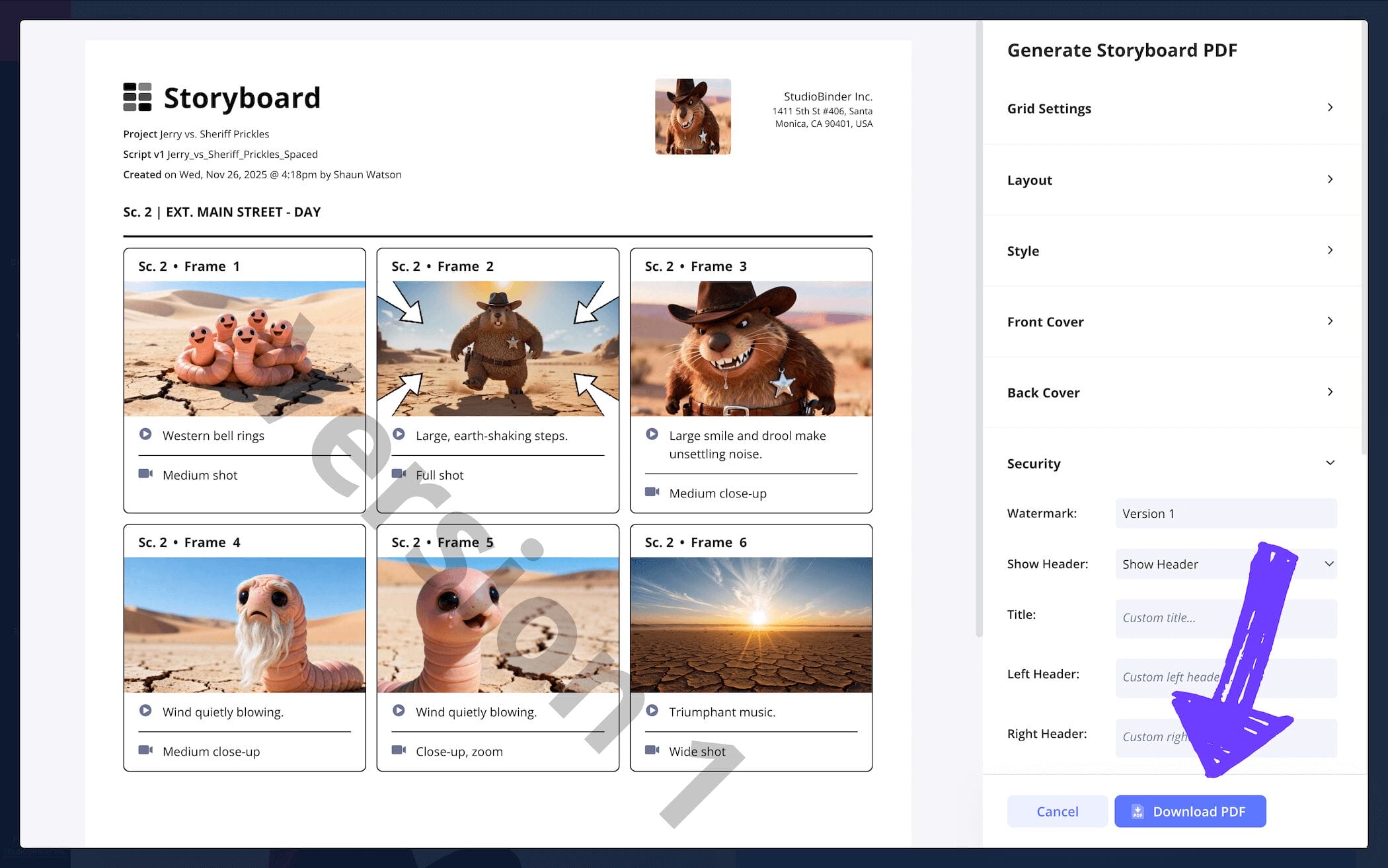
Just as well, plenty of individuals and departments in your animation pre-production will need their own copy of your storyboard to work from, so why not make sure each PDF copy looks professional and edited for each coworker’s needs? With StudioBinder’s PDF editor, you can customize your ‘how to make an animated storyboard’ project however you’d like.
For our example, we readjusted the font size for the editing department’s copy and added a front and back cover for our director’s copy. But before we finish and print these final PDF documents, we’re going to quickly customize and add a watermark to each one so everyone is extra careful about not losing our work!
Conclusion
Done!
Congratulations! You have officially graduated from our ‘how to storyboard an animation’ course, here’s your diploma. But hey, the fun doesn’t have to stop here, because StudioBinder offers plenty more storyboard template guides than this one, so why not check out all our free storyboard templates now?
Frequently Asked Questions
Your questions, answered
A storyboard is a way of visualizing your visual narrative idea before officially creating it. It’s a pre-planning step most often taken in film or animation pre-productions. A storyboard consists of panels laid out and organized on a physical or digital board, with each panel representing a moment or frame in your scene or sequence. You read a storyboard from right to left like a comic book, and each panel has all the planned shot and action information written out near them.
When it comes to drawing animation storyboards, many make the mistake of thinking the art needs to look as polished as the finished animation, but this isn’t true. Drawing for an animation storyboard is all about communicating motion and placement above all. Don’t worry about illustrating those in-between moments, that’s for the animatics stage, instead focus on main action poses and resulting reactions. Storyboard arrows are also your friend for indicating movement. Don’t worry about getting too detailed, that’s what the description space is for. And above all else, don’t aim for perfect anatomy and overly detailed background scenery, just keep it all in the defining action within each story beat.
A storyboard for animation is one of the most important steps in planning any kind of animation sequence, short, or feature. Unlike a movie that will be filmed physically, animation can’t rely on their actors or the cosmic luck of shooting days, they have to meticulously construct every movement, every eye blink from their animated actors. So, using a storyboard for animation is essentially your blueprint, and without a blueprint, nothing’s getting built right.
An animation storyboard is a pre-planning tool used in the pre-production process of animation. Much like a comic book, it lays out each frame or moment in a scene or sequence so you can visually read it left to right. There is also some room for description space next to each panel, this way all the story details and production requirements to bring the storyboard to life are clear. The animatics process follows the storyboarding process, which essentially takes the storyboard and blends it together to create motion. So as you might have guessed by now, the animation storyboard is basically a blueprint for how the entire animation project will eventually be, well, animated.
Create your free storyboard
Visualize your animation storyboard with our free template.
Get started for free
