
home → TEMPLATES → Storyboard
Storyboard Animatic Template

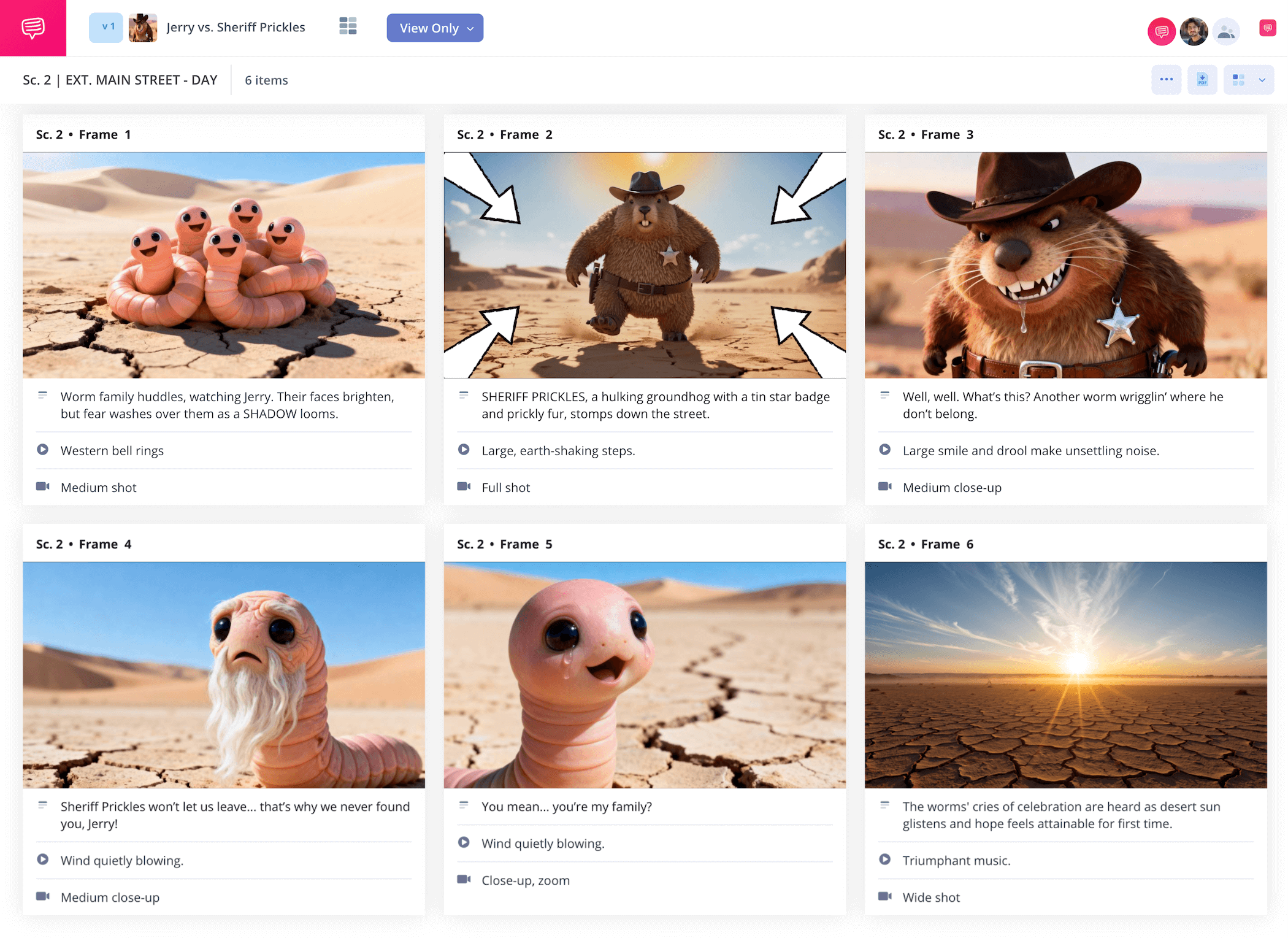
Storyboard animatic template
If you’re looking for the right kind of storyboard to help you prepare for the animatics stage that follows the storyboarding stage, we got you covered on a storyboard animatic template. A storyboard provides a still visual capturing of your narrative vision, laid out like a comic book so you can assess each moment in a scene or sequence. The animatics phase then takes it a step further, putting the animatic storyboard together to create a timed moving sequence. So, a storyboard and an animatic represent two different stages of pre-production, but since this is a guide on how to build and prepare a storyboard for the animatics stage, we’ll refer to this particular storyboard as an animatic storyboard.
We’ll be using an animation-based storyboard we made using StudioBinder’s storyboard creator for our guiding animatic storyboard examples, but feel free to use whichever kind of storyboard you prefer since these steps are universal to just about any storyboard animatic template approach.
Step 1
1. Structure your template
Since you’re using your storyboard animatic template to prepare for the previs animatics stage, you’ll want to make sure you have a structure and composition that sets you up well. 16:9 panels are pretty standard for an animatic storyboard. You’ll also want to hit the sweet spot on description and image space. But since you’re preparing to apply all sorts of bells and whistles in the animatics stage, from voiceover to music and movement details, that description field space will still fill up pretty quickly, so condense wisely!
StudioBinder will have you setting many of these details up as soon as you begin a new storyboard project. When you’re done, your storyboard and animatics project will look something like this:
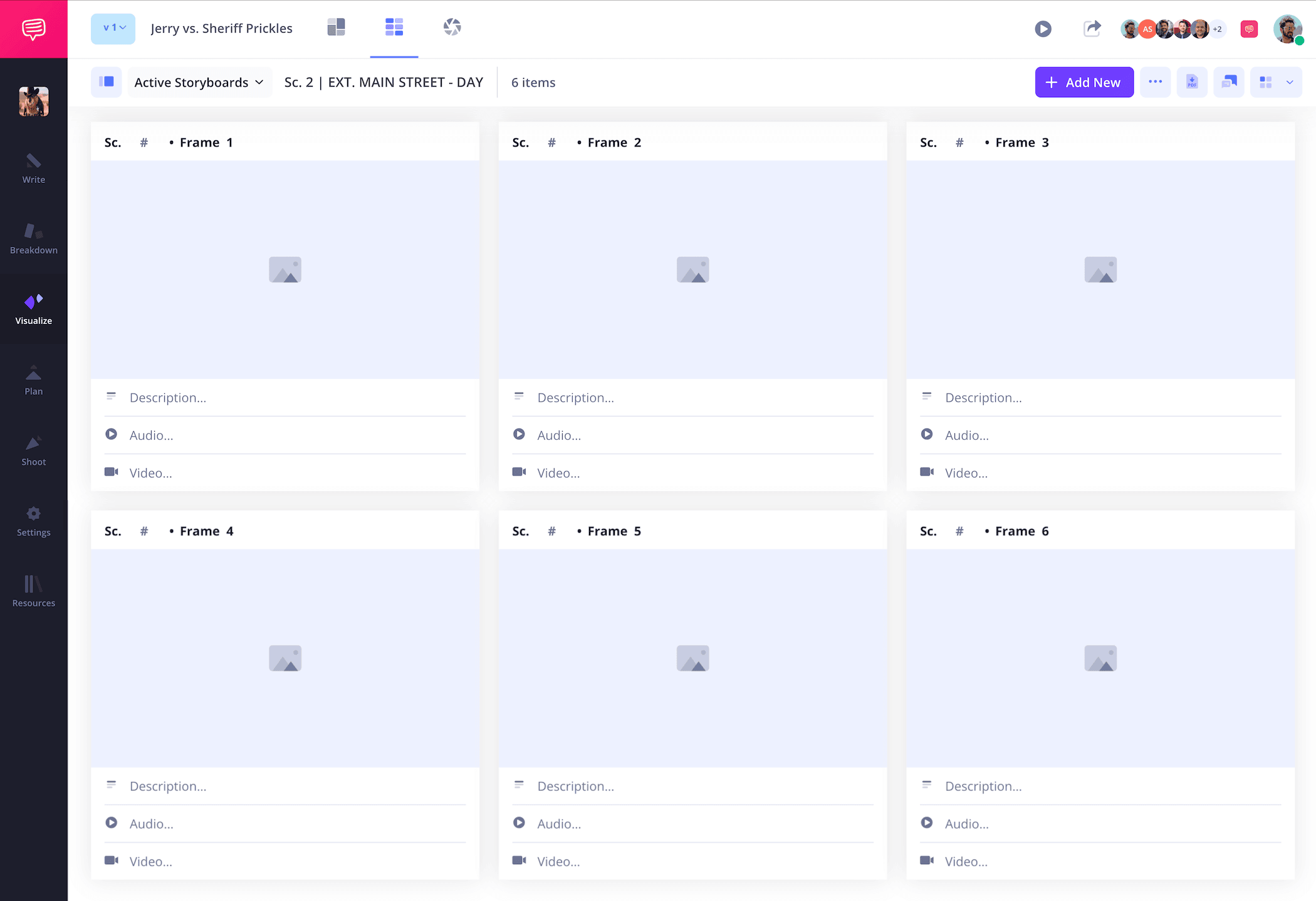
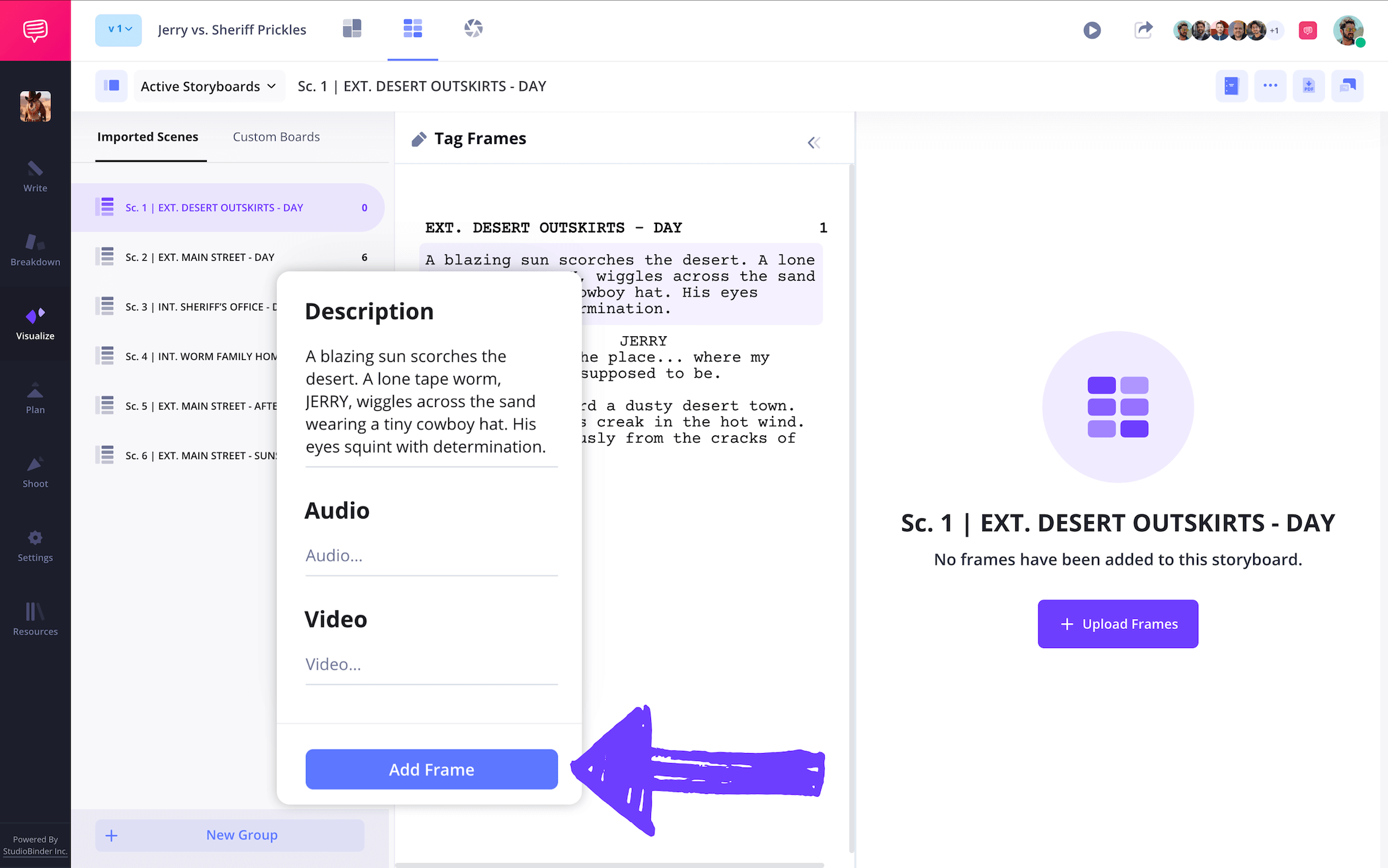
As you fill in your description space and find the right pacing for your sequence from one panel to the next, consider both storytelling efficiency and the subsequent animatics production needs. In StudioBinder, just click on any description field and type when you’re ready.
Step 2
2. Upload images
Images on a storyboard animatic template are the key that will unlock all animatics down the line, so most of your focus will be applied here. Whether you’re a storyboard artist, or working alongside any storyboard artists on your storyboard animatic, the images you illustrate here will be the first step in establishing how the sequence will look in motion.
But don’t get overly detailed of course, you’re really just highlighting things like distinct character expressions, movements, and environmental placement (especially if it’s for a fight scene).
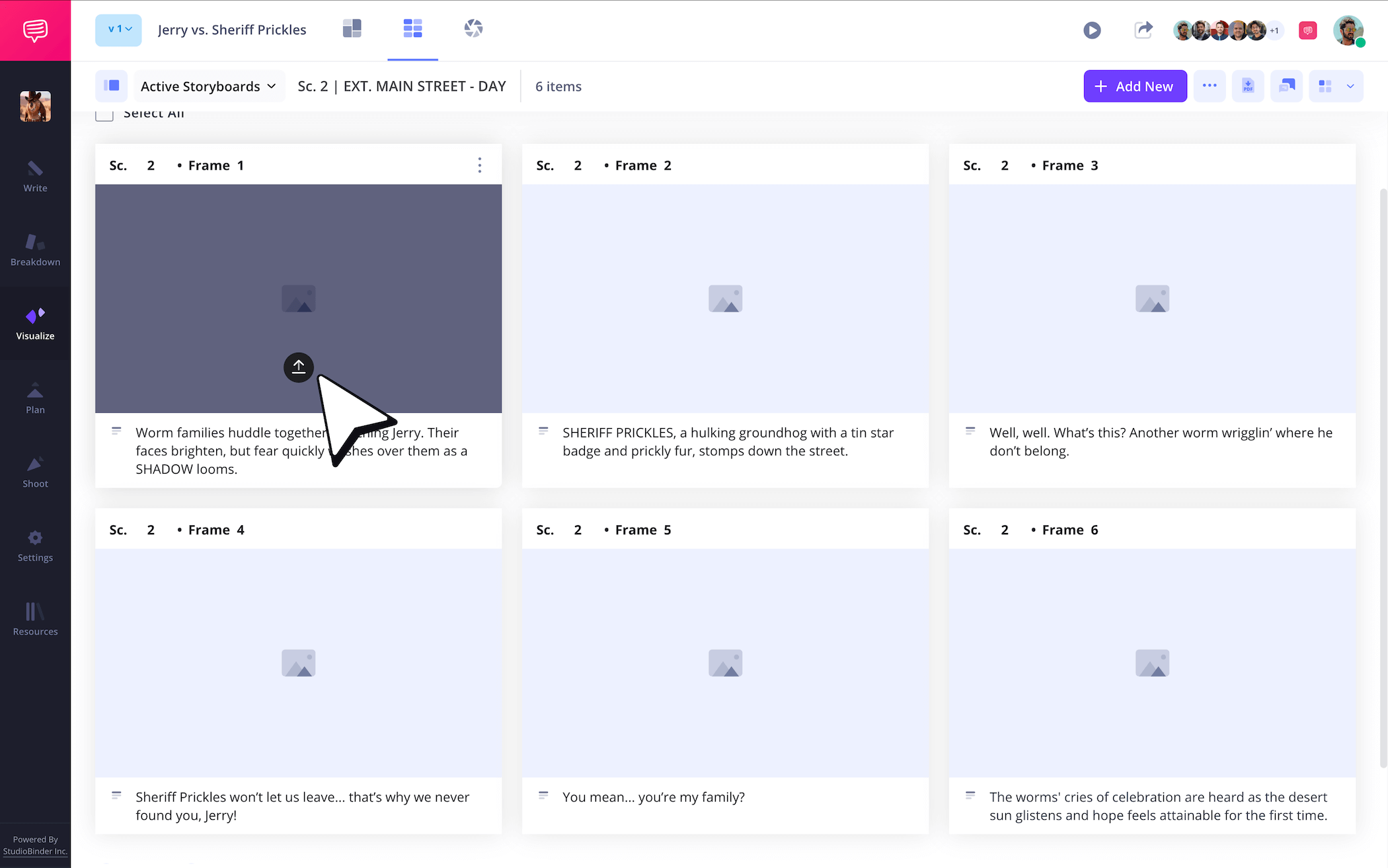
When you’re ready to upload images into your animatic storyboards project, just click Upload on any panel.
Step 3
3. Include arrows
Storyboard arrows can be a huge help while building your storyboard animatic template. Sometimes it helps to showcase the type of motion you’re going for rather than just writing it out in the description fields of your animatics and storyboards project. Maybe it’s a particular camera shot transition, or maybe it’s a subtle comedic movement occurring in the background during the main character’s big speech. Whatever the case, arrows can really punch up the action of an image and save you lots of re-illustrating time.
For our animatic storyboard example, we wanted to make sure the zoom shot for our villain’s big entrance didn’t get lost on the animatics department, so we used StudioBinder’s image editor to customize some arrows that fit our exact needs.
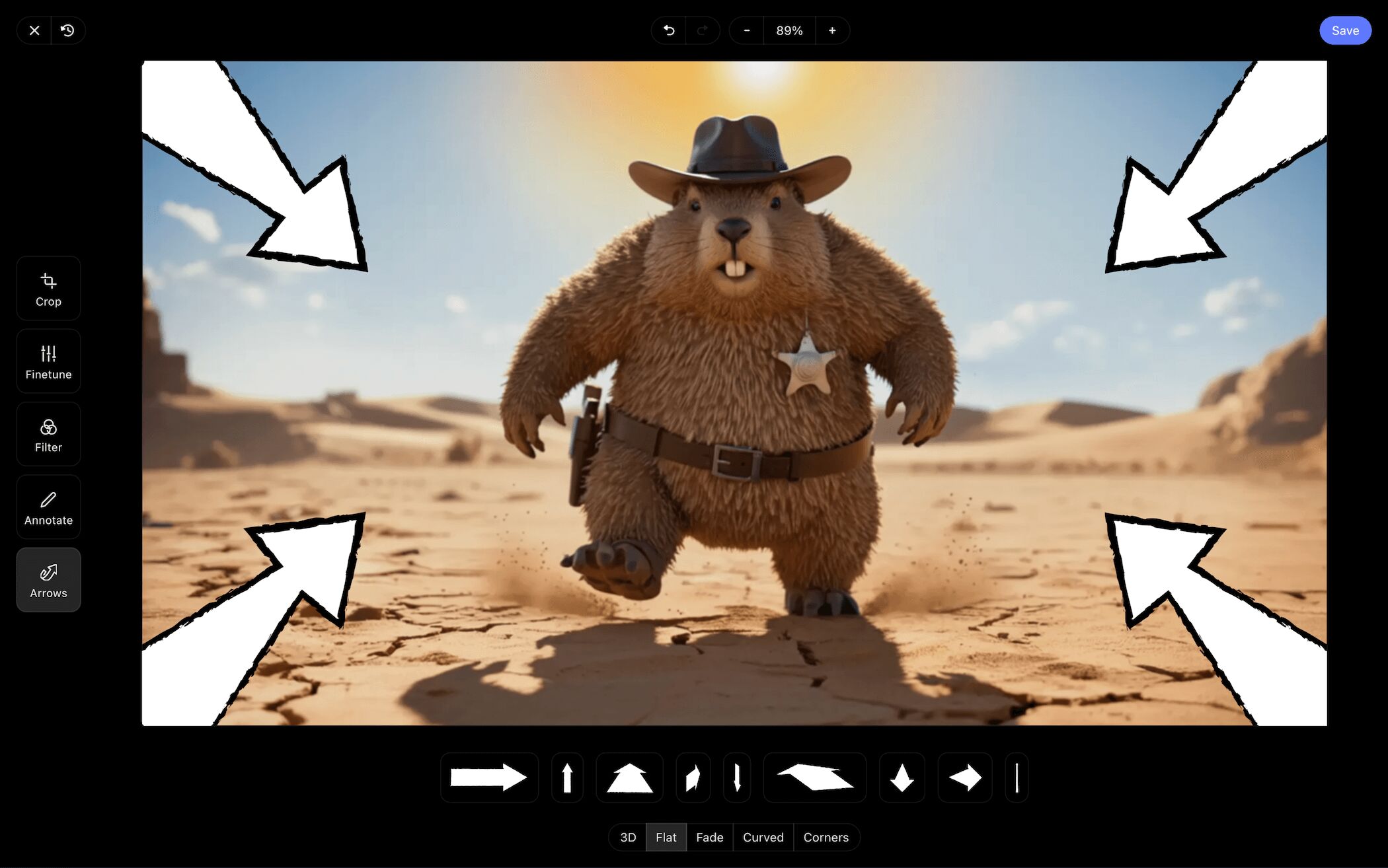
Once we positioned our arrows just where we wanted them, we browsed through the other image editing tabs for any other touch ups we might need while using the editing suite. When we were all set, we clicked Save and our edited image was added to our storyboard and animatics template.
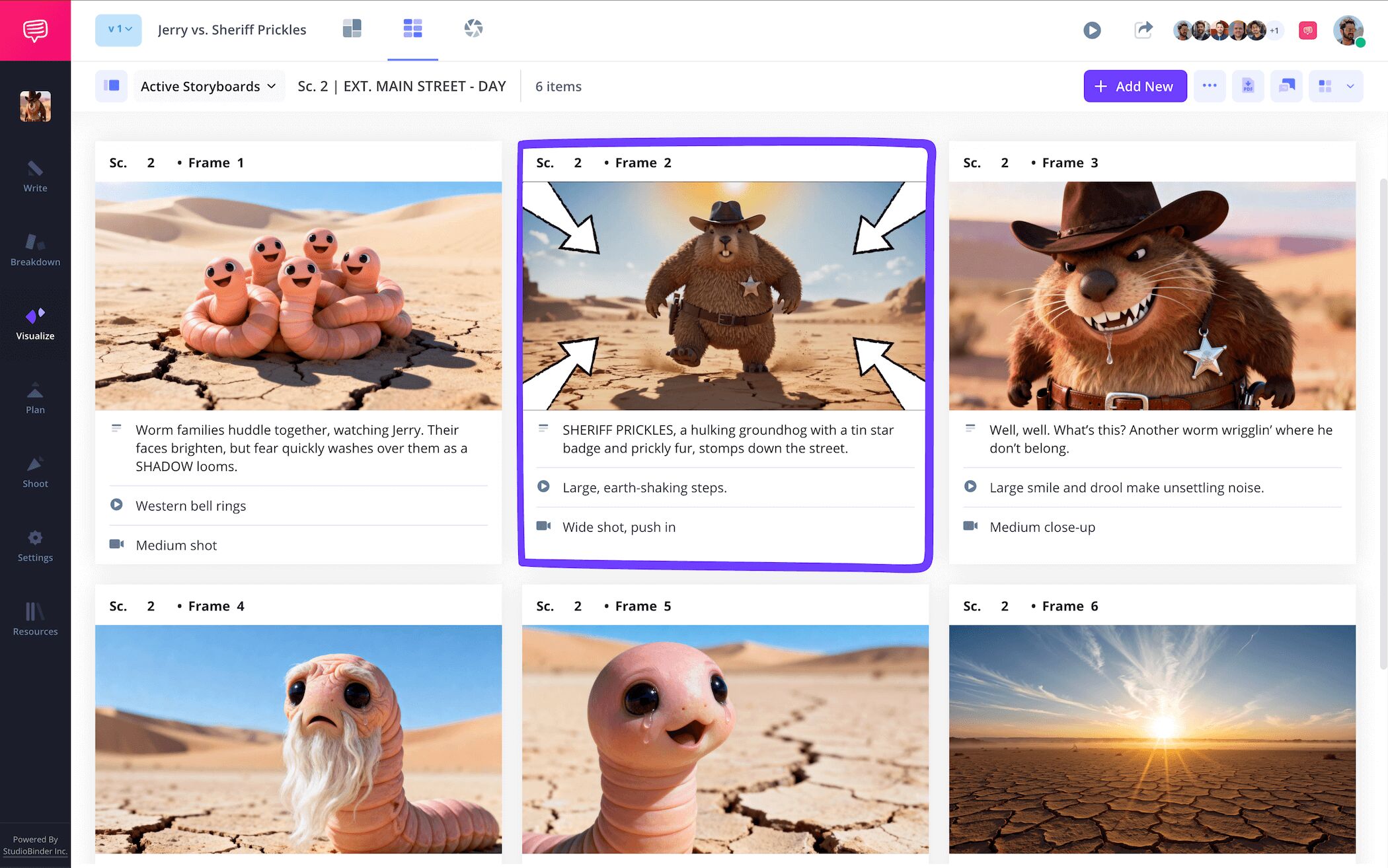
Step 4
4. Collaborate with your team
It takes an army to create both storyboards and animatics throughout a production, which is why easy and seamless collaboration on your storyboard animatic template is so important. The animatics department will want to take a look at the storyboard as it’s being built, and the storyboard department will want to assess the animatics as their storyboard is put into motion. Not to mention all the producers, VFX artists, editors, and more that will benefit from a look.
Heck, you may even want to let craft services check out your animatic storyboard too! With StudioBinder, you can make your animatic storyboards project a hub for all collaboration and communication by setting individual invite permissions to either commenter or editor.
Your collaborators with commenter or editor permissions enabled can use the comments tab to explain their edits or leave any kind of feedback. Best of all, you can comment right back to get a productive dialogue going on your animatics and storyboards project.
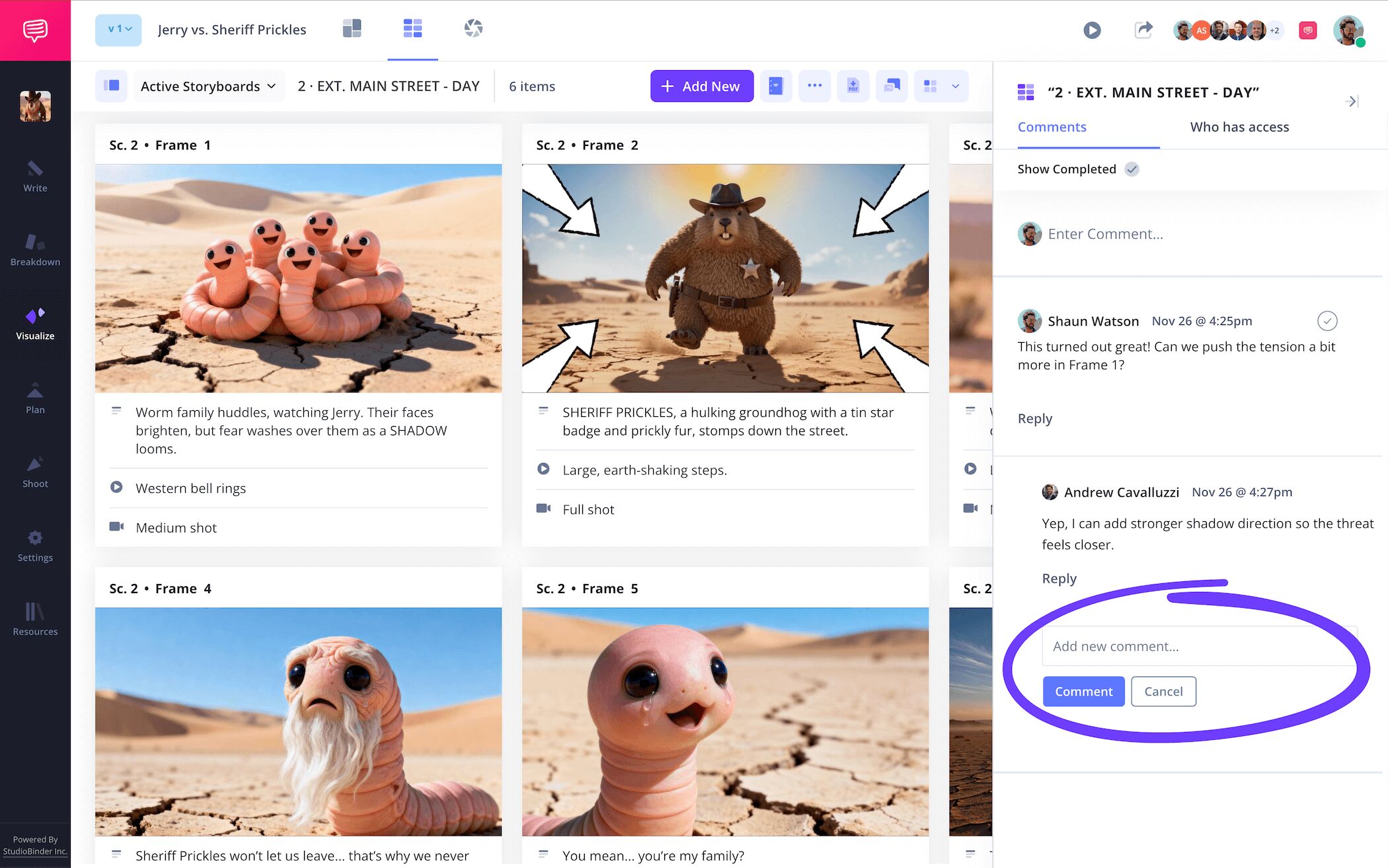
Step 5
5. Download your storyboard PDF
As your storyboard animatic template starts looking in tip top shape and ready for the animatics department to get to work on, it’s always helpful to convert your project to a PDF document for safekeeping. You might have certain departments that will consistently need to refer to your storyboard, so making your animatic storyboard a singular document that can be copied and edited based on any department’s requests is a no brainer.
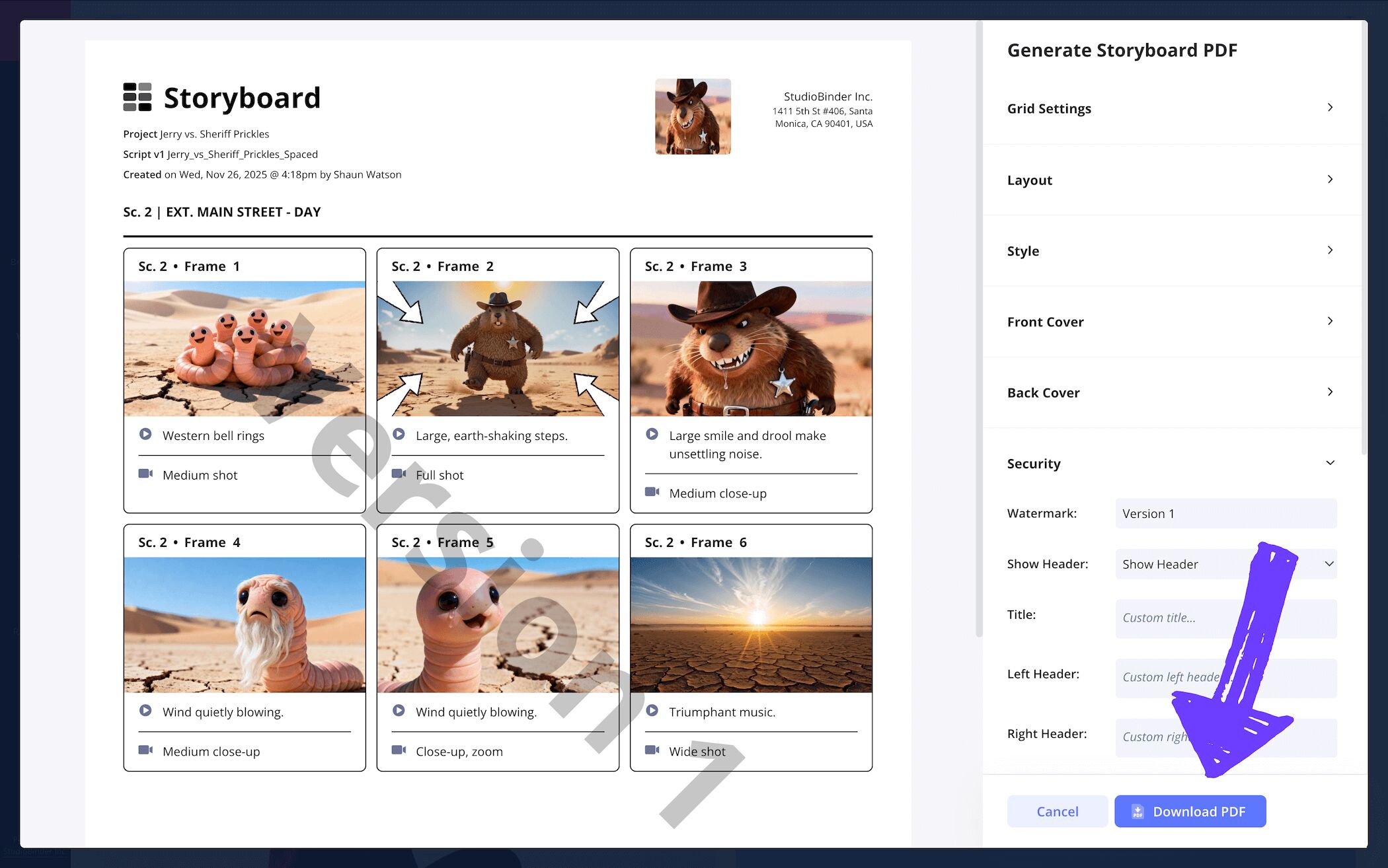
We took a look at our own storyboard animatics template and thought, ‘needs more cowbell.’ We couldn’t find any cowbell, so we went into StudioBinder’s PDF editor instead. There we were able to add a front and back cover to make our storyboard and animatics PDF look nice and professional for our executive producer who requested a personal copy.
We were a little sour the last time our storyboard leaked because the editing department lost their copy, so this time we added a watermark to their newest one to be extra safe.
Conclusion
Done!
Building your own animatic storyboard is no small accomplishment, so feel proud! We certainly hope this storyboard animatic template guide was helpful throughout the whole journey. And just in case you didn’t know, animatics and storyboards are far from StudioBinder’s only specialty, so be sure to look through all our free storyboard templates.
Frequently Asked Questions
Your questions, answered
An animatic storyboard refers to a storyboard that is made with the intention of becoming an animatic when it’s finished being built. In truth, an animatic storyboard isn’t a term often used in the film and animation industries, given that storyboarding and animatics are two separate stages of pre-production. So, if you do use the term, or hear someone else using it, it’s most likely to simply highlight that the storyboard will contain vital information for the animatics stage to build from.
Storyboarding and animatics are two separate phases of pre-production in film or animation. In the storyboarding stage, the visual narrative is illustrated and laid out like a comic book, each panel representing a frame or moment in the scene or sequence. The animatics stage takes it to the next level and actually creates some sound and motion from those storyboard images. If it’s an animation feature being worked on, then these two stages lay the groundwork for the actual final animation production stage. They’re both vital because they each represent a rung in the latter in creating the stunning visuals you see in so much of today’s animation.
Making animatic storyboards is basically another way of saying you’re making a storyboard that will be used in the subsequent animatics stage. So, if you’re making an animatic storyboard, you’re making sure all the images and shot descriptions provide all the essential information for the animatics department to build from. This means making sure your illustrations detail essential qualities like movements and character expressions, and that your shot descriptions highlight all the relevant VFX, audio, and dialogue information.
Storyboards are the essential document that paves the way for the animatic to come to life, so yes, animatics can and almost always are made out of storyboards. Think of the storyboard as the still version of the animatic. When building the storyboard, you’re sketching the images for every shot or moment in a scene and adding important descriptions about those shots right next to the images. Then to create the animatic, the storyboard images and information are basically all put together to create a moving sequence with audio and voice over. Thus, the animatic is born.
Create your free storyboard
Visualize your storyboard animatic template with our free software.
Get started for free
