
home → TEMPLATES → Storyboard
Storyboard Format PDF Template

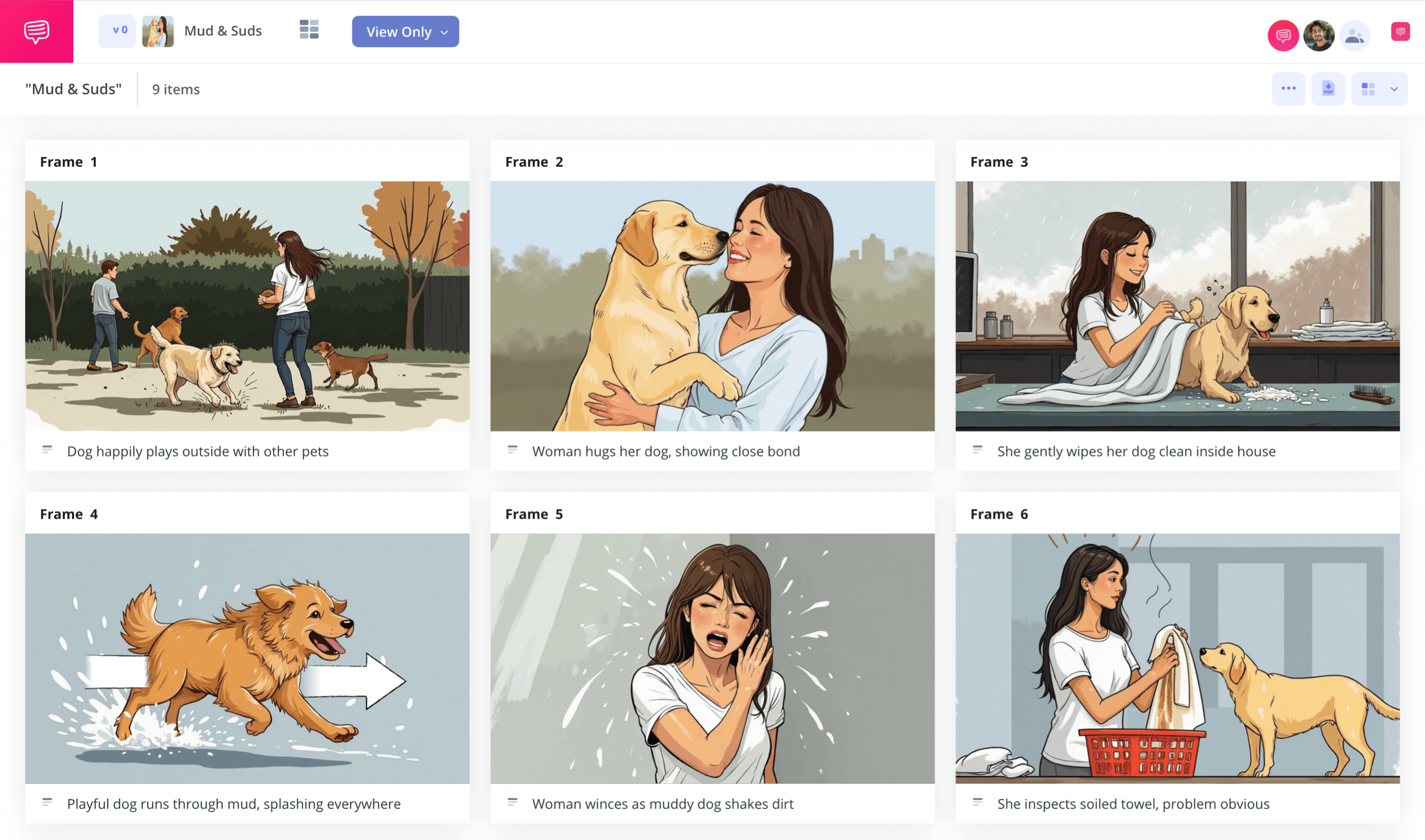
Storyboard format pdf template
For any kind of creative project you have that requires you to pre-visualize your ideas, a storyboard format PDF template is the perfect planning tool. As you gather your ideas in your head, written down or not, you’ll use your story board pdf as a way to lay them all out linearly like a comic book, each frame representing a shot in your scene, sequence, or presentation. Once you’re finished building your free storyboard template pdf, you’ll then download it into a PDF document, officially cementing your rough draft vision before moving on to the final version.
With this step-by-step walkthrough on how to make the most of your storyboard template PDF free download, we’ll guide you along using StudioBinder’s storyboard creator. However, these steps are broad enough for you to use any kind of storyboard format PDF template that works for you. Let’s get started!
Step 1
1. Format your template
Depending on the type of visual project you’re working on, you’ll want to format your storyboard format pdf template to your specific needs. For example, if you’re using a storyboard format for film, your panel aspect ratio will likely be different than the panel aspect ratio you’ll use for a video reel on social media. After you start a new project with StudioBinder and get through all the initial format setting prompts, your free storyboard template PDF will look similar to this:
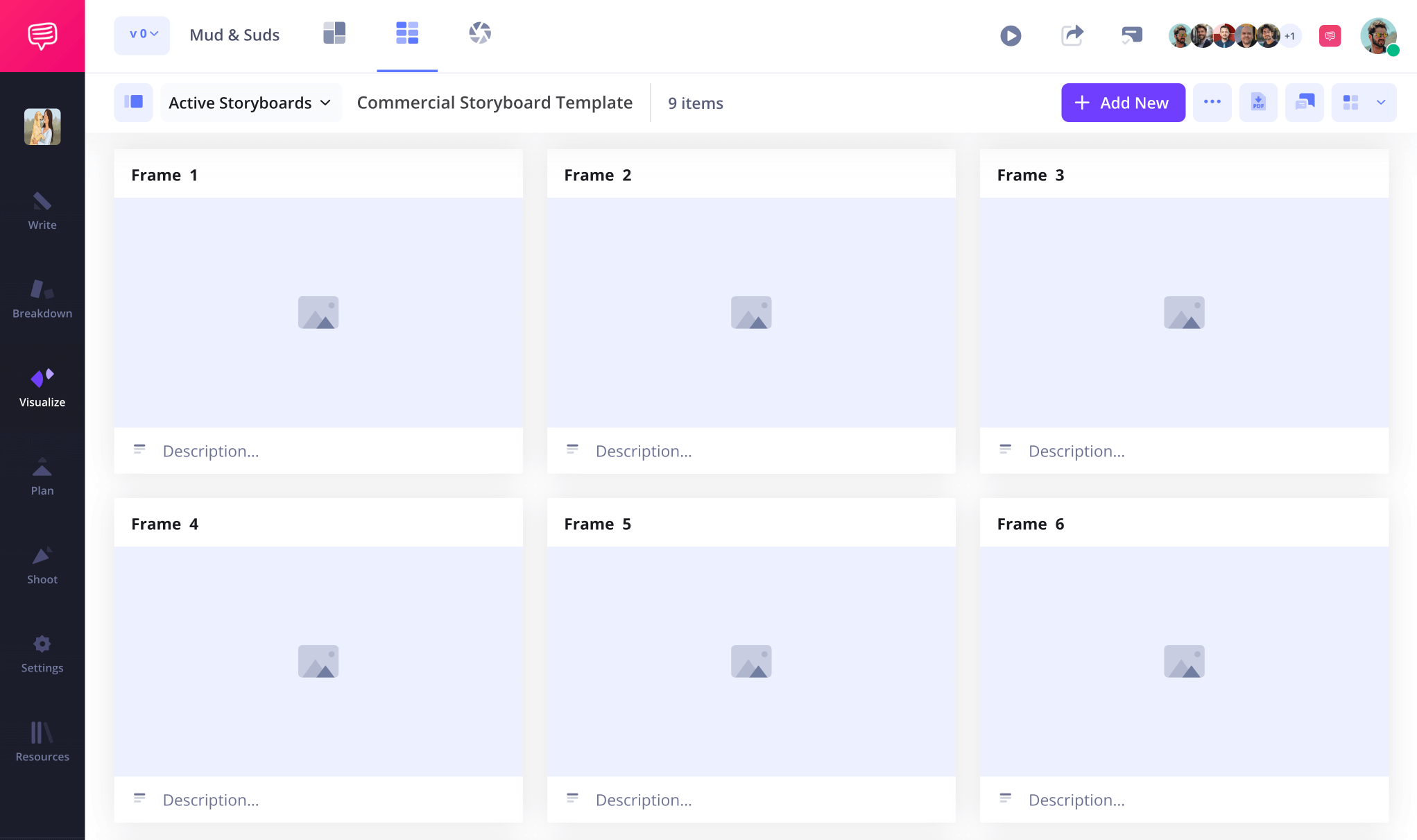
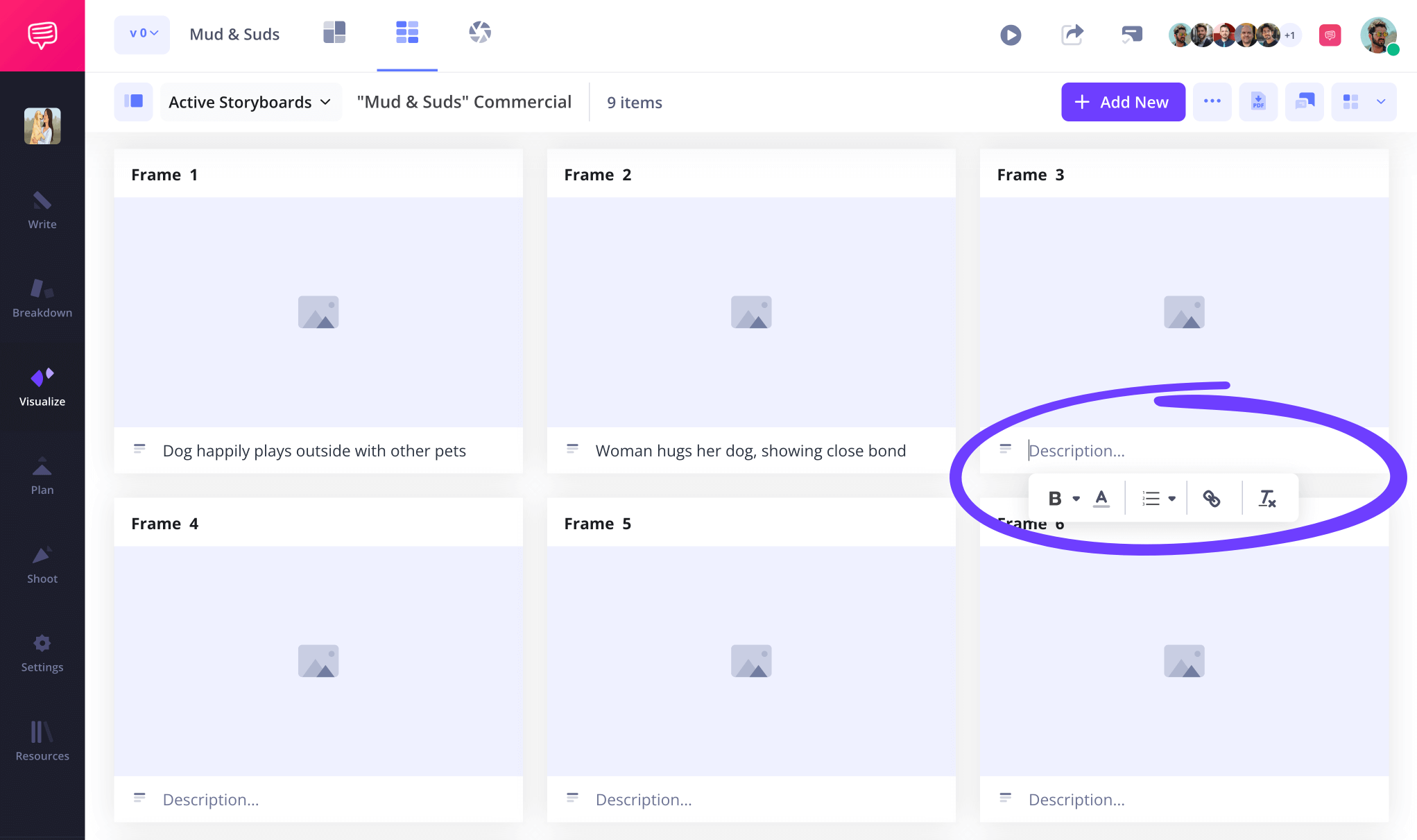
Now you’ll take those visual ideas you have for your project and start writing them down in the description fields below each panel. You can also adjust the description field space on your story board PDF in the settings at any time.
Step 2
2. Include images
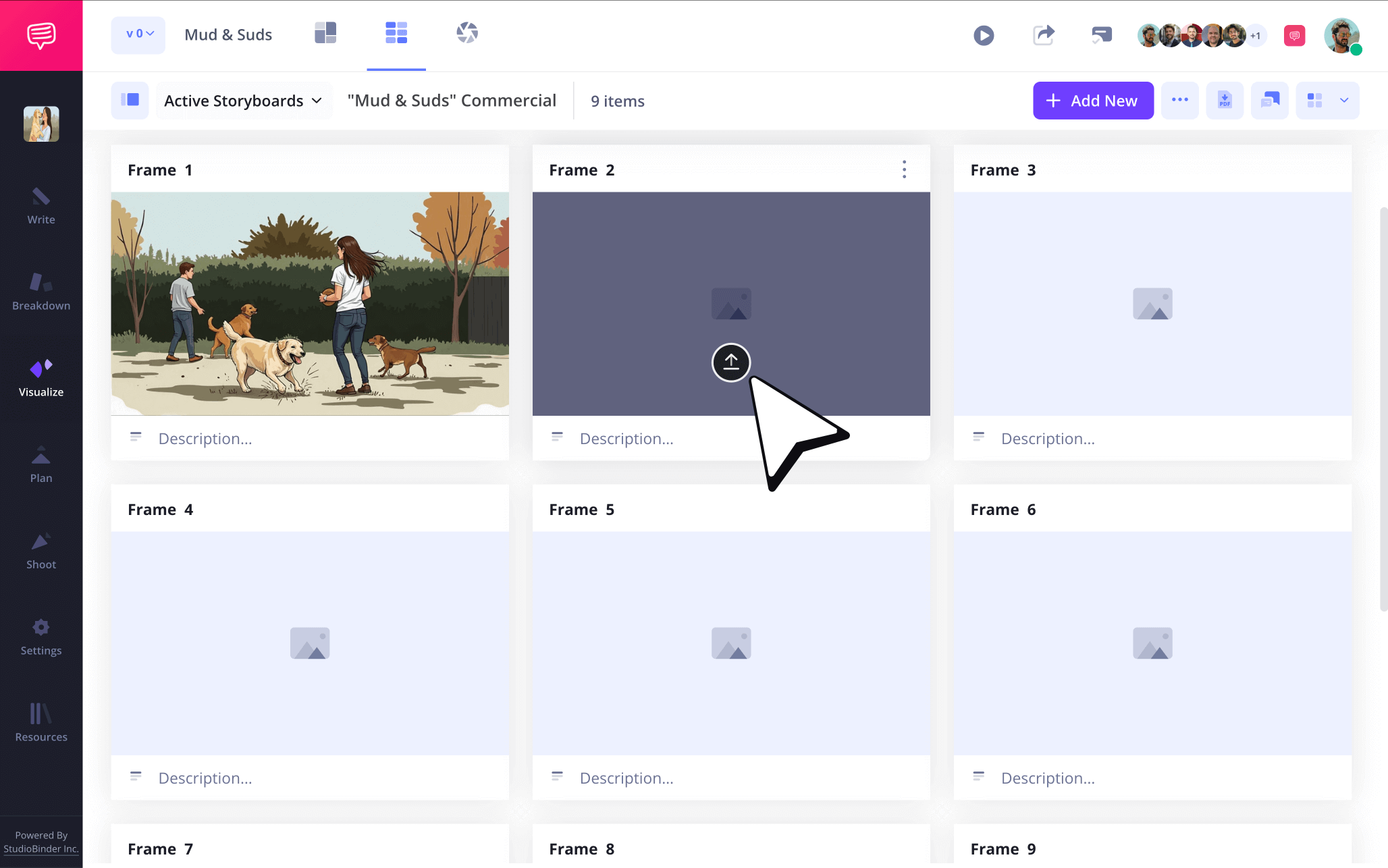
Uploading images to your story board template PDF is where your vision will really begin to come into its own. You’ve got your ideas written into each panel, now it’s time to really appeal to the imagery that came to mind while writing those descriptions. You don’t even need to be a professional storyboard artist to include images either, reference images found online can work too. Just make sure they capture your vision in some stylistic sense.
Now just click upload on any panel and add the image from your files to your storyboard PDF template.
Step 3
3. Customize arrows
If you’re looking at your storyboard format PDF template and feel one or some of your images look more static than you intended, you should consider adding some storyboard arrows instead of recreating them from scratch. Arrows on a storyboard are great for visually showing any kind of action in an image, from shot to character or environment movements.
With StudioBinder’s image editor, you can choose from a variety of arrow variations like flat, fade, curved, corners and even 3D. Then you can customize your choice of arrow by changing the size and also adding text within if you wish.
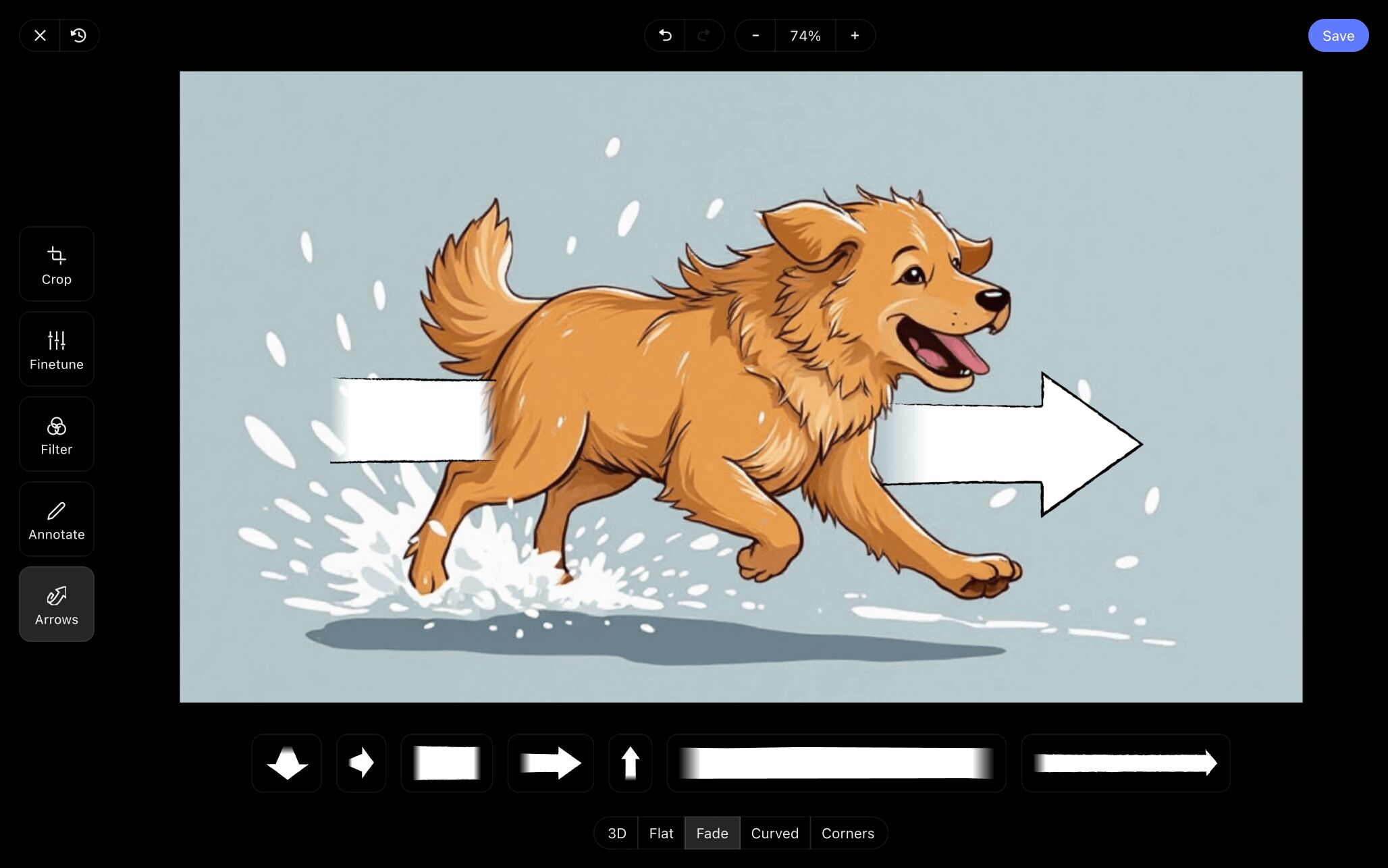
Before you finish customizing the arrows for your story board PDF, be sure to also consider using the other image editing options available to you, from cropping to image filters. Then just press save and your newly edited image can be seen on your storyboard template PDF free download.
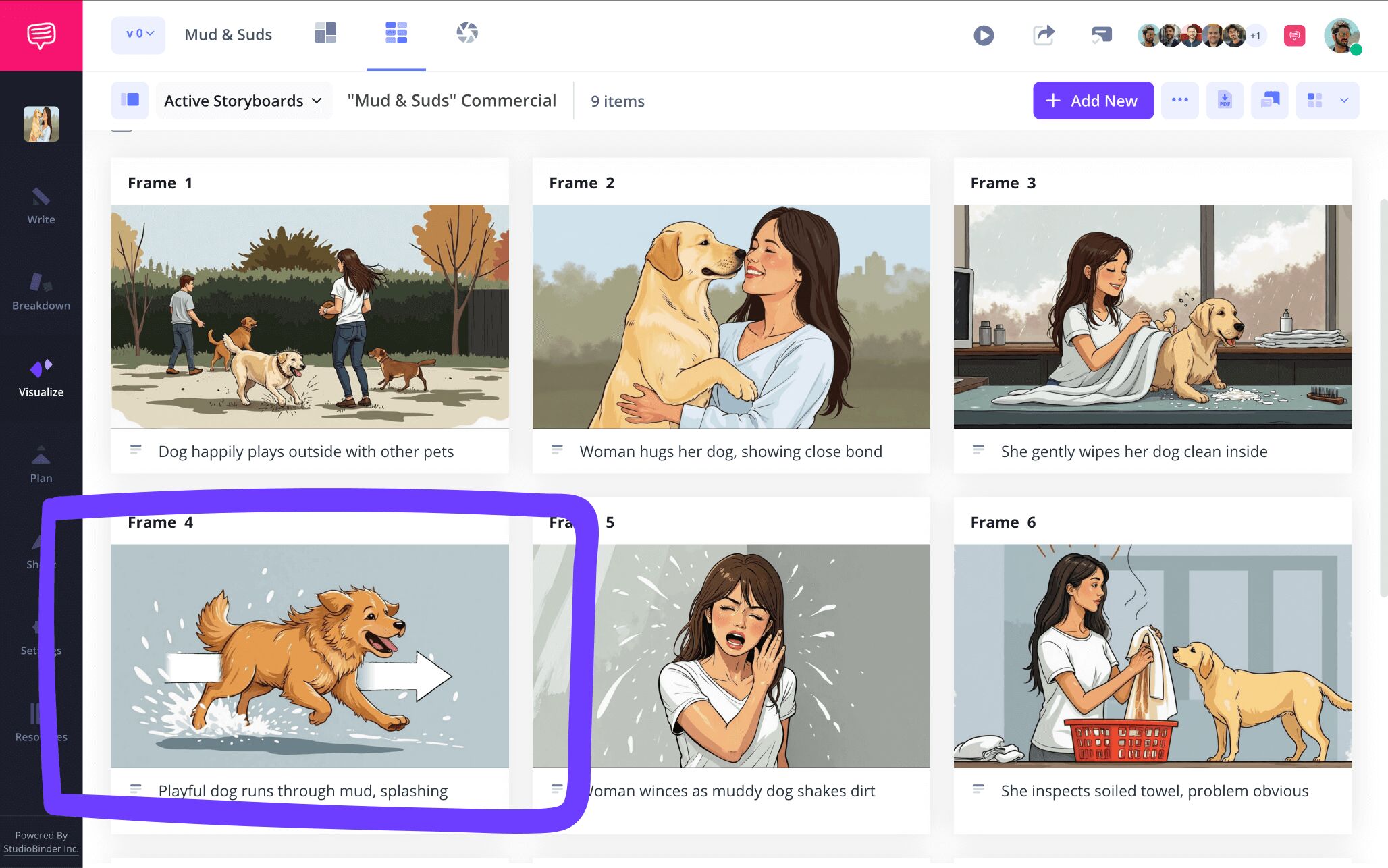
Step 4
4. Share and get feedback
If you’re working with anyone else on your storyboard format PDF template, or simply just want to get a second opinion on how it looks and if it makes sense visually, then you’ll want a central hub that makes collaboration easy. With StudioBinder, you can invite anyone to take a look at your story board template PDF by sending them a view-only-link. But even though a link on its own is common practice, what if you want your collaborator to make edits of their own on your storyboard template PDF? Simply set your invitee’s permissions to either commenter or editor when sending their invite.
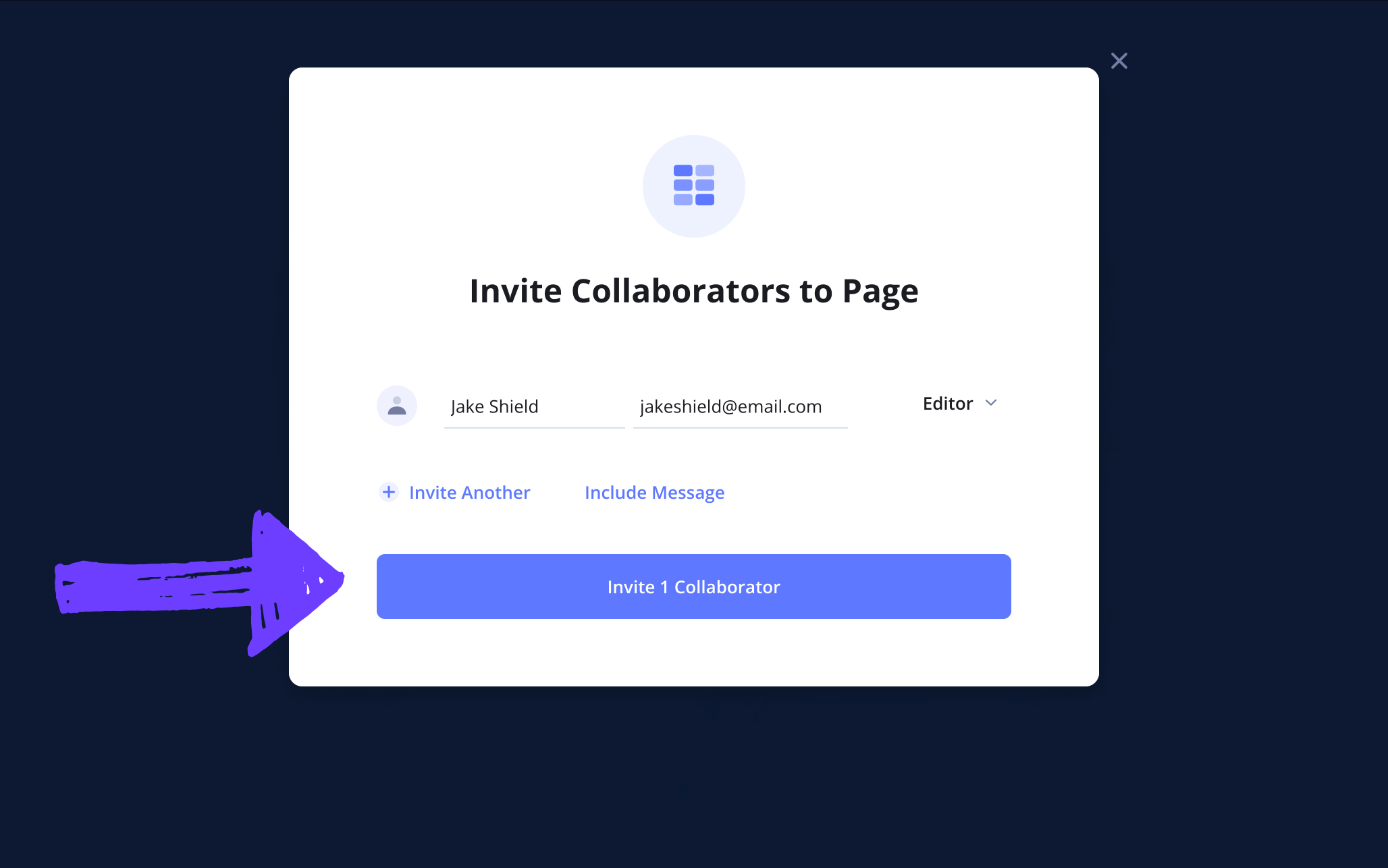
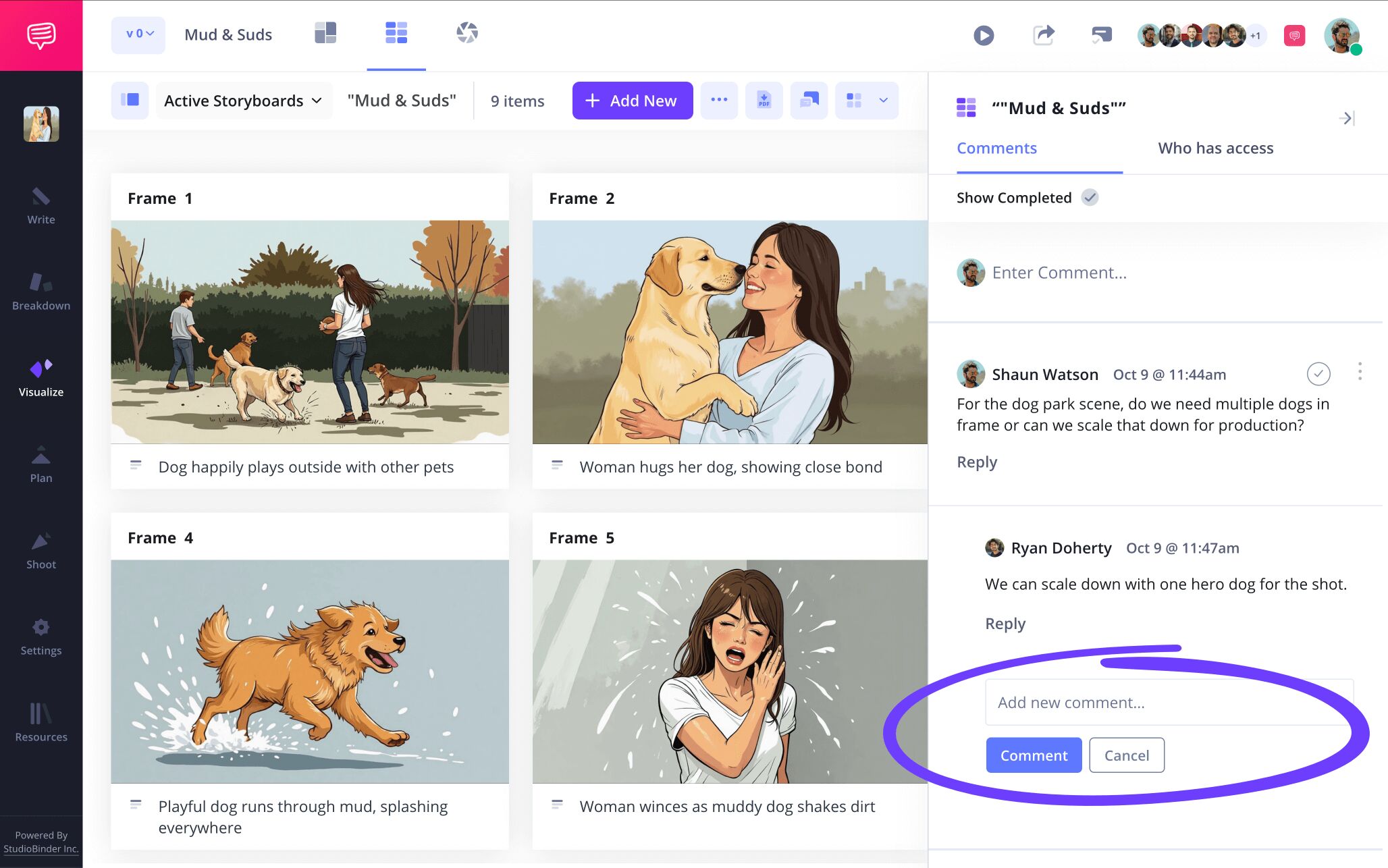
Setting an invite’s permission to commenter or editor will also open up the ability for your collaborator to send any feedback they have for you in the comments tab located to the right of your free storyboard template PDF. Then you can communicate back by sending them a reply.
Step 5
5. Download your storyboard PDF
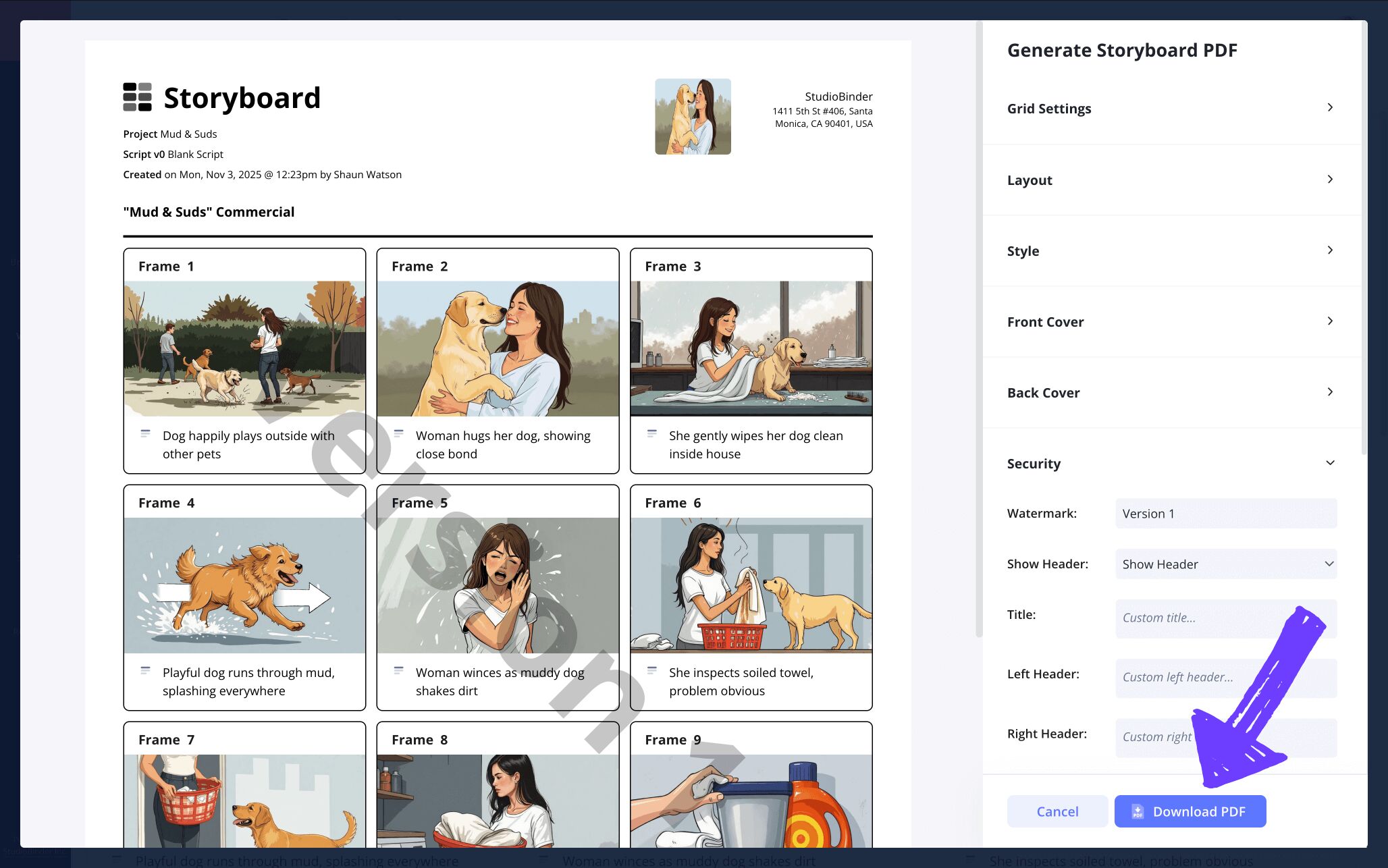
If you work in the film industry, then you know the importance of being able to customize your storyboard for all the different individuals and departments that need it. Even if you’re working alone or with a small team, downloading your storyboard format PDF template project in a customized manner that makes reading it easy is an essential step. This is why StudioBinder lets you choose from a variety of customization options once your storyboard PDF template is ready to go.
On StudioBinder’s PDF customization page, you can change big details like the addition or subtraction of color from your documents, or smaller details like font sizing. If security is a concern, you can even go to the security tab and add a watermark and custom title to make your storyboard template PDF extra specific to who you’re sending it to.
Conclusion
You're done!
Having a storyboard format PDF template that works for you is endlessly essential, and now that you know the best steps to making one for yourself, you're free to let your creativity run wild throughout the whole process. But if a storyboard template pdf free download isn’t the only kind of pre-visualization tool you’re looking for, be sure to look over all of StudioBinder’s free storyboard templates!
Frequently Asked Questions
Your questions, answered
If you want to make your own film storyboard, you’ll want to customize your panels to the typical standard of most storyboards for films. In the film industry, panels will usually meet a 16:9 aspect ratio. There should be six panels per movie story board page, and each row should have two panels, allowing enough room for your panels to be large and readable. The description space on a film storyboard will usually be large enough to contain action, shot number, camera angle setup and audio.
Using a storyboard format PDF template is greatly helpful for any pre-production or pre-planning process because it gives you a visual reference to work from when creating the final version of your project. Once you write down your descriptions and include all your images in your story board PDF, converting to a PDF allows you to print or share your storyboard as a finalized document, rather than keep it in an editable format. You can also edit and customize your PDF in specific ways depending on the individual or film department’s needs.
After you finish building your storyboard, you’ll have the option to convert it into a free storyboard template PDF. At this point, it’s common to wonder what kind of edits can make your storyboard PDF document professional and easily readable. We’ve compiled a handful of customization options for you to consider:
- Paper format size must match your printing paper size.
- Keep grid settings on for broadest readability.
- Keep the color option enabled if color is important to your storyboard.
- Add a front and back cover for professionalism.
- Add a watermark so your storyboard stays in the right hands.
A storyboard PDF template is any kind of storyboard that can be converted into a PDF once building your storyboard is complete. You can physically sketch out your storyboard and then upload it and convert it to a PDF. Or, you can use any free storyboarding software online, build your storyboard and then directly convert it into a PDF. Using a StudioBinder storyboard template allows you to choose from a variety of different PDF customization options.
Create your free storyboard
Visualize your storyboard format PDF template today.
Get started for free
