home → TEMPLATES → Storyboard
16x9 Storyboard Template

16x9 storyboard template
If you’re looking for a 16 9 storyboard template to help you with planning out any visual storytelling project you have, then you’re looking for a type of storyboard that’s made to fit most modern screens. A 16:9 storyboard template refers to the aspect ratio of the rectangular frames found on any 16x9 storyboard template, and most modern storyboards really. So now we know what a 16 9 storyboard template landscape consists of, but what’s the best way to approach using one for your own narrative project?
Well, you’re in luck, because today we’ll be breaking down the broadest, most efficient way to build your storyboard 16x9 template from start to finish. We’ll use StudioBinder’s storyboard creator for our guiding example, but feel free to follow along with whatever 16 9 storyboard template you have available.
Step 1
1. Structure your template
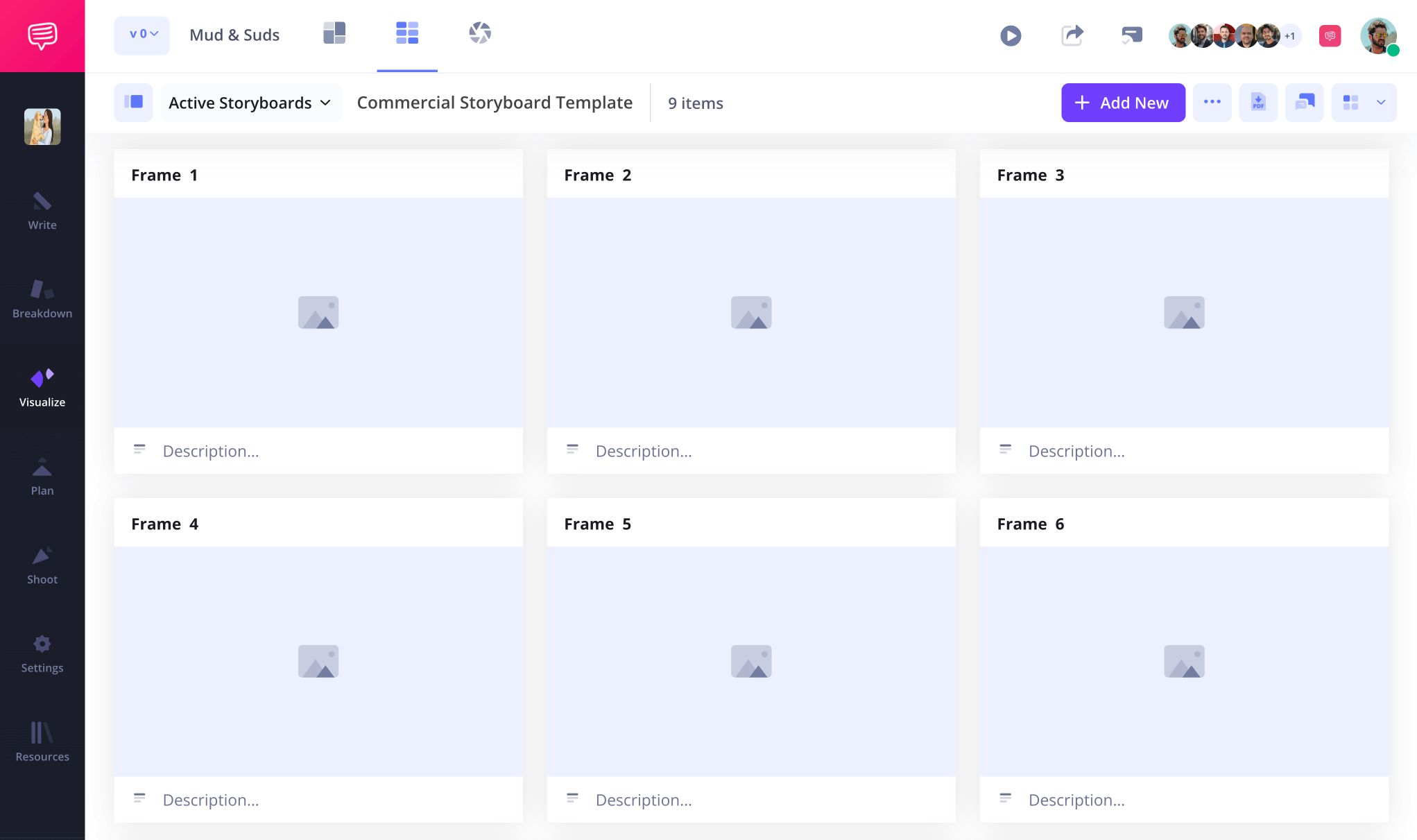
You’ll first want to make sure your 16 9 storyboard template landscape has a structure and composition techniques that fits your visual preference. You’ll of course want all your panels to be locked in at a 16:9 aspect ratio, but how much or how little description space do you want for your project? 3 to 6 frames per page is pretty standard for a 16 9 storyboard template, but there’s no set rules around your layout preferences.
StudioBinder immediately prompts you to answer these basic setup questions when you begin a new storyboard project. When you’re all set, this is generally how your storyboard template 16 9 will look:
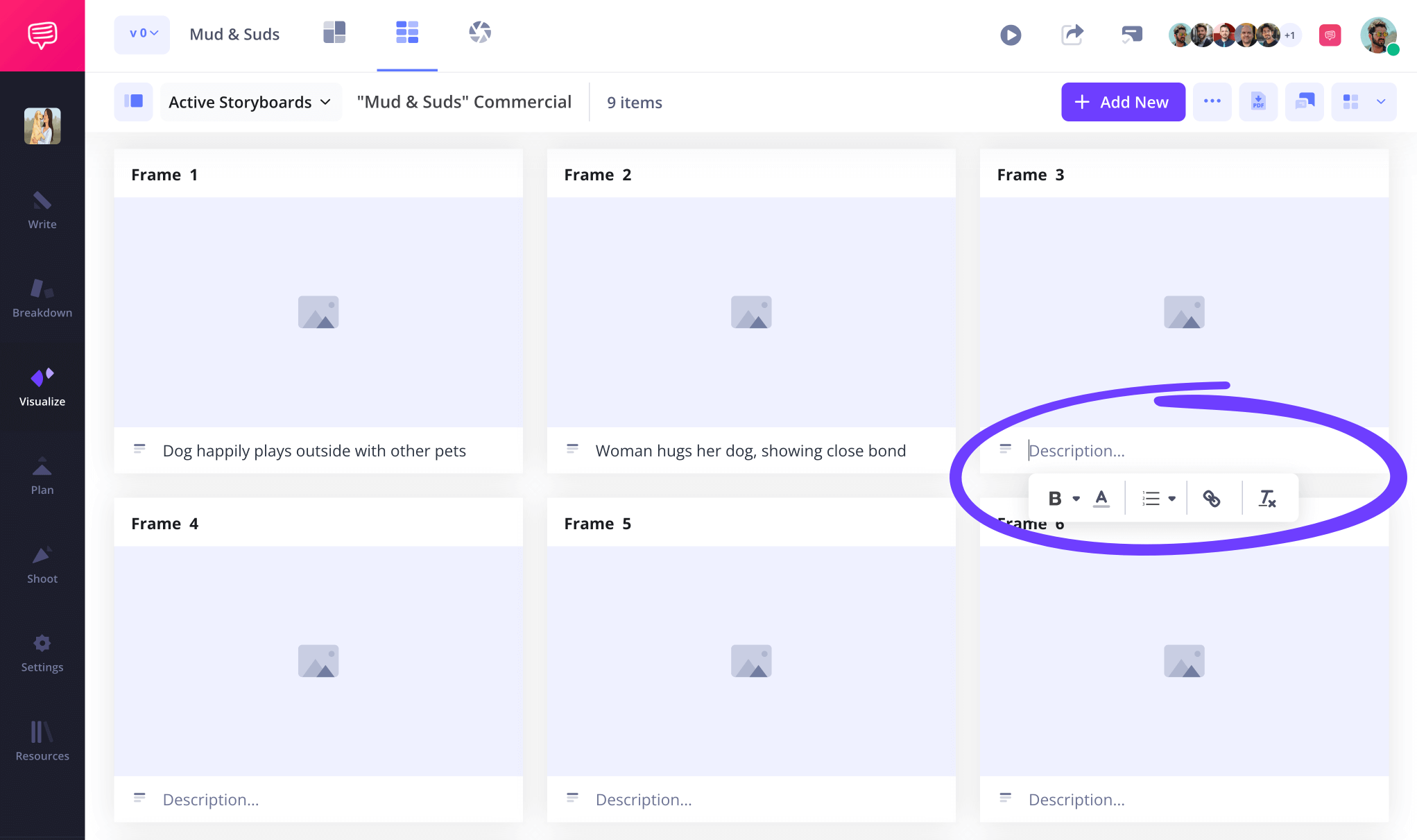
Next, start writing out your narrative descriptions into your panel description fields. This part is all about finding the ‘music’ of your scene or sequence, those beats that just intuitively feel right to go from one to the next at just the right moment.
Step 2
2. Include images
Now you’re ready to take all those intuitive story beats you laid out on your 16 9 storyboard template in just the right order and turn them into visual information. If you don’t identify as a gifted illustrator, don’t sweat it, 16:9 frames will fit most standard images that can be found online, so why not research some reference images to insert into your 16x9 storyboard template?
If you want to be a storyboarding traditionalist though, stick figure and squigly line sketches work just fine as long as they communicate all the right visual information.
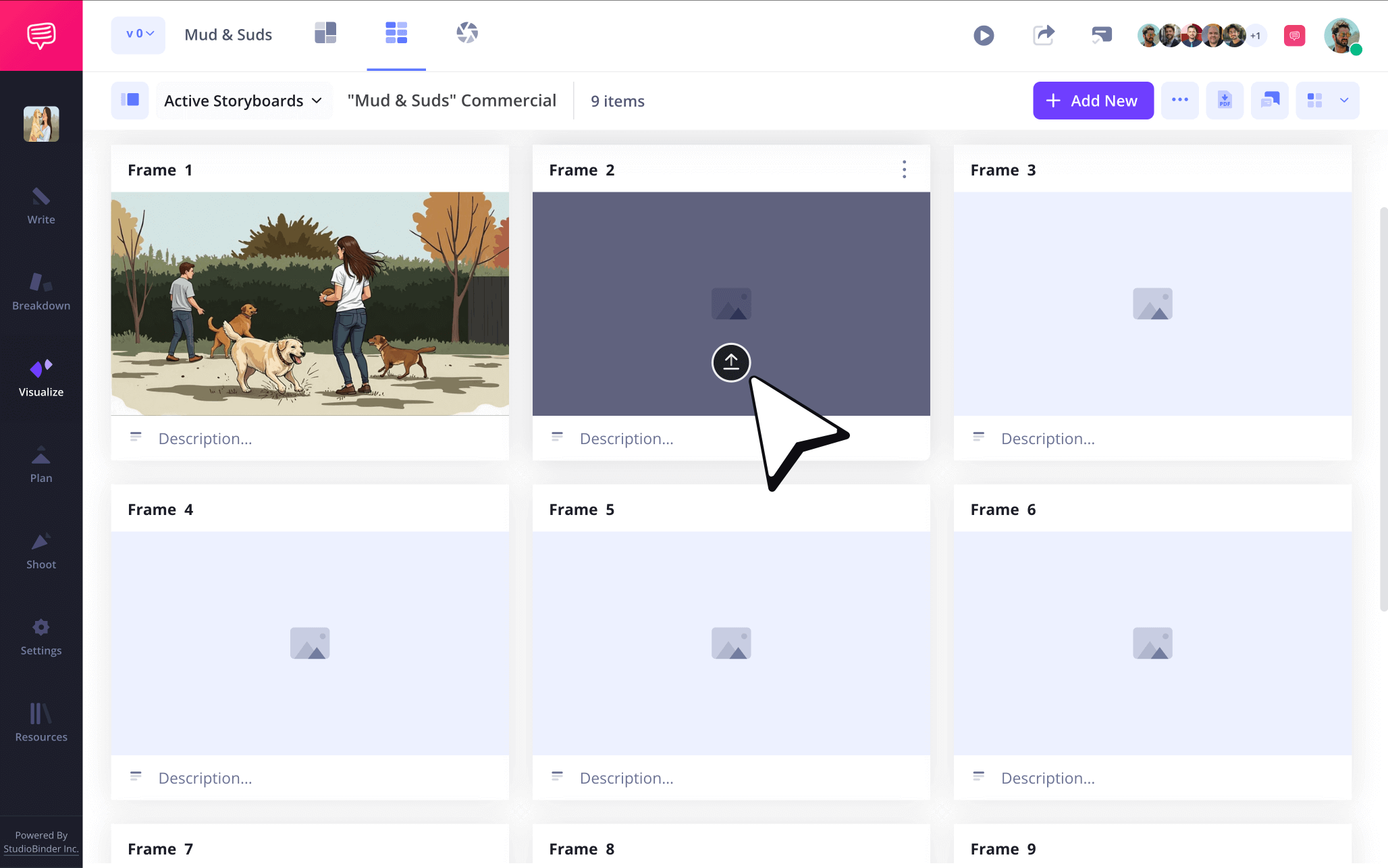
With StudioBinder, you can just click Upload when hovering your mouse over any frame to start filling your storyboard template 16x9 with images.
Step 3
3. Add storyboard arrows
Picture this, you filled your 16 9 storyboard template with images that you couldn’t be more proud of. But then, you notice one image makes your ninja protagonist look like they’re doing a front flip when they’re supposed to be doing a backflip over the enemy. Don’t panic, we got good news. You won’t have to resketch all that hard work because you can just apply storyboard arrows to your flipping ninja to indicate their proper flipping direction.
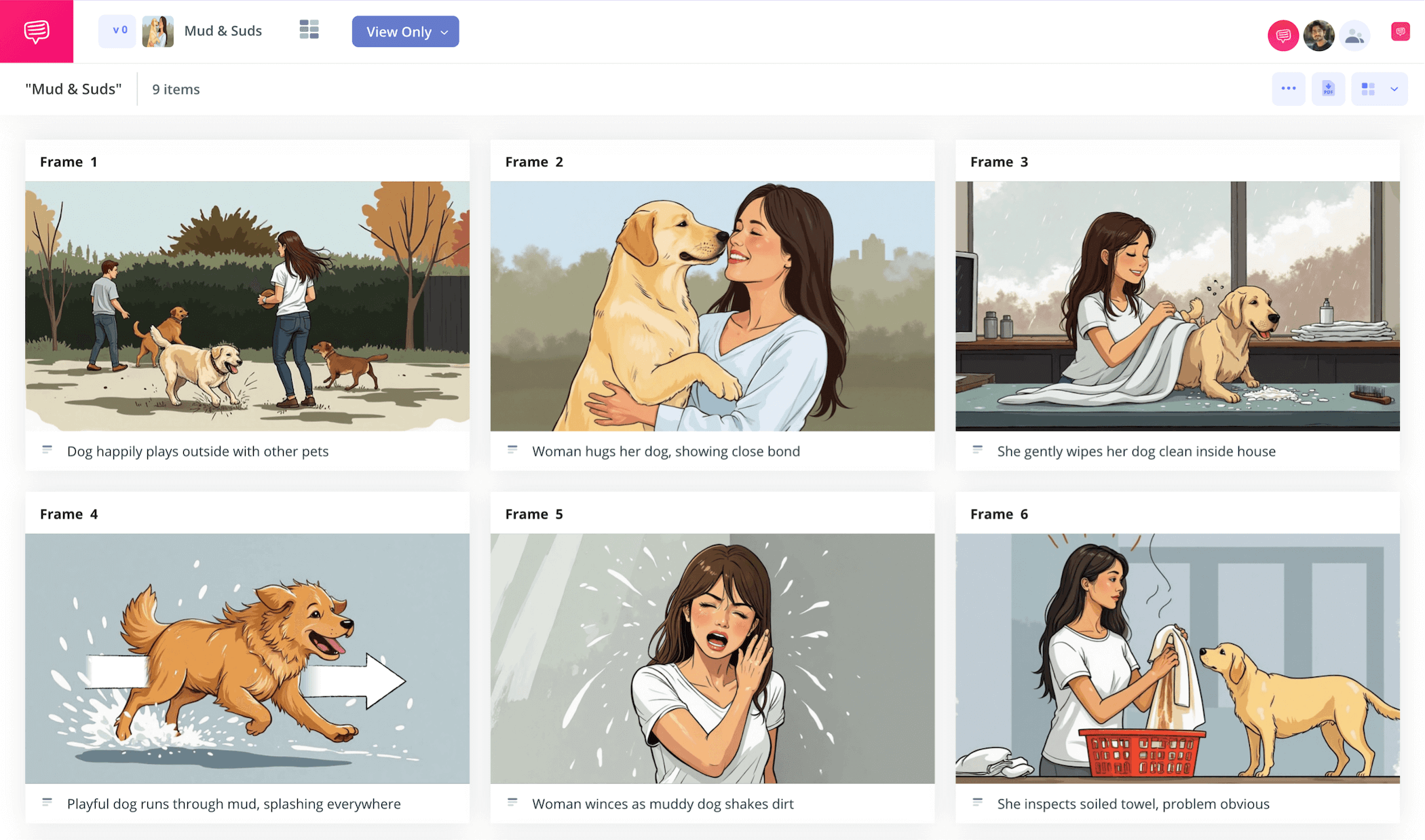
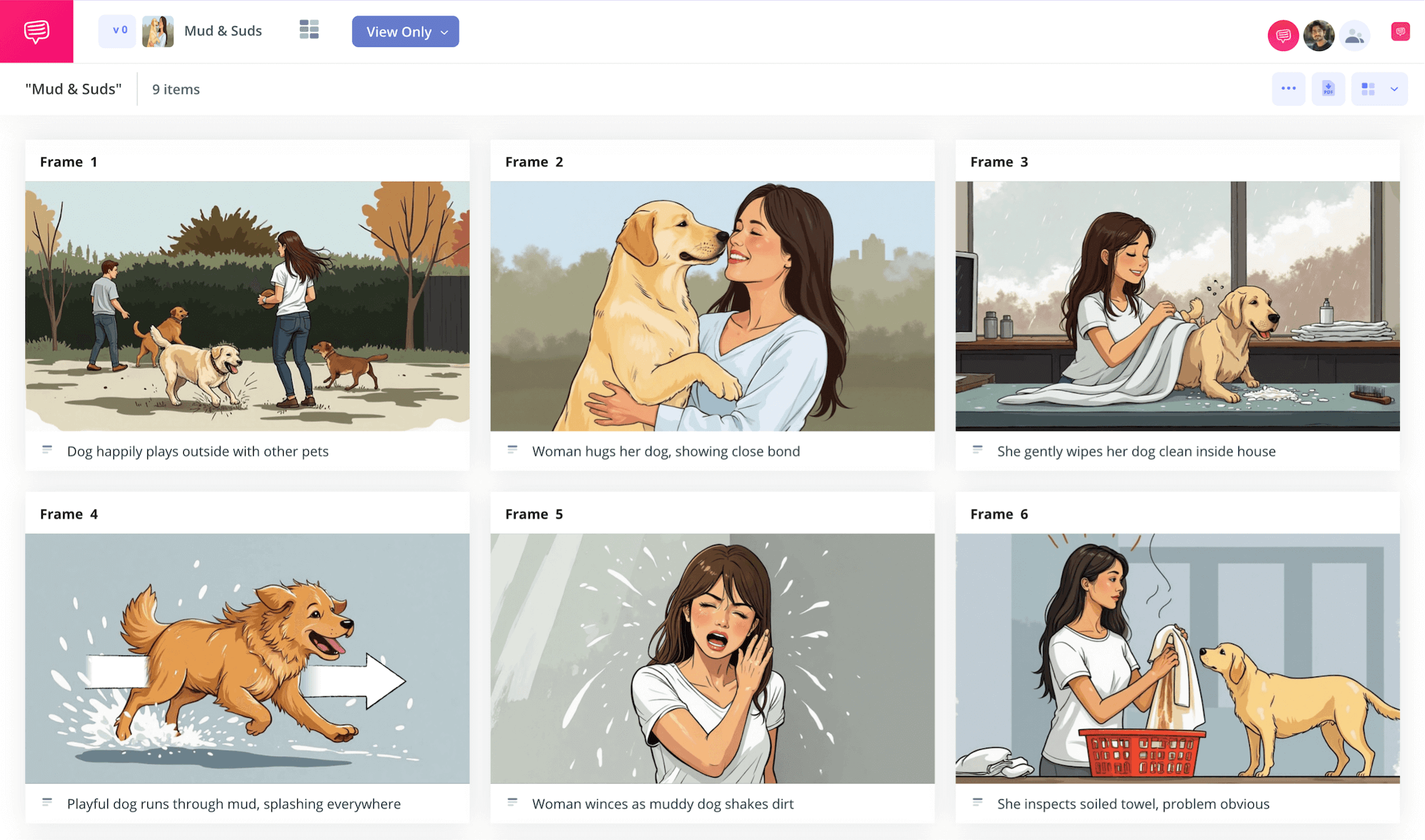
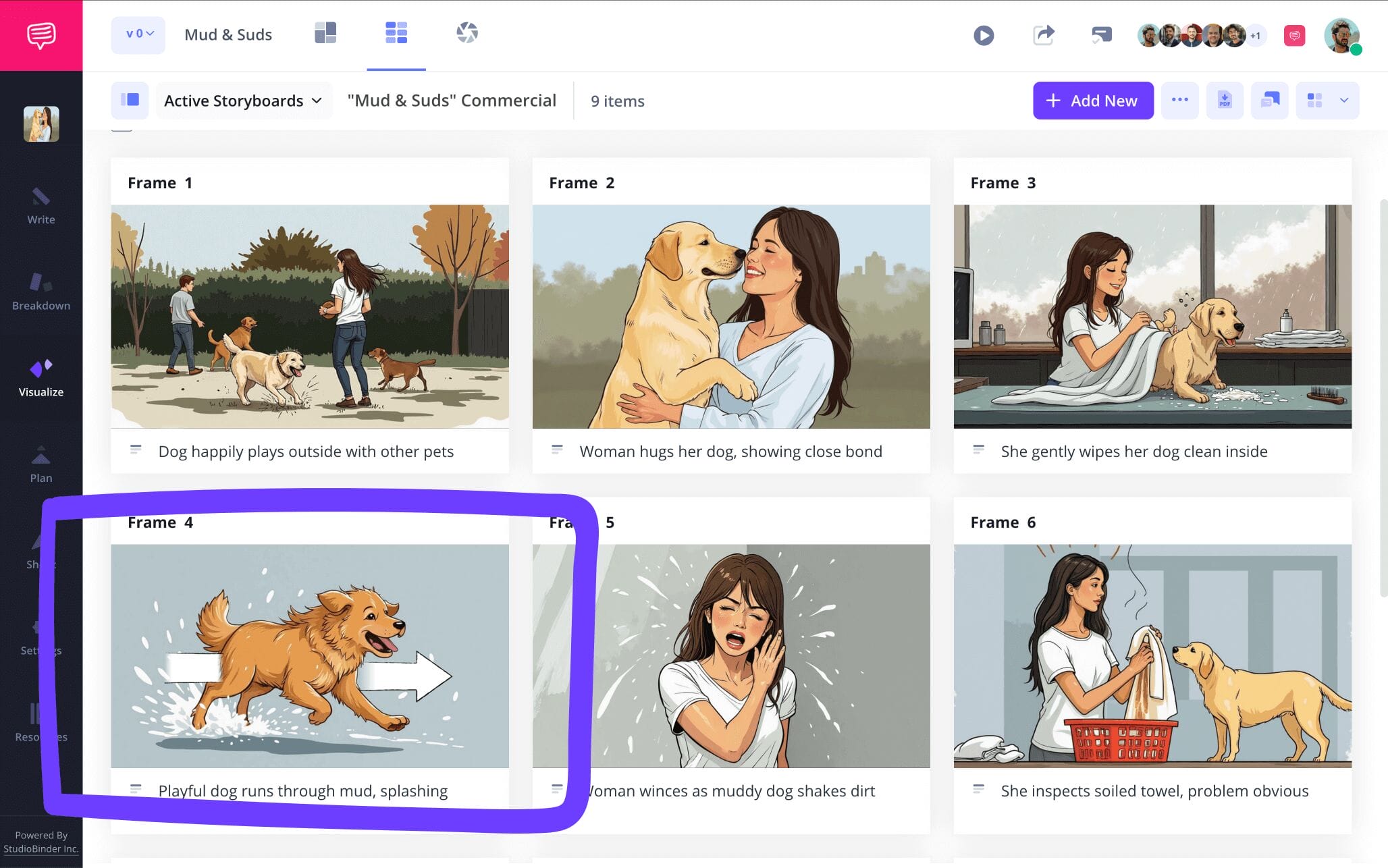
With StudioBinder, adding arrows to any storyboard template 16 9 project is easy as pie. Notice how in our storyboard template 16x9 example, we added a fade arrow to better emphasize the lightning speed of our lovable mutt.
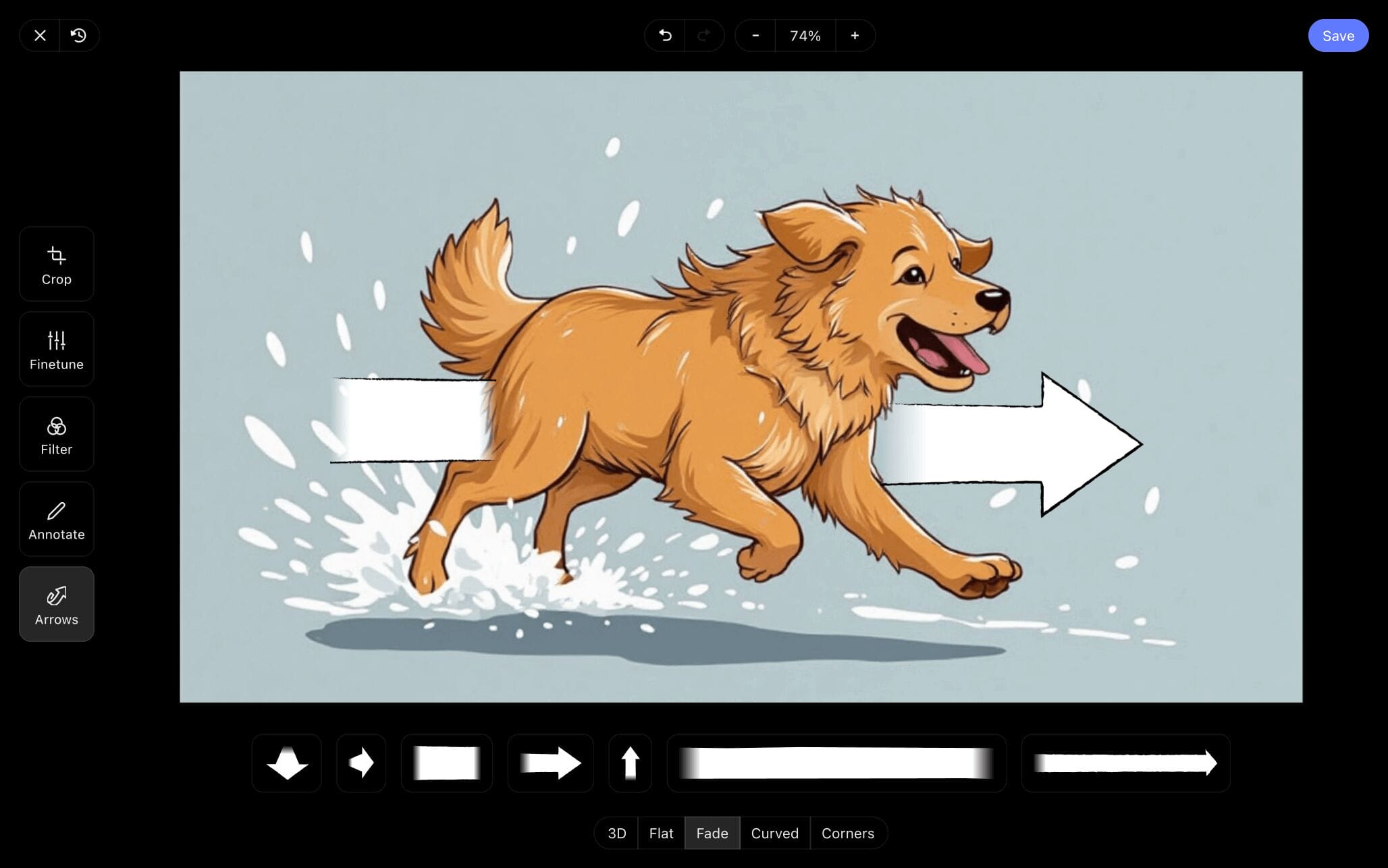
All we had to do was go into StudioBinder’s image editor and choose from a large list of arrow options. We chose the fade arrow and adjusted its size until it fit nicely. Then we clicked Save and our fresh image was added right into our 16:9 storyboard template.
Step 4
4. Collaborate and share
Whether you’re working on your 16 9 storyboard template project with a massive film production crew, or just using it to help plan out some short form content all by yourself, we can’t stress the importance of collaboration enough. But we also know this is the digital age and lots of collaborating happens through second hand mediums. Which is why with StudioBinder, you can collaborate with anyone and everyone within your 16:9 storyboard template itself.
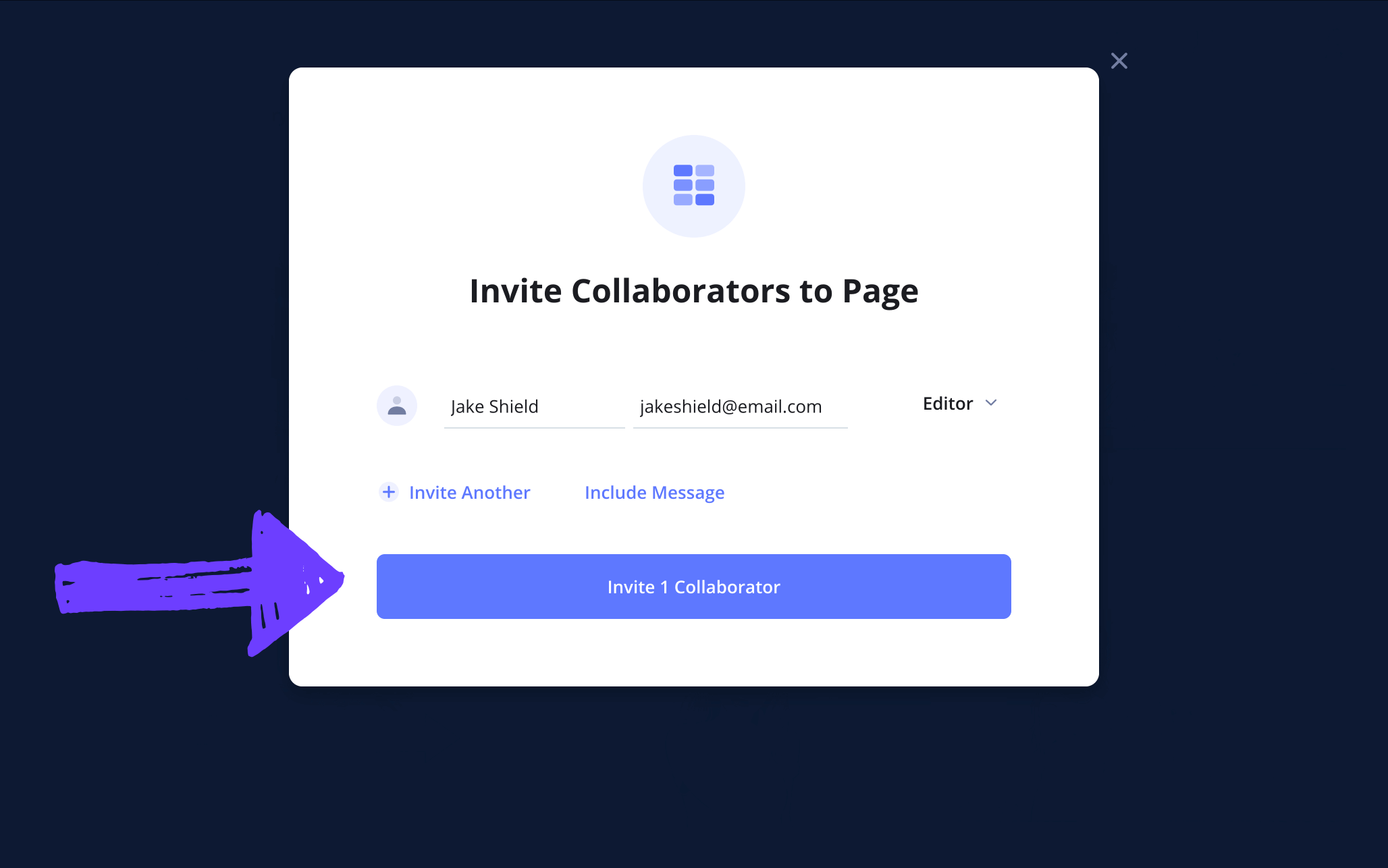
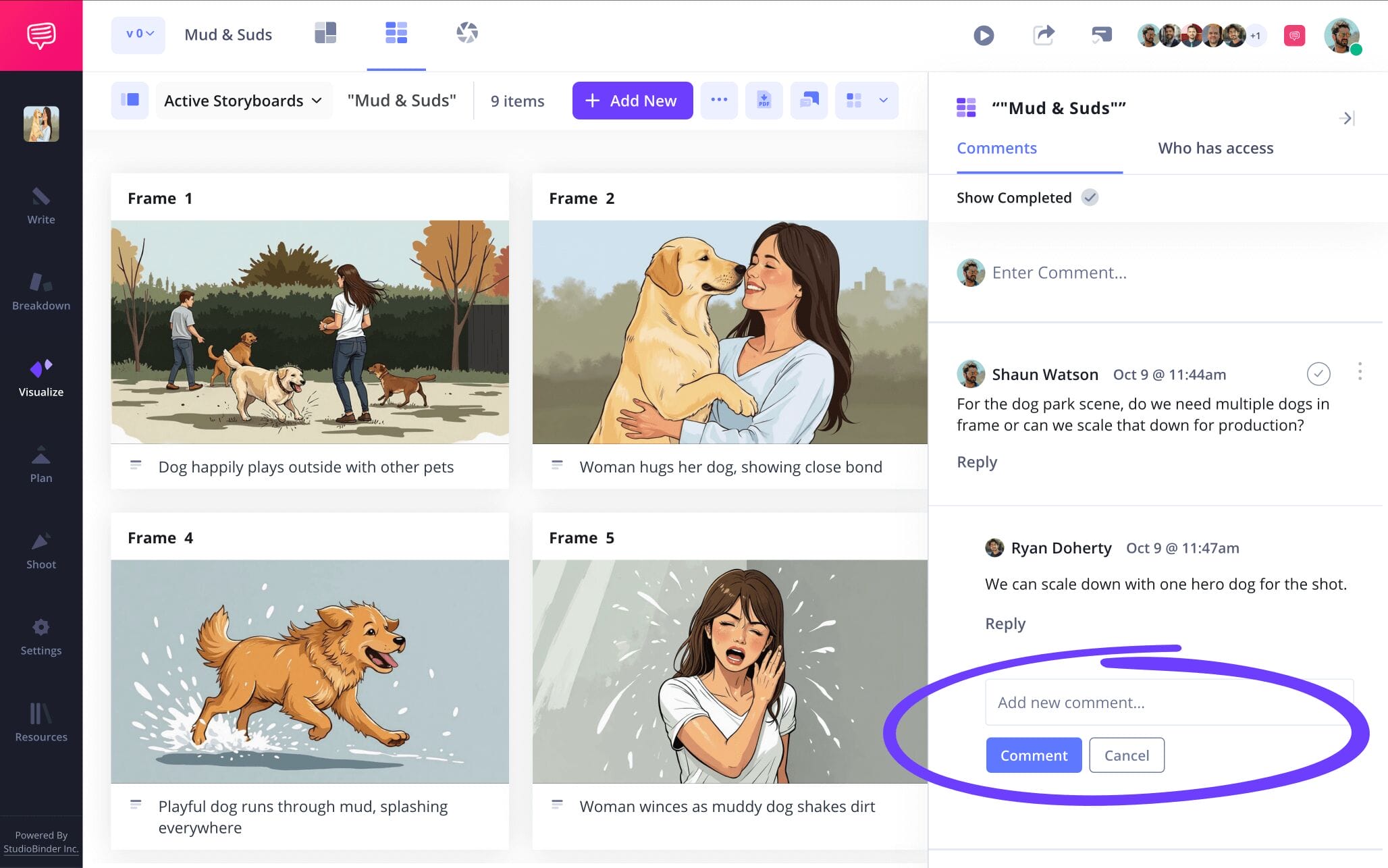
You can go the old school route and invite anyone to take a basic look at your 16x9 storyboard template by sending a View Only Link. Or, even better, you can set any invite permissions to commenter or editor.
Now when anyone with commenter or editor permissions enabled visits or edits your storyboard, they can lay out their feedback in the Comments tab. Reply back and get to the heart of what’s working and not in your storyboard template 16 9 project.
Step 5
5. Create a storyboard PDF
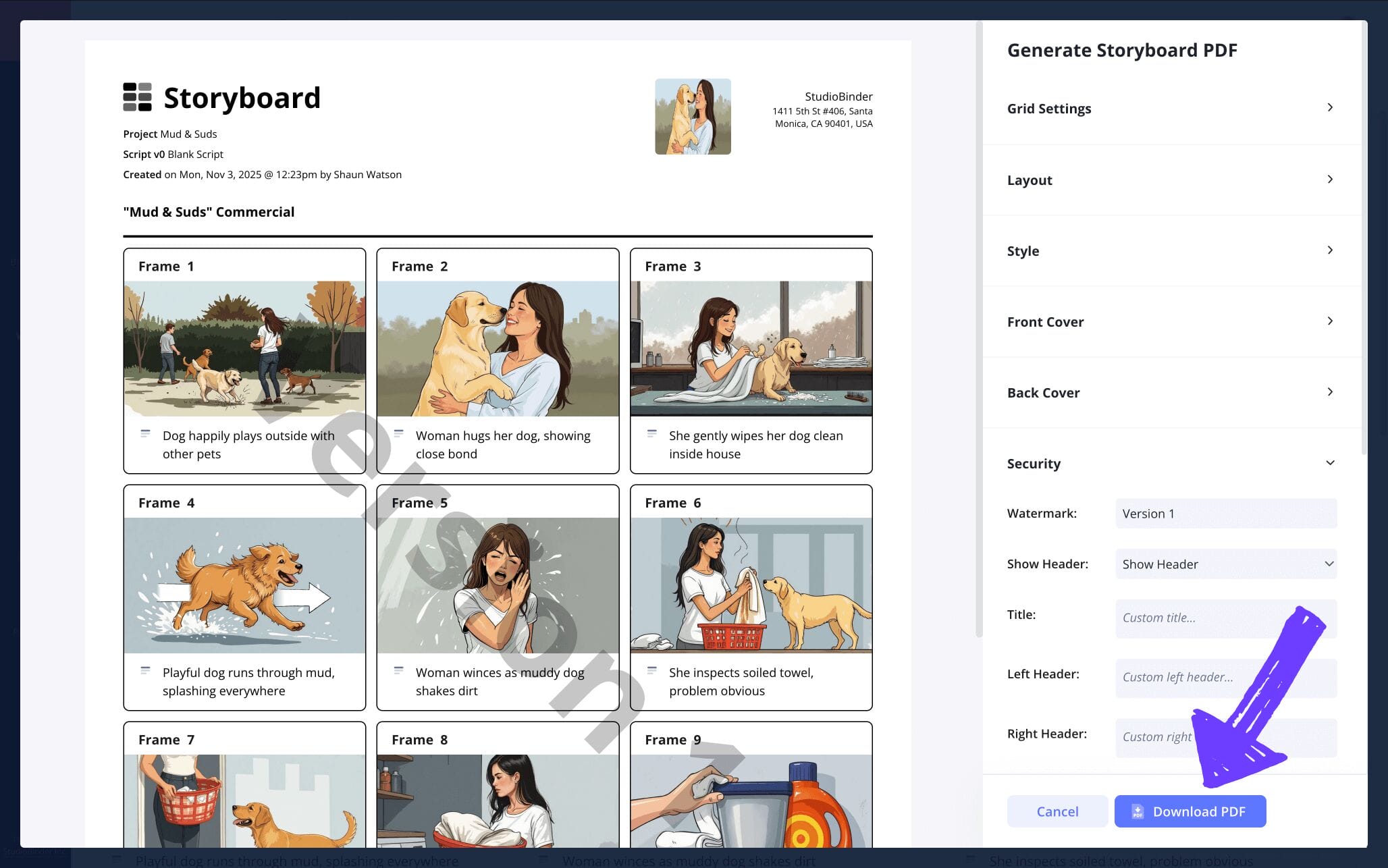
Now that you’re reaching the end of building your 16 9 storyboard template, you’re probably wondering how you’ll cement your project so it doesn’t get accidentally rearranged or lost. The answer? Making a 16 9 storyboard template pdf. By converting your storyboard to a PDF document, you’re able to make copies that you and your production team can use as the next stages of your storyboard template 16x9 project take off.
For our storyboard 16x9 template example, we used StudioBinder’s PDF editor to make sure the borders were turned on and our font was at the right size and color. Then to finalize our 16 9 storyboard template pdf project, we added a watermark on all PDF copies that won’t be kept in our hands, because you can never be too careful!
Conclusion
Finished!
Look at that, you arrived with some questions around your 16 9 storyboard template, and now we don’t put it lightly when we say you may as well be the Steven Spielberg of making the most out of any 16 9 storyboard template landscape! That said, a 16x9 storyboard template is far from the only kind of template you can master, so be sure to check out all of Studiobinder’s free storyboard templates when you have the chance!
Frequently Asked Questions
Your questions, answered
A 16 9 storyboard template refers to a pretty standard storyboard outline where all of the frames within the storyboard meet a 16:9 aspect ratio. While you can find many storyboard templates with all sorts of format presets online, a storyboard with 16:9 panels is easily the most commonly used kind of storyboard template. Just as well, you’ll most often find 3 to 6 panels per storyboard page for any template with a 16:9 frame standard.
A 16x9 storyboard structure is easily the most commonly used storyboard template because a 16:9 aspect ratio fits the standard of most modern screens used today. So, while you don’t necessarily need to make your storyboard frames set at 16:9, even if your film project will ultimately be shot in 16:9, but it’s a safe aspect ratio to stick to because it allows for the most visual space, and storyboards are a visual-first medium after all.
16x9 panel aspect ratio storyboards are the most commonly used kinds of storyboards. This is because 16:9 is the most used widescreen format today. Everything from films, YouTube videos, animation, marketing advertisements, and so much more work within the 16:9 aspect ratio, so using a storyboard that fits that format is second nature. However, social media platforms like instagram and twitter use a 9:16 aspect ratio, but even then, it’s still common for storyboards for these platforms to use 16:9 storyboard frames.
When your storyboard project is all finished, it’s good to get into the habit of making your last step converting your project to a 16 9 storyboard template pdf. By converting your storyboard to a PDF document, you’re essentially putting a frame over it so it doesn’t get accidentally changed or lost. You can also use your PDF to print for yourself or anyone who needs a physical copy on set. Best of all, there are plenty of online PDF customization options that let you customize your storyboard PDF for as many people as you need. This way everyone can work off the storyboard format that works best for them.
Create your 16x9 storyboard template
Visualize your project with our free 16x9 storyboard template.
Get started for free