
home → TEMPLATES → Storyboard
Professional Storyboard Template

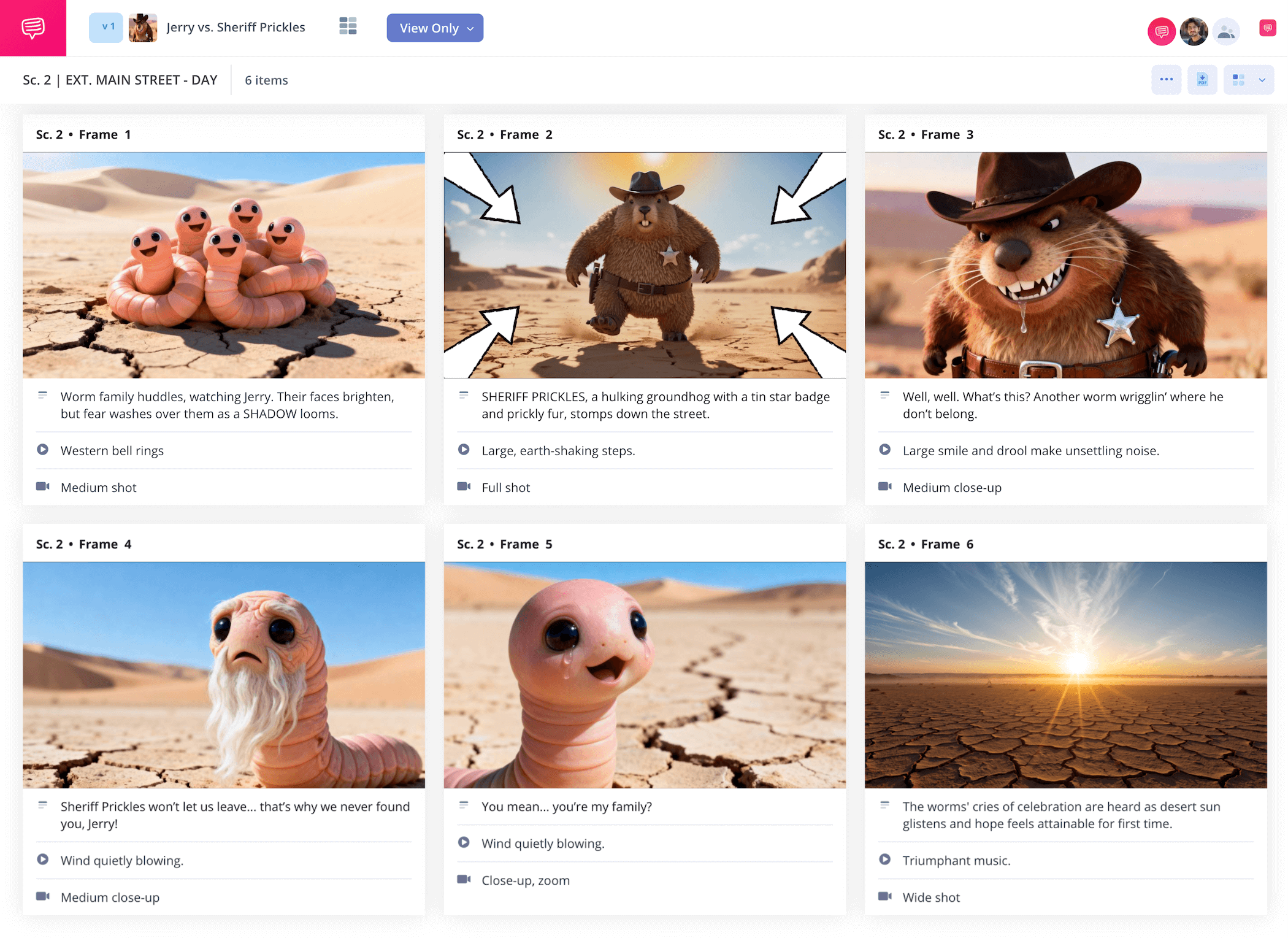
Professional storyboard template
If you have a film or animation project you’ve been itching to make happen, a professional storyboard template is just the tool you need to get your creative wheels turning. With a professional storyboard, you give yourself the best advantage possible as you start visually planning out your ideas scene for scene, almost like creating a blueprint of your animated or film project. Professional storyboards are one of the most valued pre-production tools in the industry, so why not take a shot at building your own?
As our leading example on how to create a storyboard from the ground up, we’ll be using an animation storyboard from StudioBinder’s storyboard creator, but feel free to follow along with whatever professional storyboard template works for you. Now let’s jump into it!
Step 1
1. Customize your template
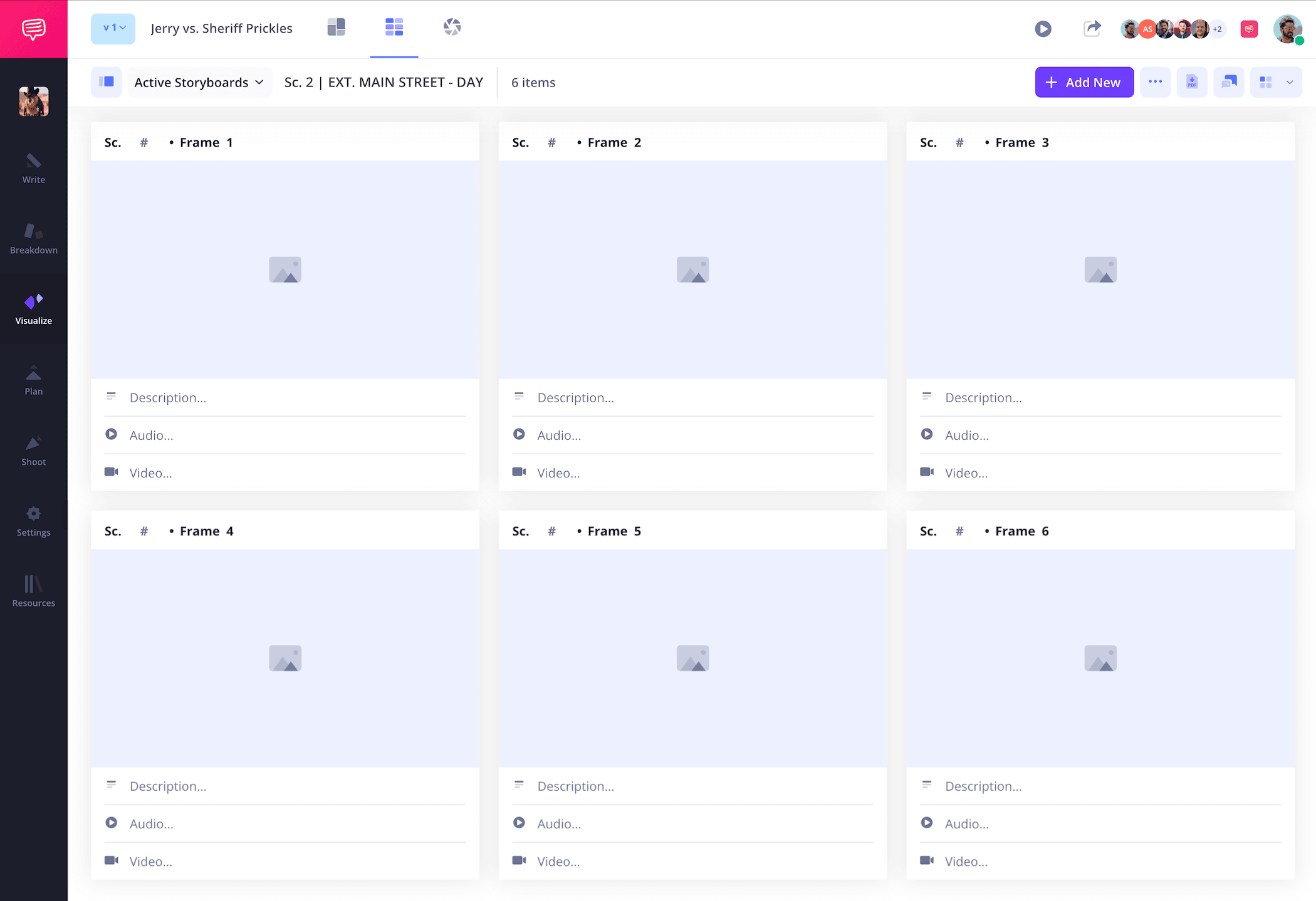
Starting a new professional storyboard template project is all about finding the storyboard display settings that work best for you. If you’re storyboarding for a physical shoot, three panels per column is typical, whereas a professional animation storyboard template tends to stick to the standard of one, sometimes two, panels per column. When you start a new project in StudioBinder, you’re automatically prompted to customize some of these panel and column details. When you’re done, your professional storyboard will look something like this:
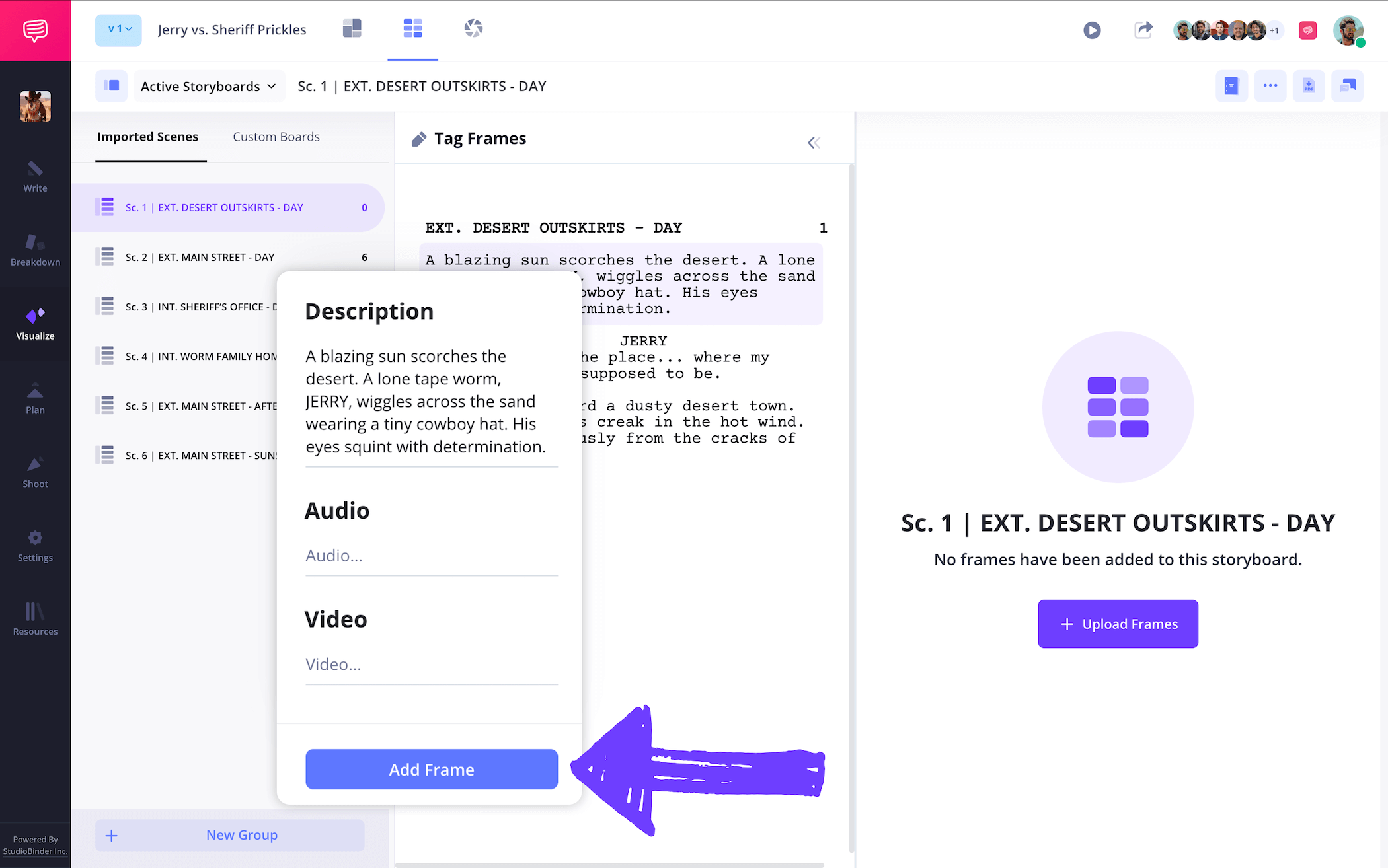
Depending on where you’re at with writing a script for your project, you may want to start filling out your panel descriptions before applying images. With the Shot Tagger tool, you can simply click on any text in your script, and create new Frames with the description automatically populating.
Step 2
2. Upload images
You’re not officially working with a professional storyboard until you start jumping into the fun of adding images. It’s a common misconception to think you have to be an industry expert storyboard artist to create a legible storyboard, but even pulling images from the internet can be an art in and of itself. It’s more about having an eye for what speaks to your vision and creating a distinct tone and flow with your images.
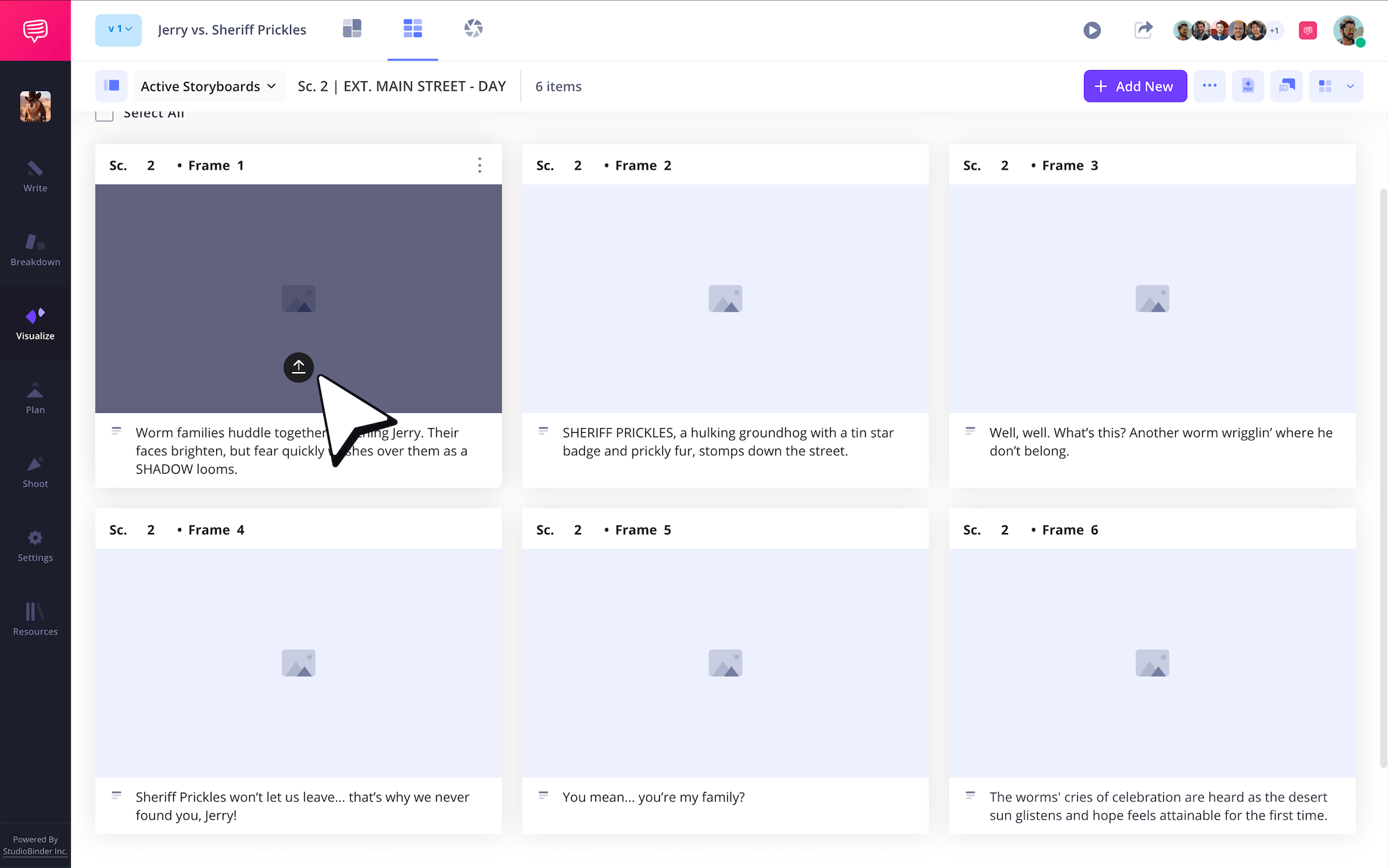
When you’re ready to include images in your professional storyboard template, just click the upload button.
Step 3
3. Apply arrows
For our professional animation storyboard template, we ran into a common issue that you may come across as well. Our animation storyboard building was going great until we realized our big villain reveal shot wasn’t as visually intimidating as we hoped. That is until someone suggested turning it into a zoom shot to increase the intensity. Instead of returning to the drawing board to convey this, we decided to insert storyboard arrows.
You can use StudioBinder’s professional storyboard software to quickly add and customize arrows. Just go into the image editor and choose from a long list of arrow types.
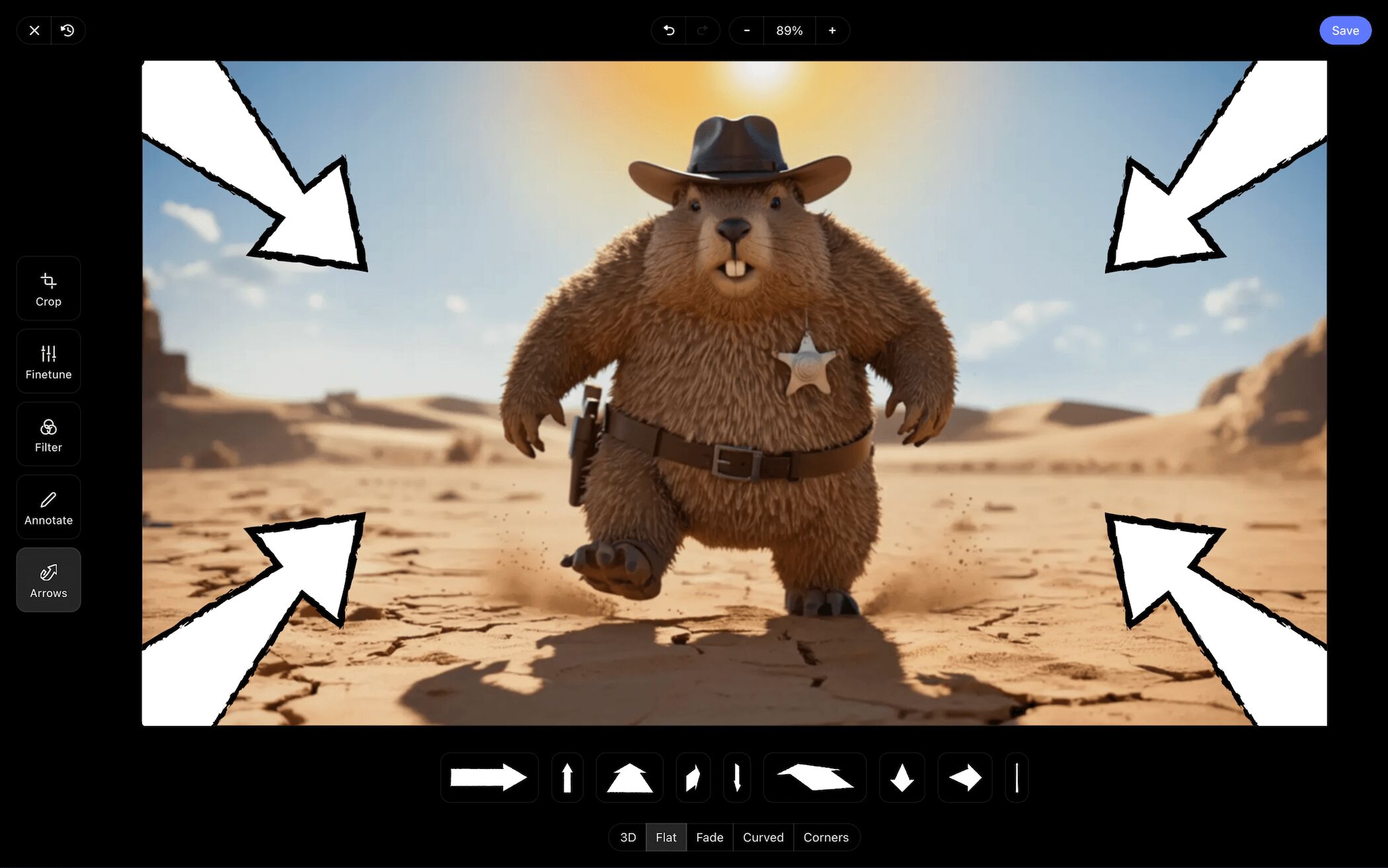
After we intensified the villainous Sheriff Prickles reveal with some arrows to indicate a zoom shot, we then clicked save and our touched up image was added right into our professional storyboard template.
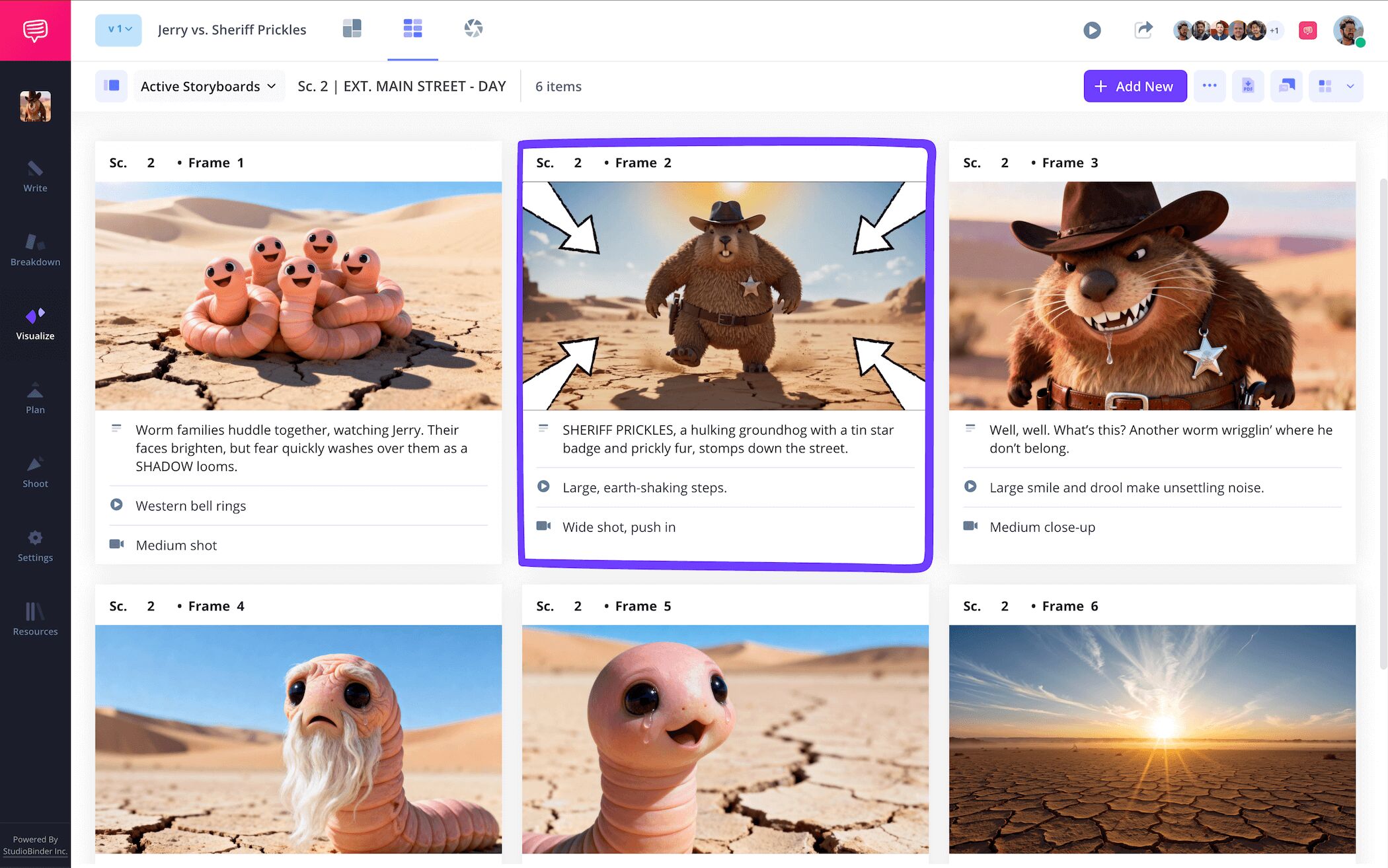
Step 4
4. Collaborate and get feedback
You don’t necessarily need to be working on a professional animation storyboard template to benefit from what collaboration has to offer. A second opinion or outside perspective can be just what you need to snap you out of that pesky creative tunnel vision, especially if you’re solo storyboard building. But if you’re working with a production team of any size, having a singular place to connect, edit and discuss feedback is key.
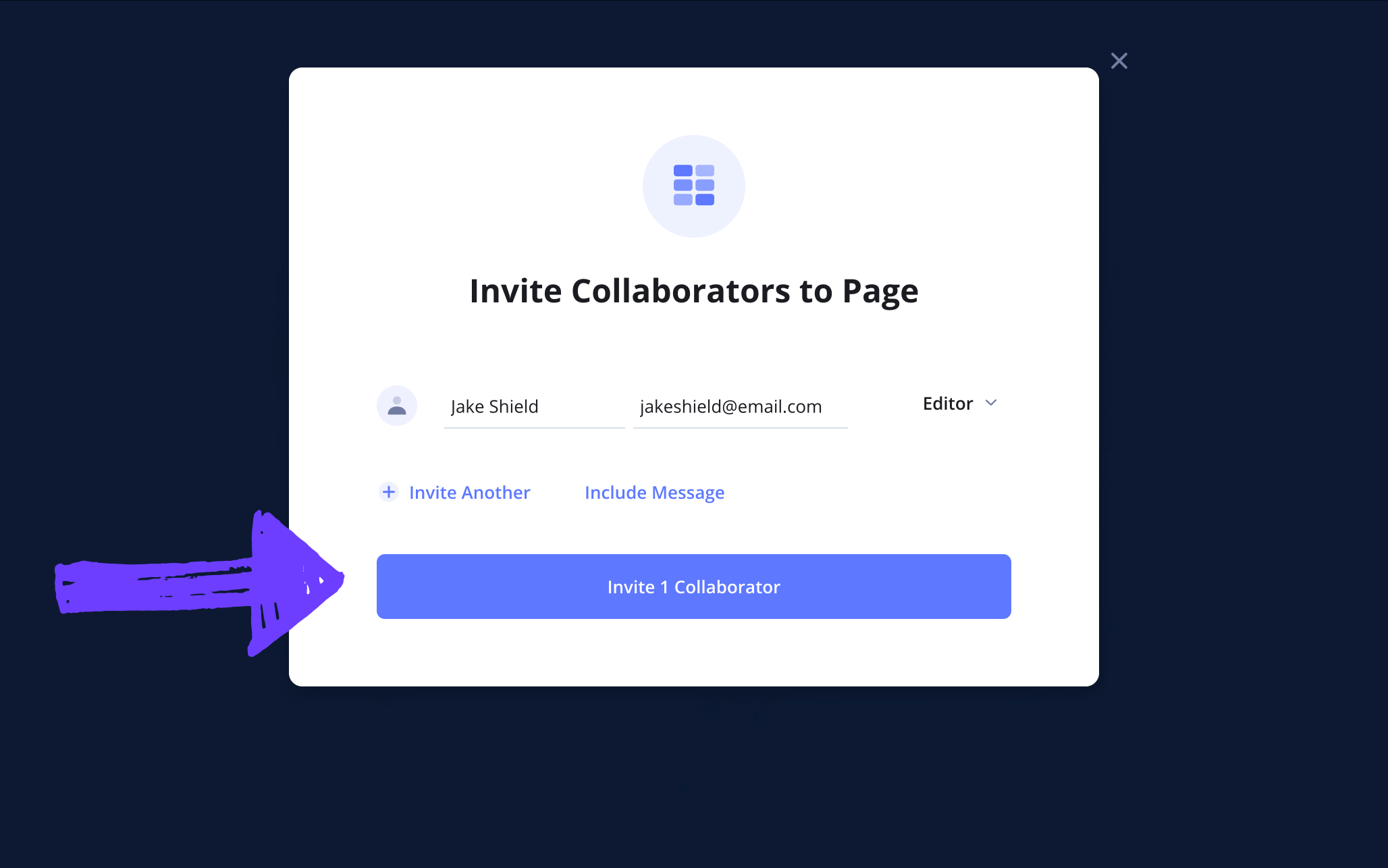
With StudioBinder, you can invite anyone to look at your work and set their individual permissions to either viewer, commenter, or editor.
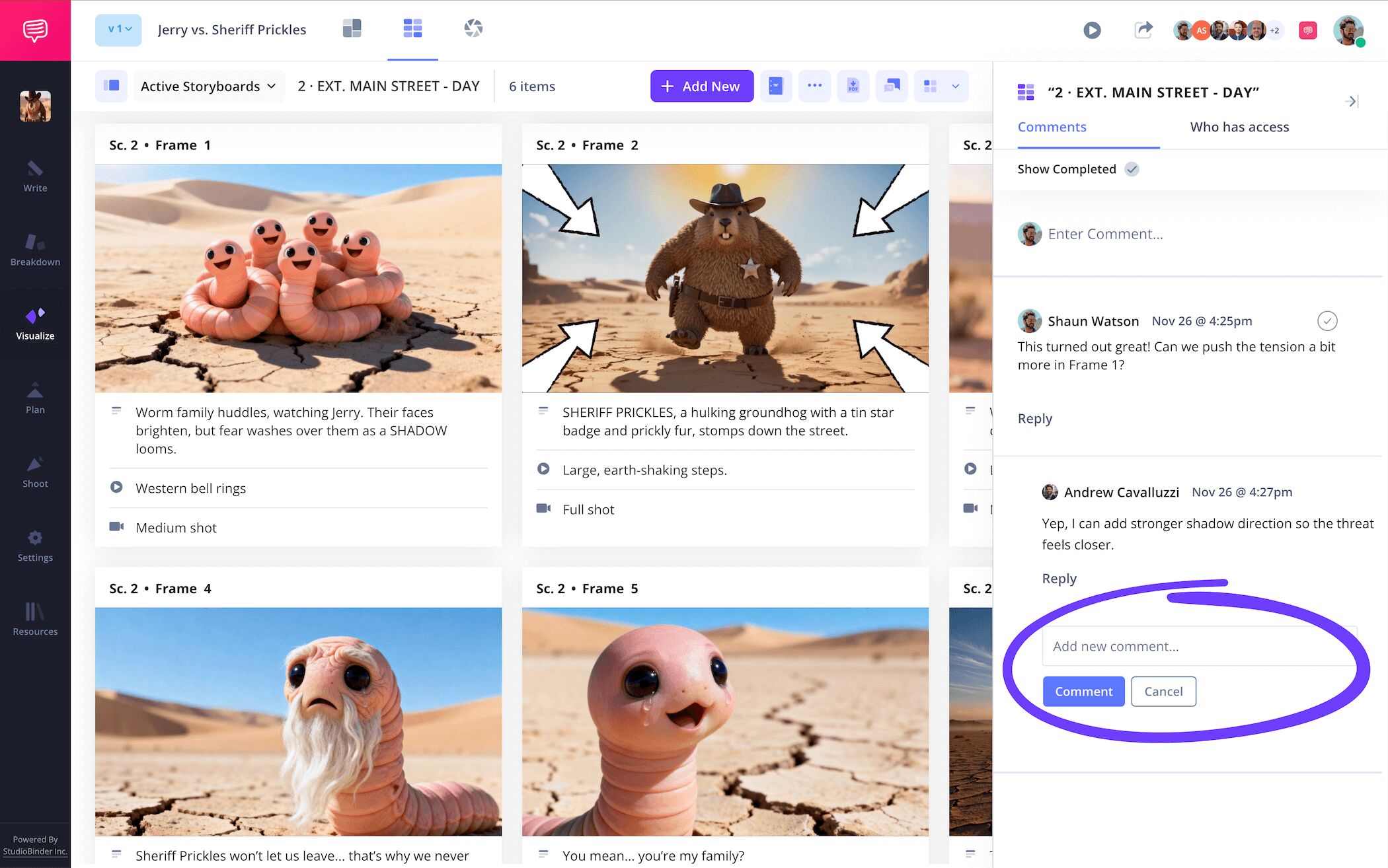
If your collaborators with commenter or editor permissions turned on want to leave some notes on your professional storyboard, they can navigate to the comments tab. Respond back and strike up a discussion that really digs into the heart of what’s working and not.
Step 5
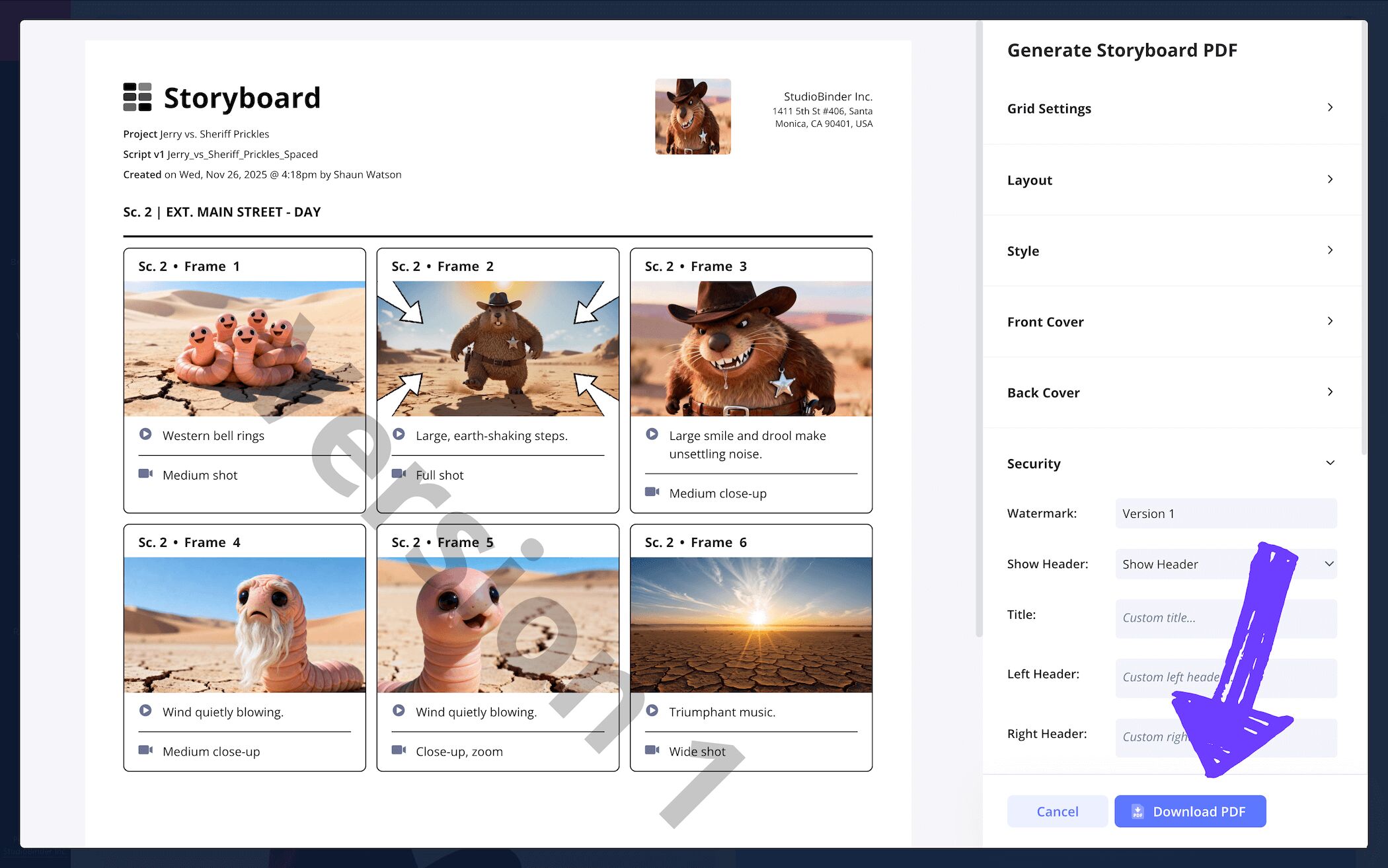
5. Create a storyboard PDF
At this point, you’ve made it through all the most essential steps to building a professional storyboard template. But don’t take a nap just yet, because it’s time to put a permanent frame around all that hard work. Converting your storyboard to a PDF isn’t just important for professional animation storyboards and film storyboards, it’s useful even if you’re making a storyboard by yourself. With a PDF storyboard, you can use your document as a guide throughout all the next production stages without worrying about making any accidental changes.
Using StudioBinder’s professional storyboard software, you can make a variety of edits to your PDF converted storyboard. Add a front and back cover for a highly professional storyboard look, or even add a watermark and custom title to make sure only select individuals or departments use it.
Conclusion
That's a wrap!
You came, you saw, you conquered all the challenges of what it takes to make a professional storyboard template. But just because you’re now a master at building a professional storyboard, doesn’t mean you’re familiar with every single type of storyboard there is, so be sure to check out all our free storyboard templates when you get a chance!
Frequently Asked Questions
Your questions, answered
Making professional storyboards begins with setting the aspect ratio of your panels to 16:9. If you’re creating an animation storyboard, you’ll keep your storyboard layout at one panel per row. Film industry standards will typically have three to six panels per storyboard page. You’ll then write out your descriptions in the description space near each panel, before sketching or uploading reference images from the internet. Lastly, look over your storyboard and make sure the tone and narrative flow match the vision in your mind.
Breaking into the film or animation industry to become a professional storyboard artist isn’t easy. You’ll need to make sure your artistic skill, networking ability, and drive to make great work are your guiding attributes. Below are a handful of tips for anyone trying to make it as a storyboard artist:
- Create a personal website to display all your work.
- Work with professional screenplays as practice.
- Learn all the online industry storyboarding tools.
- Learn the art of cinematography and acting.
- Don’t be above internships and entry level positions.
The most common role for creating a storyboard in the film and animation industries is called a storyboard artist. However, since the storyboard artist works closely with the director and many others to bring their vision to life, the details around who specifically creates the storyboard can get a bit blurry. While the storyboard artists are almost entirely responsible for creating the illustrations, cinematographers, writers, and even previs artists can all be involved in guiding the visual flow of the storyboard. So in short, the director and storyboard artist are most often leading the way on creating the storyboard, but plenty of other industry positions will step in to help shape it.
There is currently no single industry standard for the kind of paper storyboard artists use. In fact, today the most common industry practice is to build the storyboard digitally using professional storyboard software. If a modern professional storyboard artist does go the traditional route and uses a pencil and paper, however, 11x17 inch paper is usually the go-to. But as any true storyboard artist knows, when a good idea pops in your head, you’ll use any available paper to get it down, even if it’s a used napkin!
Create your free storyboard
Visualize your professional storyboard template for free today.
Get started for free
