
home → TEMPLATES → Storyboard
Storyboarding Video Template

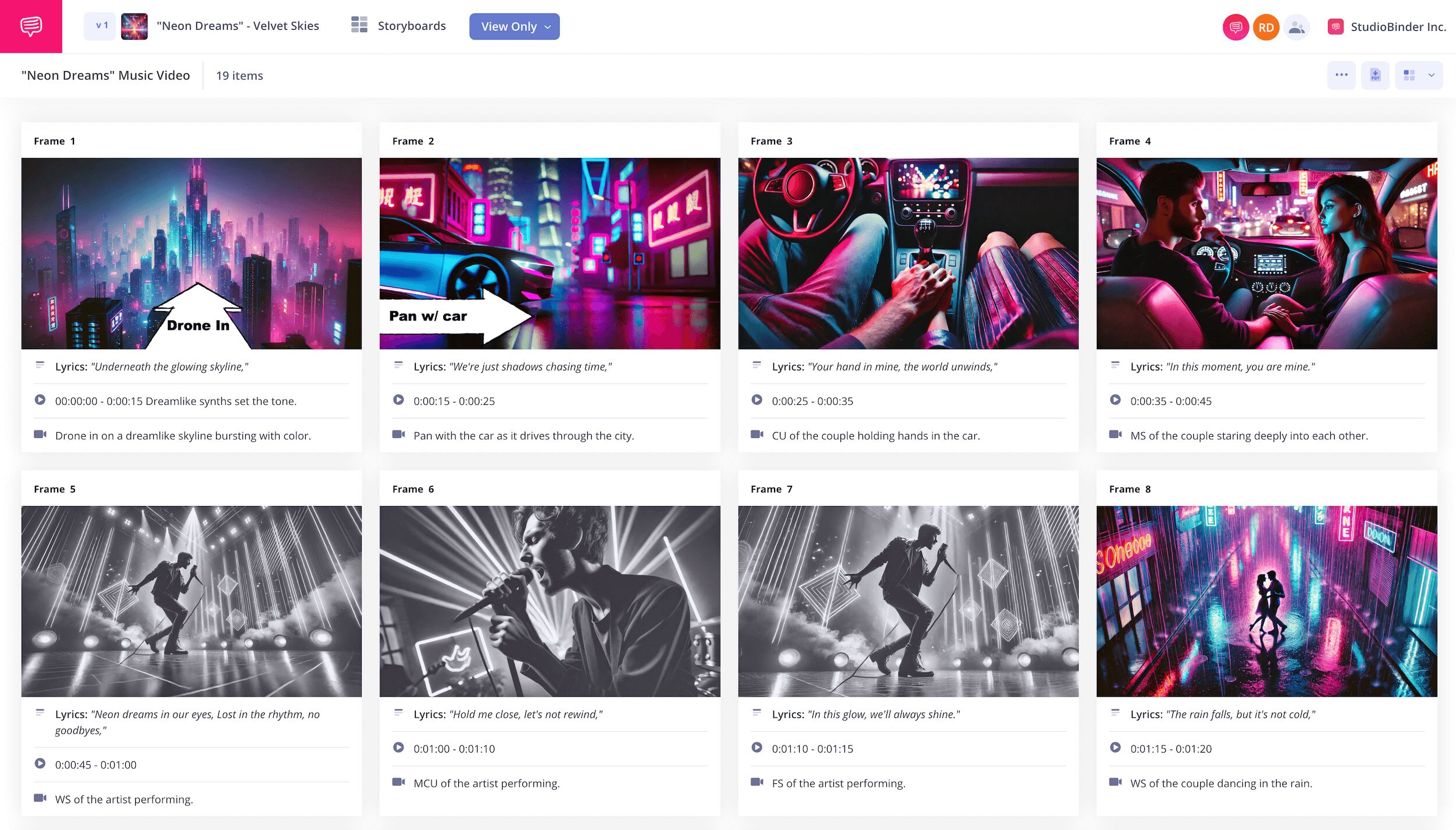
Storyboarding video template
For all your storyboarding and planning video needs, you can’t go wrong with taking advantage of what a free storyboarding video template has to offer. Whether you’re in the brainstorming ideas stage or the script writing stage, a video storyboard template will help you better understand the tone and structure of your visual narrative project. Once you see your ideas laid out from one frame to the next, your vision will become even clearer, increasing your confidence as you get ready to step into the official filming stage.
As our leading video storyboard example, we’ll be using a music video storyboard made with StudioBinder’s storyboard creator to show you how to take on the process one step at a time. However, all these steps are still broad enough to be followed along with any kind of storyboarding video template you prefer. Now let’s jump into it!
Step 1
1. Customize your template
Your first step will be finding a storyboarding video template structure that works for you. 16:9 is the most basic and often used aspect ratio for storyboard composition, but be sure to consider your video’s medium and that your storyboard images properly reflect it. As you start up a new project with StudioBinder, you’ll start with some basic setup prompts that can be readjusted at any time down the line. When you’re done, your video storyboard template will look something like this:
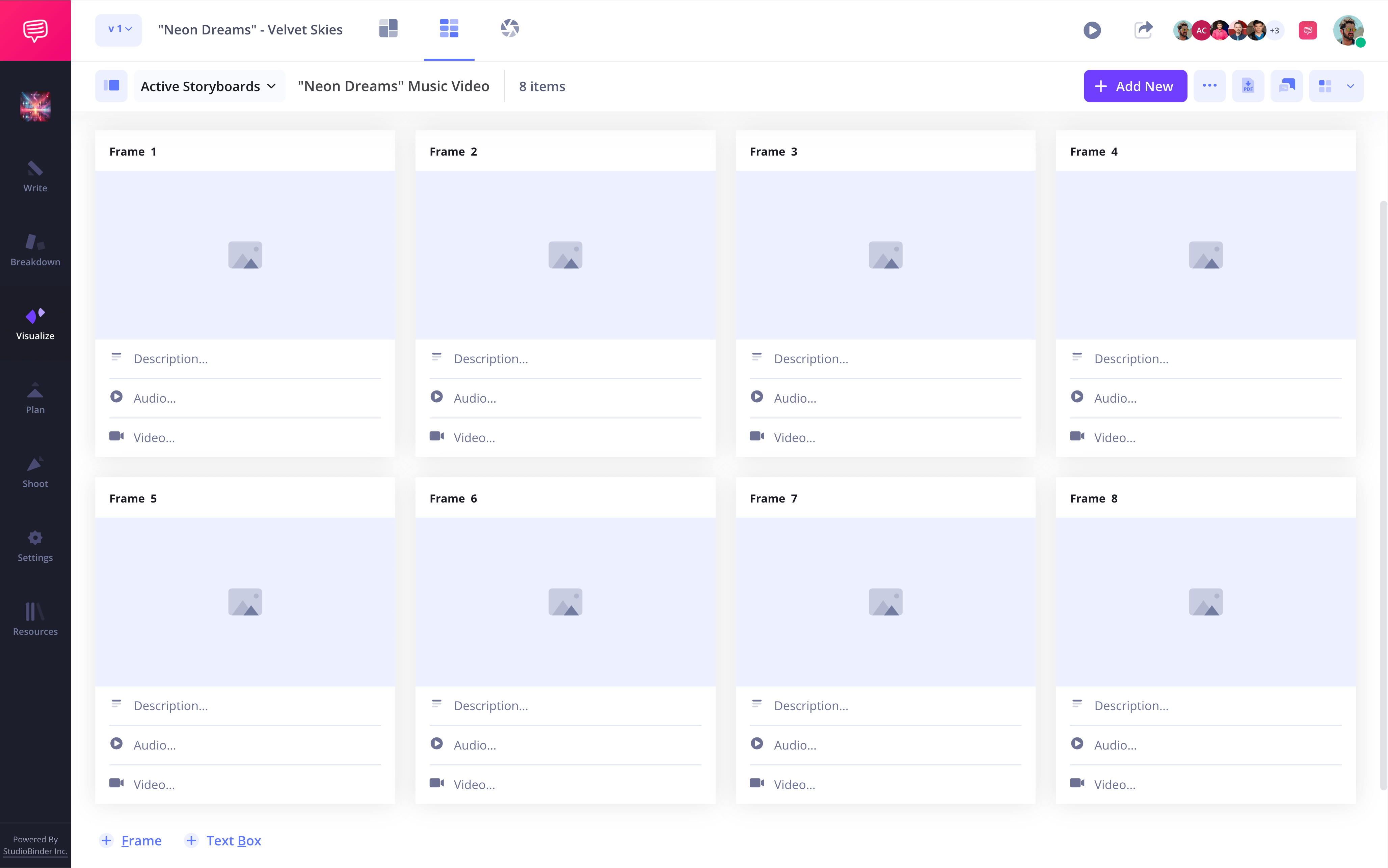
Now you can start brainstorming what each frame should showcase and write it into the description below. If you have a finished script, you also have the choice to upload it into StudioBinder where you can instantly turn script lines into descriptions on your storyboard video.
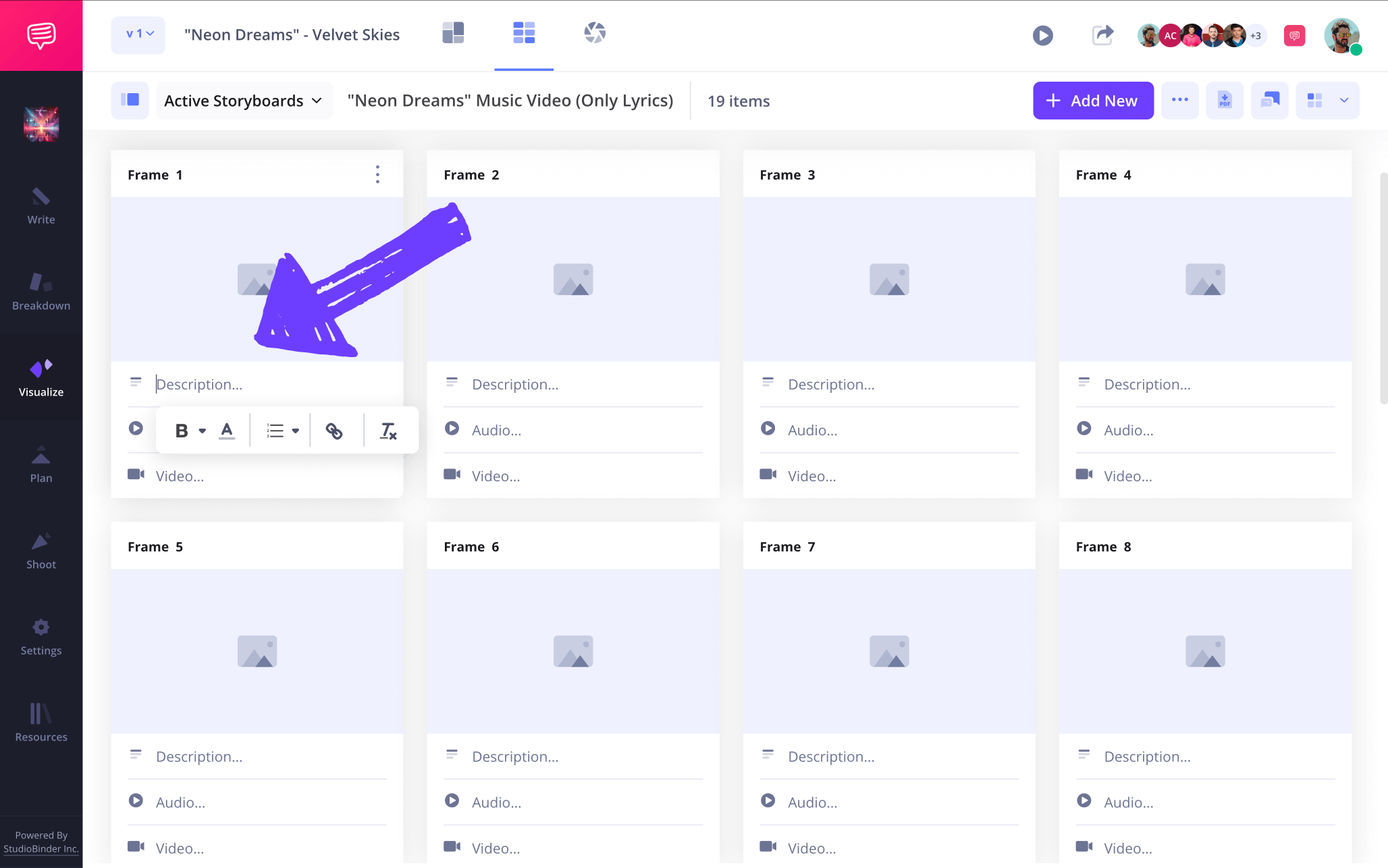
Step 2
2. Add images
Including images in your storyboard video is the beating heart of your project. If you’re building a music video storyboard, really think about the music lyrics and the deeper abstract ideas you can visually reflect. Or, if you’re creating a more informative social media video, consider the best moments to cut to b-roll footage, as well as the best moments to cut to yourself speaking. Don’t put too much pressure on making the images fancy, you simply want them to communicate the need-to-know information.
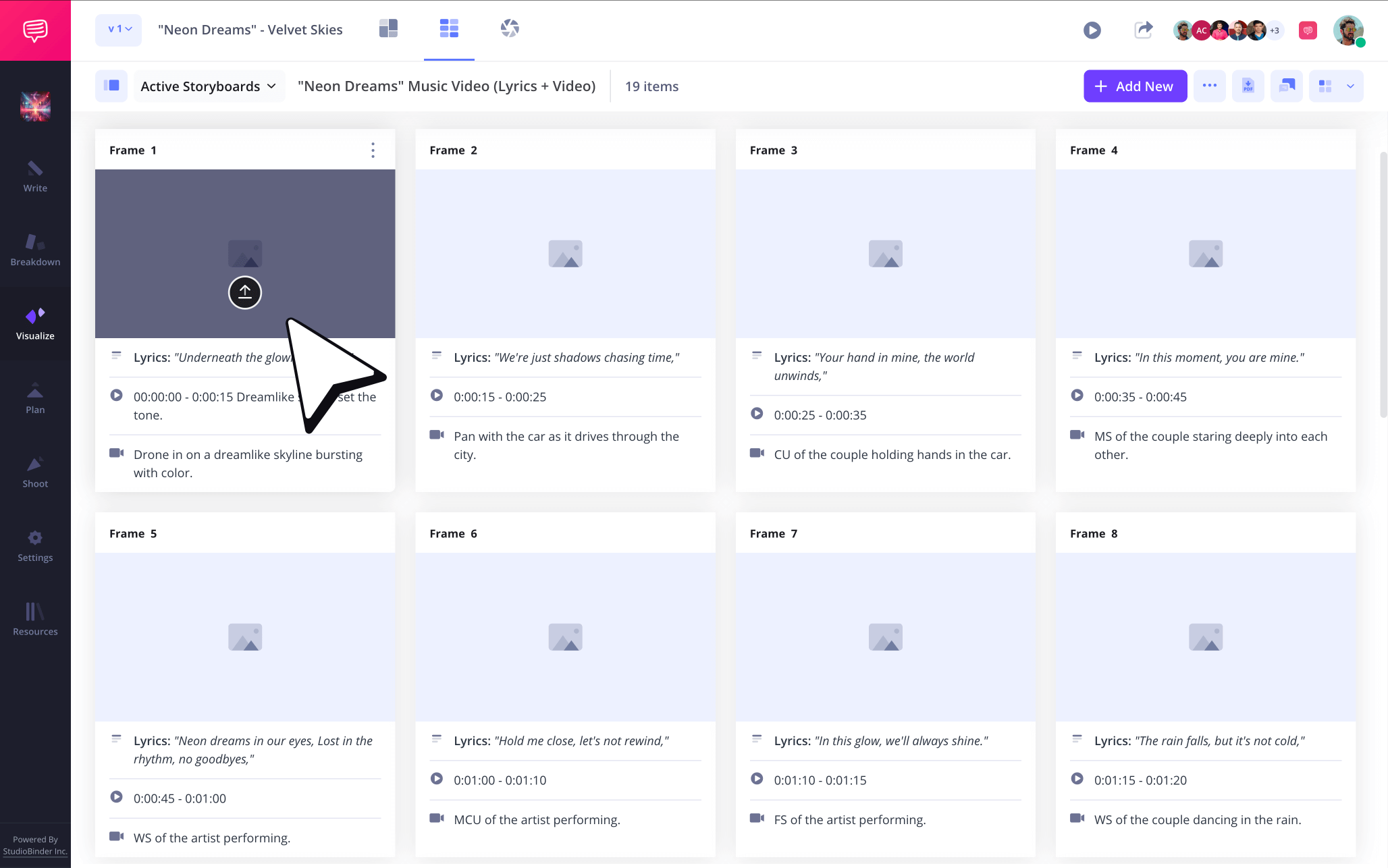
In StudioBinder, just click the upload button when your image is ready to be included in your storyboarding video template.
Step 3
3. Show action with arrows
You may find when you review your video storyboard progress that one or some of the images seem incomplete. This may be because it doesn’t look like the lead singer is shuffling in the image for that music video moment when the singer should definitely be shuffling, or maybe your protagonist just doesn’t look like they’re running during the pivotal chase sequence in your YouTube short film. Examples like these are precisely why storyboard arrows exist.
In our video storyboard sample, we added a flat arrow pointing forward to make sure it’s clear that our singer’s big mic moment is supposed to be a zoom in shot.
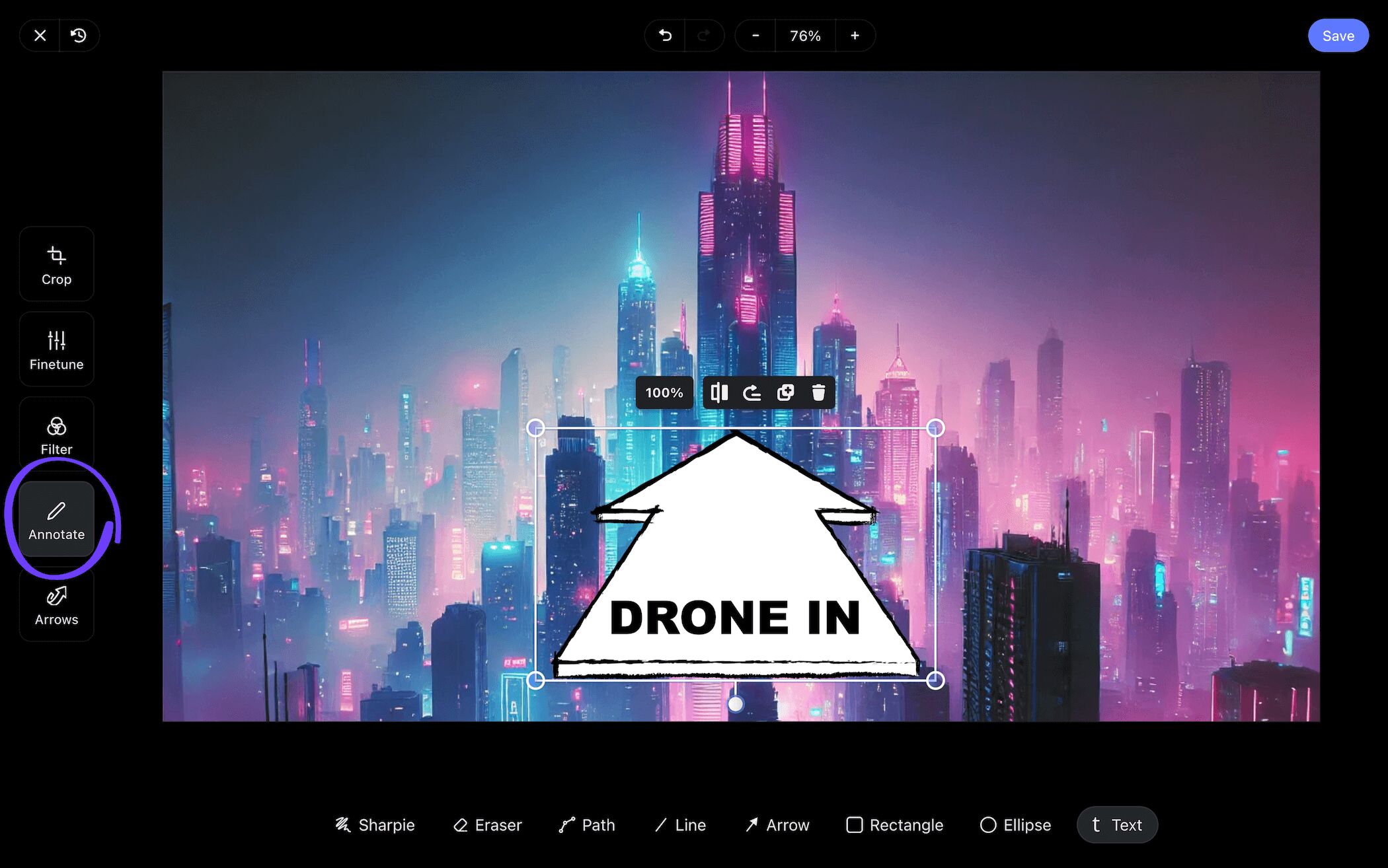
After making sure our arrow was customized to just the right size, we clicked save and our new zoom-in arrow image was added right into our video storyboard template.
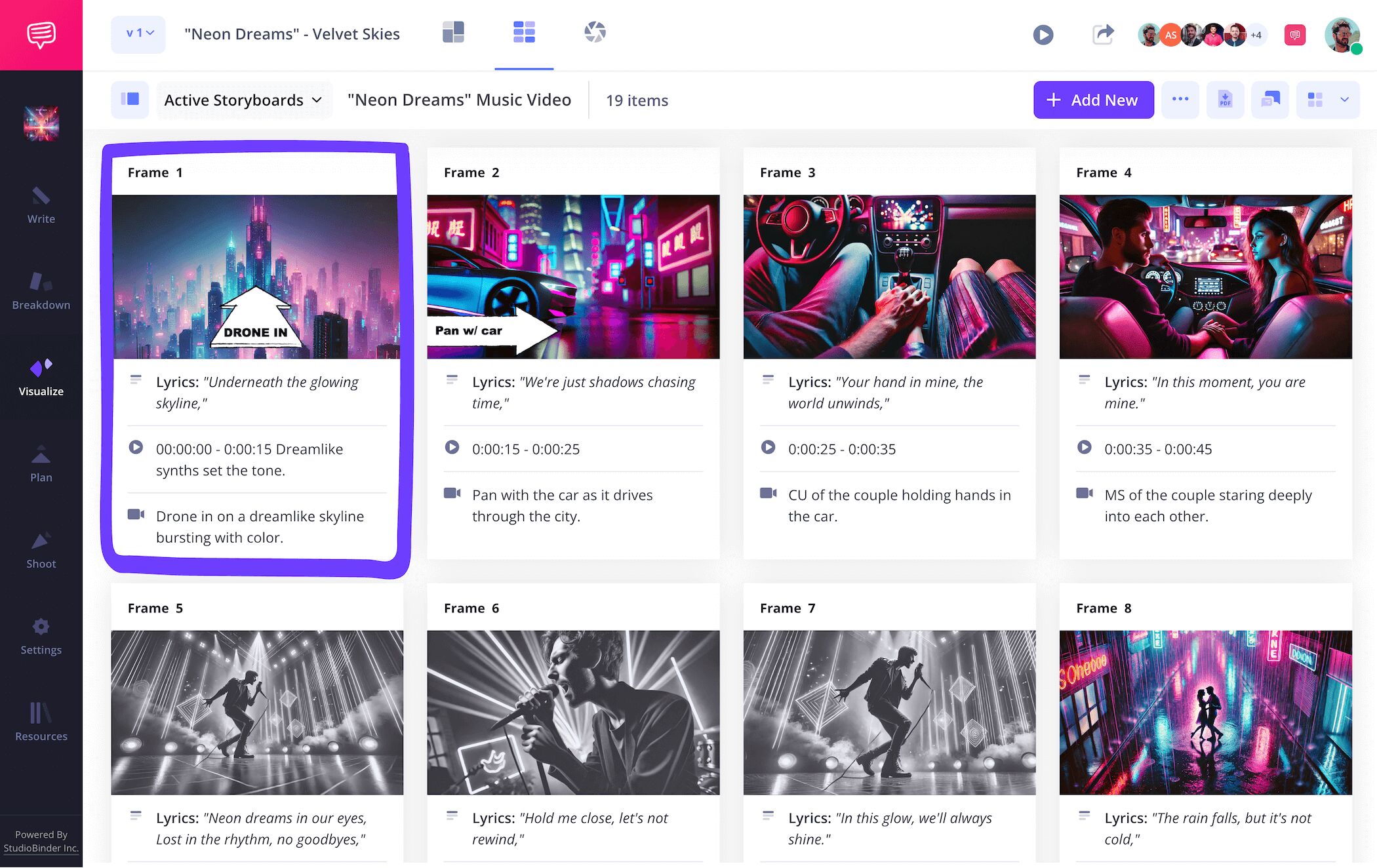
Step 4
4. Collaborate and comment
Video storyboarding is a process that’s made all the better through tight collaboration. So, to keep your team tight and near, it’s helpful to have a one-stop communications hub for everyone to add their two cents. With StudioBinder, you can make your storyboarding video template itself your central hub. Even if you’re working solo on a small social media video, you can at least invite a friend or two to review your work and make sure it all flows together well.
When you’re ready to start inviting anyone from your team that requires any level of collaboration on your video story board, you have the option to set their individual permissions to either editor or commenter.
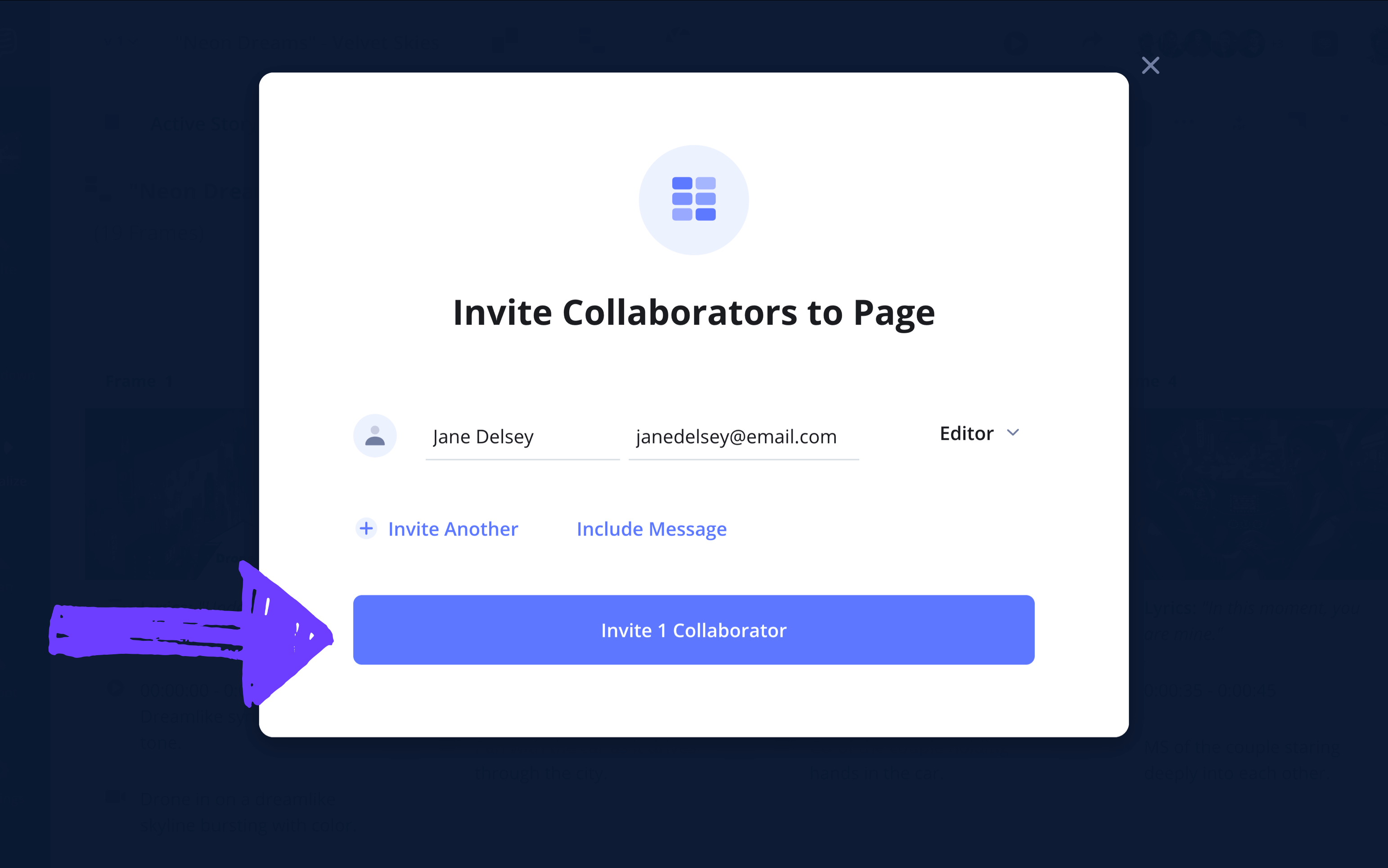
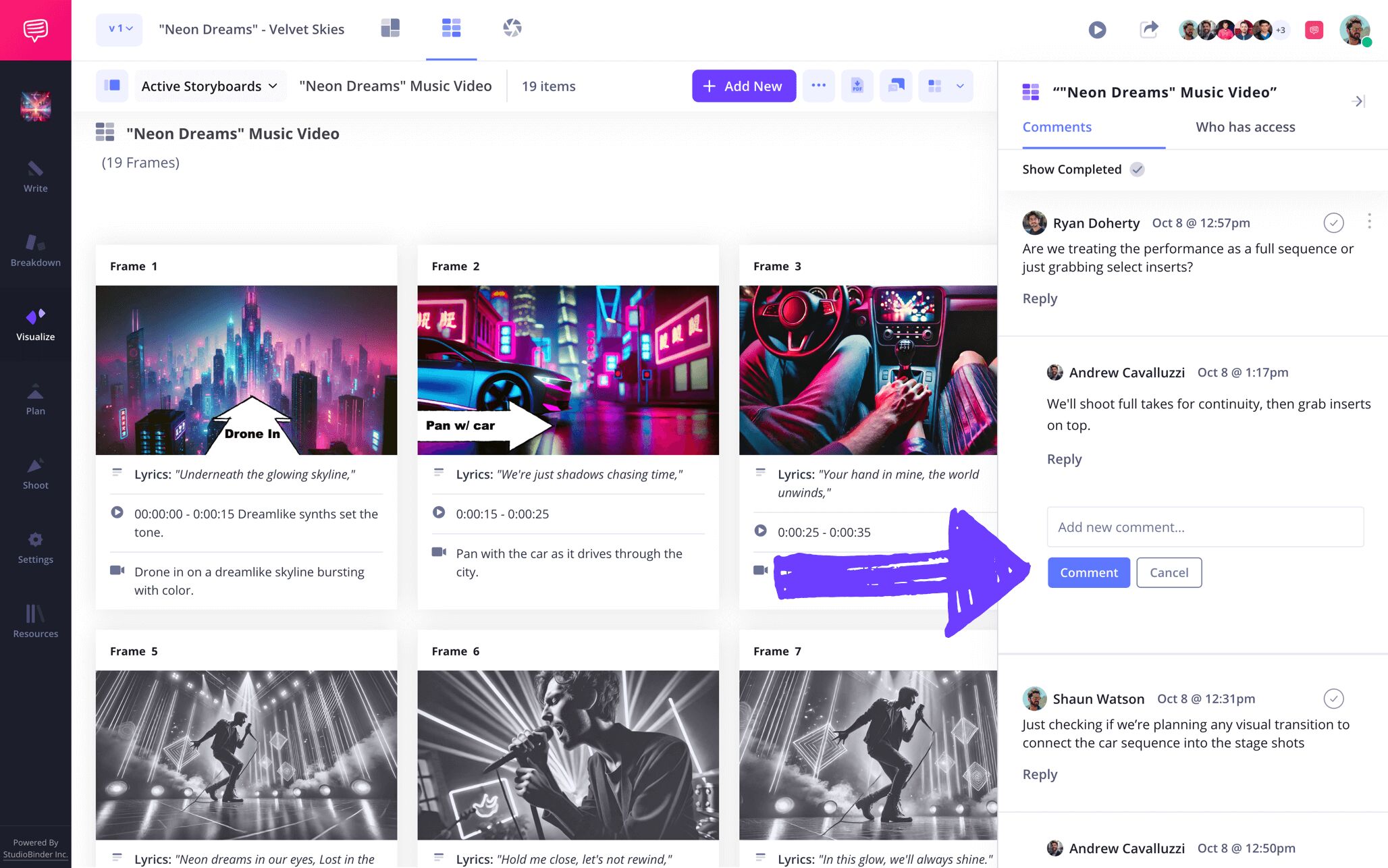
For our music video storyboard example, we requested a trusted colleague to make some edits to our project. When they were done, they were able to go into the comments tab and give us some general feedback on our video storyboard as well.
Step 5
5. Download your storyboard
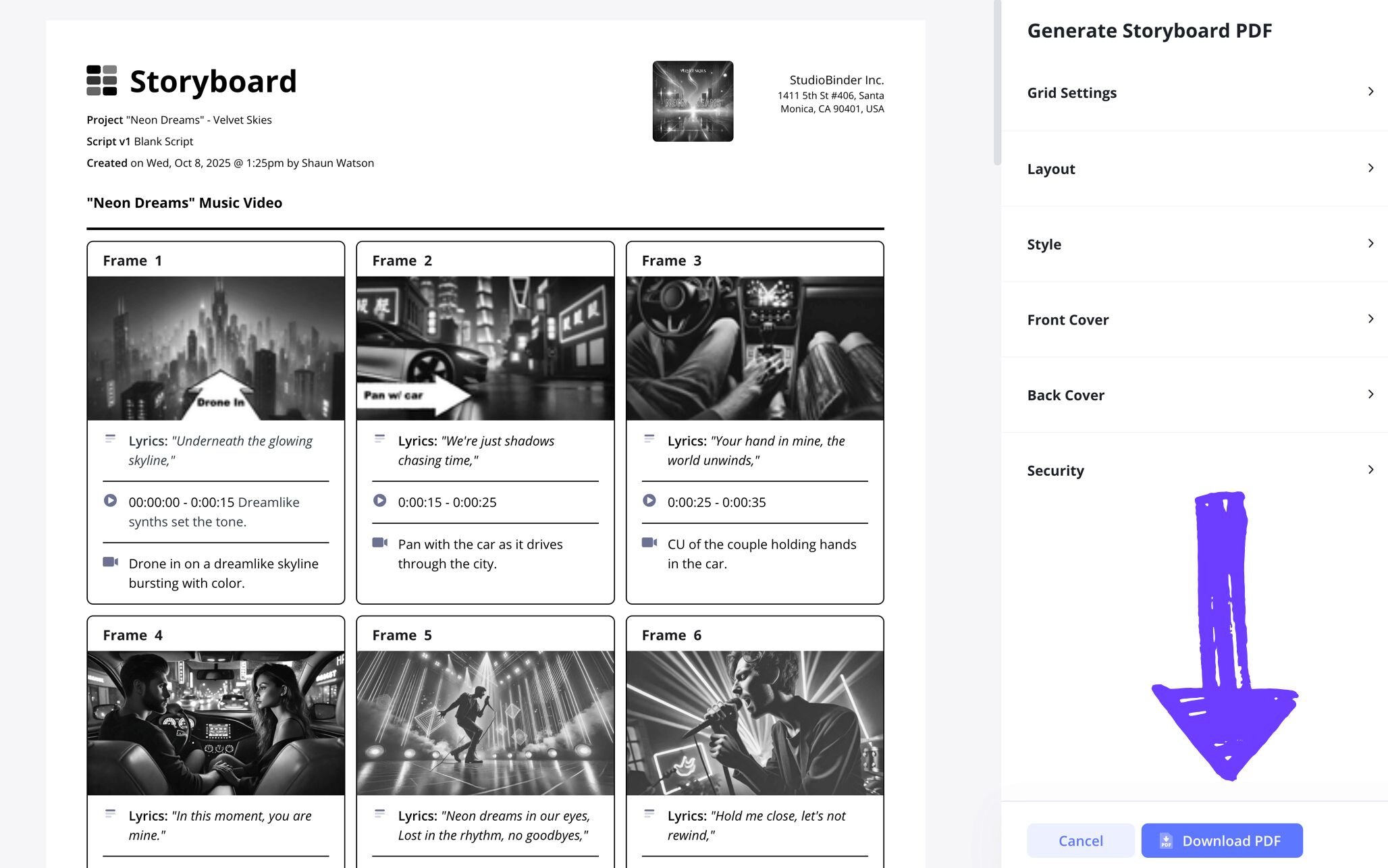
Now that you made it through the storyboard video process, it’s time to finalize your good work with a lovely frame. Downloading your storyboarding video template as a PDF is like letting the cement dry on your project so you can finally show it off, and even more importantly, use it for all your video production needs.
For our storyboard for video example, we went into StudioBinder’s PDF customization page and made sure our grid settings and text font aligned in all the right ways to let our colored images really pop. After that, we were sure to add a watermark because nobody likes spoiling a well-made music video before it’s even released!
Conclusion
You're done!
Video storyboards are an essential video making tool, and now that you’ve officially graduated with a diploma in the art of building your own storyboarding video template, we can’t wait to see what kind of advanced storyboard adventures you take on next. Speaking of which, when you're ready to move on from video storyboarding, be sure to take a look at all our free storyboard templates!
Frequently Asked Questions
Your questions, answered
Creating a storyboard for a video begins with defining the central purpose of your video. If it’s a short form content reel for TikTok or Instagram for example, is it meant to be funny, informative, both? Once you have this down, you can write out a script first or jump straight into writing the descriptions under each panel on your storyboarding video template. Once all those frame-by-frame story beats are locked in, then you can either make some basic sketches for your images, or treat your storyboard more like a mood board and pull images from the internet that express the kind of imagery you’re aiming for.
You may be wondering if the video storyboard process is really worth the extra time and effort before the actual making of your video part. In our opinion, it’s definitely worth the effort. Even if you’re just creating a 30 second video reel on social media, audiences subconsciously notice when every edit is precise and thought out. By storyboarding your video, you’re finding all the right moments and the right length of time to cut to B-roll footage or to yourself talking. Simply thinking about the how and why of these things during the making of your video storyboard gives you a huge leg up.
A video storyboarding template is a pre-made, blank storyboard that is ready to be filled with your visual narrative ideas. Once you find a storyboard template that works for your specific project’s structure, you can either begin by adding descriptions or images first. If you have a script for your video ready to go, we suggest starting with the descriptions. This way, all you have to do is find the proper pacing and narrative beats from panel to panel.
The best storyboarding video template depends on the type of video you’re planning to create. A 16:9 panel aspect ratio is considered the standard for a film or video project. Just as well, 3 to 6 panels per storyboard page is the typical film industry standard. If you’re planning out a social media reel video, 9:16 is the typical aspect ratio.
Create your free storyboard
Visualize your storyboarding video template for free.
Get started for free
