
home → Guides → StoryboaRD
How to Write a Storyboard

How to write a storyboard
If you want to understand the storyboarding process top to bottom, then you don’t just want to learn the visual side, you’ll also want to know how to write a storyboard. While it’s true that the heart of storyboarding consists of looking at your storyboard from one visual frame to the next, almost like looking at a comic book of your project before you film or animate it, it’s also vital to know when and how to write all your important filmmaking details next to each frame.
With a clear understanding of what to write and what to draw, you’ll be able to pre-visualize your story in no time. In this guide, we’ll walk you through all the important steps for not just how to write a storyboard, but also how to fully construct every angle of your own storyboard. We’ll use StudioBinder’s storyboard creator as our guiding example, but feel free to use any kind of storyboard template you prefer.
Step 1
1. Format your template
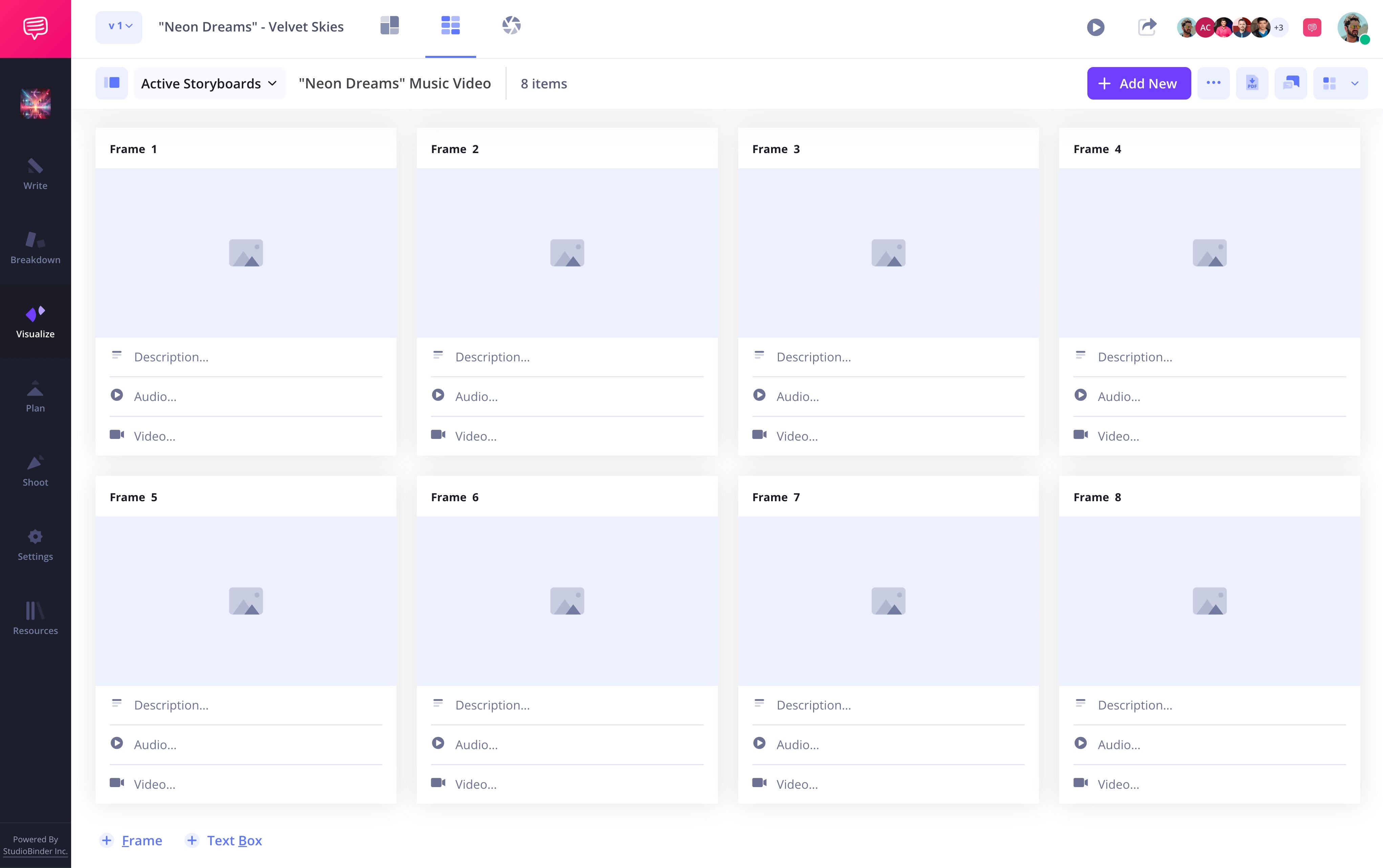
First, let’s start easy: setting up your template. You’ll want to construct your storyboard depending on the type of visual project you’re approaching. For most basic film or video projects, 16:9 panels and no more than six panels per page is a safe standard to go by. If you’re in StudioBinder, you will answer some basic setup prompts for establishing your storyboard format, leaving you with a template similar to this:
Step 2
2. Start writing
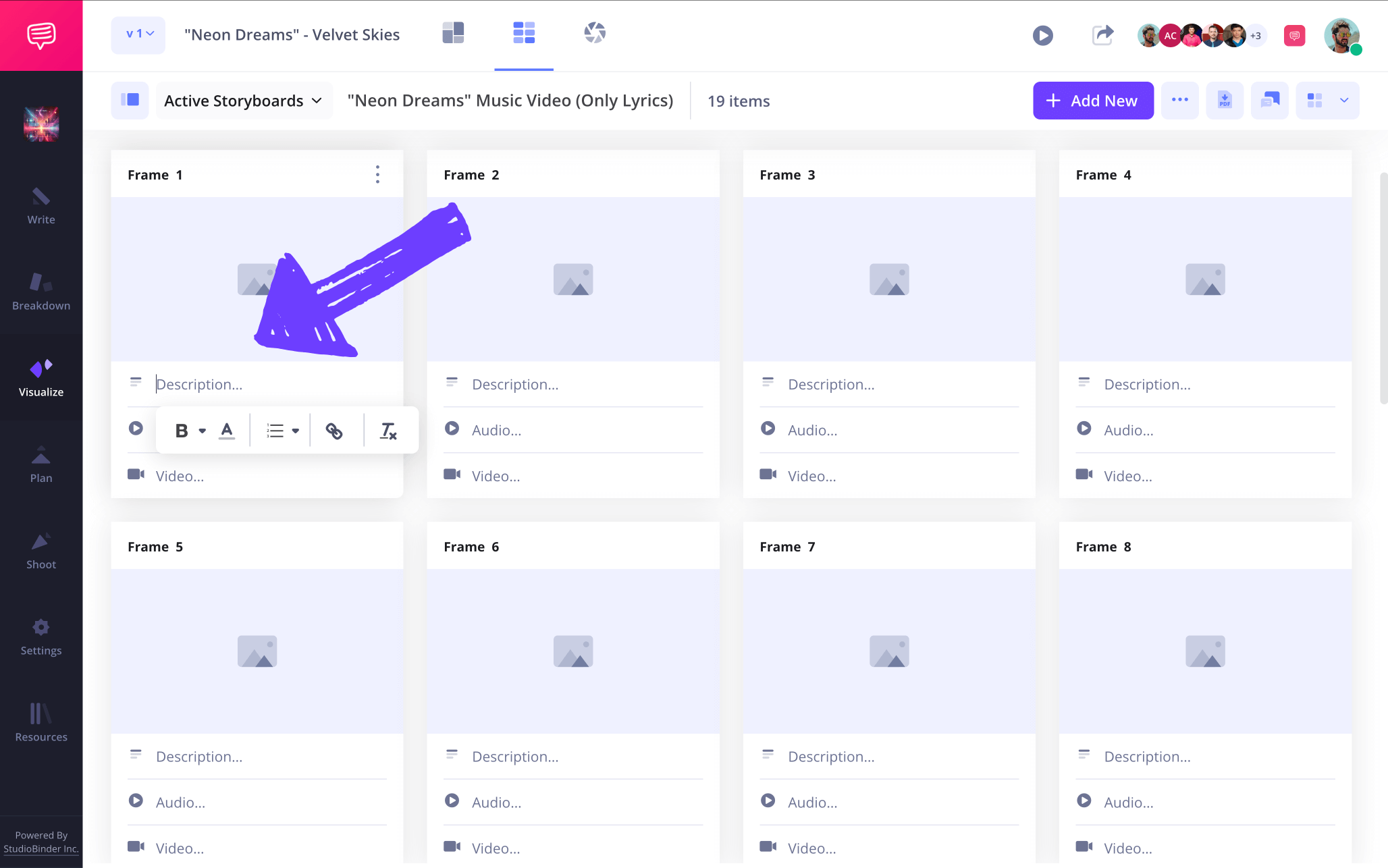
You don’t have to be a professional storyboard writer to know how to write a storyboard, you just have to know where, when, and how much to write on your storyboard. If you’re working on a feature or short film, you likely have a script, or at least a structured outline of story ideas that you’ll be migrating into your template. With StudioBinder, you can import your screenplay directly into your project, and even import each script line into your descriptions with the shot tagging feature.
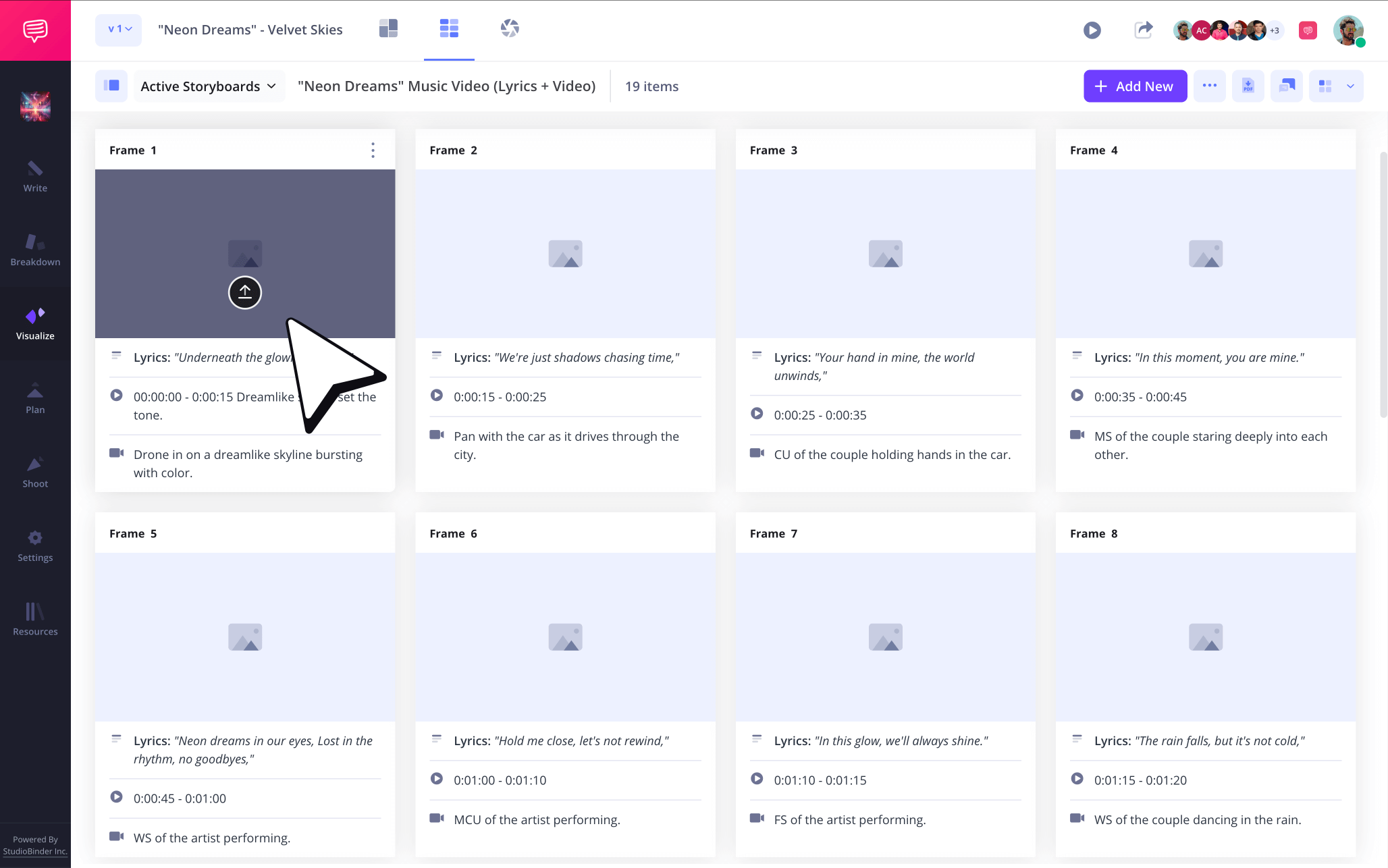
Or, if you’re looking for the best approach on how to write a music video storyboard, or anything else that doesn’t require heavy scripting, you can start by considering the tone and visuals you want to see in each frame, then write each lyric or story beat into your panel description fields.
Write your shot and scene numbers above each panel to keep each beat in order, and as you identify more specific technicalities such as VFX and set design needs, you can note those in your description fields as well.
Step 3
3. Add images
Now that you know how to write a storyboard and how to structure a template for your writing, it’s time to visualize your project. You can draw your own images or find images online that reflect your narrative ideas. If you choose to illustrate, don’t worry about getting overly fancy, stick figures work fine as long as you make clear how the shot is set up and where your environment and characters are placed within the shot.
Writing text in the image to help identify scene specifics is useful too, just be careful not to step on the toes of what the image itself is communicating.
Step 4
4. Include arrows
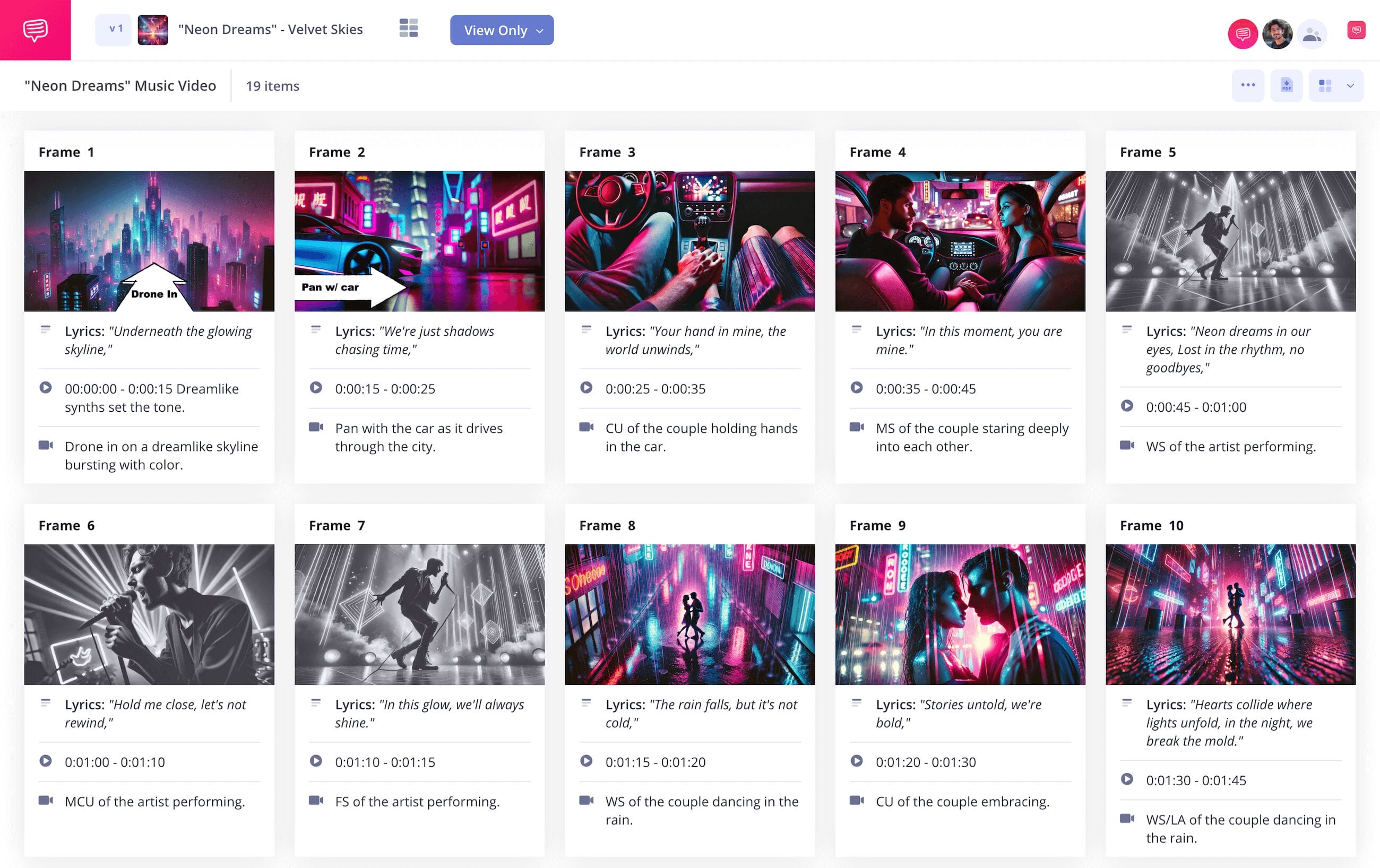
As you learn how to write a storyboard, you’ll find that words can only convey so much. You can be the best storyboard writer in the world, but sometimes the image needs to speak louder than the words. Take our example on how to make a music video storyboard for instance.
We were sure to note that one of our frames is a zoom shot, but given that this is a monumental moment in the video, we also want to make sure this is just as well communicated in the image itself. So, we’ll jump into StudioBinder’s image editor to find a fitting storyboard arrow.
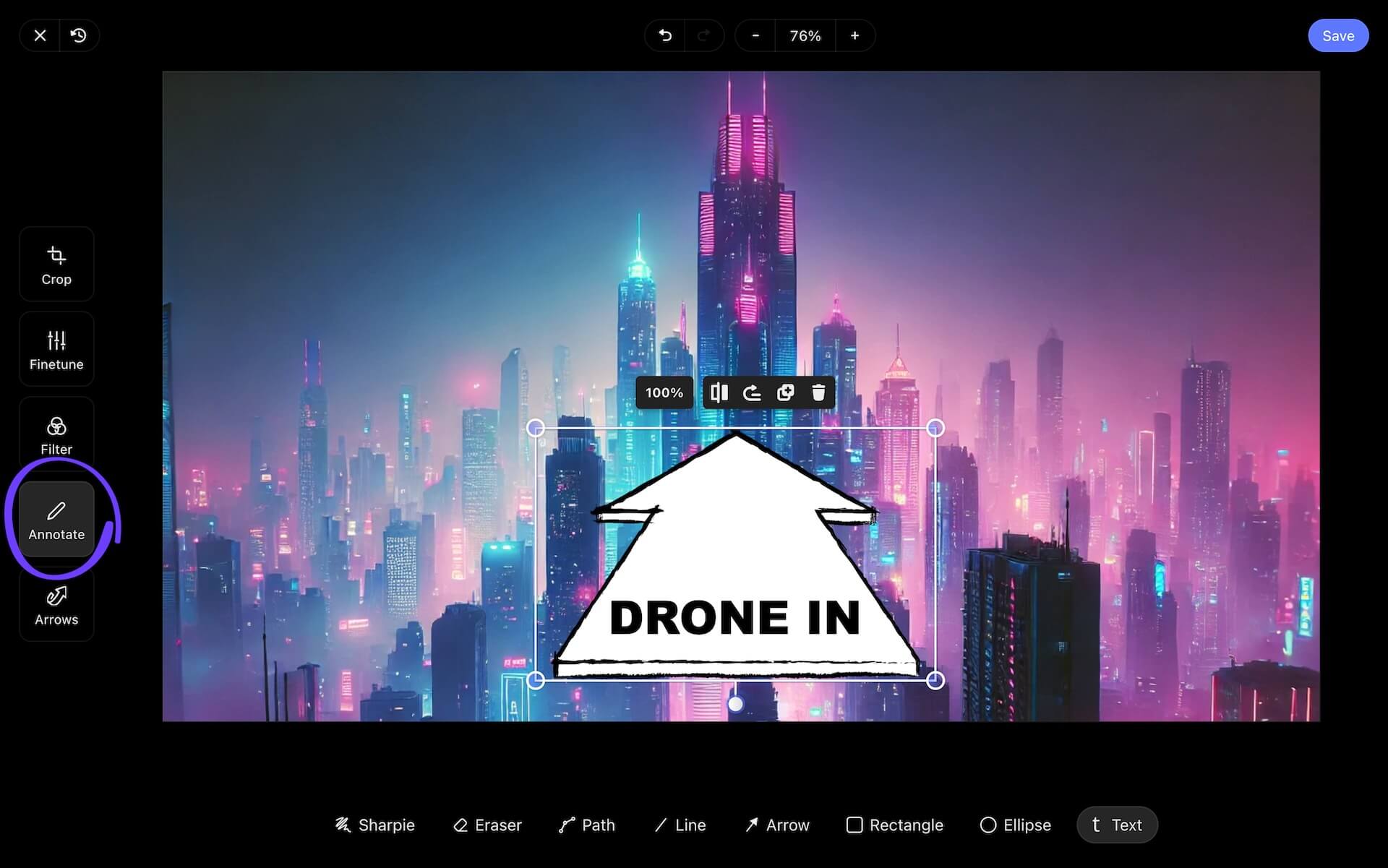
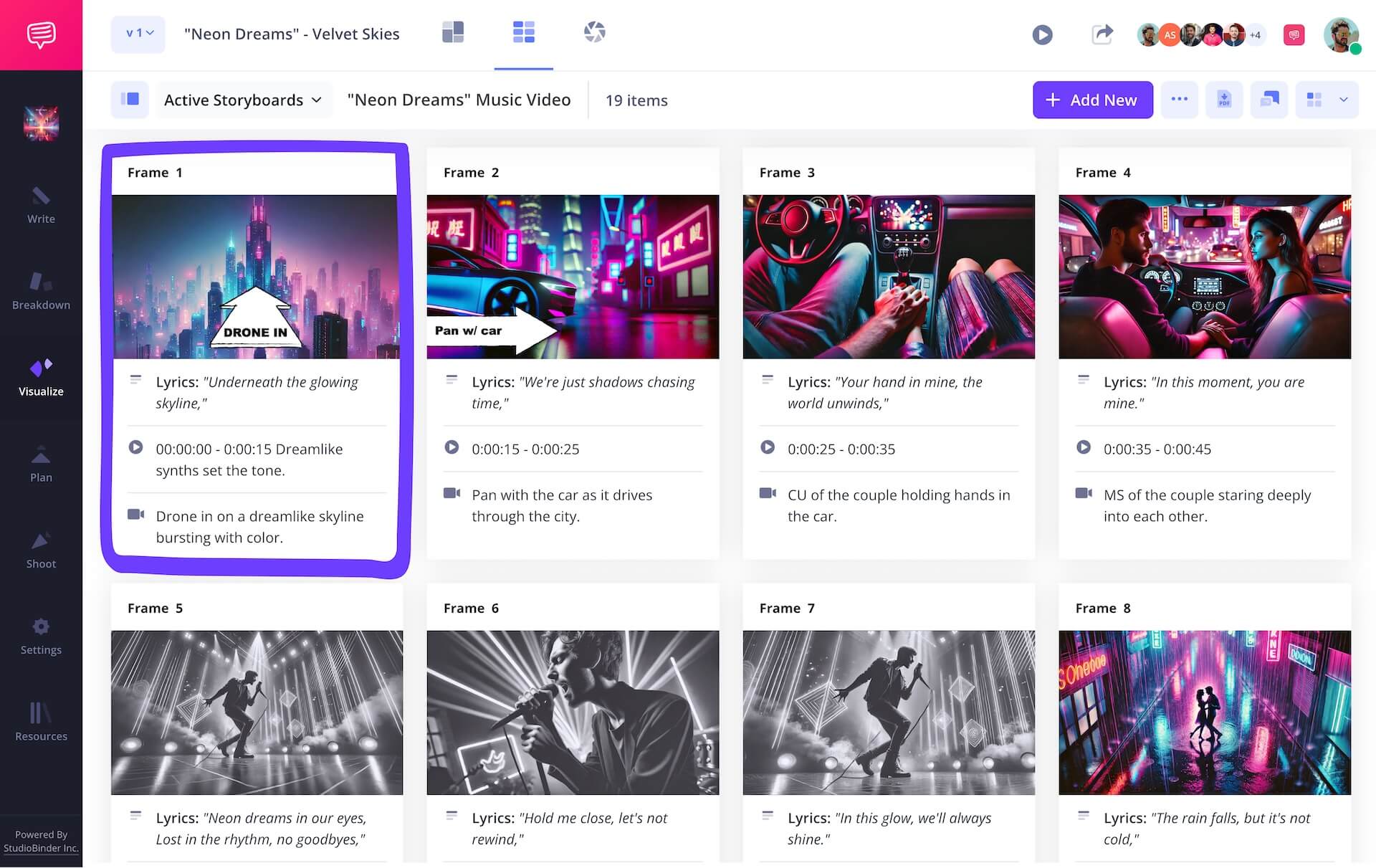
After trying out and resizing a handful of arrows, we landed on one that communicates our planned zoom in just right. With our arrow formatted and positioned just as we want it, we’ll click Save and our edited image is now added into our storyboard.
Step 5
5. Collaborate and comment
Learning how to write a storyboard is one thing, but learning how to pitch, collaborate, and process feedback on your storyboard is another. For film, animation, and even many video projects, you’ll have a sizable production team, which also means integrating a sizable amount of perspectives.
Instead of getting storyboard writer paralysis from all the different streams of feedback information, why not establish a central platform where all storyboard notes and editing plans can stay in one place?
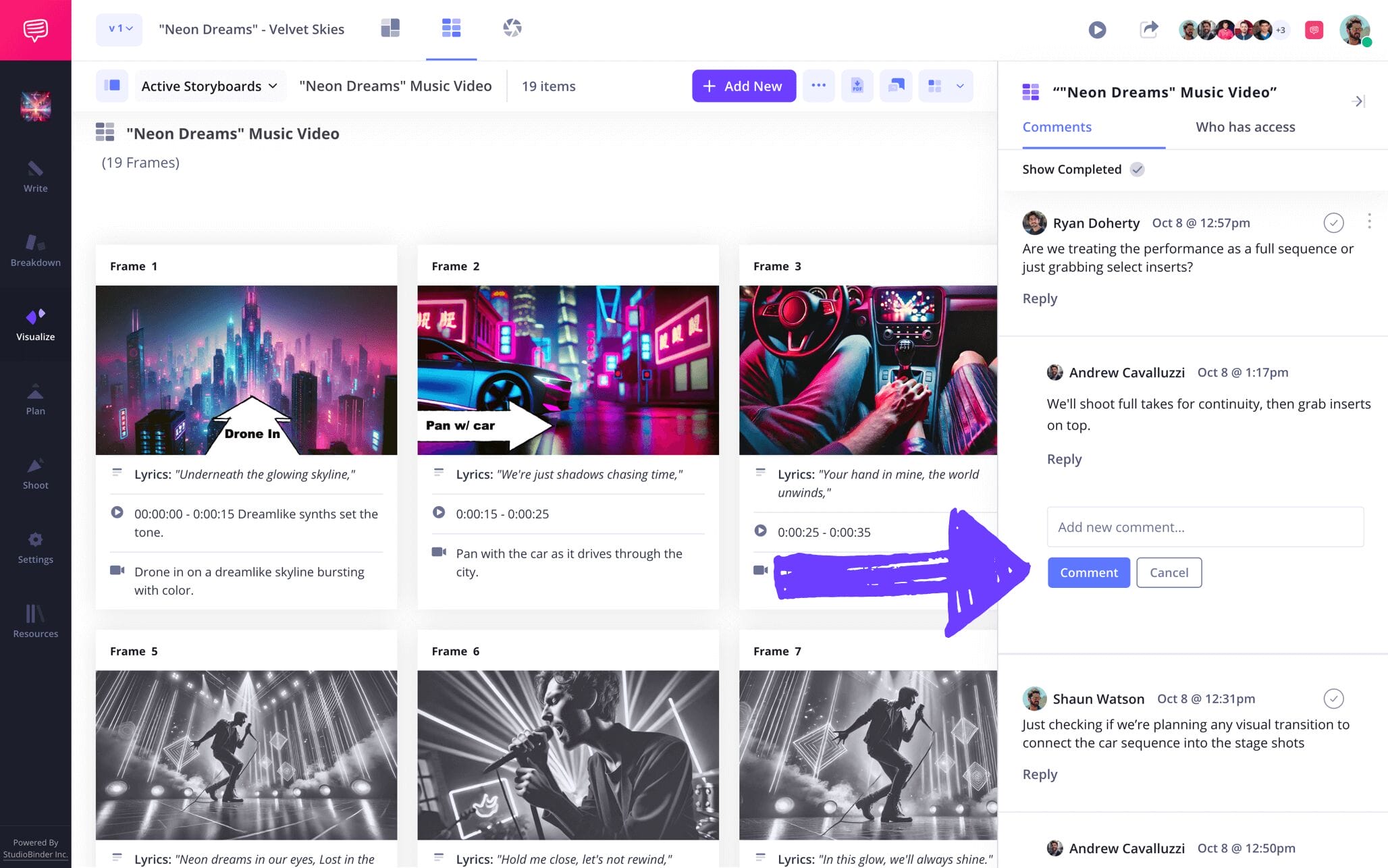
With StudioBinder, you can choose between making your invitees viewers, commenters, or editors. And with commenter or editor permissions enabled, your collaborators can go into the comments tab on your storyboard to add and discuss their notes with you.
Step 6
6. Download and share PDF
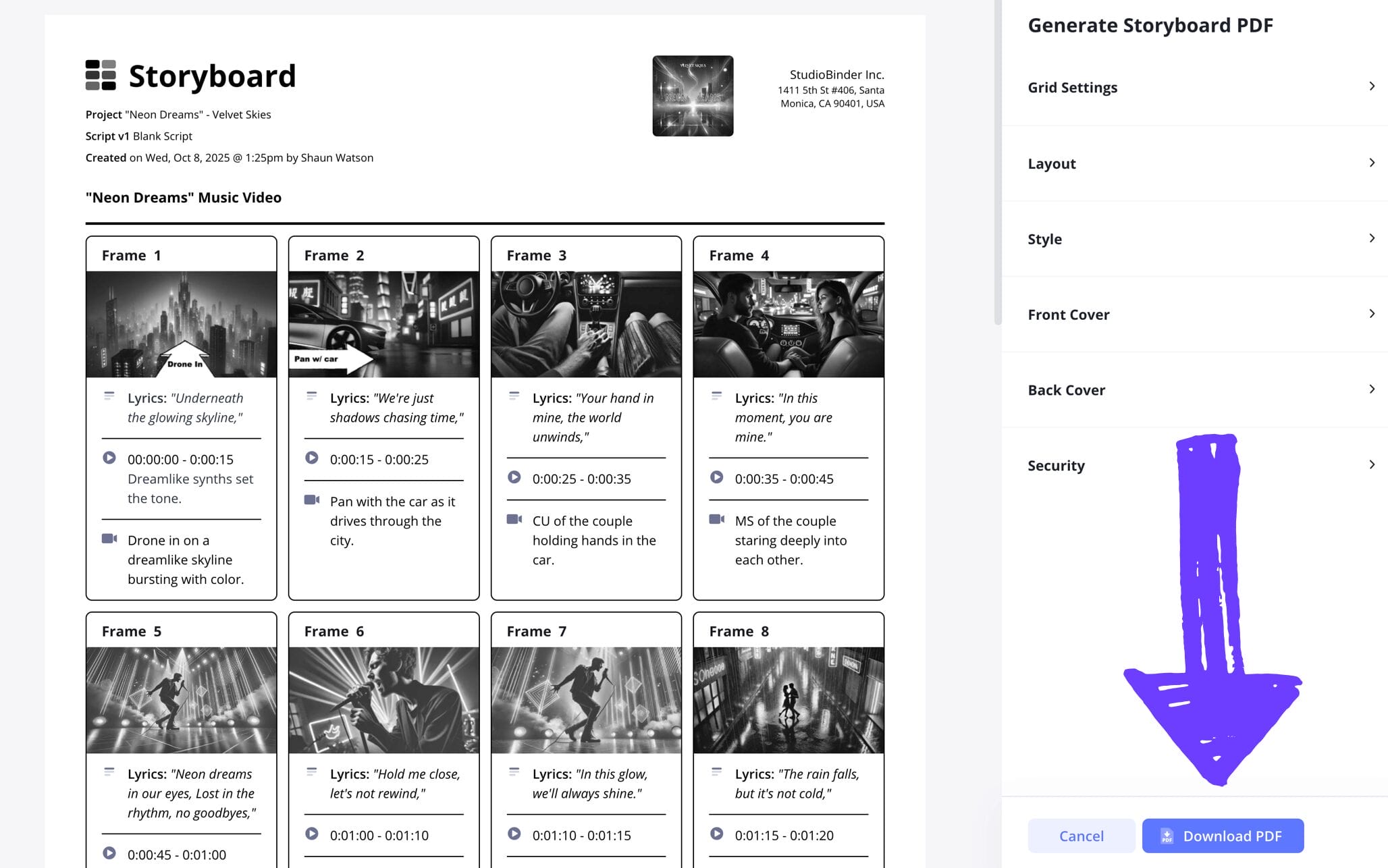
It may seem odd at first, but knowing how to write a storyboard is every bit as important as knowing how to finalize and save your storyboard. As you make core changes and start experimenting with new approaches to your project based on feedback, it’s helpful to get into the habit of saving each version of your storyboard as a PDF, this way you have an unchangeable document in your files.
With StudioBinder’s PDF editor, you can choose from an array of document editing options. For our example, we readjusted the font for our newest printed copies and added a watermark, because we’re sending this version to the on-set production crew and we know how easy things leak these days!
Conclusion
You're done!
Now you know all the important steps for how to write a storyboard as you get started on your visual project. But let’s say ‘how do you write a storyboard’ isn’t the only storyboard question you want answered now that you’re more familiar with the process. In that case, be sure to check out all of StudioBinder’s free storyboard templates!
Frequently Asked Questions
Your questions, answered
It’s rare but not unheard of to get a job specifically as a storyboard writer. Typically, pre-production assistants or the storyboard artists themselves will handle the annotation side of the storyboard. So, if you think you have a specific skill in condensing information and writing for storyboards, your best bet is to get hired as a production assistant during the storyboarding process and then prove your skills as a storyboard writer from there.
Writing a music video storyboard can oftentimes be an easier task than writing a film or animation storyboard, because the lyrics are front and center rather than a much-longer and more complex screenplay. The writing stage of your music video storyboard will begin before you add images. It’s best to listen to the music (if it’s been produced at this point) or read the lyrics to get an understanding for the melody and essential beats. Then you’ll start writing the lyrics you want to see for each specific visual moment in the description space near each frame.
You won’t need a script or screenplay written specifically for your storyboard, but the storyboarding process will run much smoother with a finished script for your visual narrative. With a scripted document of your story, you can start simple and transfer your script lines and dialogue into the description space near each of your frames. This way you can focus on the story beats and how your visuals will process each of those beats, rather than writing your narrative while also building your storyboard at the same time.
For most modern film, animation and video storyboards, the screen aspect ratio the project will ultimately be captured in is typically 16:9. This is why keeping your storyboard frames at a 16:9 size is a safe bet. But even if your final screen aspect ratio changes, leaving this amount of room for your sketches is still reasonable. For projects that are meant to be social media reels, you can stick with 9:16 panels since that’s the official screen aspect ratio for most social media platforms that display reels.
Create your free storyboard
Visualize your storyboard with our free template.
Get started for free
