
home → TEMPLATES → Storyboard
Creating a Storyboard Template

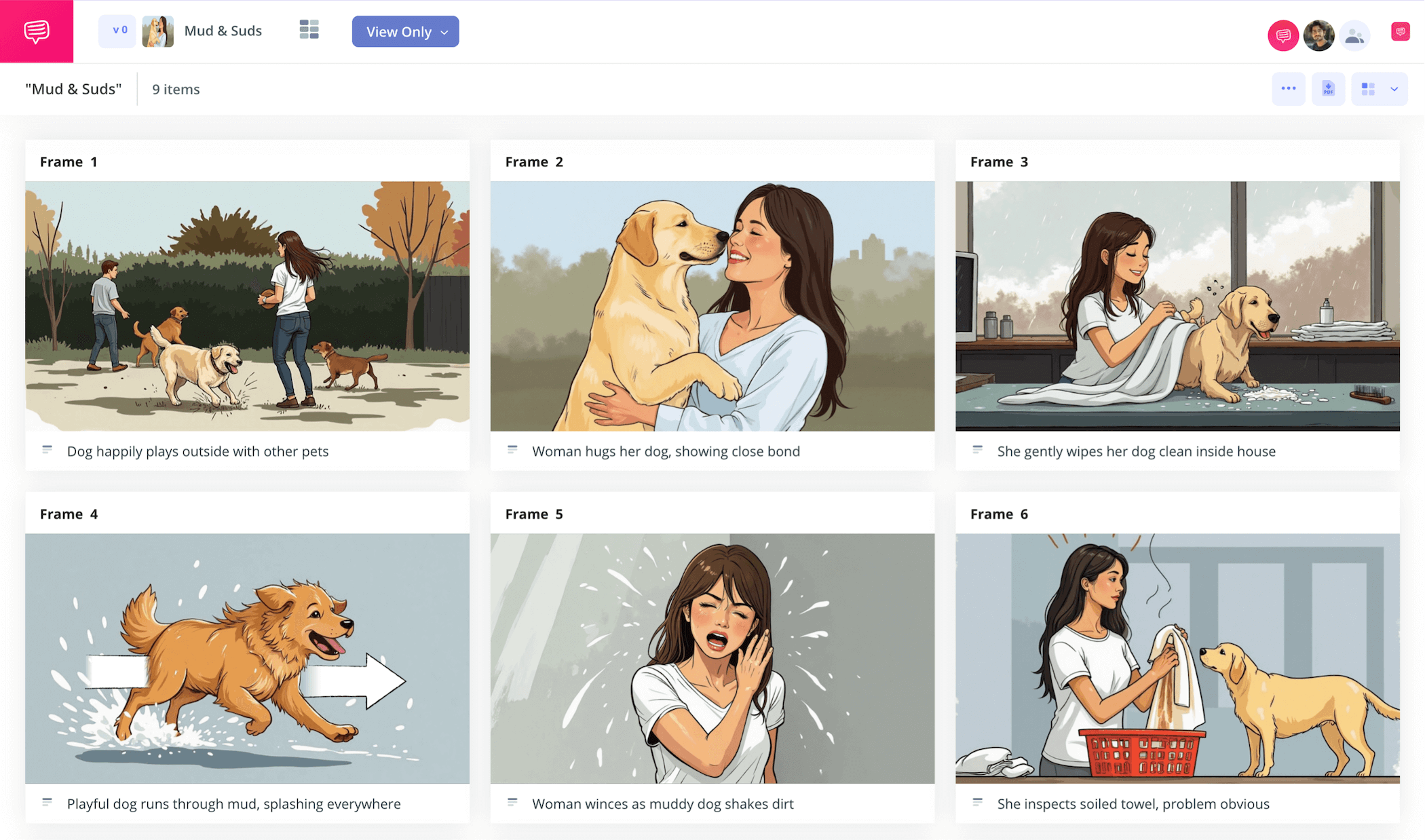
Creating a storyboard template
By creating a storyboard template, you’re preparing to map out your narrative vision as precisely and efficiently as possible. But creating a storyboard structure is only the first step in the storyboarding process. We’ve narrowed the most common approaches down to a broad, step-by-step guide on how to create a storyboard.
To take you through each important beat on how to make a storyboard, we’ll use StudioBinder’s storyboard creator.
Step 1
1. Map the script
Creating a storyboard template begins with customizing your storyboard, not just to your project’s needs, but to your own visual layout preference as well. If you’re creating a film storyboard, 16:9 panels will match the most standard and modern film aspect ratio. For a social media project, 9:16 panels are a solid basis when creating a storyboard. But just because you’re using a specific aspect ratio for the final version of your project, doesn’t necessarily mean your storyboard has to fit those exact dimensions.
Keep your storyboard creation at a size and structure that works for you, just keep in mind what your final project will encapsulate as well.
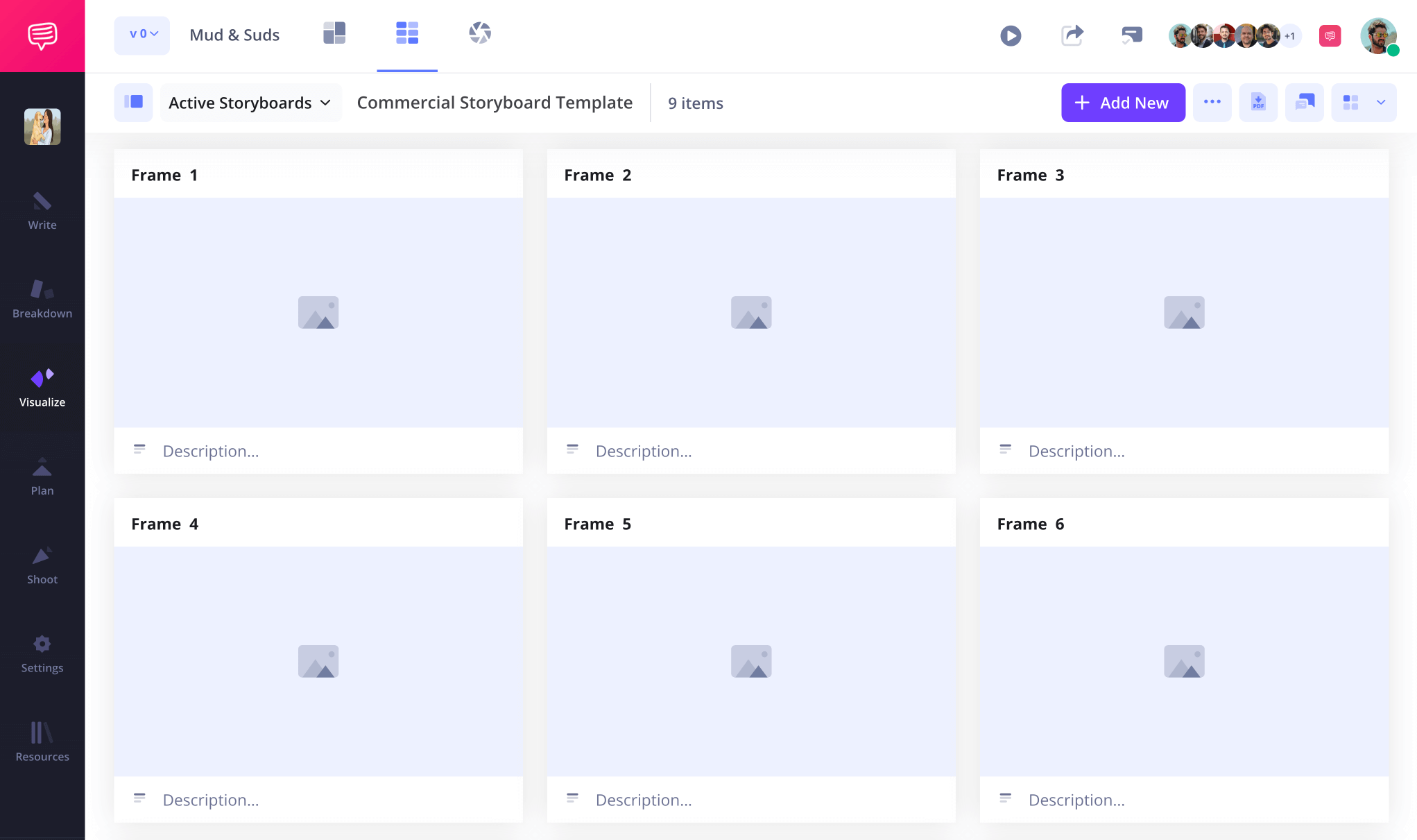
Creating a storyboard template in StudioBinder starts with deciding on some of these basic structural elements to set you up comfortably. From there, you can jump into pacing out your planned visual descriptions from one panel to the next.
Step 2
2. Apply images
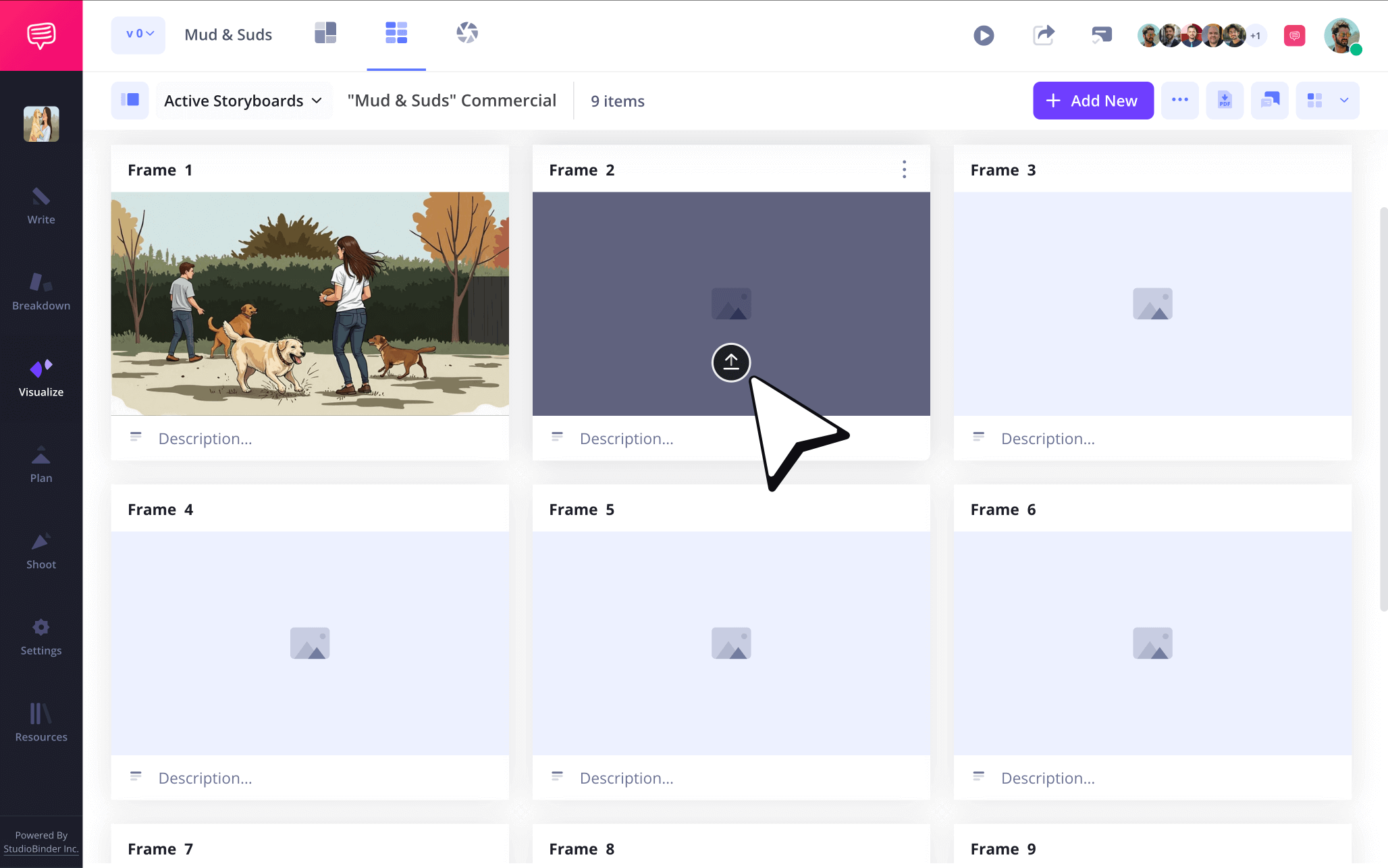
Now that you’re creating a storyboard with a solid foundation, you’re ready to start bringing your descriptions to life with images. If you’ve chosen to create a storyboard online, you have plenty of options. You can go the traditional route and sketch your images, then upload them into your project. Or you can search online for temp images or pictures that capture a mood or idea you’re aiming for. Creating a film storyboard typically means sticking to hand or digitally drawn images, but we’ve seen temp images used in a stunning manner for film storyboards, so go with what comes naturally to you!
When you’re ready to upload images in StudioBinder, just click Upload on any blank panel.
Step 3
3. Add storyboard arrows
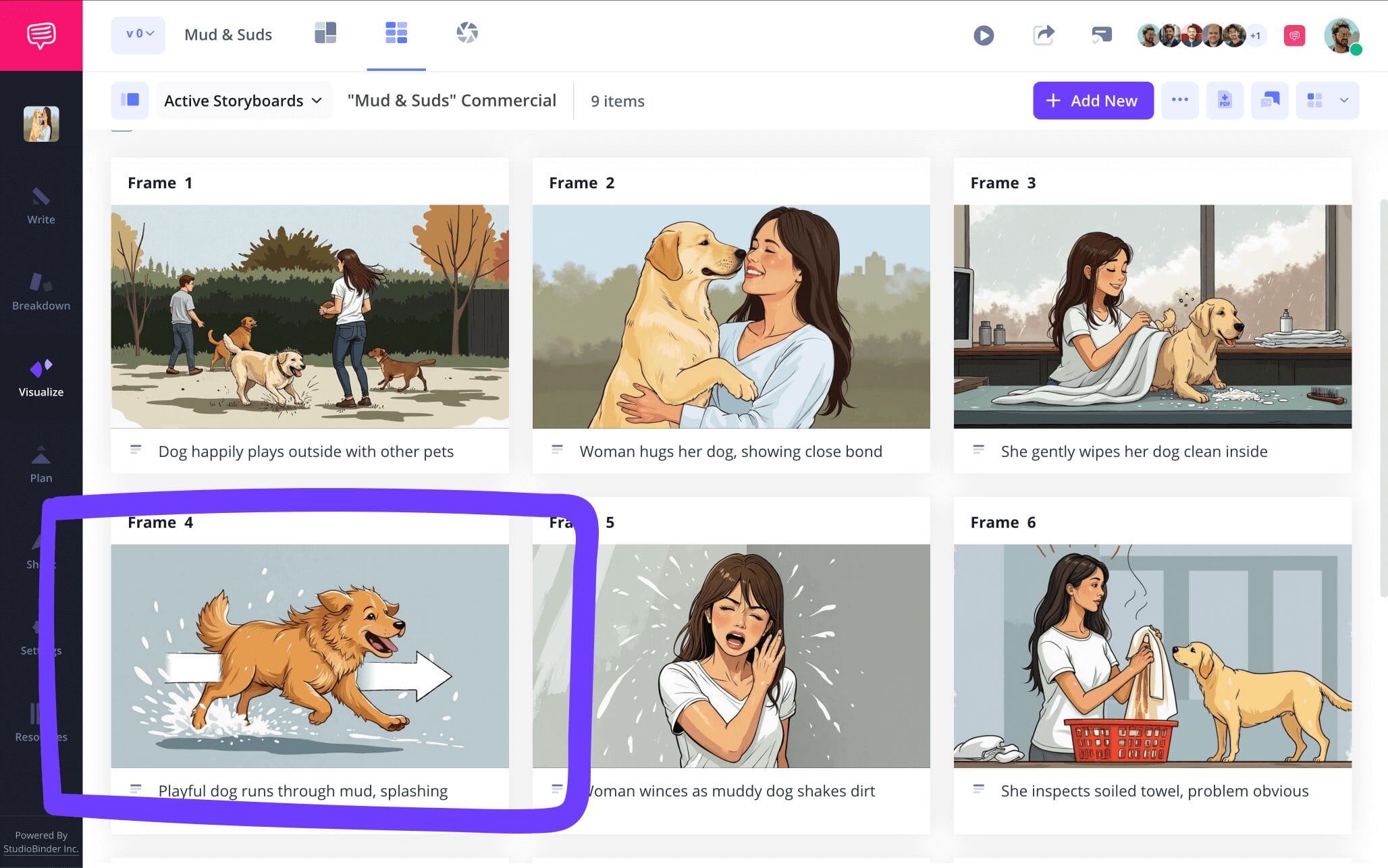
When you create a storyboard, you may find that some images jump out to you as unfinished. This may be because they need to be redrawn or brought back to the brainstorming stage, or it may be a problem that can be solved by strategically applying one or several storyboard arrows.
For our ‘create a storyboard free’ example, we can see one of our images is missing a vital camera movement that our visual narrative doesn’t fully make sense without. So we’ll jump into StudioBinder’s image editor add an arrow that communicates this camera action appropriately.
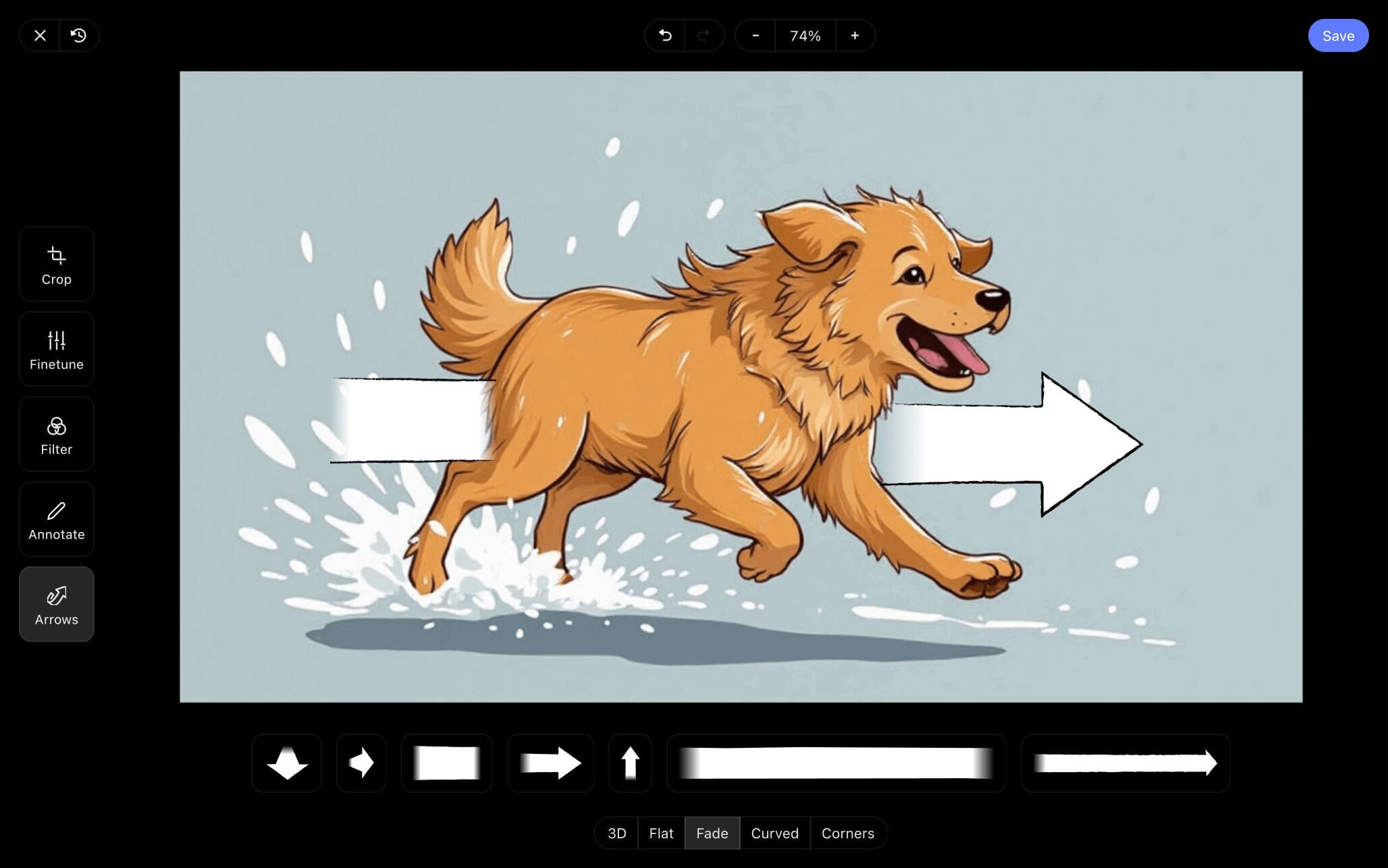
Throughout creating a storyboard template, you can go into StudioBinder’s image editor to find and customize arrows, add text, and more. When your image looks up to standard for your ‘create a storyboard online’ project, just click Save and it will be added right in.
Step 4
4. Invite and collaborate
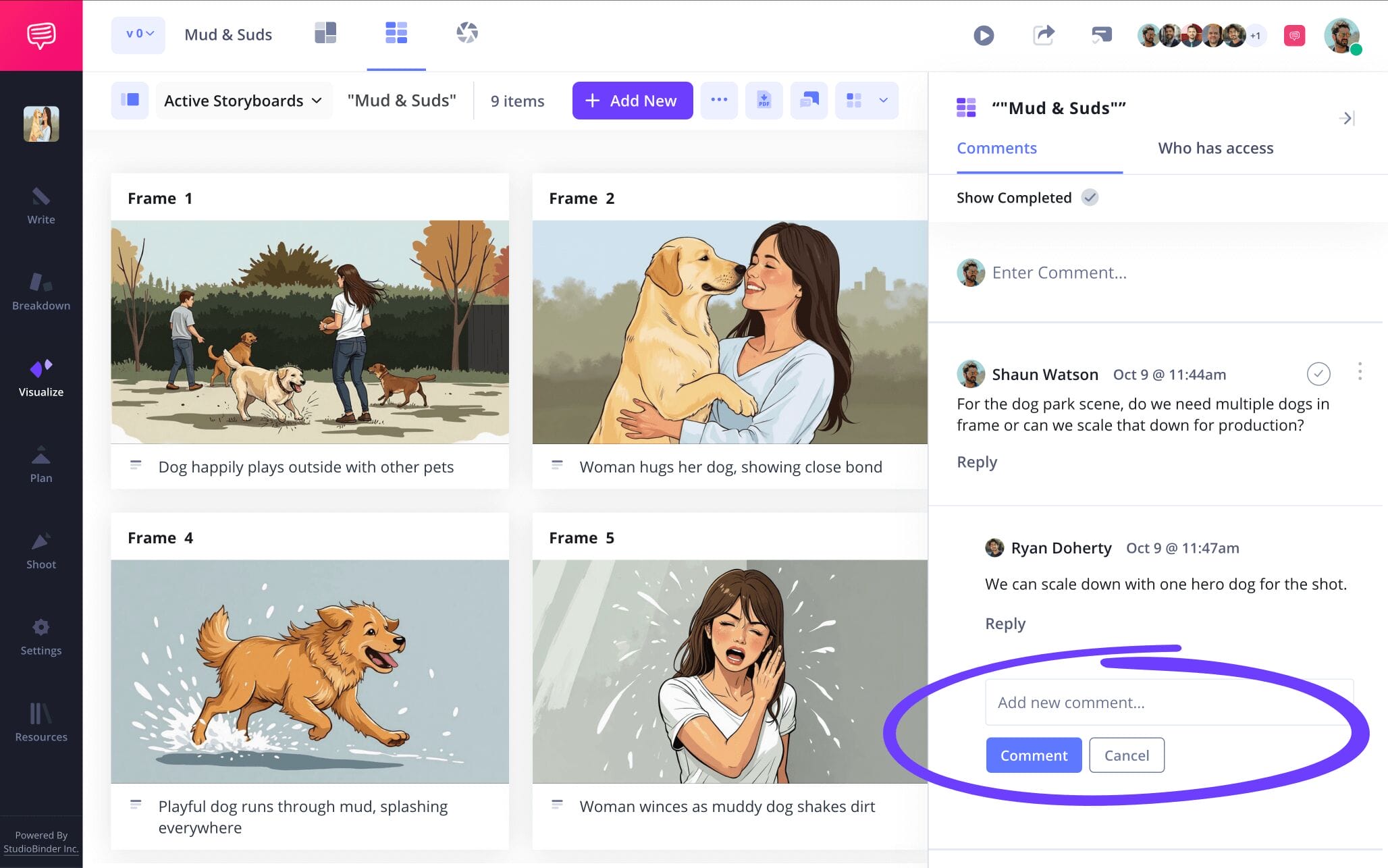
Creating a storyboard has traditionally been defined as a collaborative act. But in the modern age of do-it-yourself video creation, there’s really no one set way for creating a story board. Still, even though the amount of people that work on a single project has changed, the value of feedback and getting different perspectives certainly hasn’t. If you’re looking for a quick and easy way to gather your coworkers or friends while you create a storyboard online, why not do it all on your storyboard itself?
In StudioBinder, creating a storyboard template automatically comes with the ability to collaborate on it too. When sending each invite, choose between viewer, commenter, or editor permissions. With editor or commenter enabled, your invitee can write and discuss all their notes with you in the comments tab of your storyboard creation.
Step 5
5. Convert to PDF
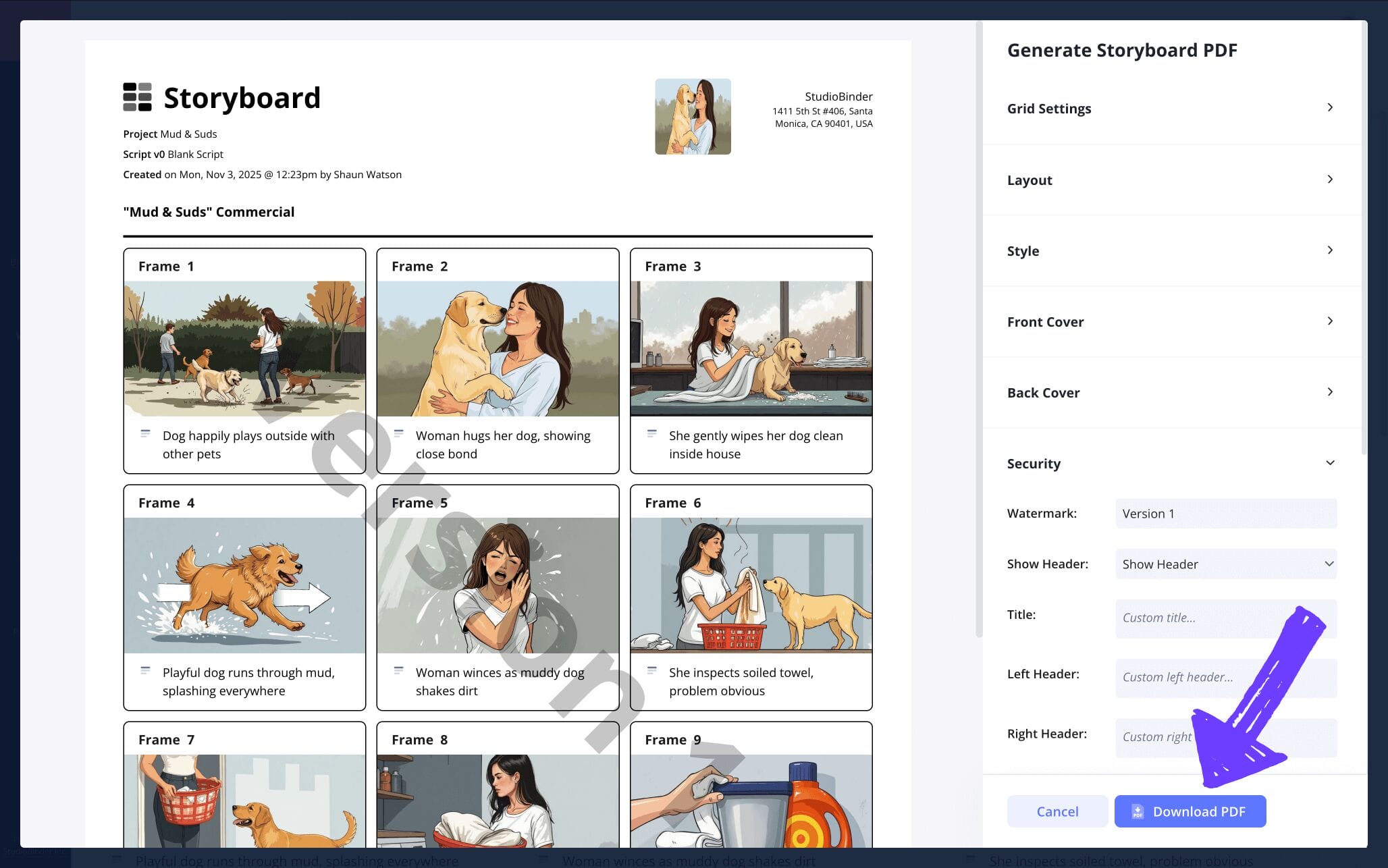
As you near the end of creating a storyboard, you’re probably fully aware of how fragile your work really is. Collaborating can result in undocumented changes, and making enough edits might make you forget what you were changing in the first place while creating a storyboard template. That’s why saving several versions of your storyboard as a PDF throughout creating a story board is vital.
For our ‘create a storyboard free’ project, we started noticing that we have different formatting preferences for different versions of our storyboard creation. With StudioBinder’s PDF editor, we’re mostly editing the grid settings and font size as we create a storyboard for a PDF document. For our most recent copy, however, we added a custom watermark because this version will be shared with several different departments and we want to keep it safe and secure.
Conclusion
Finished!
And with that, you know all the vital steps to creating a storyboard, no matter the specific project. But now that you know how to make a storyboard, why not browse through some more specific types of storyboards on StudioBinder’s free storyboard template list. Once you’re done creating a storyboard template, it’s the next best step!
Frequently Asked Questions
Your questions, answered
Creating a storyboard template is only the start to the journey of filling your storyboard with your own narrative ideas. You have the option to draw out your storyboard structure with a ruler and pencil, but we recommend finding a reliable digital storyboard template online. Once you’re set up with your template, look at your script (or your written brainstorming ideas at least) and assess how they’ll be expressed from one moment to the next. Dedicate a panel to each ‘moment’ and then write out each description into the description space under each panel.
Now you have an idea of the pacing for your visual narrative, so begin filling each panel with images that not only capture all the information in your descriptive field, but also showcase how you imagine and want it to look in its final form. These are the most basic steps to creating a storyboard.
Creating a storyboard for a film starts with creating a storyboard template that meets the standard of most film storyboards. This generally means keeping your panels at a 16:9 aspect ratio and your grid layout at no more than 3 to 6 panels per storyboard page. Starting with descriptions or images depends on what the director of the project prefers. With a finished screenplay, you’ll likely start by annotating script lines into descriptions, finding the pacing of the sequence as you distribute them from panel to panel. Then comes the storyboard image process, which is essentially bringing each of those descriptions to life with images that clearly communicate shot setup and action.
If you want to create a storyboard for a video, you’ll start with establishing your settings. If you’re planning to create a reel for social media, you may want to go with 9:16 panels to reflect the standard platform aspect ratio. Any other type of video will typically fit well into 16:9 panels. Then approach building your storyboard template like this:
- Brainstorm and visualize
- Write and pace out descriptions
- Draw or use temp images online
- Document with scene numbers
- Collaborate and get feedback
- Finalize and distribute.
Creating a storyboard for a short film is virtually the same process as creating one for a feature film, but you’re being more cautious of budget and time constraints. With your script prepared, you’ll start turning those script details into descriptions on your storyboard template. This step may seem like simple copy and pasting, but you’re establishing the pacing of the sequence here, finding how much dialogue a moment can comfortably contain. With your descriptions filled, you’re then bringing each of those moments to life within your storyboard frames. Consider each shot setup, how it benefits the characters and the action and why each angle showcases each line of dialogue in the way that it does. Since it’s a short film you’re working on, you’ll start noticing what’s essential to each scene and not, resulting in several storyboard drafts as you get creative and tighten it all up.
Creating a storyboard just got easier
Creating a storyboard is free and easy with our software.
Get started for free
