
home → TEMPLATES → Storyboard
Simple Storyboard Template

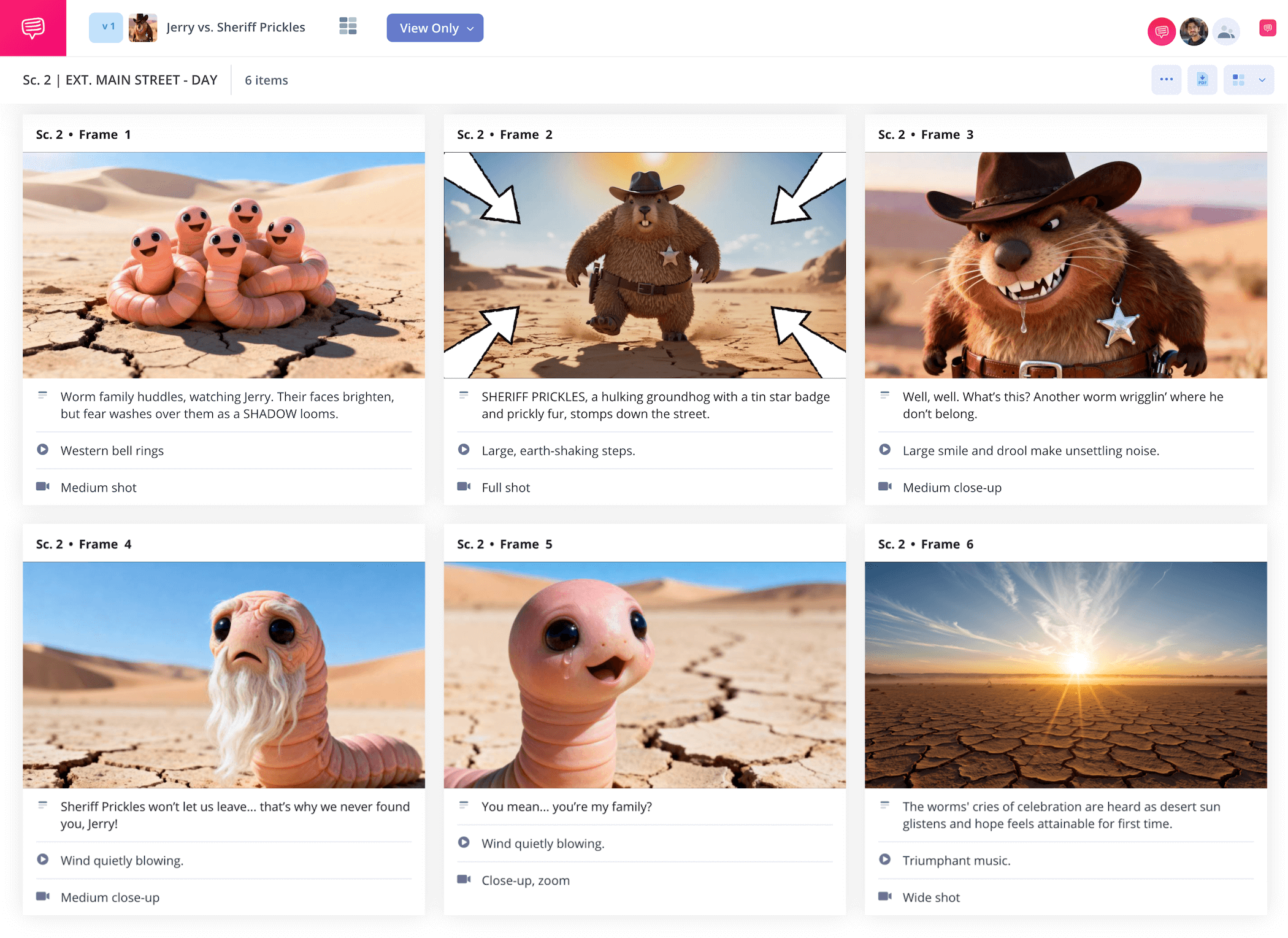
Simple storyboard template
If you’re on the search for a simple storyboard template without all the complicated bells and whistles of some of the most industry professional storyboards, then look no further! With a storyboard simple project, you’re essentially using a minimalist approach to make sure all the most important visual moments of your scene stand out, leaving out any overly complicated jargon written around your frames for the best visual clarity. Likewise, a simple storyboard benefits from the simplest images: stick figures and basic shapes used only for communicating shot and character setup, nothing fancy.
With this guide, we’ll use our simple animation storyboard example made in StudioBinder’s storyboard creator to show you the most efficient way to set up and apply your simple storyboard ideas. But since you know the kind of easy simple storyboard you’re looking for, feel free to use whichever simple storyboard template works best for you!
Step 1
1. Format a simple template
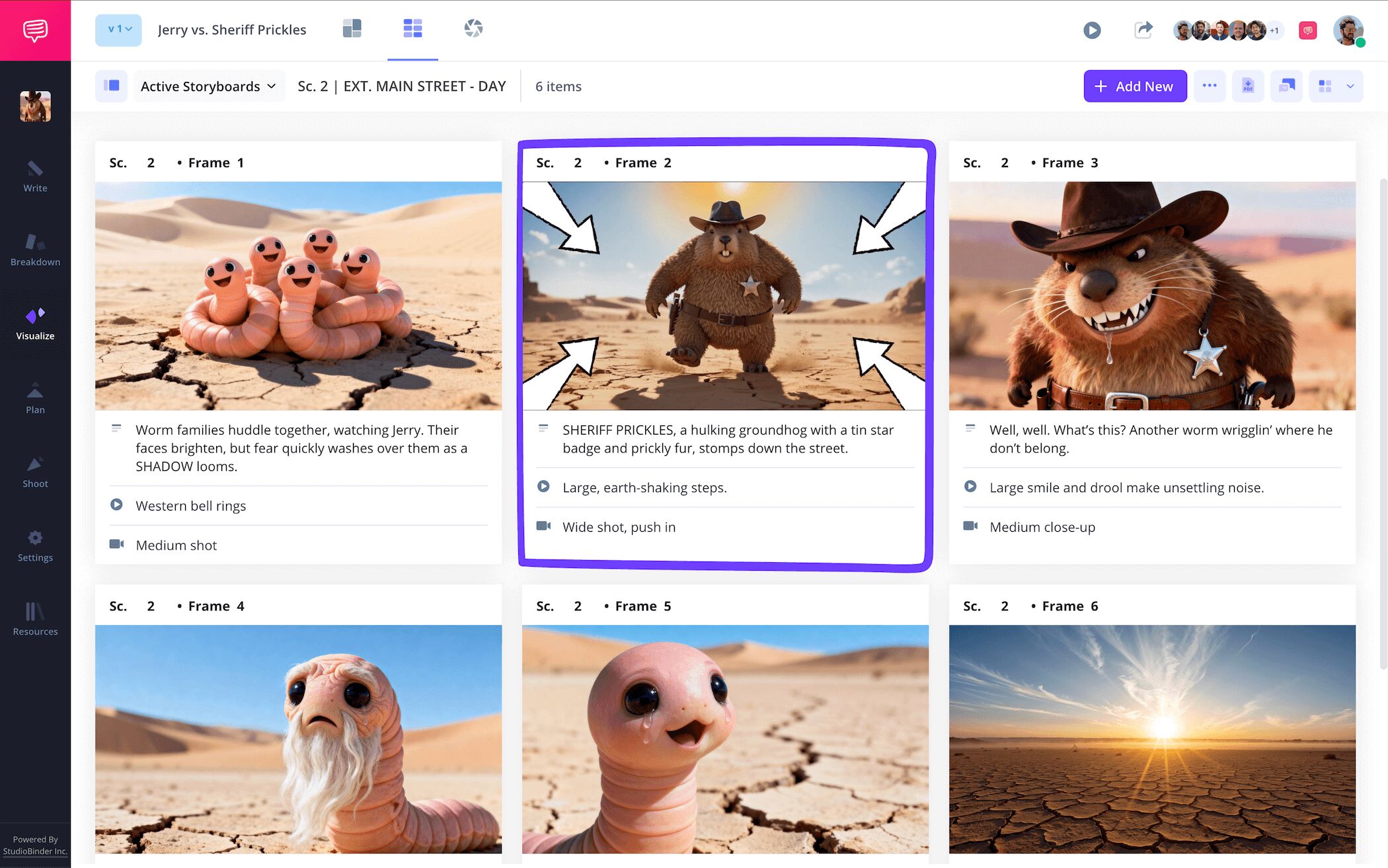
A simple storyboard requires a simple structure. And when it comes to any kind of storyboard simple project, from animation to social media videos, 16:9 frames with only three to six frames on each storyboard page is both the simplest and most straightforward storyboarding standard you can go by. If you’re working in StudioBinder, you can select these exact presets while setting up a new storyboard project. When you’re ready, this is generally how your easy simple storyboard will look.
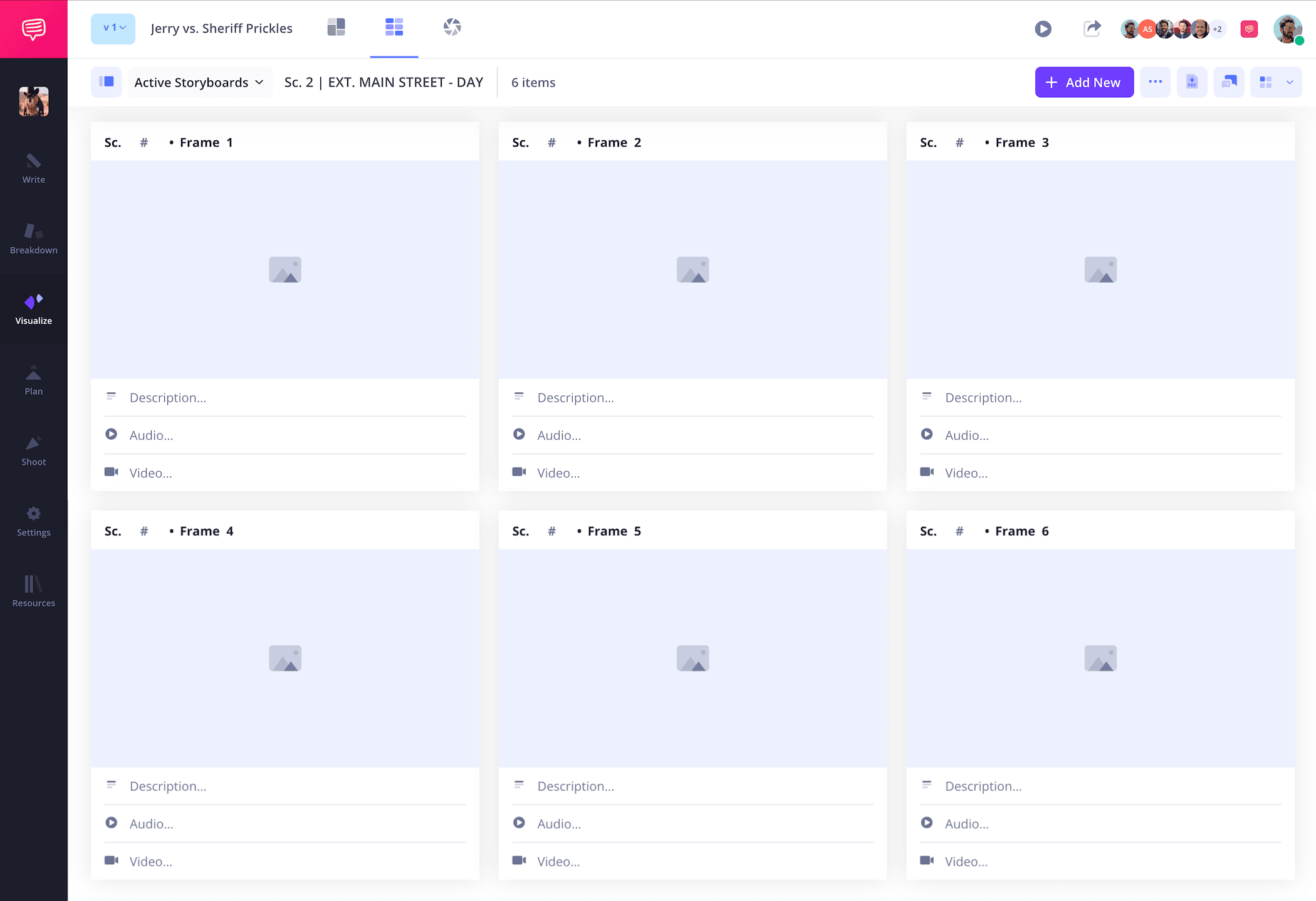
As you consider what you’ll write in the description fields under your frames, go with what feels like the right amount of information that can both tell the story at a comfortable pace and doesn’t overstay its welcome.
Step 2
2. Add images
With adding images to your simple storyboard template, keep the minimalist approach in mind. Whether you consider yourself a storyboard artist or not, an easy simple storyboard drawing that points out where all relevant characters and objects are in the shot is all you need to aim for. Or let’s say you’re building a simple short story storyboard.
In this case, you can even keep it as minimal as writing out each story beat or moment inside of the frames themselves. It really comes down to what kind of simple visual language works for you and your project.
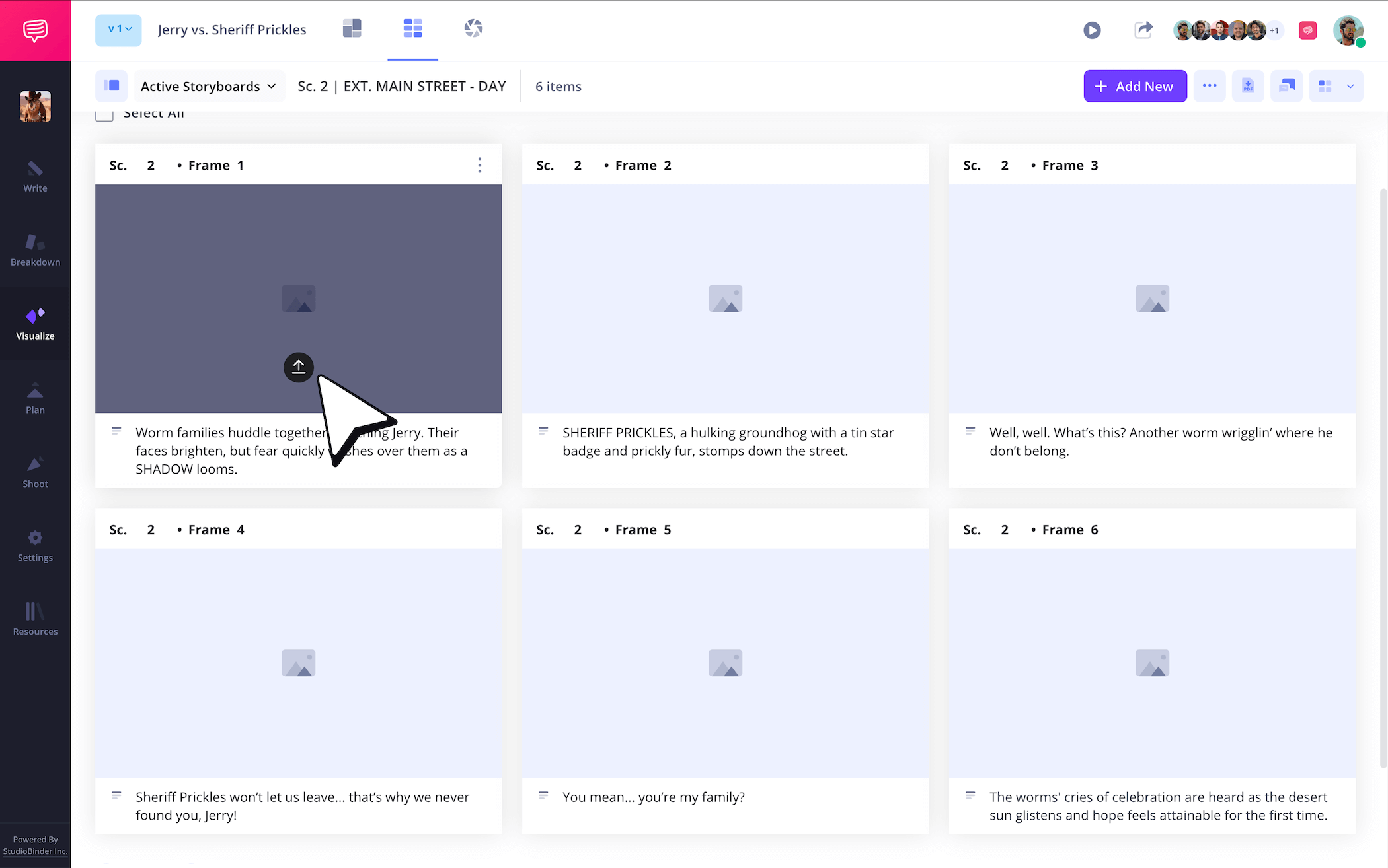
Once your simple storyboard drawing is ready to go, just click Upload in any of your panels.
Step 3
3. Simplify image with arrows
Now that you’re moving past the simple storyboard drawing phase on your simple storyboard template, your simple storyboard ideas are really starting to come to life! But wait, what about that image that communicates your camera setup well enough, but doesn’t quite capture the kinetic action you hoped to show as well? Rather than redraw or look for a new image, let’s keep it simple and just add storyboard arrows to the existing image.
StudioBinder can help beef up your storyboard simple images with a large amount of customizable arrows to choose from. In our simple animation storyboard example, we used StudioBinder’s simple storyboard software image editor to add in arrows for an important zoom shot.
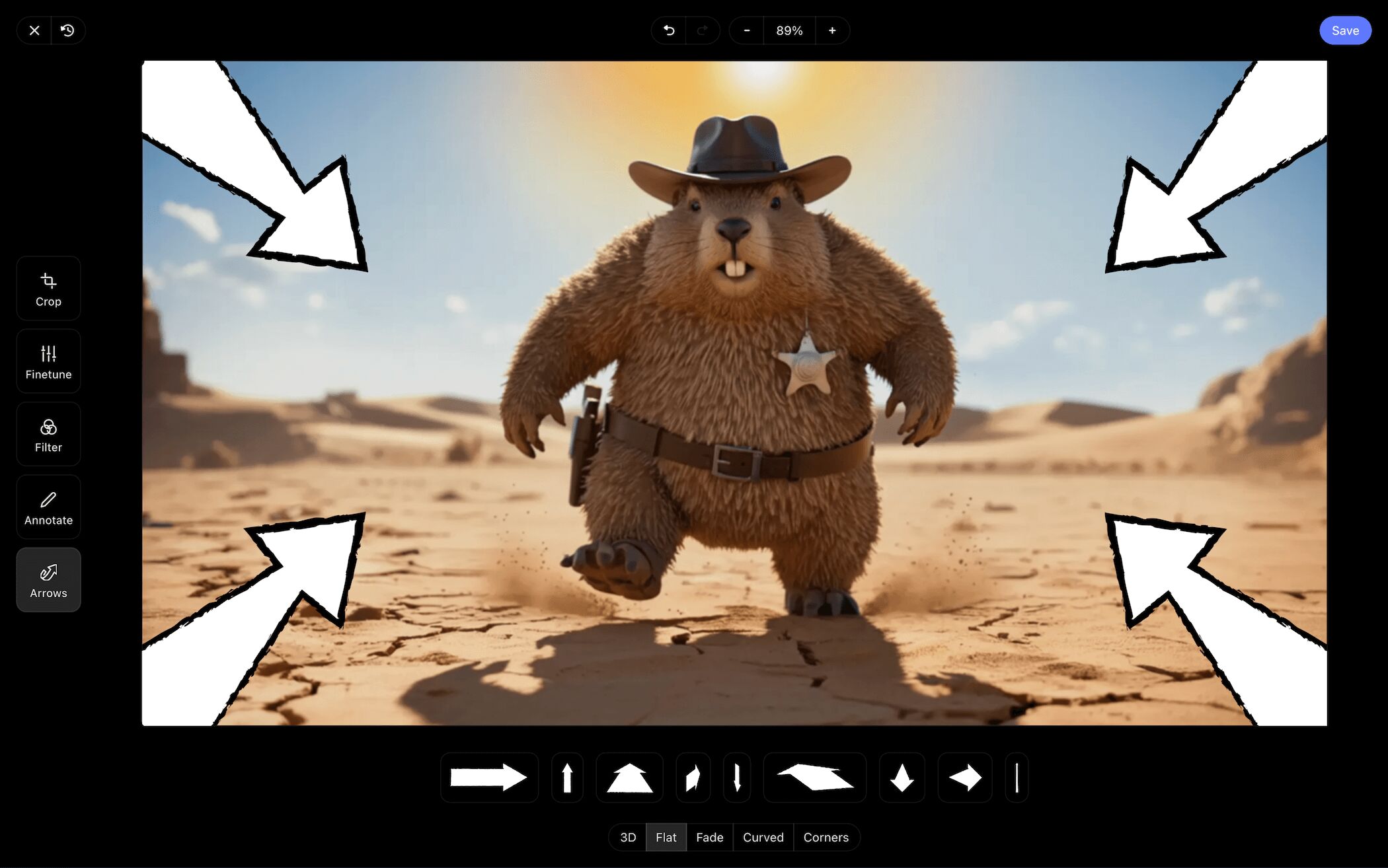
Adding arrows into your simple storyboard drawing is also a good time to take advantage of any other available image editing features like cropping, finetuning, or even adding text!
When you’re done, just click Save and your edited image is added to your simple storyboard.
Step 4
4. Collaborate with your team
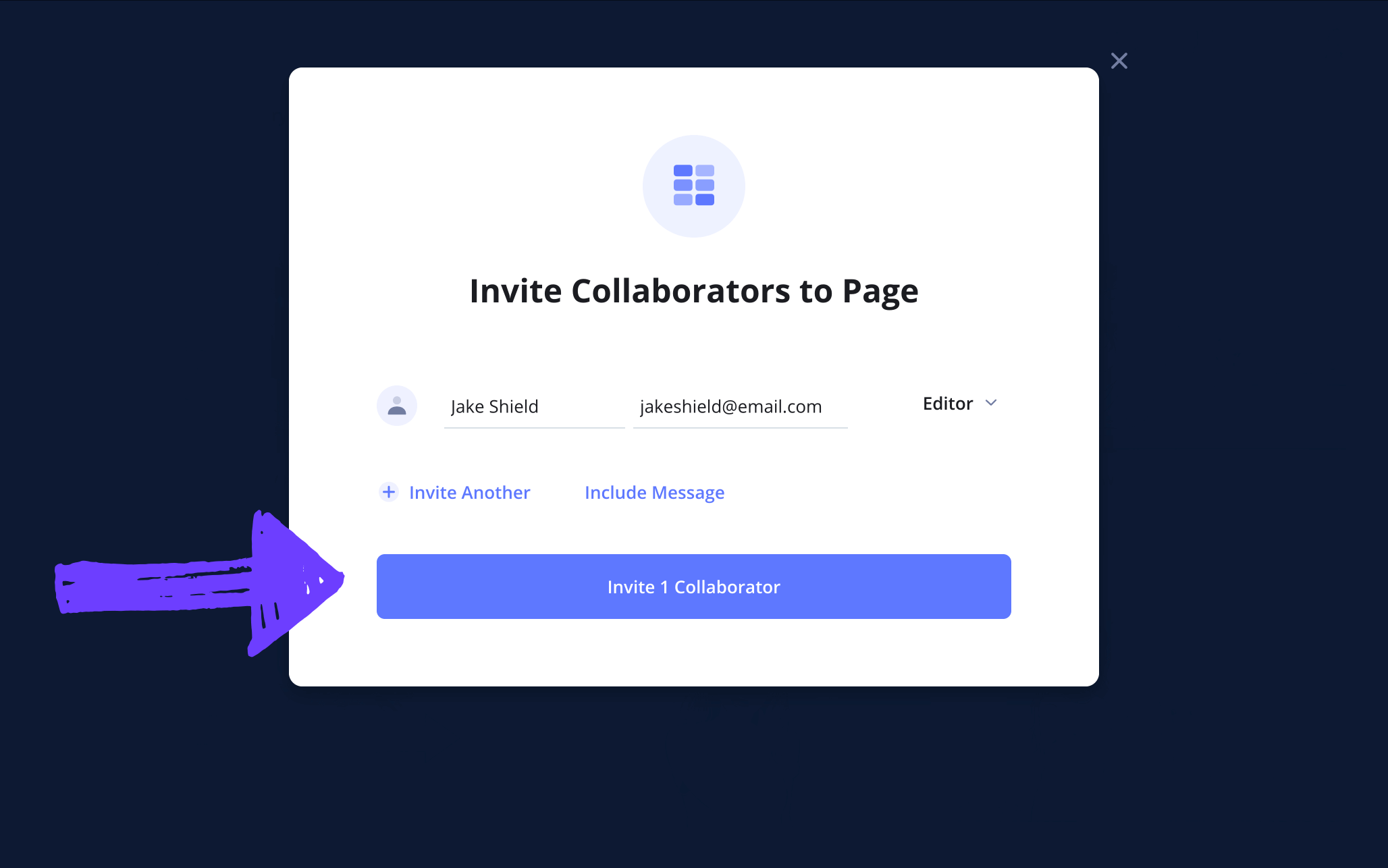
Even the most simple storyboard templates can have minor issues that get past you. That’s why storyboarding is rarely accomplished using just one pair of eyes, so be sure to reach out to anyone in your production or personal circle to review your work! With StudioBinder, you can send anyone a quick View Only Link. Even better, you can also use your storyboard itself as a virtual hub for all feedback and edits. Just set your invitee’s permissions to either commenter or editor.
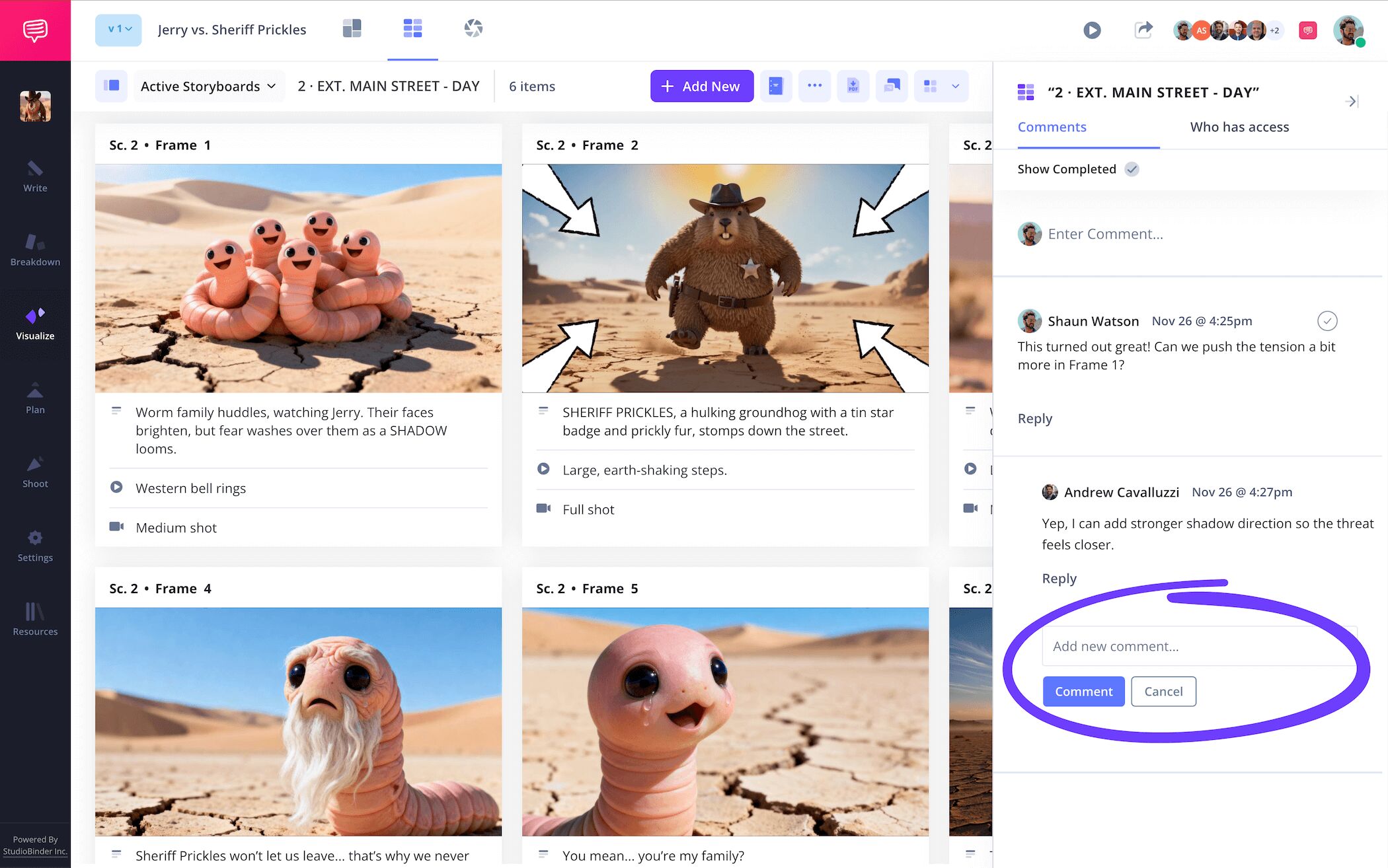
Now, anyone you gave commenter or editor permissions to can click the Comments tab and write any notes or feedback they have for you. The greatest simple storyboard ideas come from a healthy sense of collaboration after all.
Step 5
5. Make a storyboard PDF
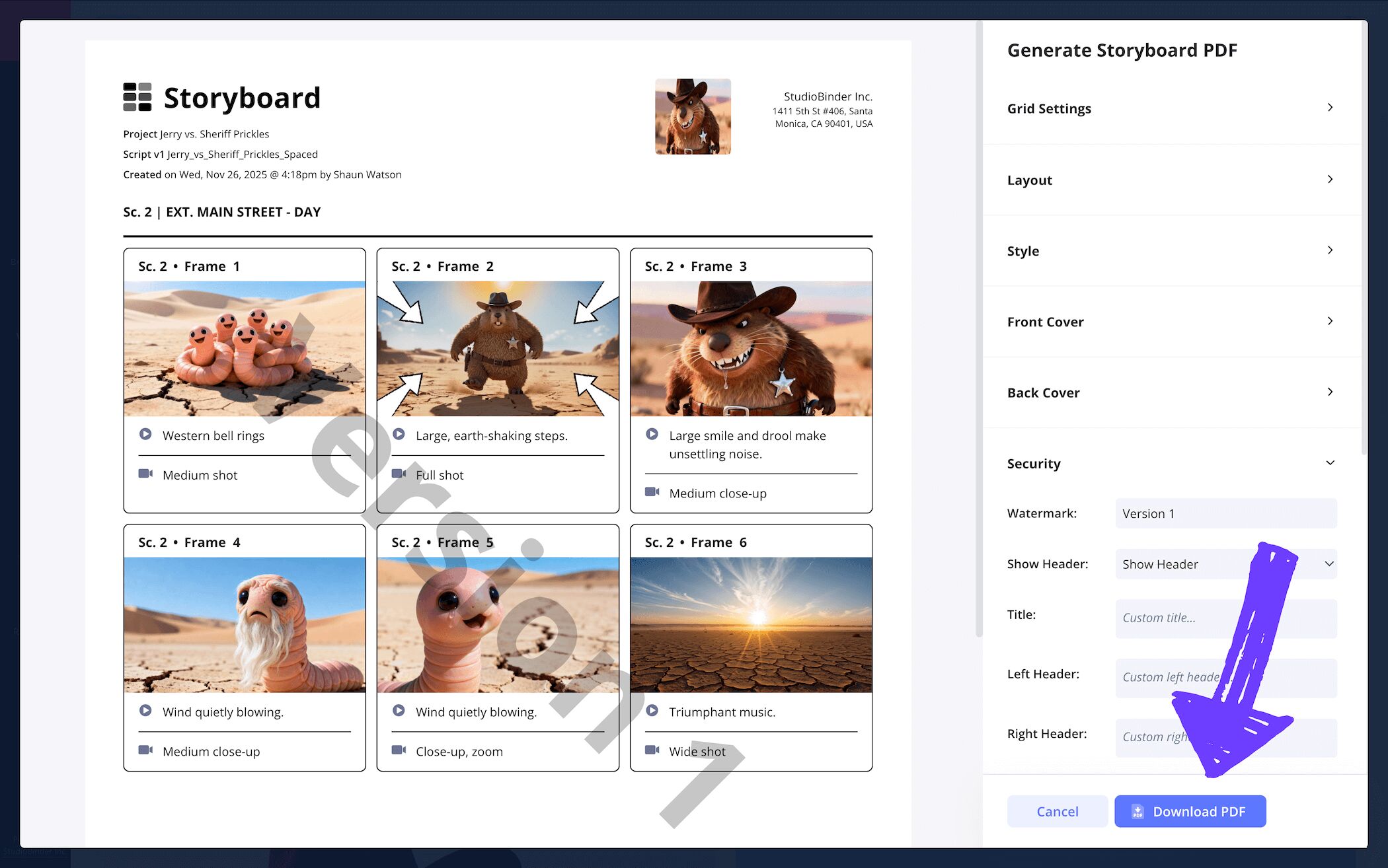
We’ve heard more than enough simple storyboard examples of people spending hours building their simple storyboard template, only for it to get accidentally deleted or edited while using it as a reference throughout their film or animation production. This is why we can’t stress the importance of converting your easy simple storyboard into a PDF document enough.
For our simple animation storyboard example, we used StudioBinder’s simple storyboard software PDF converter to resize our font and add some borders to our panels. But that was just for our copy. The PDF storyboard copy for the animatics department needs a smaller font size and no panel borders. And since we’re anxious enough about leaks as is, we were sure to add a custom watermark before sending over their copy.
Conclusion
You did it!
Just like that, all the tricks of the trade around creating a simple storyboard template belong entirely to you now. We hope our simple storyboard examples were enough to get you through whatever storyboard project you’re working on, but if you find that you might need to make this one a bit less simple, check out all our free storyboard templates, we just might have what you’re looking for!
Frequently Asked Questions
Your questions, answered
So, you’re tired of searching for a simple storyboard template in a digital sea of overly complicated storyboard templates? Well, why not create your own? With downloadable documents like Word, or websites like StudioBinder, you can digitally customize your own storyboard simple templates. As you do, keep these general steps in mind:
- Visualize your story ideas beforehand
- Use a 16:9 aspect ratio for your frames
- Try not to exceed more than 6 frames per page
- Re-customize your storyboard as new needs arise
- Make your description spaces small so you don’t over-explain
Many people make the mistake of thinking a busy storyboard with top notch illustrations is the standard to strive for. However, a more easy simple storyboard drawing and structure is a more accurate ideal in the storyboarding world. Just think, a storyboard isn’t necessarily a tool for showcasing the best artistry skills. Rather, it’s a tool made to help you see how your abstract ideas will look when your film or animation project is finished. So, approach storyboarding with the comforting thought that you’re just communicating directional information: character B is standing where? The camera will be positioned where?
A simple storyboard is really all you need to plan out that vision you want to get out of your mind and onto a screen. In fact, unless you’re a professional in the industry, using a more complex format for your storyboard will likely only confuse your vision. Simple storyboards are so useful because they contain the basics: shot description fields just big enough to keep your information precise and short as possible, 16:9 frames to contain just the right amount of visual information, and no more than six frames per page so each sequence can really be absorbed and digested.
A simple storyboard basically refers to the most standard, straightforward type of storyboard. This kind of simple storyboard template will contain the basic standard of rectangular frames with a 16:9 aspect ratio for each frame. Like any other kind of storyboard, a simple storyboard will also contain shot description fields by or below each panel, but they often won’t be that large as way too much descriptive detail wouldn’t exactly make the storyboard simple. A simple storyboard will also contain no more than 6 frames per page. More than that would make assessing the frames together as a sequence much more challenging.
Create your free simple storyboard
Visualize your simple storyboard template with our free storyboarding software.
Get started for free
