
home → TEMPLATES → Storyboard
Explainer Video Storyboard Template

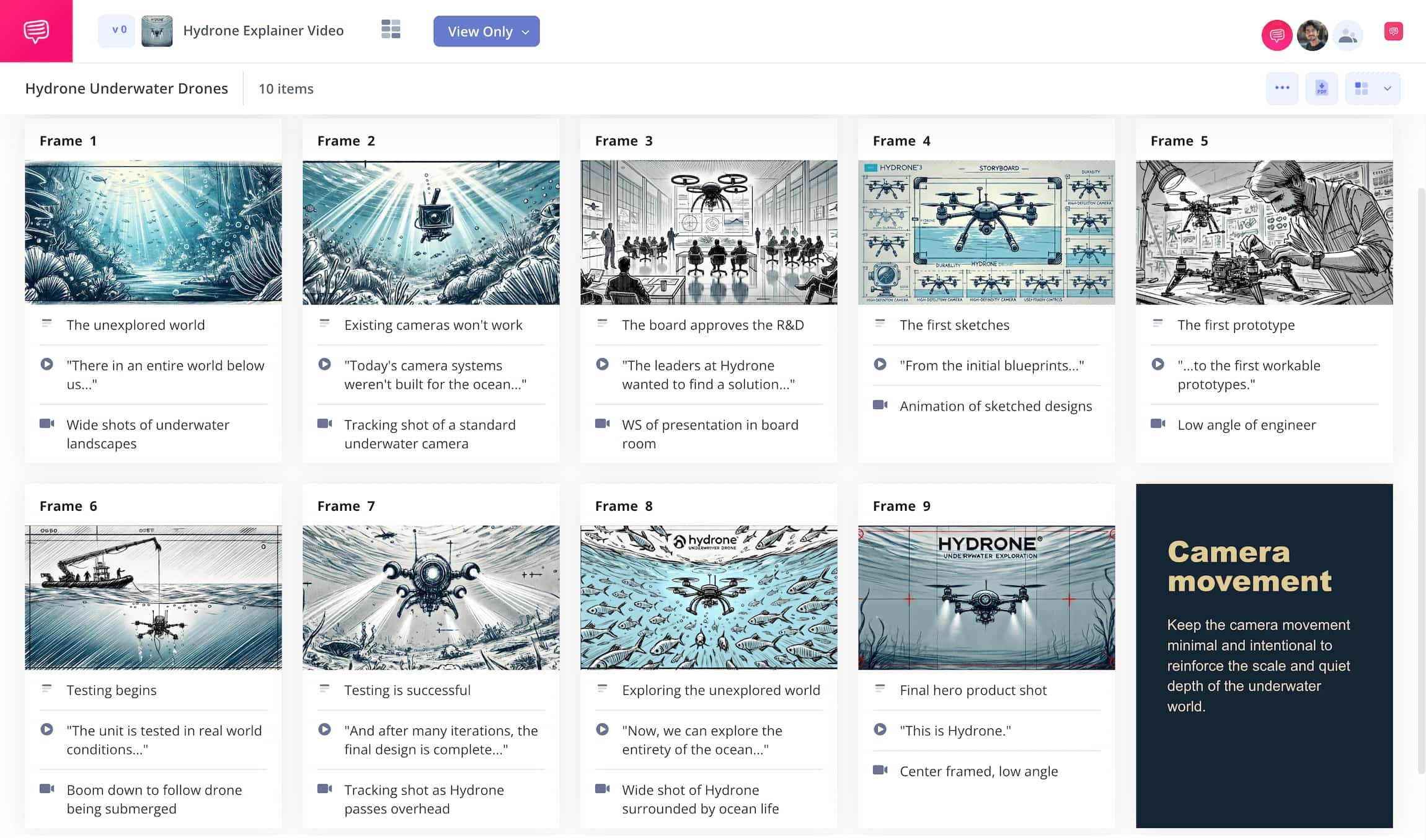
Explainer video storyboard template
If you want to create a buzzworthy explainer video that hits in all the right ways, you’ll really benefit from using an explainer video storyboard template. Whether you just want to share some knowledge on the internet, or create an airtight visual instruction guide for a corporate client, an explainer video storyboard will help you plan out and structure all your ideas before entering into the shooting or animating process.
With an explainer video storyboard template, you’ll lay out each shot in your video like a comic book, every panel showcasing a frame and all relevant information, from voiceover to camera angles, written beneath your frames.
This is an extremely helpful process when it comes to keeping all your information relevant, tight and engaging. The final result? Visual representations of your work with highly valuable insights.
For this guide on how to approach starting your own storyboard for explainer video project, we’ll be using StudioBinder's storyboard creator as our example. However, all these steps are broad enough to follow with any kind of storyboard you prefer, so use whatever works best for you!
Step 1
1. Prepare your template
First things first, format your explainer video storyboard template to fit your specific needs and reach the final result you want. Much of your storyboard customization will come from personal preference and what makes the most sense for the type of platform and camera you’re working with.
An explainer video storyboard for YouTube will of course have a different flow and visual look than a TikTok explainer video storyboard. When you begin a new storyboard project with StudioBinder, you’ll start with some basic format customization prompts that can be changed at any time throughout the process.
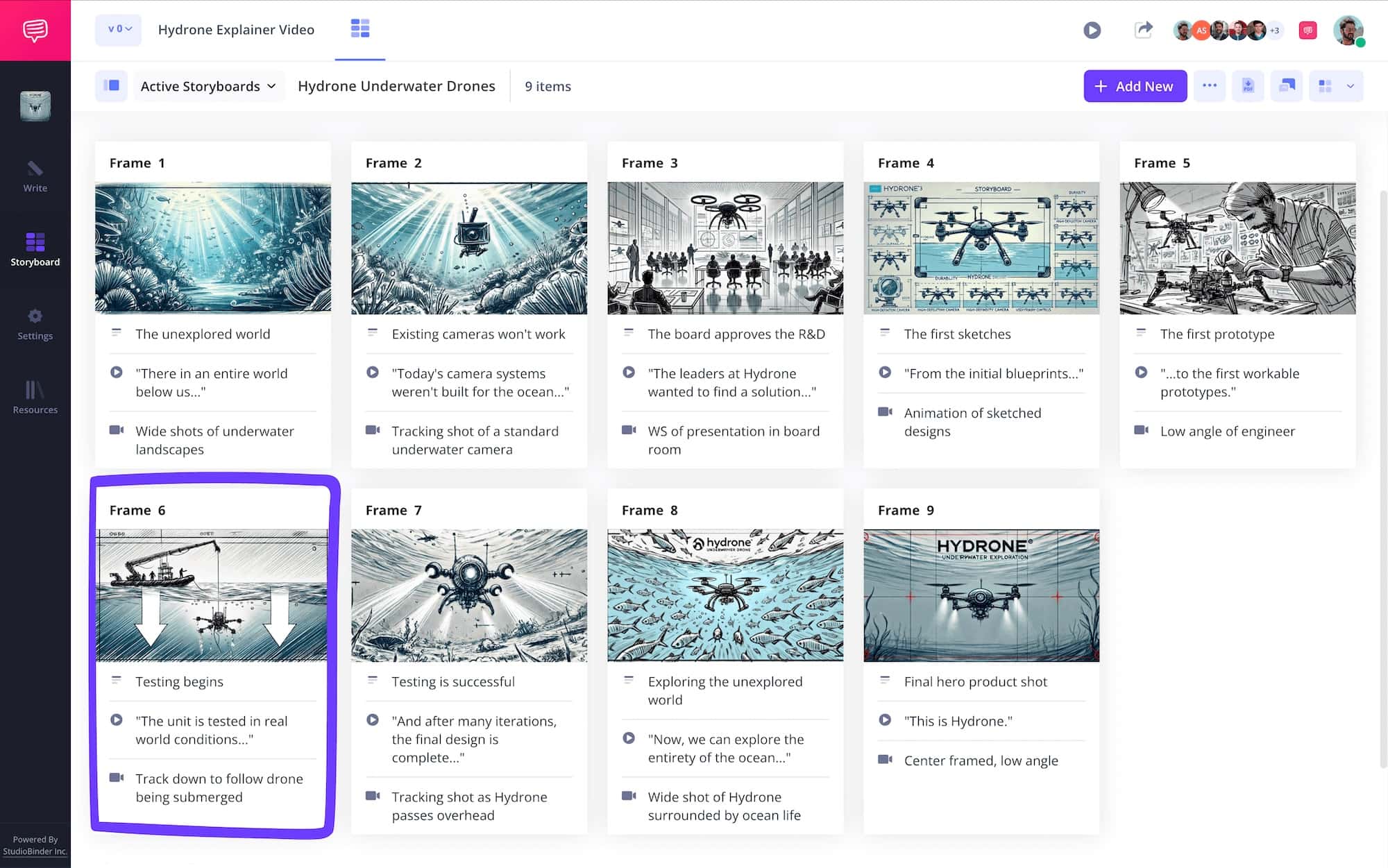
When you’re finished setting up, this is roughly how your storyboard template for explainer video will look:
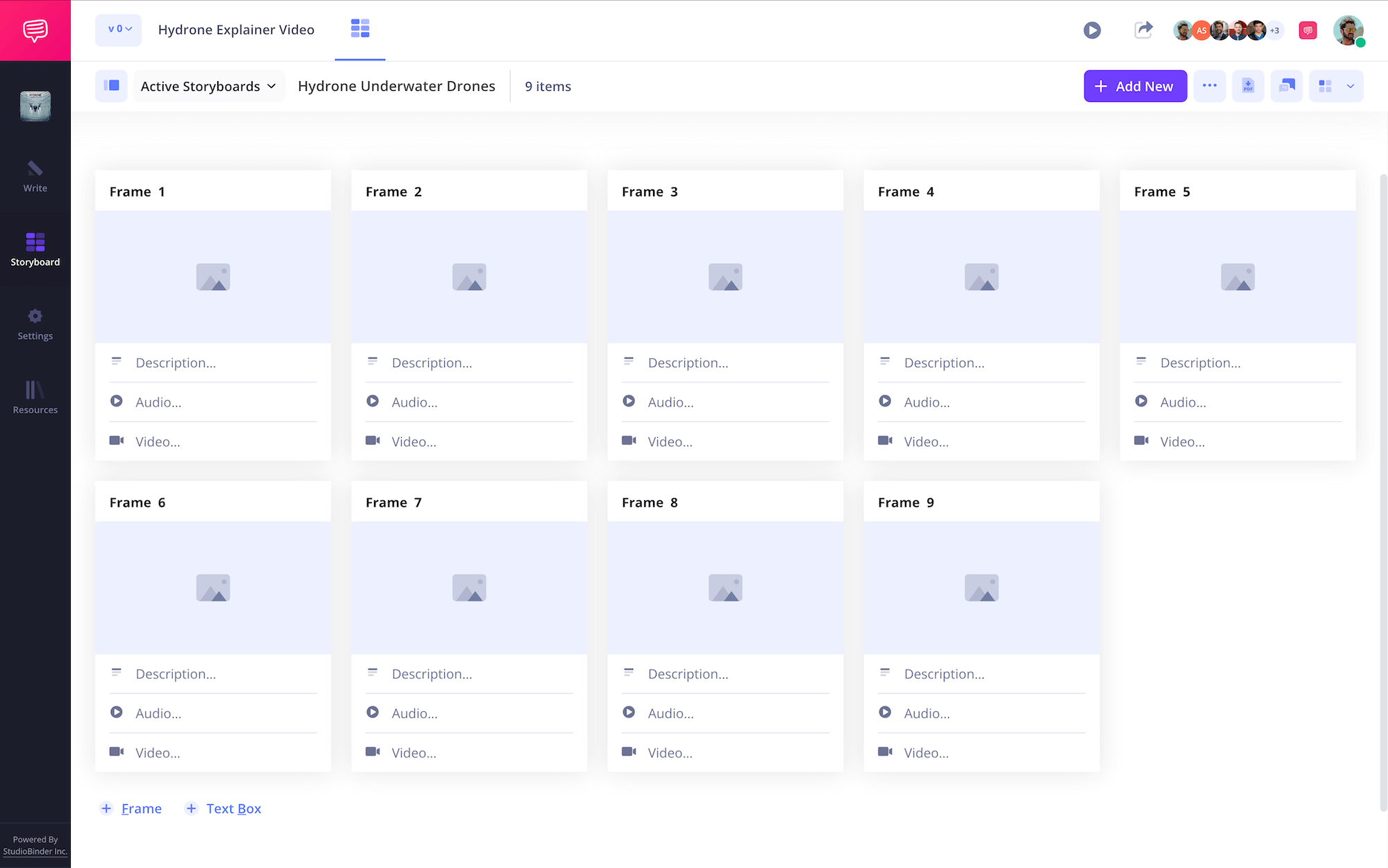
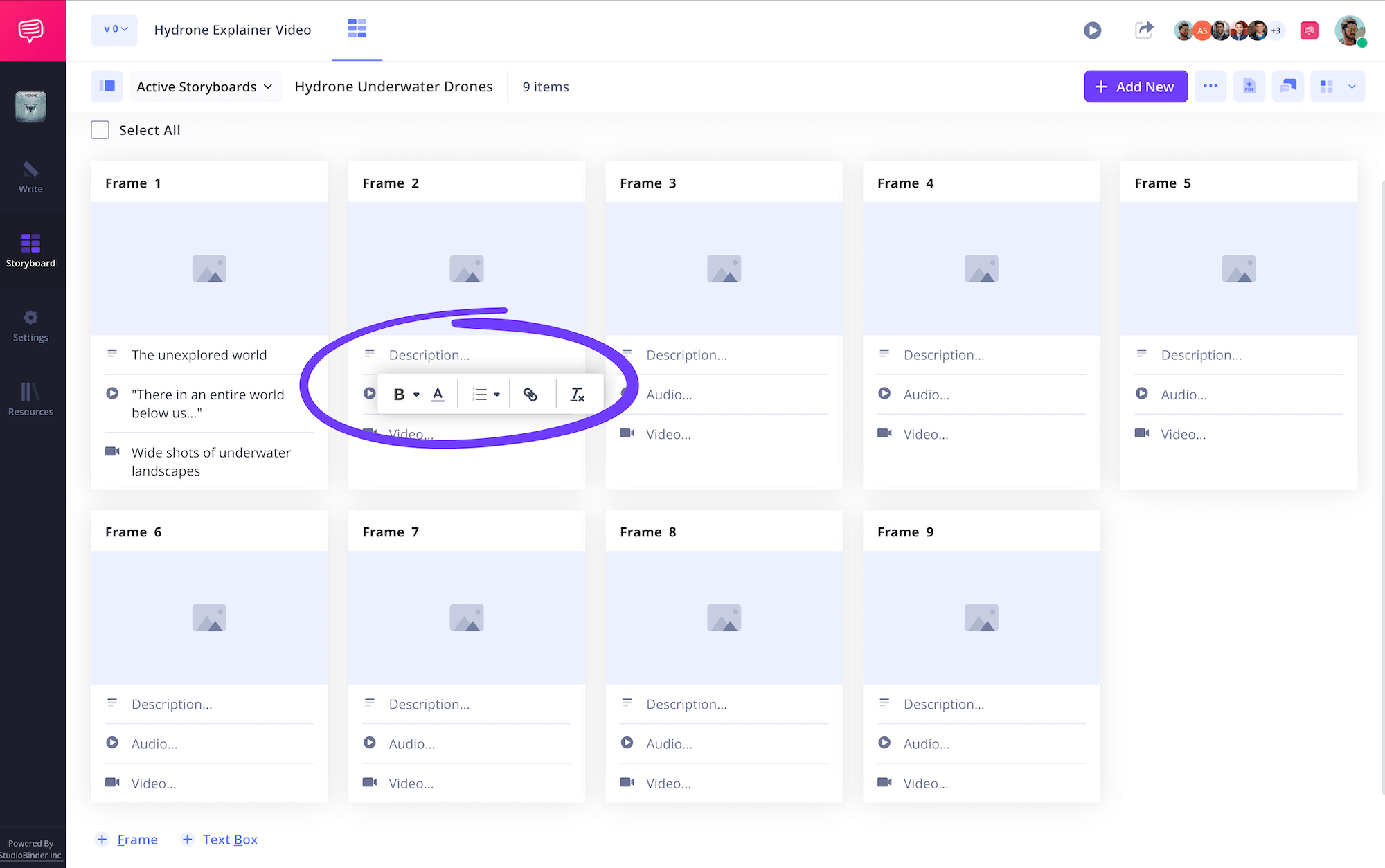
With StudioBinder, you have the option to upload a script and use the shot tagging feature to import script lines directly into your field descriptions.
But if you don’t have a finished script yet, consider the voiceover and action that will be represented in each frame, then type that information in the description field. Now you’re really getting into the thick of the storyboarding process!
Step 2
2. Add images
When it comes to including images in your explainer video storyboard template, you don’t have to be a professional storyboard artist. In fact, even the most basic physical stick figure sketches will do (and can even be quickly uploaded using StudioBinder’s image editor).
What’s most important is being able to communicate camera angles and basic object placement through the image. It’s also not uncommon to upload reference images from the internet. Afterall, we’re not exactly creating important character designs for animation storyboard templates!
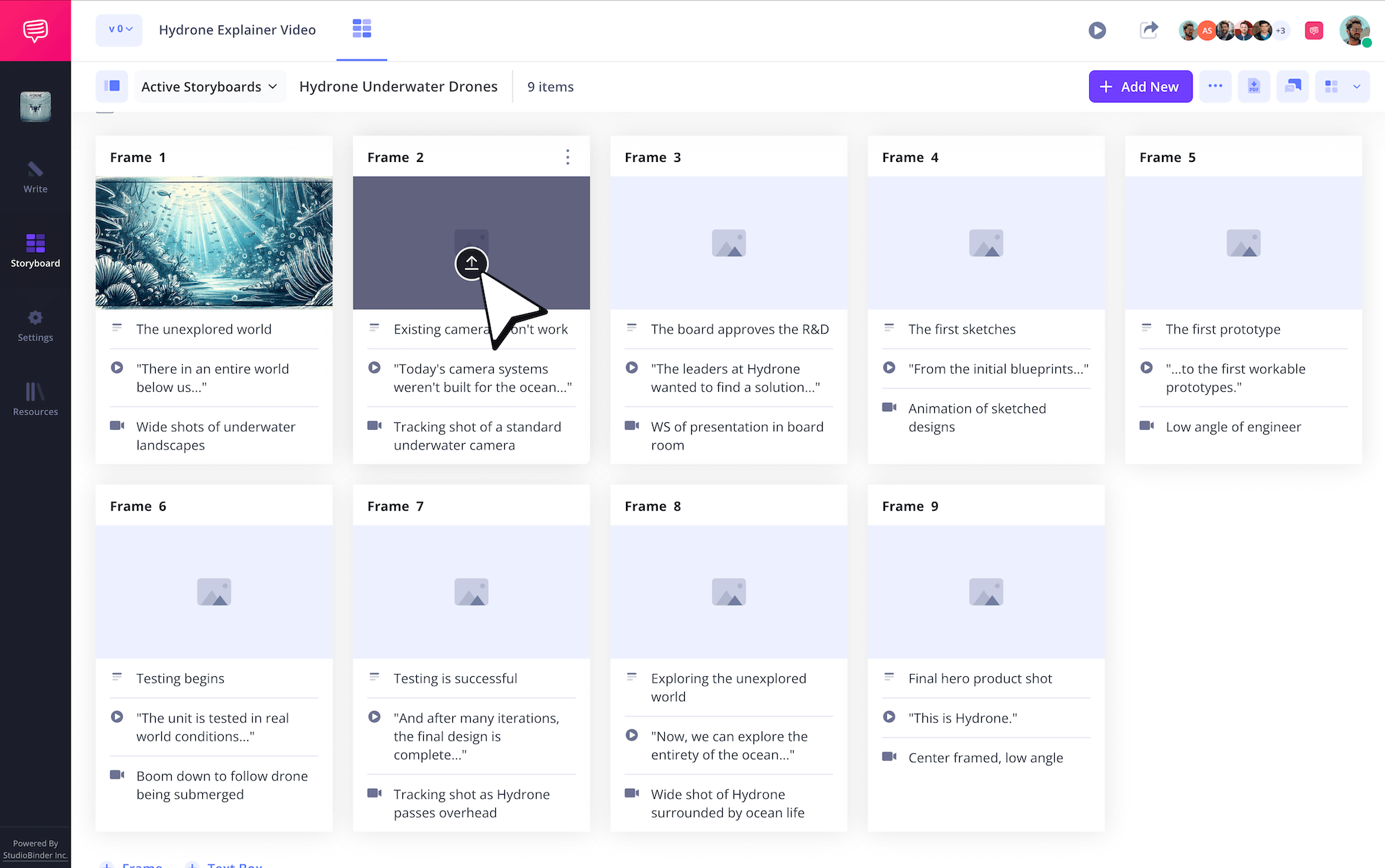
Whichever personal image approach you choose, images can be quickly uploaded by simply clicking Upload on any frame.
Step 3
3. Include arrows
What you’ll quickly find while adding images to your storyboard explainer video throughout the storyboarding process, is that still images alone just don’t cut it sometimes.
For example, if you intend to use a specific camera movement in one of your images, then adding a storyboard arrow can essentially act as the missing piece to help communicate that camera action within the image.
Just as well, storyboard arrows can be used to point out character movement, or even put more emphasis on an object or brand logo, providing vital information on shooting days. Arrows are a classic production team tool, even used for something as professional as animation storyboard templates!
In our storyboard explainer video example, we used StudioBinder’s image editor to indicate a pan down camera movement that wasn’t communicated well enough by the image alone.
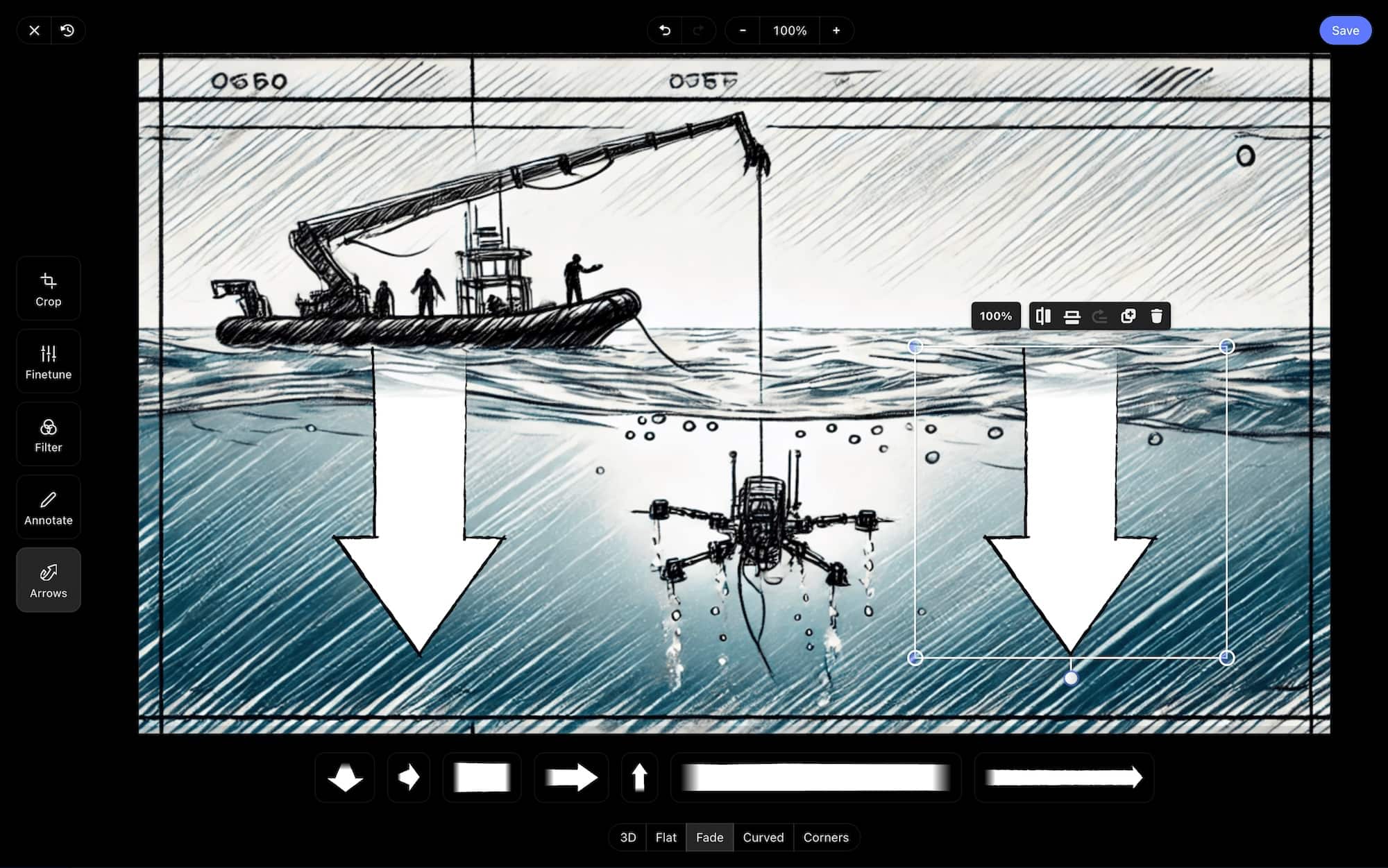
After using all available editing features, and formatting our arrows with just the right size and placement, all we have to do is click Save and our freshly edited image is instantly added to our explainer video storyboard template.
Step 4
4. Collaborate with your storyboard
Maybe you’re working on your explainer video storyboard template alone, or maybe you have a whole production team of coworkers and brand clients working with you each step of the way to make sure the best explainer video is created.
Whatever your situation, you may find yourself wanting (or needing) to share your storyboard for explainer video project. For the most basic invite, you can send a view-only-link, which allows the viewer to simply take a look at your work.
However, if you want to send your explainer video storyboard to your client to receive notes from them, or even if you want to send it to your coworker so they can make some edits, StudioBinder lets you choose between giving your invitee viewer, commenter, or editor permissions.
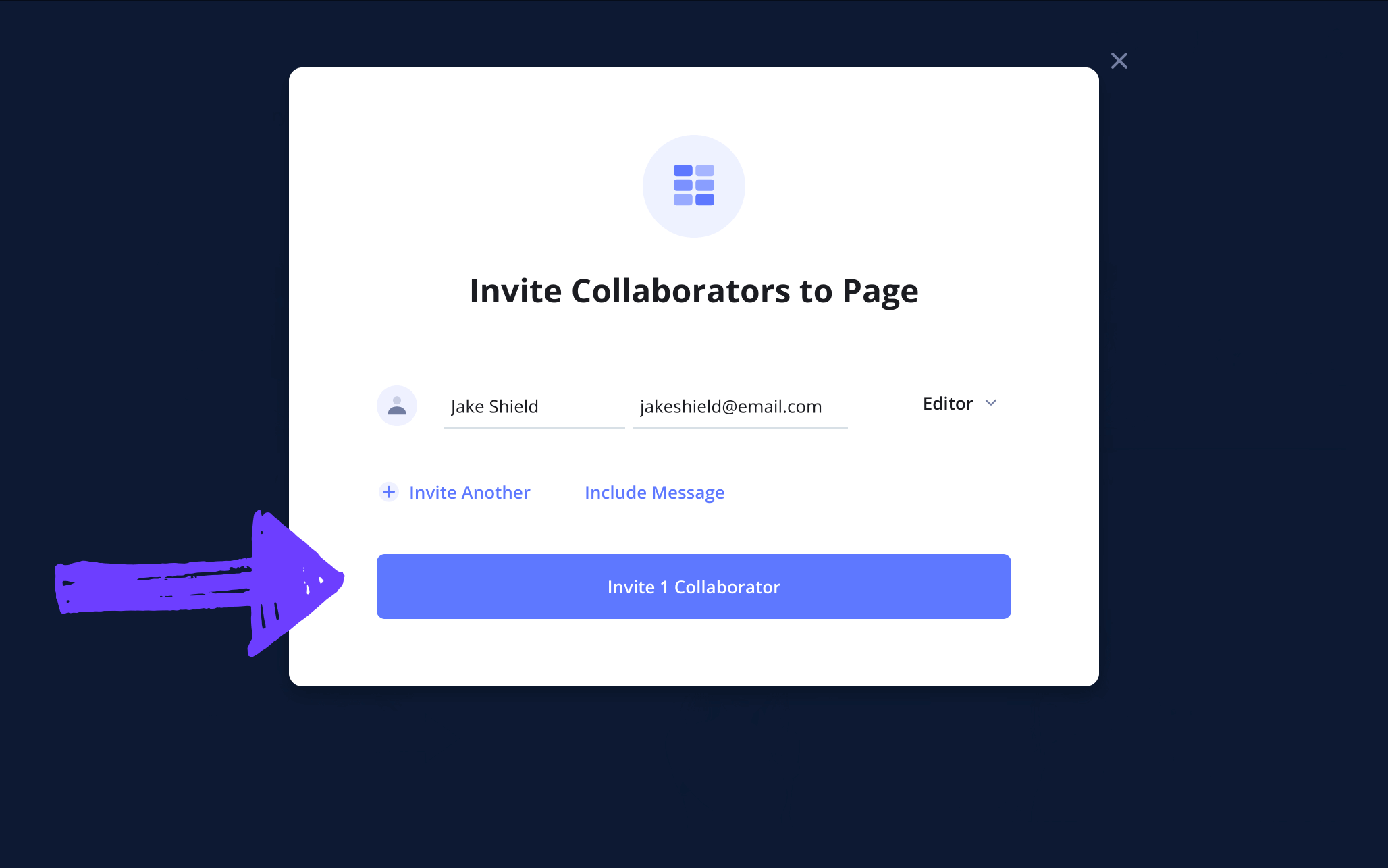
If you send your collaborator an invite with commenter or editor permissions enabled, they have the option to leave any notes in the comments tab. You can even reply back and strike up a dialogue over what’s working and not working in your storyboard template for explainer video.
Step 5
5. Download a storyboard PDF
Now that you’ve created, collaborated on, and completed your explainer video storyboard template, you’re ready to cement the process by converting your storyboard into a PDF document.
With this unchangeable download, you can print or send your storyboard to whoever needs it. This is essential, especially if your storyboard explainer video was made for corporate purposes for example, where many departments will need to review your storyboard document and make sure it aligns with the company’s brand and mission statement.
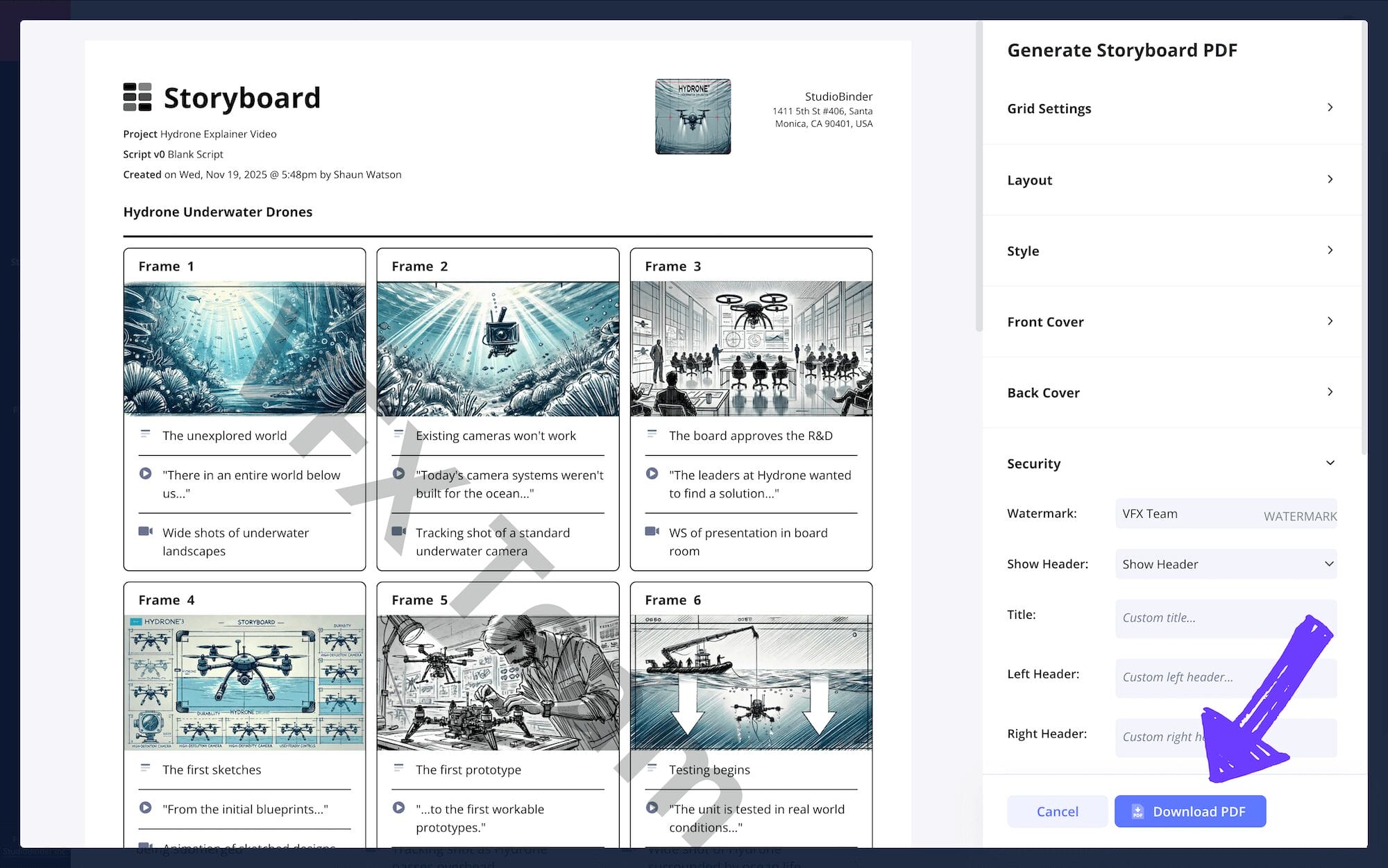
These are essentially visual representations of their brand image afterall. In the generate PDF section of your explainer video storyboard project, you’ll find an array of PDF customization options. Maybe you’ll want to add a front and back cover that beautifully displays your client’s logo.
But if optimal professionalism and security is what you strive for, you can even customize your own watermark and PDF document title.
Conclusion
Finished!
Now that you’ve completed each and every step in making the best, most direct, and tightest explainer video storyboard template you can make, you should now have full confidence in your ability to create visual representations of all your ideas!
But don’t forget, StudioBinder offers many more free storyboard templates that apply to the storyboarding process, so start browsing for your next project soon!
Frequently Asked Questions
Your questions, answered
To storyboard your own explainer video storyboard template, you’ll need to first establish the why and how of what you’re explaining. Once you feel confident you understand your topic on a deep enough level, here are some broad and basic steps to take:
- Find a storyboard online or draw one out from scratch, whichever works best for you.
- Once your template is formatted in a way that works for you, ready your script.
- Take each relevant line from your script (voiceover, dialogue, action, etc.) and apply them under your blank panels.
- You can either sketch images or use reference images from the internet.
- Once your storyboard starts to take shape, invite others to look it over and make sure all information is being communicated as clearly as possible.
There’s no rule that says you have to storyboard an explainer video. Afterall, people post explanations on the internet every day without storyboarding first. Regardless, here are some beneficial reasons worth considering when it comes to using an explainer video storyboard template:
- You’ll gain a clearer understanding of the topic because you’re essentially creating a rough draft.
- Even for a short video, you’ll notice pacing and have a better viewpoint of excess information.
- With sketched or reference images, you’ll have a better perspective on camera angles and lighting.
- As you lay out your storyboard, you’ll notice new content ideas pop into your head throughout the process.
- You’ll gain a better understanding on how to hold viewer attention, which is vital knowledge in the attention economy.
An explainer video storyboard is essentially a rough draft of what the final version of your explainer video will look like. The explainer video storyboard template is laid out similarly to a comic book, each panel representing a shot or sequence in your video, as you follow the narrative from left to right.
So, if you’re planning to make an online explainer video with viral potential, you’ll want to storyboard before you start shooting so you know exactly what works and what doesn’t.
The kind of storyboard template you’ll want to use for your explainer video depends on several factors. First and foremost, storyboard templates and the dimensions that make them up depend on subjective taste, so browse templates on the internet and find what works for your process.
Another angle to consider is the type of explainer you’re creating. If you’re creating your explainer video alongside your company or a brand client, you’ll want a digital storyboard that also acts as a hub for collaboration, this way your collaborators can add comments and make edits to your storyboard.
If you’re creating your explainer video all on your own, then use the storyboard template that speaks best to your strengths.
Create your free storyboard
Visualize your explainer video storyboard with our free template.
Get started for free
