
home → Guides → StoryboaRD
How to Develop a Storyboard

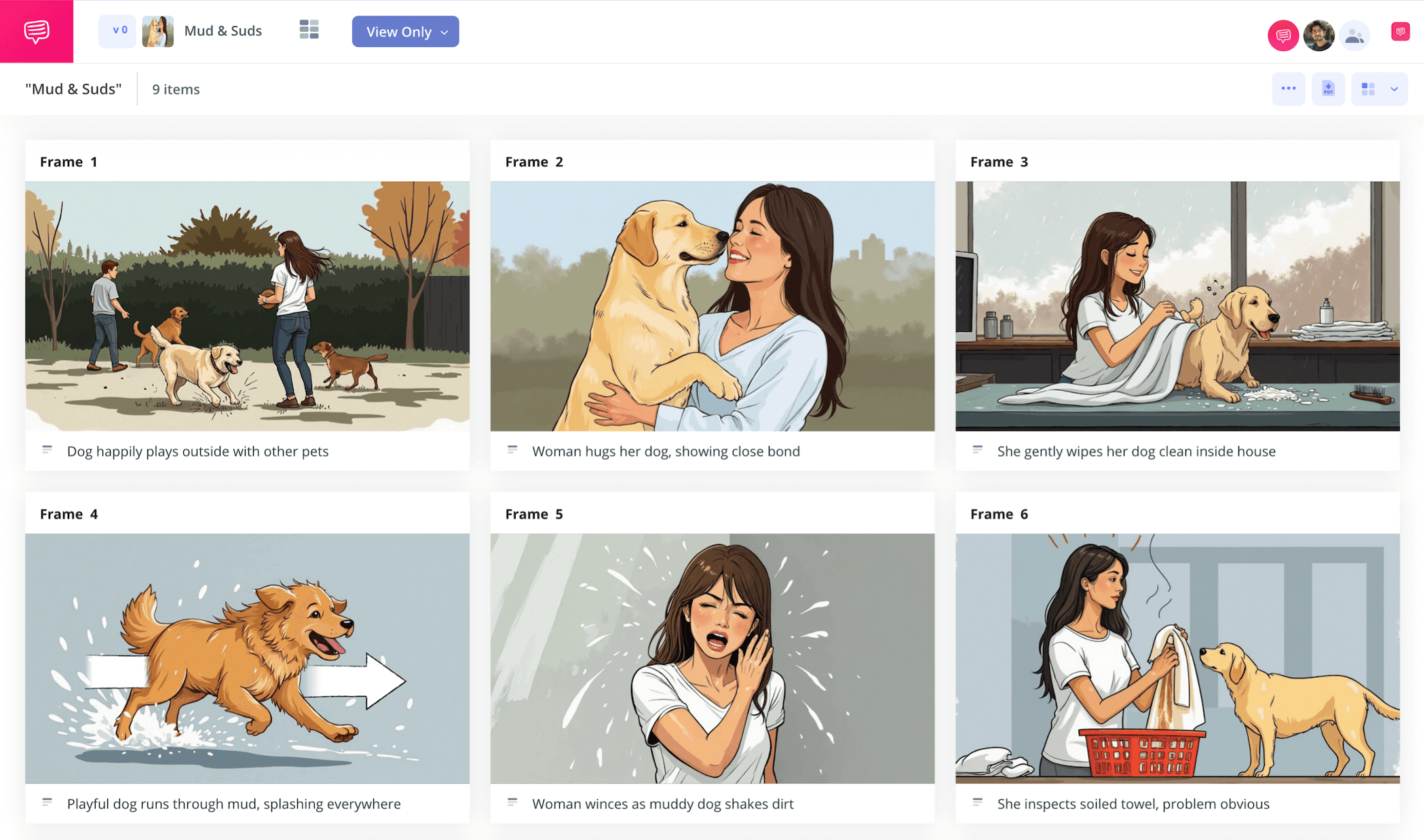
How to develop a storyboard
If you want to learn the best tricks of the trade when it comes to storyboarding, then understanding how to develop a storyboard step by step will be essential. Storyboard development is arguably the most important part of creating any visual narrative, because it’s the point where you sit down and decide all your crucial camera angles and story beats, so when filming or animating time arrives, you’re prepared and confident as ever with how you want to capture your ideas.
In the following guide on how to construct a storyboard, we’ll take you through all the most basic, yet most important steps of storyboarding. So, whether you’re just wondering how to develop a storyboard in general, or looking for something more specific like how to develop a storyboard for a commercial, these steps will all broadly apply. We’ll use StudioBinder’s storyboard creator as our leading example, but feel free to use whatever storyboard you prefer!
Step 1
1. Prep your template
You can’t learn how to develop a storyboard if you don’t have a proper template configured, so let’s start there. If you’re creating a film, animation, video, or advertising storyboard, chances are 16:9 panels will provide the right amount of space relative to your project’s final aspect ratio. If you’re planning out a reel for social media, then 9:16 panels will match up perfectly with your average mobile screen size. If you’re working in StudioBinder, you’ll answer a handful of these storyboard dimension questions before arriving at your personalized template:
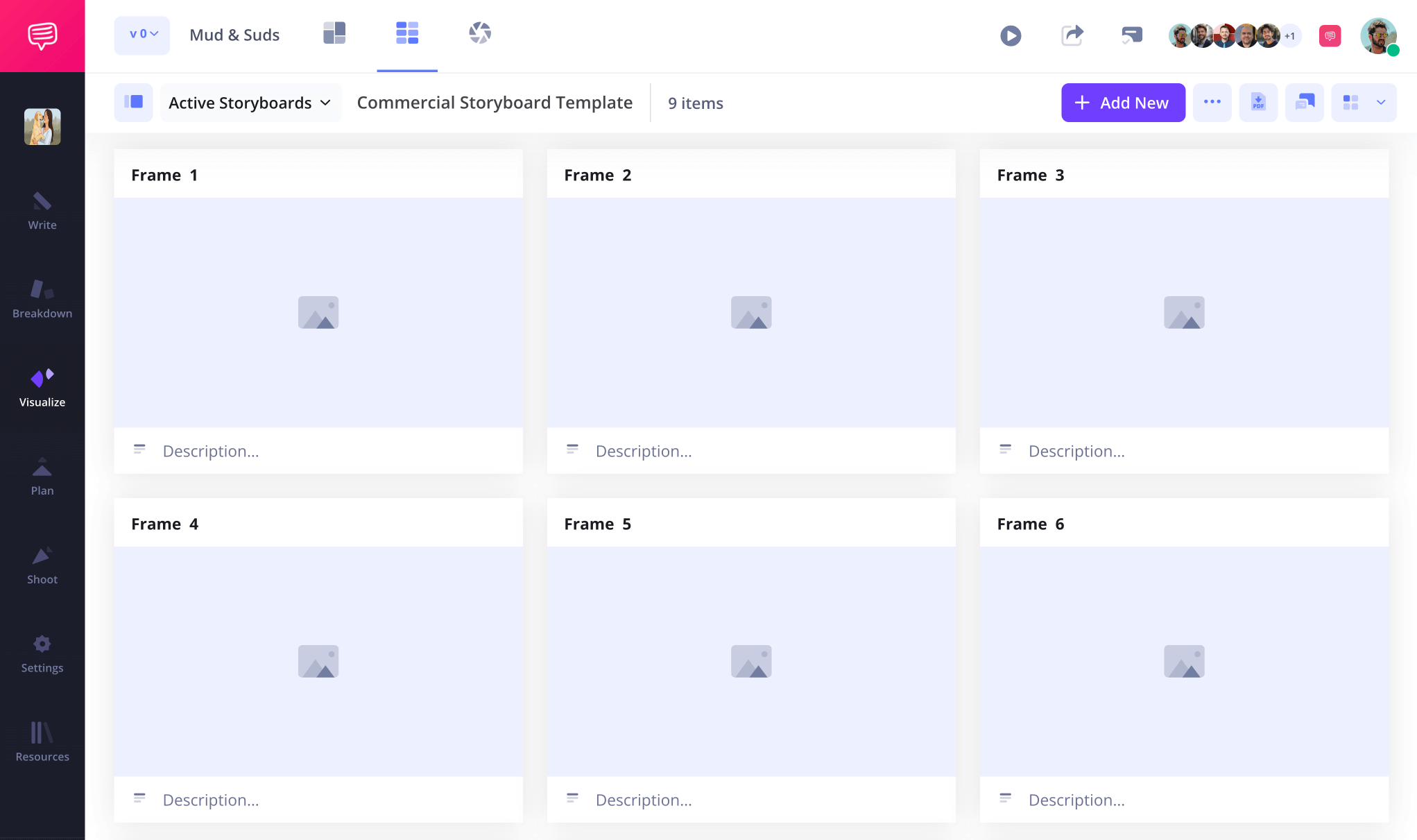
Next, you’ll want to start mapping out your core action and camera angle ideas in the description boxes for each panel. If you have a screenplay ready, you’re basically finding the pacing of the scene as you transfer each script line and decide on the amount of narrative action that should occur within each panel.
Step 2
2. Add images
By now you have a healthy sense of your core story beats and how you want to frame each beat visually, which is half the battle of knowing how to develop a storyboard. Now you’re either drawing your images yourself, working with a storyboard artist to help illustrate your images, or maybe even finding images online that reflect the tone and mood you want to capture.
Either way, your descriptions tell you how the images should look, now you’re just enjoying the creativity of bringing them to life!
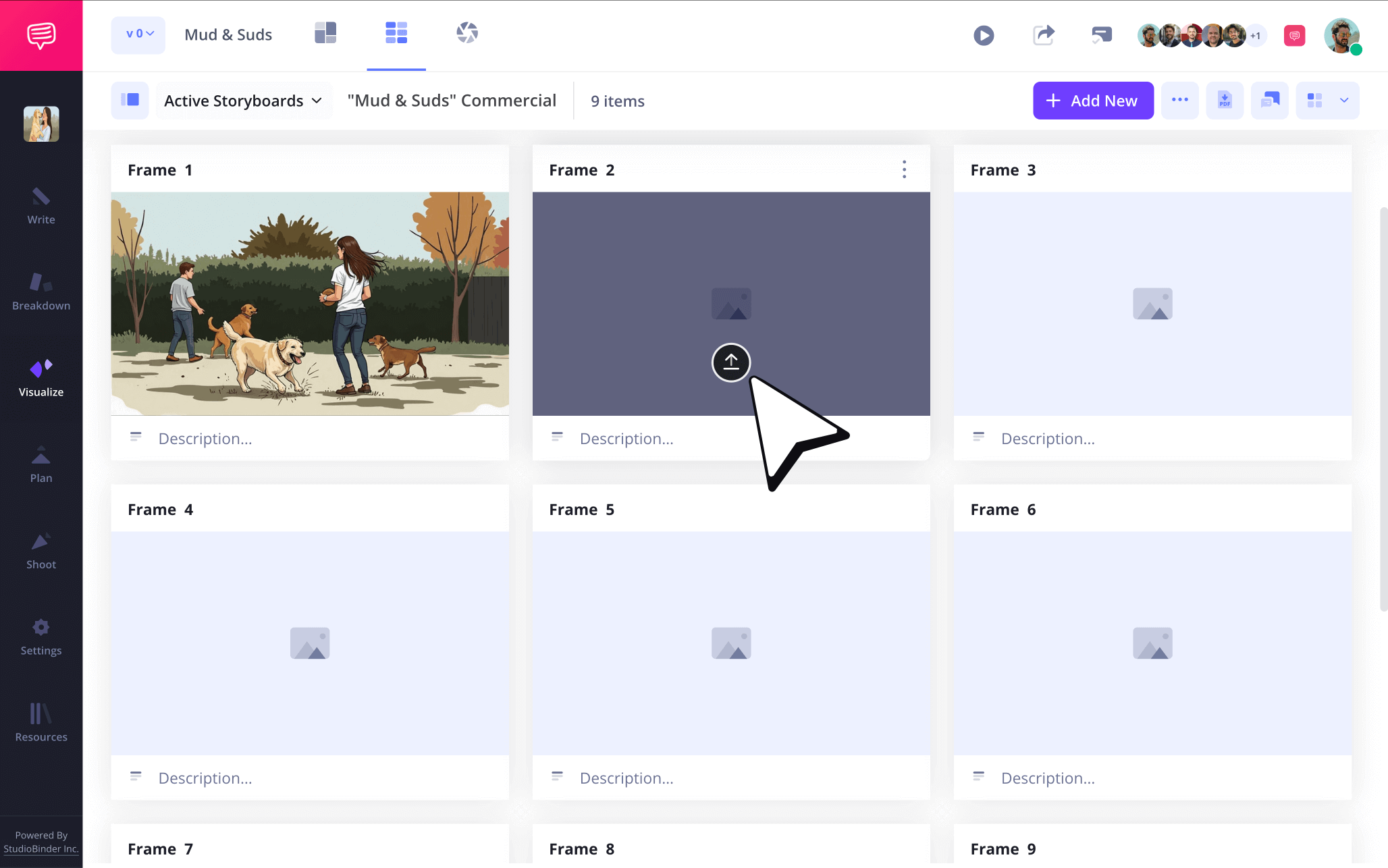
To add images into your storyboard on StudioBinder, just click Upload on any frame.
Step 3
3. Apply arrows
How long does it take to develop a storyboard? That mostly depends on the type of visual project you’re working on, but one thing’s for certain, storyboard arrows can save you tons of time with images on any storyboard. Storyboard arrows visually indicate important camera or character movements, so adding arrows to an image to indicate a new movement idea within an already illustrated frame can save you the time and money of having to recreate that image from scratch.
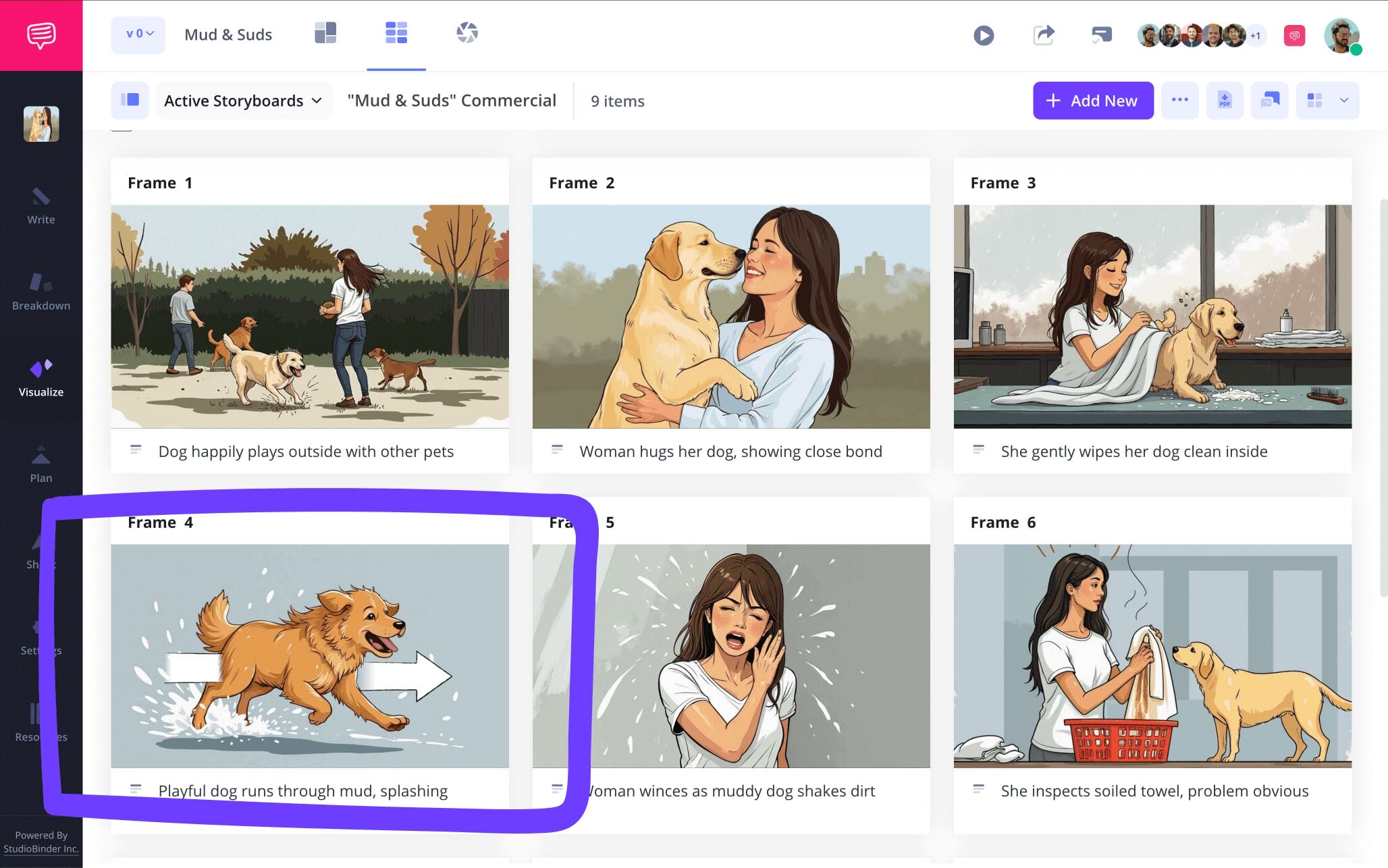
Once you get arrows down, you’ll really know how to develop a storyboard like a pro. As you can see in our example on how to construct a storyboard with arrows, we went into StudioBinder’s image editor to search for and pin down the right arrow we felt one of our images needed.
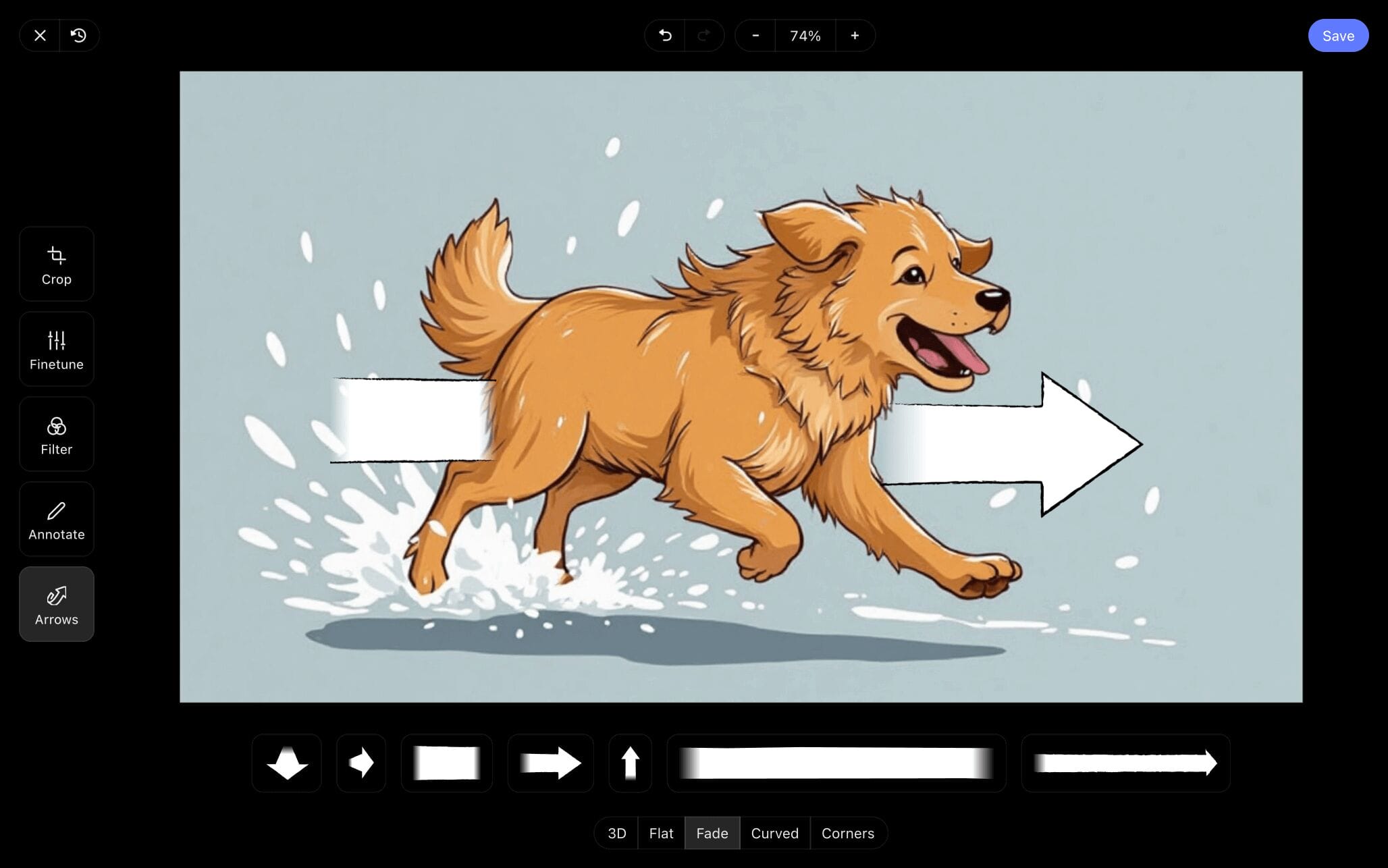
Now we’ll just make sure we sized this arrow so that it compliments the size of our star puppy, then click Save, and voila! Our newly edited image has been added into our storyboard development project.
Step 4
4. Collaborate for feedback
Whether you’re learning how to develop a storyboard for a commercial that you’re putting together with a larger team, or how to develop a storyboard for a YouTube video idea you’re working on all by yourself, collaboration is key to fine tuning your visual plan. For solo storyboarding, it’s always good to keep a close friend or acquaintance nearby that understands your creative intention. If you’re working with coworkers, you’ll want to keep communication tight and to a single platform where everyone can congregate.
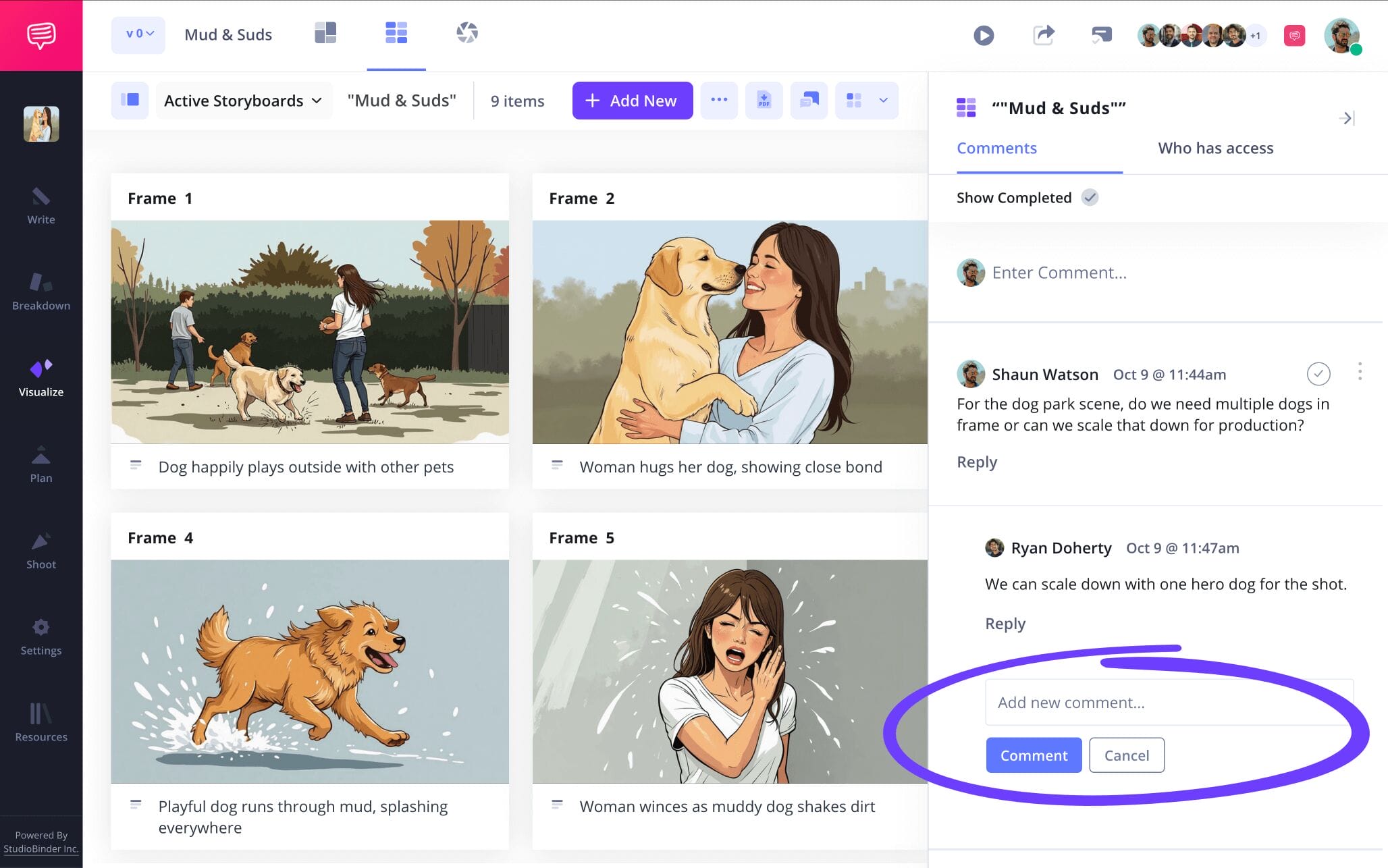
StudioBinder's storyboard software is your one platform for all client feedback and communication. Set each individual invite permission to either commenter or editor, then your collaborators can go into the comments tab on your storyboard to leave notes or start up a back and forth over what’s working and not.
Step 5
5. Convert to PDF
Now that you know the basics of how to develop a storyboard, we’ll let you in on how to develop a shorthand for storyboard saving and printing. Converting your storyboard to a PDF is a great way to secure initial versions of your storyboard before you make any big creative changes. This way you have a saved, unchangeable document of your early progress in case you need to refer back to it. Not only that, PDF’s can be specially customized and printed for anyone in your production who needs to use it as reference.
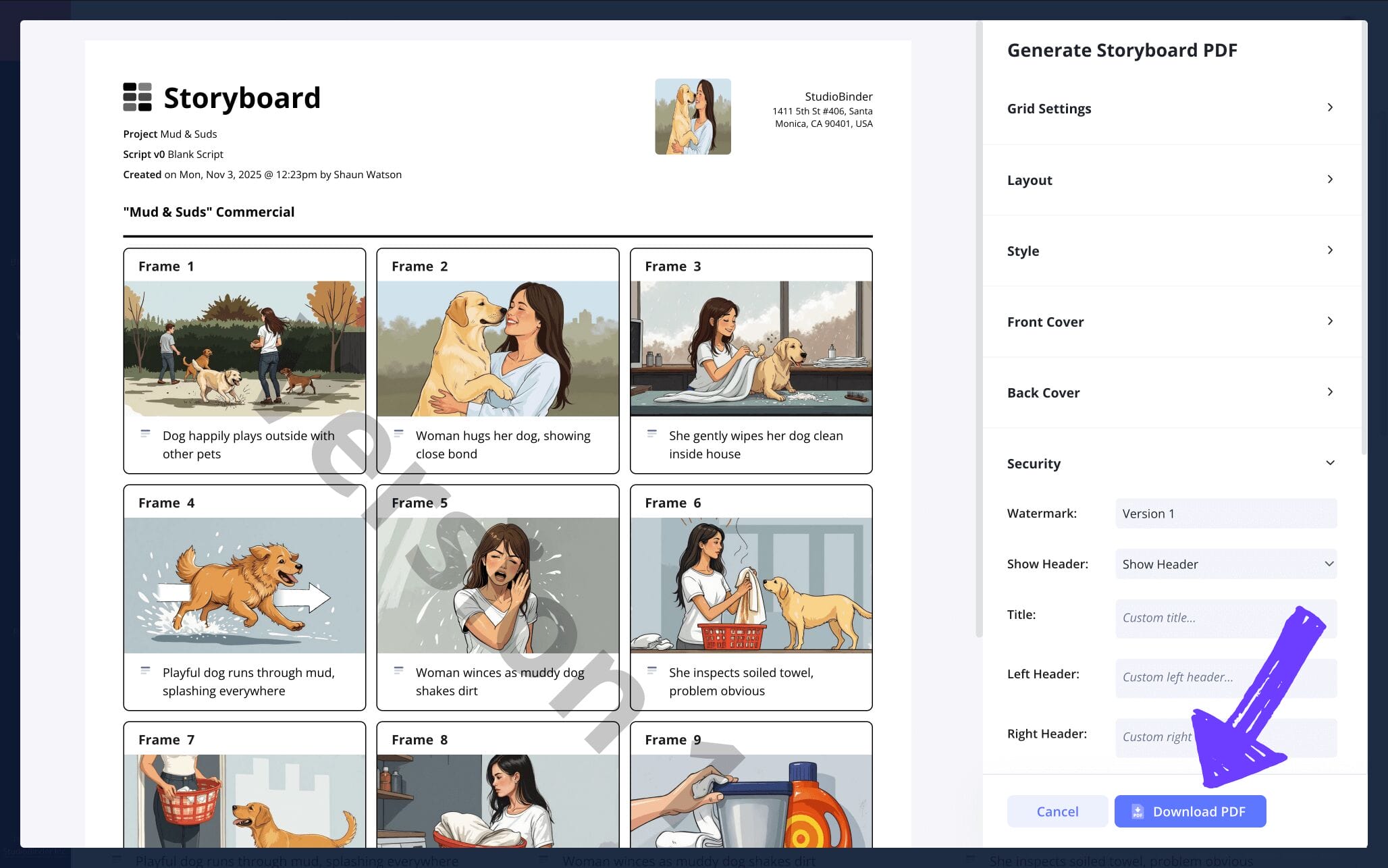
In StudioBinder, you can use your storyboard’s PDF editor to make detailed changes to your document, from the layout to style. As we wrap up our own storyboard project and prepare to share it with the rest of our advertising team, we’re going to add a watermark to every copy we print because you can never be too careful with leaks!
Conclusion
Done!
So there you have it, all the essential steps for how to develop a storyboard! Of course, knowing how to construct a storyboard can only get you so far, maybe you want a little more detail for a specific type of project. In that case, check out all of StudioBinder’s free storyboard templates.
Frequently Asked Questions
Your questions, answered
To use powerpoint to develop a storyboard, you can either search for and download any of their pre-made storyboard templates that can be found online, or you can create your own template and work within the powerpoint app itself. Here are a handful of basic steps to go by if you’re working within the app:
- Use Powerpoint slides as your panels.
- Set your slides to 16:9.
- Apply layout zones to each slide for descriptions.
- Add online stock photos or draw your own and upload.
- Slide Notes can be used for longer descriptions.
- Export and save as a PDF.
The truth is, a storyboard can be built with or without a script, but more often than not, there is a script, or at least a written outline of story beats/ideas. If you choose to build your storyboard without a script, this may be because you have a knack for mental visualization, because you’re seeing the camera angles and character placement in your head as you develop the story. In other words, you’re skipping the middle man. If you’re going the traditional route and using your script to develop your storyboard, then you only have to focus on pacing and shot angles, because your entire narrative is all set, you just have to visualize it now.
For first time storyboarders, we’ve found that the image creating process tends to contain the greatest amount of mistakes. This is because storyboarding tends to attract talented illustrators, which in turn can result in attempting to create a well-made piece of art within each frame, rather than just communicating the need-to-know information visually. As crazy as it sounds, sometimes your own talent can distract you! We also found that indicating action through motion in an image tends to be a common challenge. This is mainly because there’s a fine line between a movement like running and a movement like walking, and not spending too much time on sketching an image, while also highlighting these essential details can be a tough groove to get into.
Finding the best program to storyboard with comes down to how much you’re willing to pay. Just like any product, bigger bucks will provide you with better reliability and features. However, storyboarding is a straightforward process that can be done with just a ruler and pencil, or even any free storyboard templates online, so there’s no need to stress over bells and whistles. All that said, our personal favorite storyboard platforms are: StudioBinder (yes, we are tooting our own horn), storyboarder, Canva, PowerPoint, Google Slides, and Photoshop.
Develop your free storyboard
Develop a storyboard with our free template.
Get started for free
